Let’s face it: most of your viewers are doom-scrolling through videos with the volume on low or completely off. If your content doesn't have text on the screen, you’re basically invisible to the commuter on the train or the person hiding in the back of a boring meeting. That is exactly why a reliable AI subtitle tool is a non-negotiable part of the creator stack today.
It isn't just about accessibility.
It’s about stopping the scroll. We’ve all seen those messy auto-captions that turn a serious point into a joke, so we dug through the options to find AI subtitles that actually respect your accuracy needs. You need tools that boost engagement without forcing you to manually type out every single syllable.
After testing out and using the top-rated websites for AI subtitles for YouTube and social media, here are the best of the best:
- HappyScribe - Top Pick
- Veed
- Canva subtitle tool
- Capcut
- Tactiq
- Descript
- Subtitle Bee
- Kapwing
- Rev
- Adobe Premier Pro Auto Captions
What is a subtitle?
A subtitle is basically just the text version of your video's dialogue tacked onto the bottom of the screen. It’s the tool that lets you follow the plot of a foreign film or catch up on social media trends while you are pretending to work in a quiet office.
What’s the difference between a subtitle and a caption?
People mix subtitles up with captions constantly, but the distinction is actually pretty sharp. If you’re trying to explain what is a subtitle versus a caption, just check the sound effects.
Subtitles assume you can hear the music and background noise, so they strictly stick to the speech. Captions are designed for the Deaf and hard-of-hearing, so they have to describe the [eerie silence] or [loud explosion] to paint the full picture.
You also have the eternal sub vs dub war.
Dubbing erases the original actor’s voice for a localized recording that usually looks like a ventriloquist act. Subtitles are almost always better because they keep the original emotion intact.
The only real downside is that manually typing timestamps is a soul-crushing task, which is why AI subtitles have become the standard for creators who want the engagement without the burnout.
Best AI Subtitle Websites In 2026
We didn't just pick these names out of a hat. To find the top AI subtitle websites for this year, we ran the same chaotic viral clips and mumbled interviews through every major platform to see which ones actually survived. We judged them on the features that make or break a creator's workflow:
- Accuracy: If the AI thinks "marketing" is "martian," it’s useless. We prioritized engines that understand context, slang, and fast talking so you aren't spending your entire evening fixing embarrassing typos manually.
- Languages: Your content shouldn't stop at the border. We looked for AI subtitles that handle dozens of languages and dialects, ensuring your video makes sense whether the viewer is scrolling in Tokyo, Toronto, or Toledo.
- Speed: Viral trends die fast, and you don't have time to wait for a render. The best tools process video in minutes, not hours, so you can jump on a trend while it’s still hot.
- Integration with YouTube and socials: A text file stuck on your desktop is annoying. We favored platforms that sync directly with YouTube or export "burned-in" video files that are ready to upload immediately to TikTok and Instagram.
Here are the top 10 AI subtitle websites that actually earned their spot on our list for 2026.
1. HappyScribe
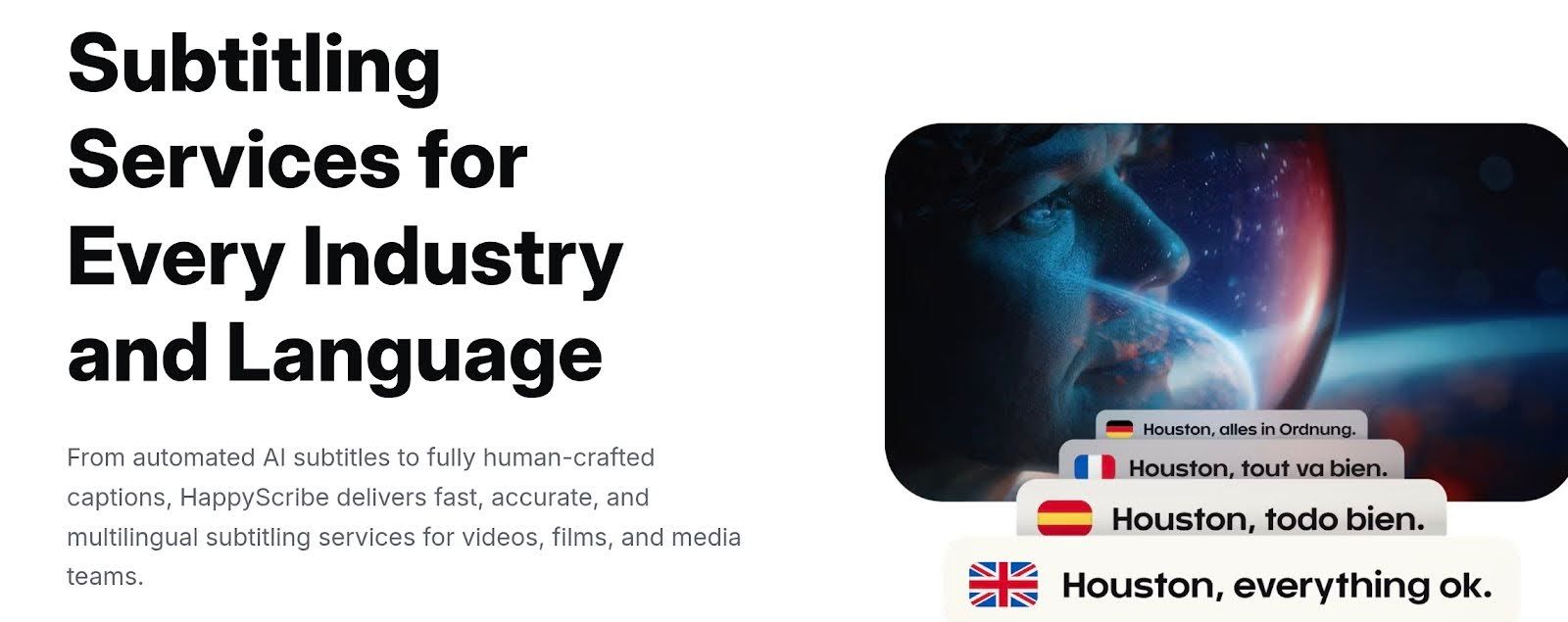
HappyScribe is the subtitle generator for you if you’re done playing around with glitchy free apps while getting just bare minimum. Happyscribe lives in your browser, so you aren't clogging your hard drive with heavy software.
The thing that got me is that its AI doesn't just listen.
It analyzes sentence structure and context, meaning your captions actually have correct punctuation instead of looking like a run-on mess. Plus, it handles over 150 languages and lets you "burn" stylish subtitles directly into your video, making it the most reliable workhorse for getting high-quality content onto YouTube and reels fast.
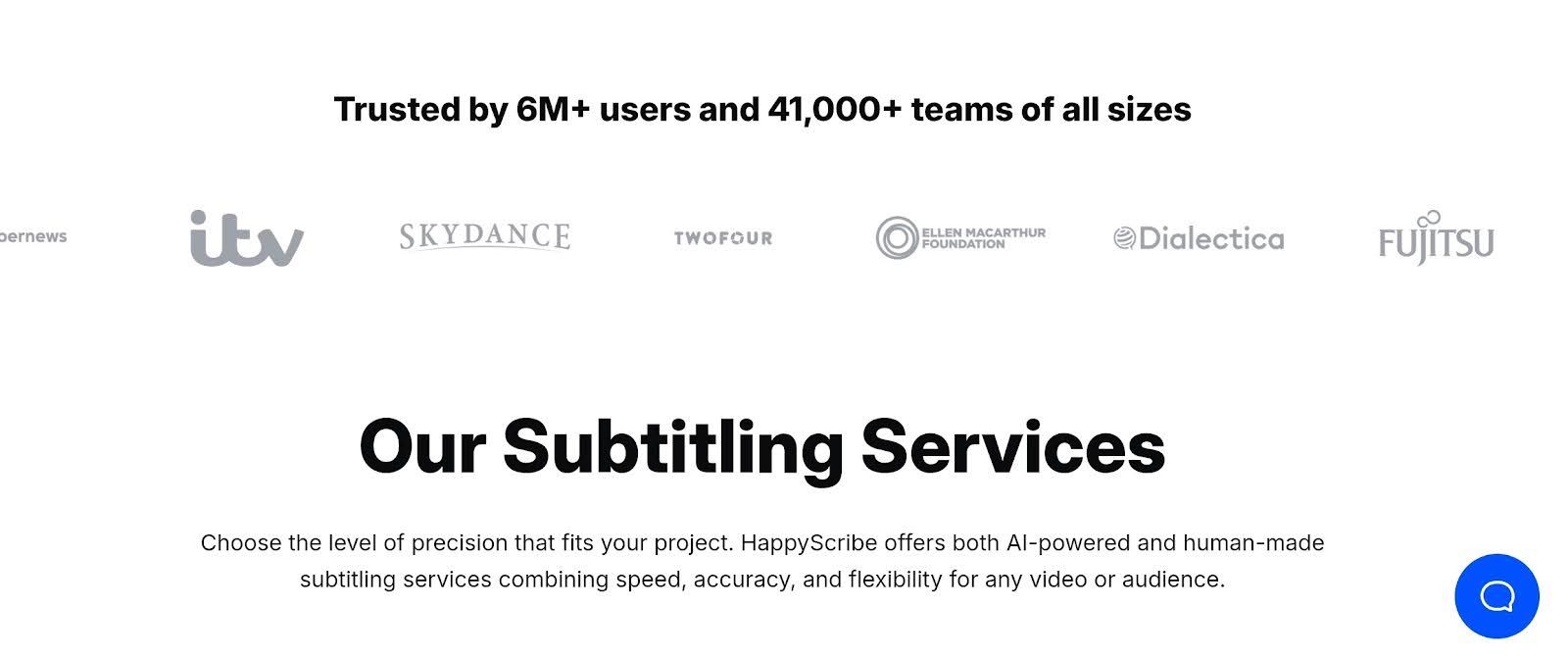
Let me just say that it’s also very intuitive and easy to use with almost no learning curve.
Key Features:
- Gen 2 AI subtitling model
- 150+ languages and dialects
- Custom glossaries for niche terms
- Smart speaker diarization
- Visual subtitle customization
- Hardcode (burn-in) export
- Interactive subtitle editor
- Automatic translation
- Frame-accurate timing
- Direct YouTube integration
- High-accuracy Gen 2 AI model
- Extensive support for over 150 languages
- Advanced visual customization for branding
- Browser-based with no installation needed
- User-friendly interactive timeline editor
- Impressive speaker identification
- Direct "burned-in" video export for social media
- Seamless YouTube integration
- Automatic translation features
Cons:
- Requires stable internet connection
- Free plan exports have watermarks
2. Veed
With Veed, I was able to slice up footage, add those trendy "karaoke-style" AI auto captions, and throw in a progress bar all in the same window. Veed actually prioritizes visual flair and speed over perfect transcript precision, making it the go-to for creators chasing the next viral trend.
Key Features:
- One-click AI subtitles
- Full browser-based video editor
- 100+ supported languages
- Animated subtitle styles (Karaoke, etc.)
- AI Magic Cut for social clips
- Auto-translation
- Eye contact correction
- Audio noise removal
- Stock media library
- Social media resizing
Pros:
- All-in-one browser video editor
- Trendy "karaoke" style animations
- Huge library of stock templates
- Simple drag-and-drop interface
- Instant social media resizing
- One-click subtitle translation
- No software installation required
Cons:
- Severe lag with longer 4K files
- Expensive compared to standalone tools
- Free plan has a massive watermark
3. Canva Subtitle Tool
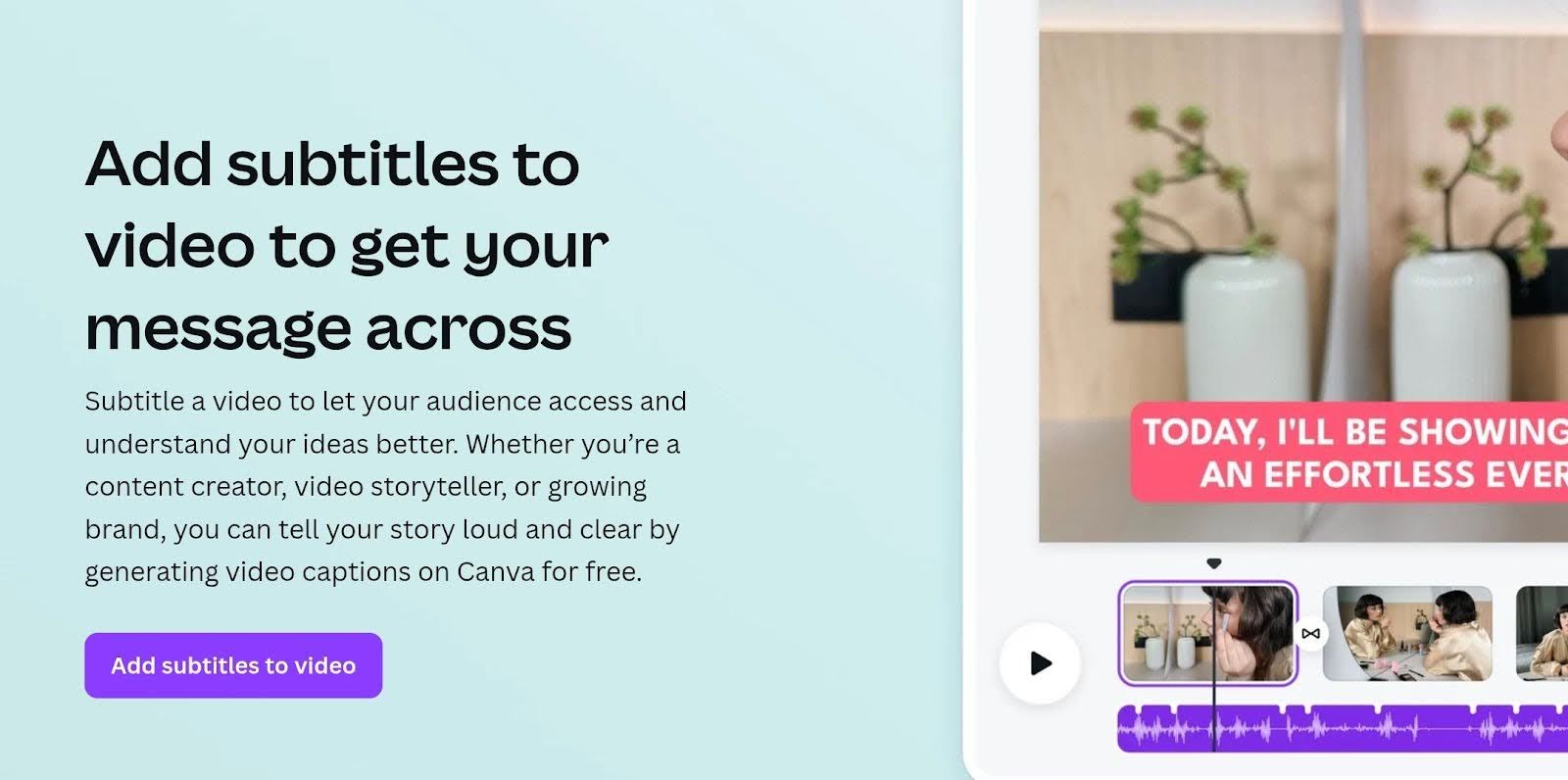
Most of us already practically live in Canva for graphics, so using it for video text just feels natural. It works surprisingly well as a snapchat caption maker, letting you drag and drop those trendy, colorful captions right onto your clips.
Want your posts and reels to look extra polished? You’ll get that polished influencer look without ever leaving the dashboard you already know.
Key Features:
- One-click auto captions
- Magic Switch for instant resizing and translation
- Manual text and timestamp editing
- Drag-and-drop text overlays
- Social media aspect ratio presets
- Stock video and audio library access
- Burned-in subtitles for immediate posting
4. CapCut
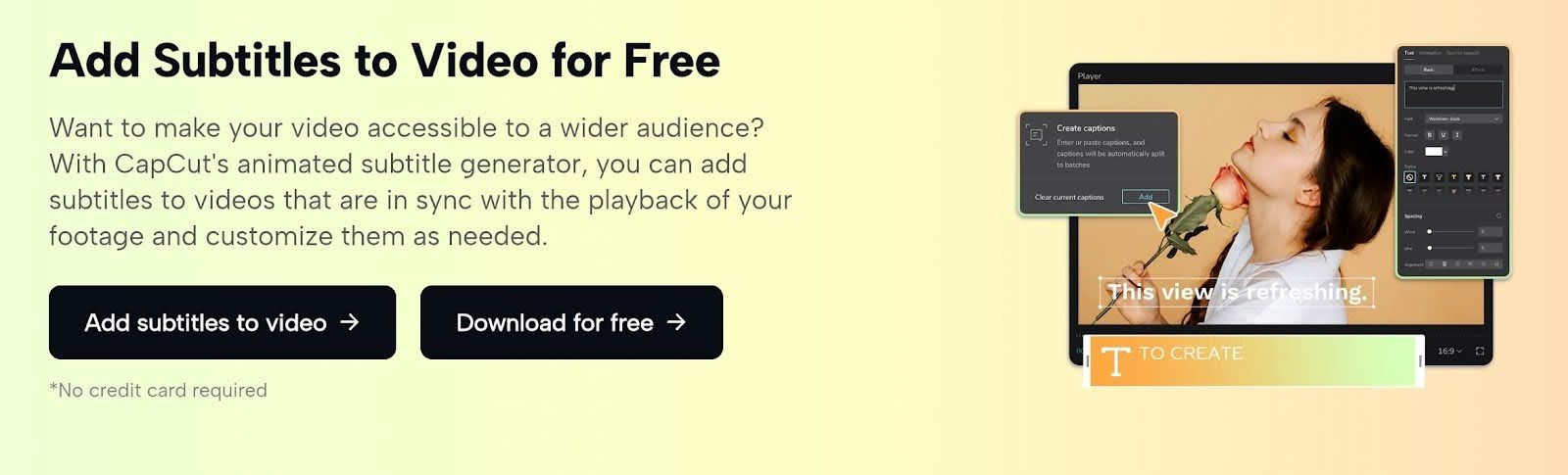
CapCut is the mobile editing king for a reason. While it’s primarily known as the TikTok editor’s secret weapon, its desktop version is a surprisingly robust subtitle generator for quick social cuts. If you need to add subtitles to video clips without ever touching a "real" timeline, its AI video captions are fast, accurate enough for trends, and genuinely fun to style with effects that pop off the screen.
- One-click auto captions
- Auto translation
- SRT and TXT file export
- Manual subtitle editing
- Custom fonts and text styles
- Auto lyrics generation
- Filler word identification
- Cross-platform synchronization
- Direct TikTok integration
Pros:
- All-in-one free editor
- Viral, animated text styles
- Direct TikTok uploads
- Mobile and desktop apps
- Easy "burned-in" subtitle styling
Cons:
- Accuracy drops with background noise
- Limited export options for subtitle files
- Desktop version lags with heavy files
- Can be a bit pricey
5. Tactiq
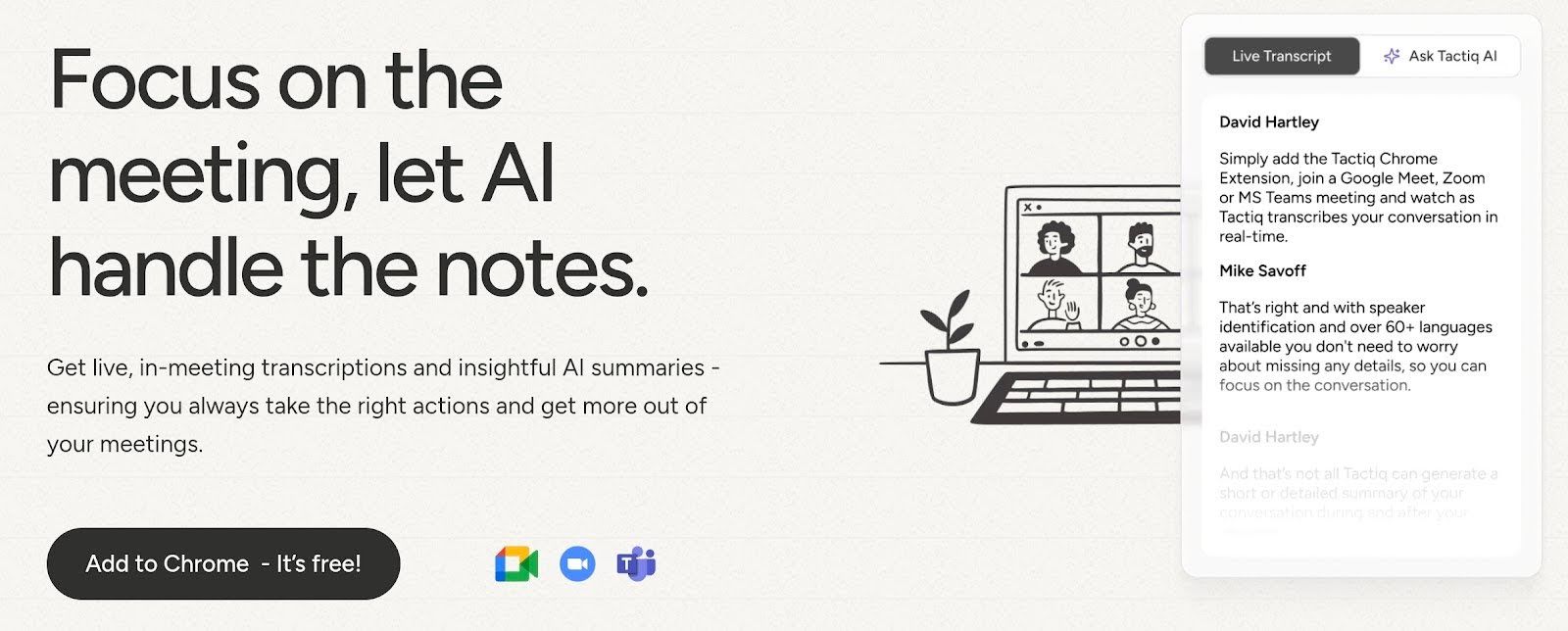
Most people pigeonhole Tactiq as a plain meeting tool, but I actually use it as a sneaky workaround to grab scripts from YouTube. It sits in your browser, letting the caption AI scrape dialogue in real-time while you watch.
This is easily the fastest method to handle a subtitles download without messing with sketchy converter sites. You can download subtitles instantly, giving you the raw text you need before figuring out how to add subtitles to video editors later.
Key Features:
- YouTube transcript generator
- Real-time caption AI
- Subtitle download options (TXT, PDF)
- Speaker identification
- Live translation in 30+ languages
- AI summary and action items
- One-click transcript saving
- Browser extension workflow
Pros:
- Instant YouTube transcript scraping
- Real-time speaker detection
- Lightweight browser extension
- Generates summaries automatically
- Direct export to Google Docs
- No heavy software installation
Cons:
- Cannot "burn" subtitles into video
- No video editing capabilities
- Text formatting often needs cleanup
6. Descript
Descript basically treats your video footage like a Word document. You edit the AI subtitles to actually cut the clip, which honestly feels a bit like cheating. It’s technically a full editor, but I use it constantly as a dedicated closed captioning software because the workflow is just so fast.
If you need a video caption app that lets you fix typos and trim silence in the same breath, this is it. Plus, the free plan makes it a surprisingly capable free caption generator for casual creators who want to test the waters.
Key Features:
- Text-based video editing
- Studio Sound background noise removal
- Overdub AI voice cloning
- Automatic transcription in 25+ languages
- SRT and VTT subtitle exports
- Hardcoded (burned-in) captions
- Collaborative cloud-based workflows
Pros:
- Revolutionary text-based video editing workflow
- "Studio Sound" tool for instant audio cleanup
- One-click filler word removal
- Dynamic, animated caption templates
- Direct export to YouTube and social platforms
- Collaborative cloud workspace
Cons:
- Steep learning curve just for simple captioning
- Subtitle styling is less flexible than dedicated tools
- Heavy software that lags on slower computers
7. Subtitle Bee
SubtitleBee is basically the "set it and forget it" option if you want to look polished without trying too hard.
It acts as a reliable subtitle generator that auto-captions your videos with surprisingly high accuracy. You can even use it for a quick subtitles download if you need the raw file. It’s a solid caption AI tool, but heads up: the interface feels a bit dated compared to the flashier apps, and the free tier is pretty restrictive on video length.
Key Features:
- Automatic AI subtitle generation
- Translation into 150+ languages
- Customizable fonts, colors, and styles
- Video progress bar addition
- Custom logo upload for branding
- Burned-in subtitles export
- Export as SRT, VTT, ASS, or TXT
Pros:
- Instant global translation (150+ languages)
- Unique "Supertitles" headline feature
- Custom logo upload for branding
- Pre-set social media aspect ratios
- Built-in video progress bars
- Strong data privacy policies
Cons:
- Restrictive free plan (short videos only)
- Dated, clunky user interface
- Occasional preview player lag
- Watermarks on free exports
8. Kapwing
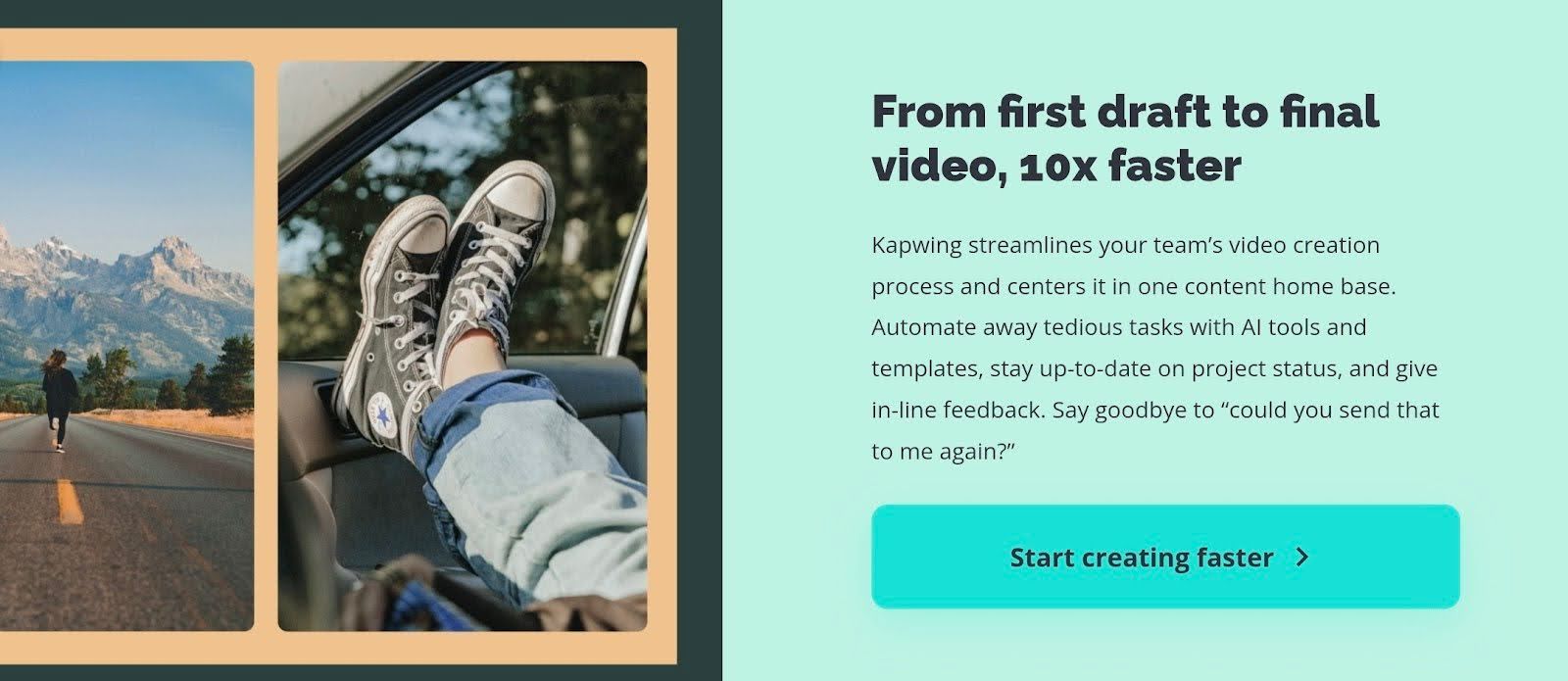
After using Kapwing, I can say that this tool feels like the Google Docs of video editing. It lives entirely in the cloud, making it a killer video caption app for teams who need to jump into the same project simultaneously.
It shines as a quick caption generator app for churning out memes and social clips, but keep in mind that the free version is pretty aggressive with watermarks. You will likely need to upgrade if you want your final export to look professional.
Key Features:
- Collaborative cloud editing
- AI-powered auto subtitles
- "Smart Cut" to remove silences
- Meme generator templates
- Text-to-speech audio
- Video resizer for social platforms
- Direct export to social media
- Screen recorder
Pros:
- Real-time collaboration for teams
- Excellent for making memes and GIFs
- No software installation needed
- Easy subtitle styling and positioning
- "Smart Cut" saves editing time
Cons:
- Free version leaves a watermark
- Can get buggy with large files
- Export times can be slow on the free tier
9. Rev
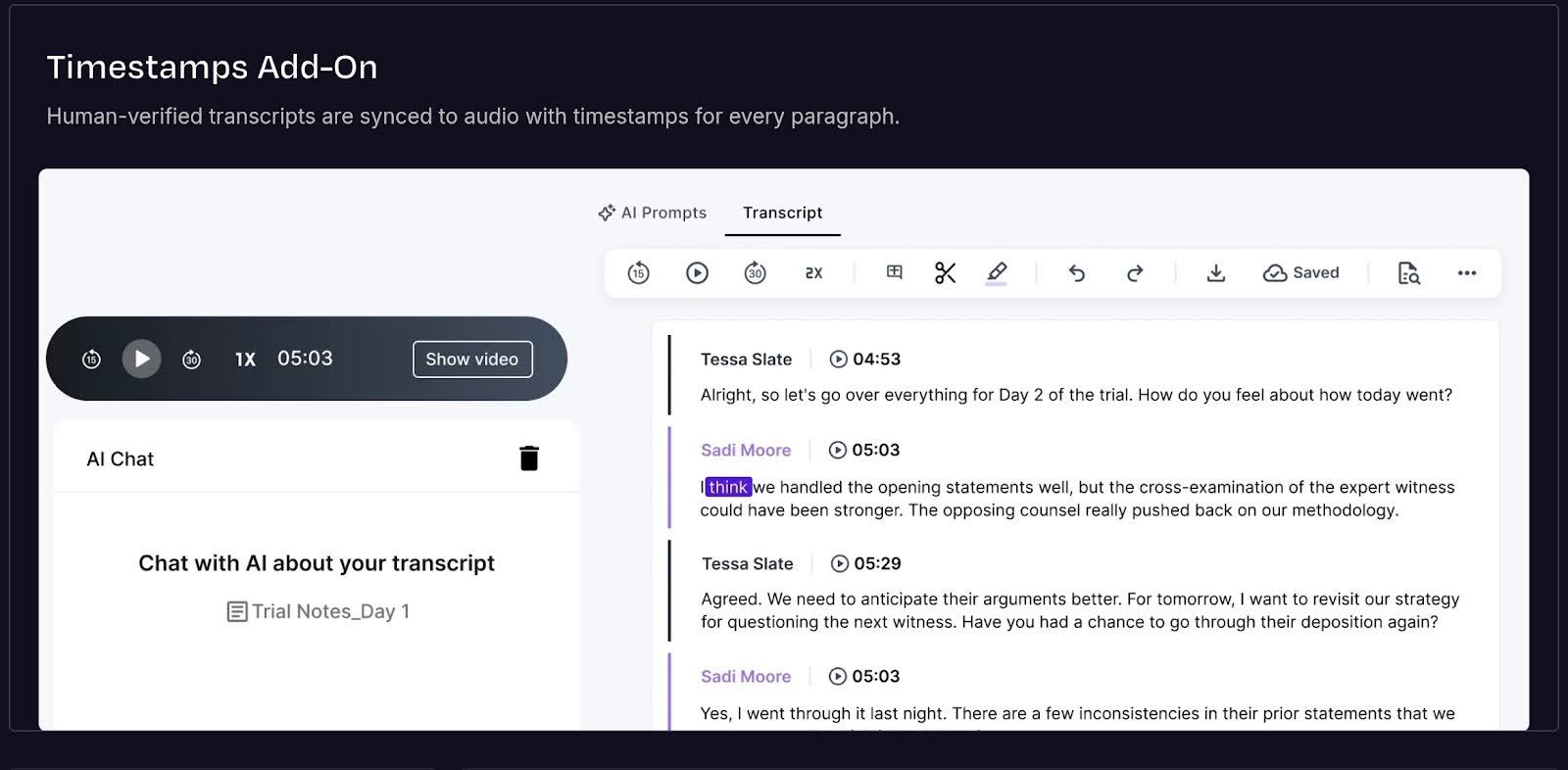
While most tools rely solely on AI, Rev is famous for its human-powered accuracy. If you absolutely cannot afford a single typo, their premium subtitling services are the gold standard.
They also offer an AI-generated option which is surprisingly sharp, but the real power move here is the ability to seamlessly switch between robot speed and human precision when the stakes are high.
Key Features:
- Fast automated AI captions
- Foreign subtitles in 15+ languages
- Interactive transcript editor
- Burned-in captions for video
- Integration with YouTube and Vimeo
- Strict privacy and security compliance
- Collaborative team workspace
Pros:
- Excellent interactive editor
- Trusted by major media companies
- Seamless YouTube integration
Cons:
- Human services can get pricey quickly
- The AI engine isn't as customizable visually as others
10. Adobe Premiere Pro Auto Captions
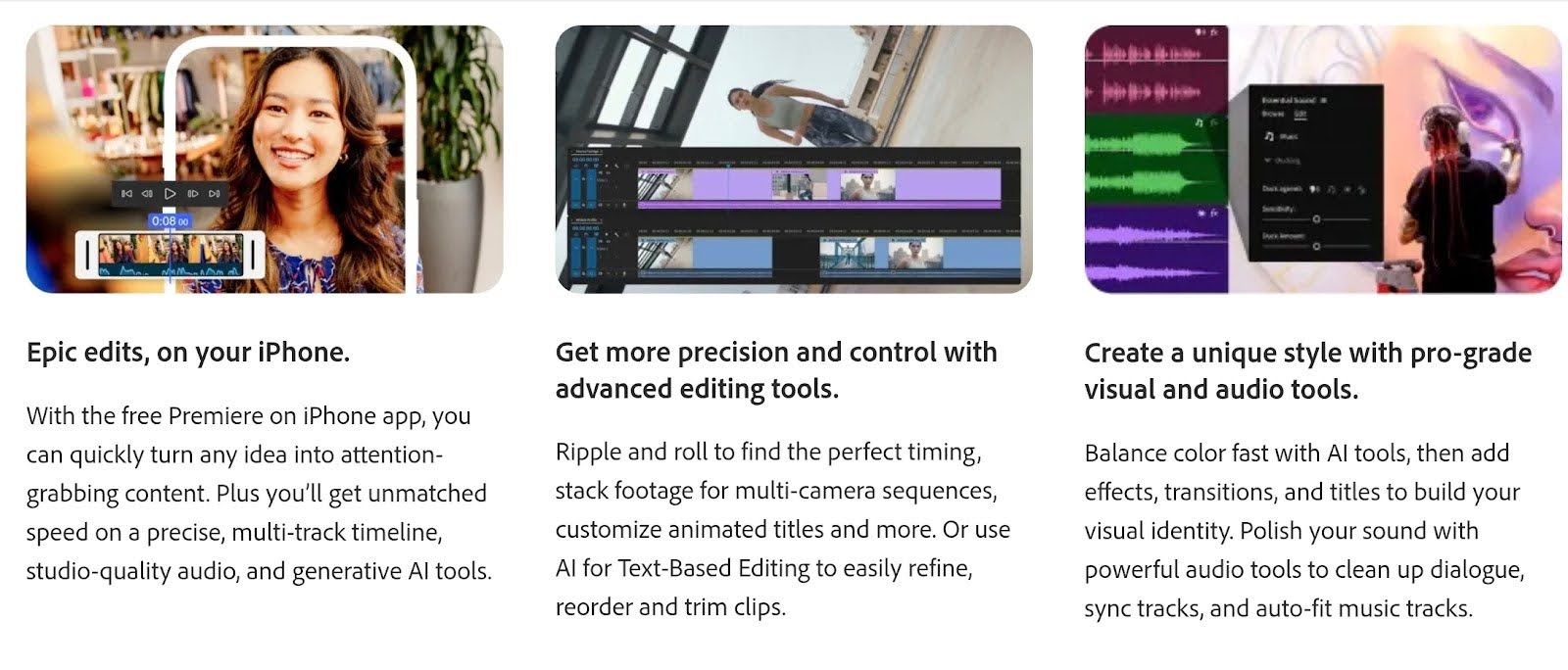
If you’re already deep in the Creative Cloud ecosystem, Premiere Pro is the obvious choice. It isn't just a video editor; it’s a heavyweight video caption app integrated directly into your timeline. For professionals, the "Text-Based Editing" feature is a dream, letting you cut footage by deleting words in the transcript.
However, it’s definitely overkill if you just need quick social clips. It’s a powerful closed captioning software, but be warned: the AI accuracy on punctuation can be finicky at times, and it feels like flying a spaceship just to go to the grocery store.
Key Features:
- Text-Based Editing (edit video by deleting text)
- Integrated Speech-to-Text workspace
- Fully customizable Essential Graphics panel
- Automatic speaker separation
- 18+ supported languages
- Export to SRT, VTT, and TXT
- Burn-in (open) captions
- Auto-reframe for social ratios
- Offline transcription capabilities
Pros:
- Professional-grade typography control
- Fast text-based editing workflow
- Included with Creative Cloud subscription
- Seamless integration with After Effects
- Offline transcription capability
Cons:
- Overkill for quick social clips
- Steep learning curve for beginners
- Requires a powerful computer
- Lacks pre-made viral text animations
- Expensive standalone subscription
How To Add AI Subtitles To Video
Adding captions used to be a tedious manual process that ate up hours of production time. Now, mastering how to add subtitles to a video takes just a few clicks, instantly making your content accessible to the millions of people watching on mute.
1. Upload
Just grab your MP4 or MOV file and drag it into the browser window. You generally don't need to worry about codecs or formats. If you can attach a file to an email, you can handle this part.
2. Generate
Hit the "Transcribe" or "Auto Subtitles" button and let the machine do the heavy lifting. The AI will listen to your audio and add subtitles to video scenes automatically, usually finishing before you even have a chance to switch tabs.
3. Edit
Bots are smart, but they still get confused by slang or your guest's mumbling. Scroll through the text to catch weird typos and drag the timestamp handles if a line pops up a split-second too early.
4. Export
Now you have a choice. You can "burn" the text permanently into the pixels (essential for TikTok styling) or download a separate .SRT file if you want flexible closed captions for YouTube.
5. Upload to Platform
Take your finished file and get it live. Since the captions are already baked in, you don't have to cross your fingers and hope Instagram’s glitchy auto-stickers actually understood you.
Best Free Caption Generator Tools
If your budget is currently $0, you still have some surprisingly solid options to get those captions without typing them manually.
- HappyScribe: Generous enough to let you test the auto subtitle generator on short clips. It’s perfect for seeing the AI accuracy firsthand before committing to a paid plan.
- CapCut (Free Version): A mobile powerhouse that acts as a fantastic free captiongenerator for TikToks and Reels. It puts watermarks on some features, but the auto-captions are generally free to use.
- Canva (Free): Great for adding stylish text overlays to social posts. The free tier has some limitations on AI usage, but it’s a lifesaver for quick graphics.
- YouTube Auto Captions: The OG of free tools. You can upload your video to YouTube privately, let their system generate the captions, and then edit them in YouTube Studio. It’s clunky but completely free.
- Tactiq (Free): Excellent for grabbing transcripts from live streams or meetings. The free browser extension lets you capture text in real-time without spending a dime.
Subtitles Download and Caption Files
Once the AI finishes its magic, you need to get that text out of the editor and onto your platform. Mastering the subtitles download process basically comes down to choosing between two main file types:
- .SRT (SubRip): This is the universal standard. Basically, SRT is just a plain text file with timestamps. It works on practically everything, from YouTube and Facebook to VLC player.
- .VTT (WebVTT): Think of this as the smarter cousin of SRT. It handles text styling and positioning better, making it the preferred choice for HTML5 web players.
How to Use Them on YouTube
Never trust YouTube's auto-generated captions. They are usually full of embarrassing errors.
- Go to YouTube Studio.
- Click on the Subtitles tab.
- Select Upload file and grab your clean SRT.
This manually overrides their glitchy attempt, ensuring your download subtitles file displays perfectly accurate text. Plus, it gives you a massive SEO boost since Google can now index every word you said correctly.
AI Subtitles vs AI Captions
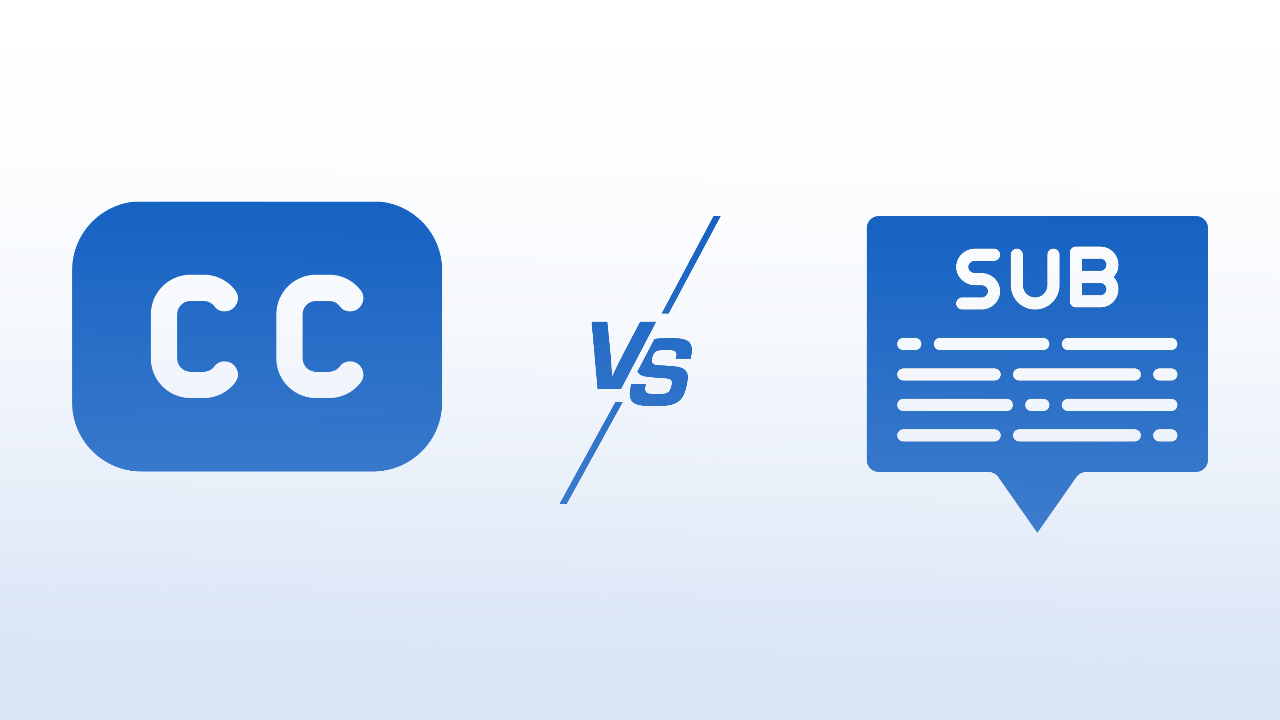
Let's clear this up because people mix these up constantly, but they serve two completely different masters.
AI Auto Captions are strictly about accessibility. They assume the viewer cannot hear anything at all. A proper caption AI tool won't just transcribe the dialogue; it tags the context, like [upbeat jazz] or [awkward silence]. You use these for YouTube or Netflix to ensure you are fully inclusive for the Deaf community.
AI Video Captions are the engagement hackers. You see these on TikTok, those bold, flashy words popping up to match the beat. They assume the viewer could turn the sound on, but they're doom-scrolling on a silent bus. These AI video captions don't care about sound effects; they only care about stopping the thumb.
Basically: Use AI auto captions (SRT files) for your long-form content. Use stylish, burned-in video captions for your fast-paced socials.
Final Thoughts
If you aren't putting text on your videos in 2026, you’re essentially whispering in a crowded room. Subtitles aren’t just an accessibility feature now. They’re now the difference between a viral video and one that gets forgotten with 12 views.
If you want people to pause to watch your content even in a silent phone screen, make sure you get the best AI subtitle tool for your YouTube videos and other social media.
I tested every tool on this list, and while Notta wins on pure speed and CapCut dominates for viral trends, HappyScribe is the one that feels like a professional production partner minus the confusing learning curve.
It takes the top spot because its Gen 2 engine actually understands how people speak. It doesn't just transcribe words. It gets the punctuation and sentence breaks right, which saves you from fixing a hundred tiny errors manually.
Now, that’s a few coins more for you with the time you’re saving.
Being able to burn styled, custom text directly into your video makes it the most reliable choice for growing a channel.
Stop typing out timestamps yourself and let the tool handle the retitive part so you can get back to creating.

André Bastié
Hello! I'm André Bastié, the passionate CEO of HappyScribe, a leading transcription service provider that has revolutionized the way people access and interact with audio and video content. My commitment to developing innovative technology and user-friendly solutions has made HappyScribe a trusted partner for transcription and subtitling needs.
With extensive experience in the field, I've dedicated myself to creating a platform that is accurate, efficient, and accessible for a wide range of users. By incorporating artificial intelligence and natural language processing, I've developed a platform that delivers exceptional transcription accuracy while remaining cost-effective and time-efficient.