Veed provides fast, browser-based tools for recording, captioning, editing, and publishing, making it ideal for everyday video projects.
As you work with more formats: meetings, interviews, screen recordings, tutorials, the way you approach your content naturally changes with each type.
You feel that shift the moment your content leans strongly toward one side. The tools that help with spoken content rarely match what you need for production work, and the reverse is also true.
This guide separates those directions so you can choose a platform built for the exact type of video work you handle most.
TL;DR
- VEED excels at quick edits, but transcript-heavy projects work better with dedicated transcription tools.
- For spoken content, tools like HappyScribe, Trint, and Otter give you cleaner text, stronger timing, and better language handling.
- For visuals, CapCut, Clipchamp, and InVideo move faster because they’re built around tighter editing workflows.
- If your work leans on subtitles or multilingual accuracy, HappyScribe delivers a level of control that VEED’s caption tools can’t match.
Why People Look Beyond Veed.io
Veed handles quick edits well, but certain tasks expose gaps that matter when you rely on the platform every day. These gaps show up clearly in real projects:
- Shallow text editing: VEED can create transcripts, but the text editor is less flexible for long recordings or detailed corrections compared to transcription-first platforms.
- Unstable on long files: Occasional glitches and inconsistencies while editing can disrupt workflow.
- Inconsistent AI results: Avatars, dubbing, background tools, and magic cuts work for basic tasks, but inconsistent output can be a problem when you need repeatable quality.
- Billing and subscription issues: Some users report unexpected charges or cancellations, which makes the platform feel less reliable for creators on tight budgets.
- Limited language accuracy: Because VEED is a general-purpose video editor, its subtitle accuracy can vary more than transcription-focused tools, especially for complex or technical content.
When your work depends on accurate text or multilingual subtitles, it makes sense to look at tools built for transcription first.
Alternatives to Veed.io for AI Transcription & Subtitles
Working with spoken content follows a different workflow from editing visuals. Here are the tools built for that:
1. HappyScribe
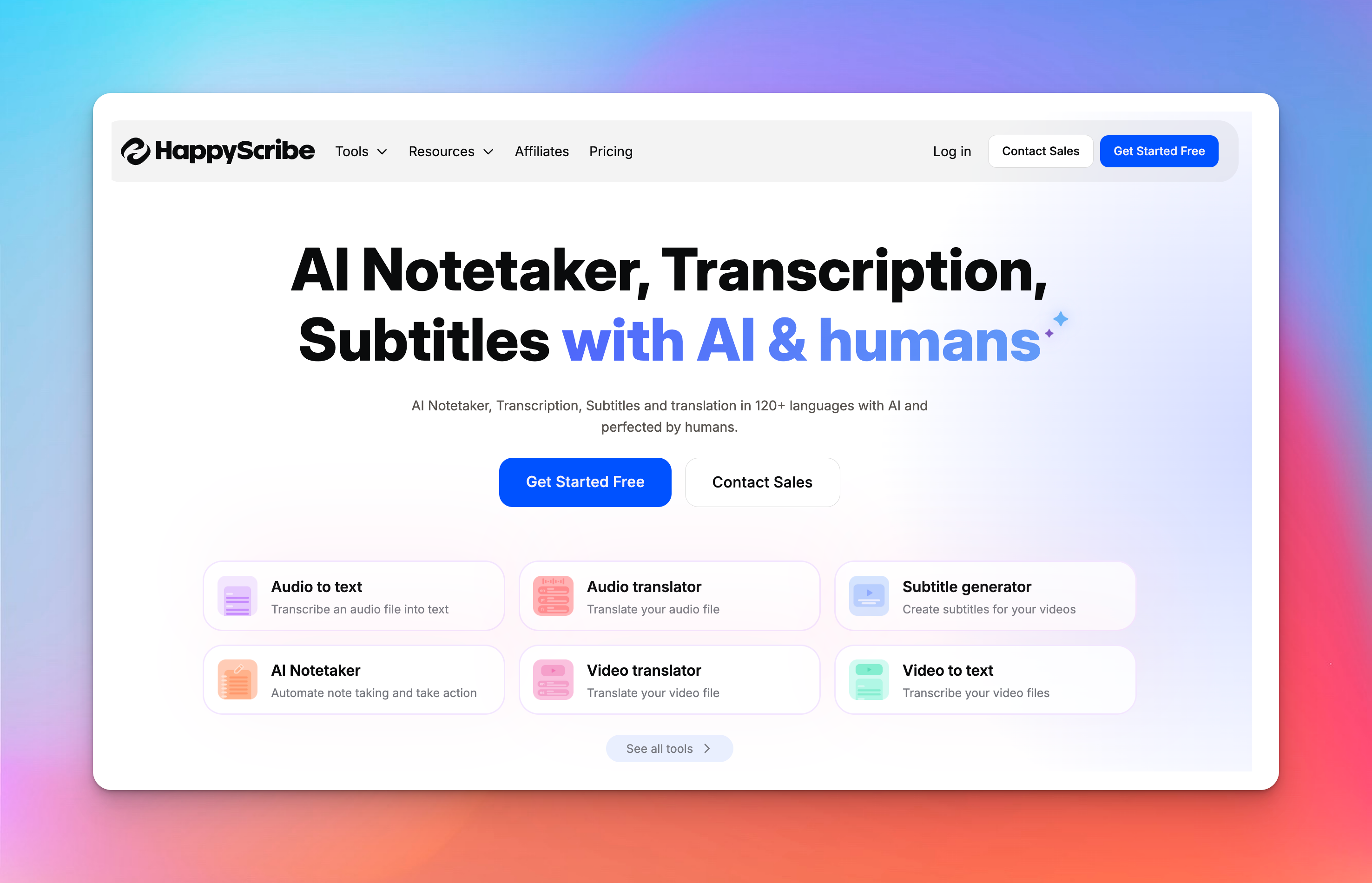
HappyScribe makes the most sense when you care about getting the words right before anything else. If you’re tired of fighting unclear audio, switching languages, or fixing captions that never quite line up, it gives you a clean space to turn spoken content into text you can trust.
Key Features:
- High-Accuracy Transcription: Use fast AI for drafts or opt for human transcription with ~99% accuracy in 60+ languages for critical content.
- Professional-grade subtitles: Fine-tune pacing, readability, and styling to meet SDH standards, and export as SRT, VTT, DOCX, or embed subtitles directly.
- Wide language support: Transcribe in 150+ languages, translate in 65+, and request human subtitle translation in 85+.
- Text-first workflow: Edit transcripts like a document, jump to any word in the audio, view speaker labels, and manage large projects with folders and team permissions.
- Multilingual meeting capture: An AI notetaker joins Zoom/Meet/Teams, transcribes in real time, provides summaries, and handles mixed-language conversations with optional browser recording.
- Enterprise-level security: GDPR-compliant, SOC 2 Type II, end-to-end encrypted, EU-based storage, with full control over workspace access and file deletion.
- Free utility tools: Access handy extras like a video trimmer, audio joiner, converter, subtitle editor, time-shifter, and online voice recorder for quick pre- or post-production tasks.
Let’s compare HappyScribe and Veed.io side by side
| Category | HappyScribe | Veed.io |
|---|---|---|
| Focus | Transcription, subtitles, translation | Video editing with basic transcription |
| Accuracy | 95% AI / ~99% human | Unverified; manual cleanup required |
| Languages | 120+ transcription; 65+ translation | 100+ languages for subtitles |
| Human services | ✅ Human transcription & subtitle translation | ❌ None |
| Subtitle control | CPS, CPL, SDH, full styling | Basic auto subtitles |
| Speaker labels | ✅ Automatic | Yes |
| Meeting notes | ✅ AI Notetaker (Zoom/Meet/Teams) | ❌ Not available |
| Collaboration | Workspaces, roles, permissions | Light collaboration inside the editor |
| Security | GDPR + SOC 2 Type II | GDPR + SOC 2 Type II |
| Exports | TXT, DOCX, PDF, SRT, VTT, CSV, MP4 | MP4 + basic subtitle files |
| Pricing | Pay-as-you-go ($12/hr) or plans from $9/month | From $24/mo |
Veed is faster for video edits, but its captions are less consistent than HappyScribe.
If you need transcripts, subtitles, or translations you can trust, HappyScribe is the clear choice: accurate, multilingual, and built for professional workflows.
2. Trint
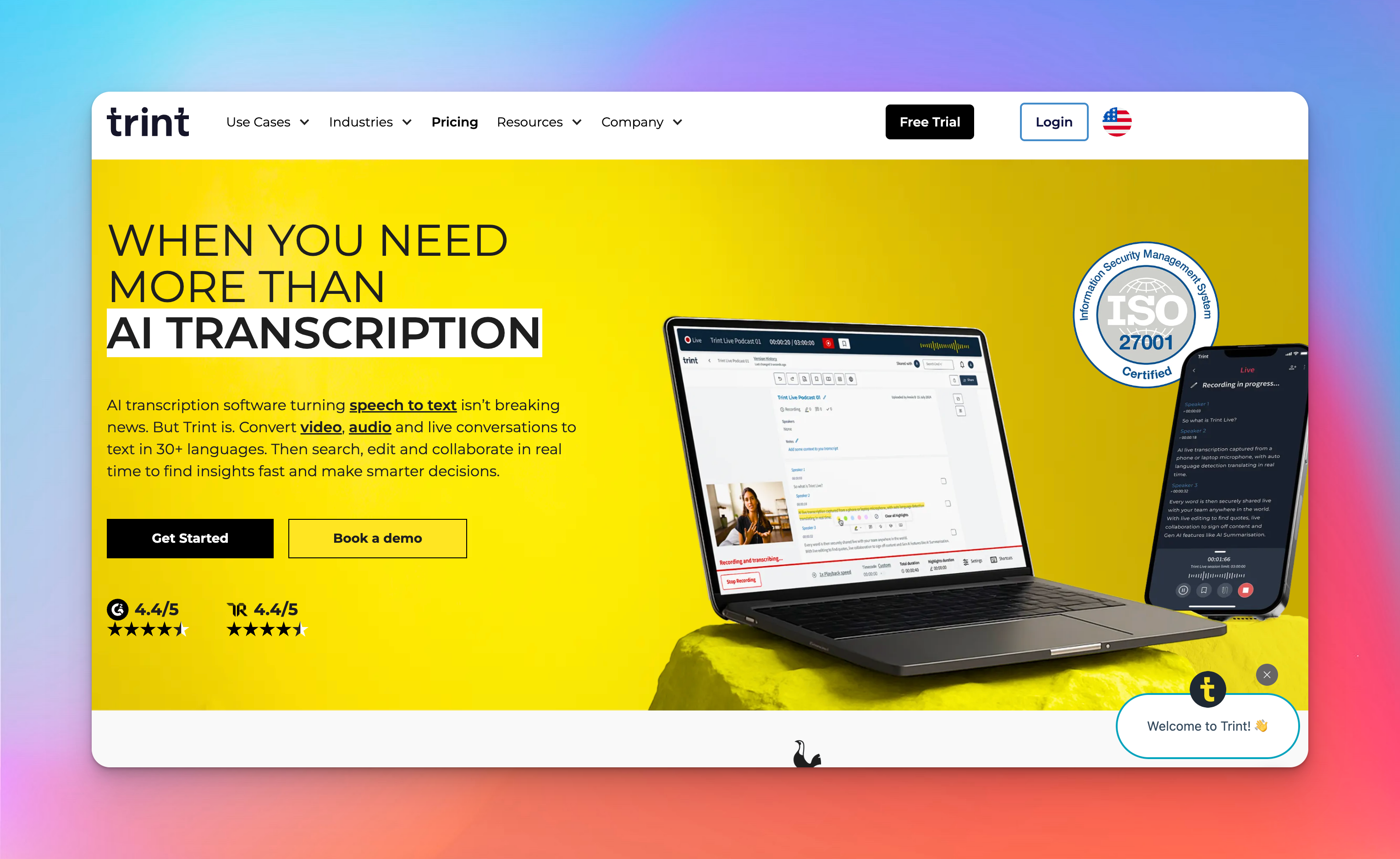
Trint is built for people who spend more time working with transcripts than generating them. Its value becomes clear when handling long interviews, multiple speakers, or multilingual recordings. You get a system that helps you find, organize, and use information quickly.
Key Features:
- Live multilingual transcription: Tracks conversations across language switches without pre-setting a language, ideal for global or mixed-language recordings.
- Search that matters: Jump to any phrase in long recordings instantly, saving more time than chasing marginal AI accuracy gains.
- Story Builder: Assemble and shape drafts directly in Trint instead of copying quotes externally, built for newsroom-style workflows.
- Real-time collaboration: Multiple users can edit the same transcript with permissions, avoiding file version chaos.
- Broadcast integrations: Connects to ENPS, Mimir, LiveU, and Octopus to streamline transcripts into existing production pipelines.
Pricing
- Starter: $80/seat/month
- Advanced: $100/seat/month
Trint isn’t the most accurate or affordable tool, but it’s one of the fastest ways for teams to turn long recordings into searchable, quotable material.
Keep in mind the limits: ‘unlimited’ isn’t truly unlimited, duplicate transcripts have caused billing confusion, and it’s not suitable for legal, medical, or precision-critical work.
It’s ideal for teams that value speed and structure, but less so for solo users seeking cheap, straightforward transcripts.
3. Riverside
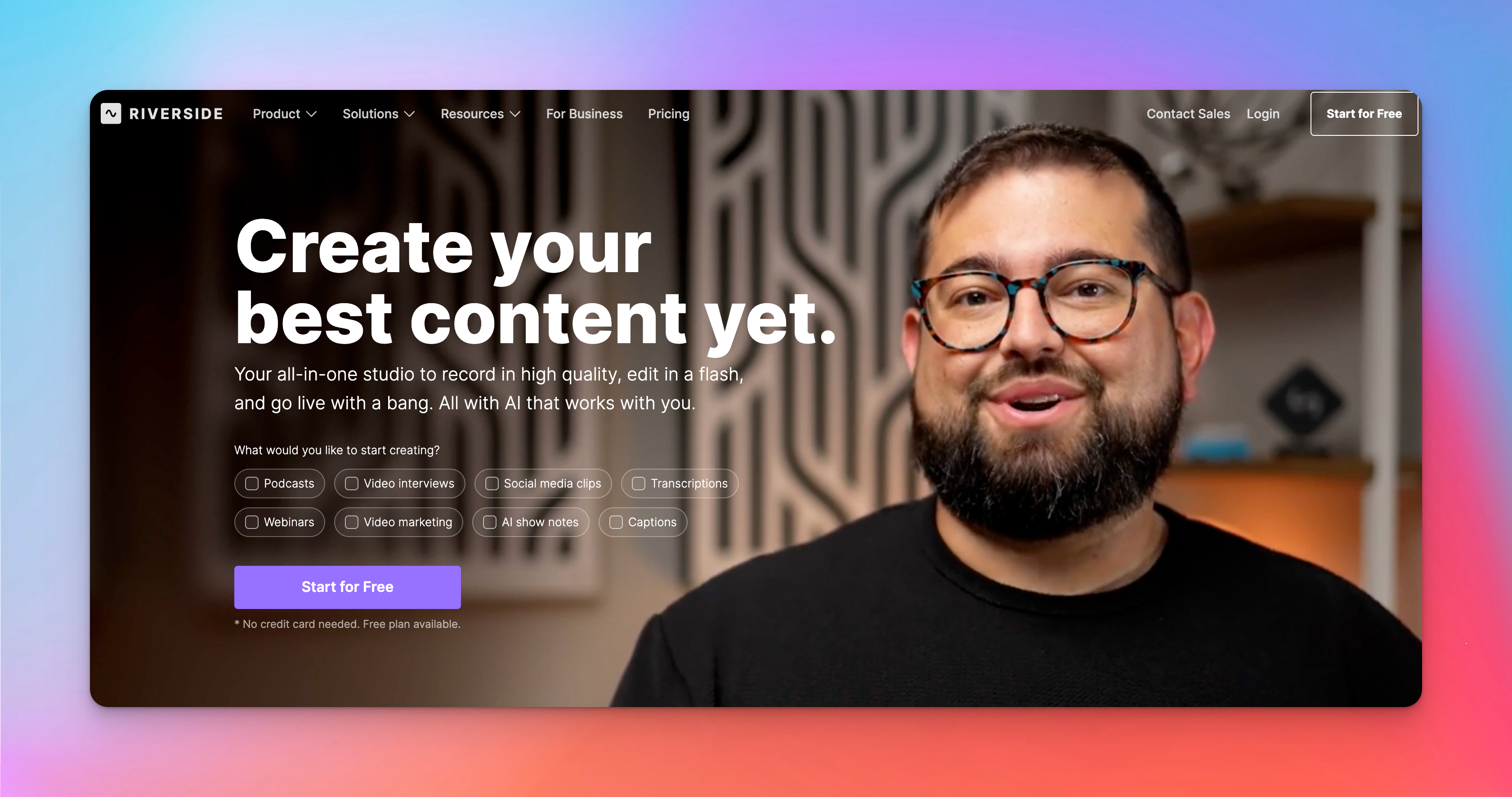
Riverside is built first to capture clean, reliable audio and video. Everything else - transcription, text-based editing, repurposing - sits on top of that. You get high-quality raw material, then fast tools to turn it into clips or finished content.
Key Features:
- Local, lossless recording: Each participant records directly on their device (up to 4K video / 48kHz audio), so calls stay crystal-clear even on bad Wi-Fi.
- Transcript-based editing: Trim your video by editing the transcript - delete text and the corresponding footage disappears automatically.
- Magic Audio cleanup: AI removes background noise, balances levels, and rescues otherwise unusable recordings.
- Captions, translations & Magic Clips: Captions and transcripts in 100+ languages; AI translation/dubbing in ~30 languages.
- Live & async recording: Multistream in 1080p to major platforms, or let guests record their parts asynchronously with guided on-screen instructions.
Pricing
- Free: $0
- Pro:$29/mo
- Live: $39/mo
- Webinar: $99/mo
If your content starts with recording (podcasts, interviews, webinars), Riverside gives you cleaner source files, better transcripts, and faster repurposing than most AI-only tools.
But if your workflow is simply “upload file → get subtitles,” it’s unnecessary overhead.
Use it when recording quality and repurposing matter, not when transcription is the whole job.
4. Otter.ai
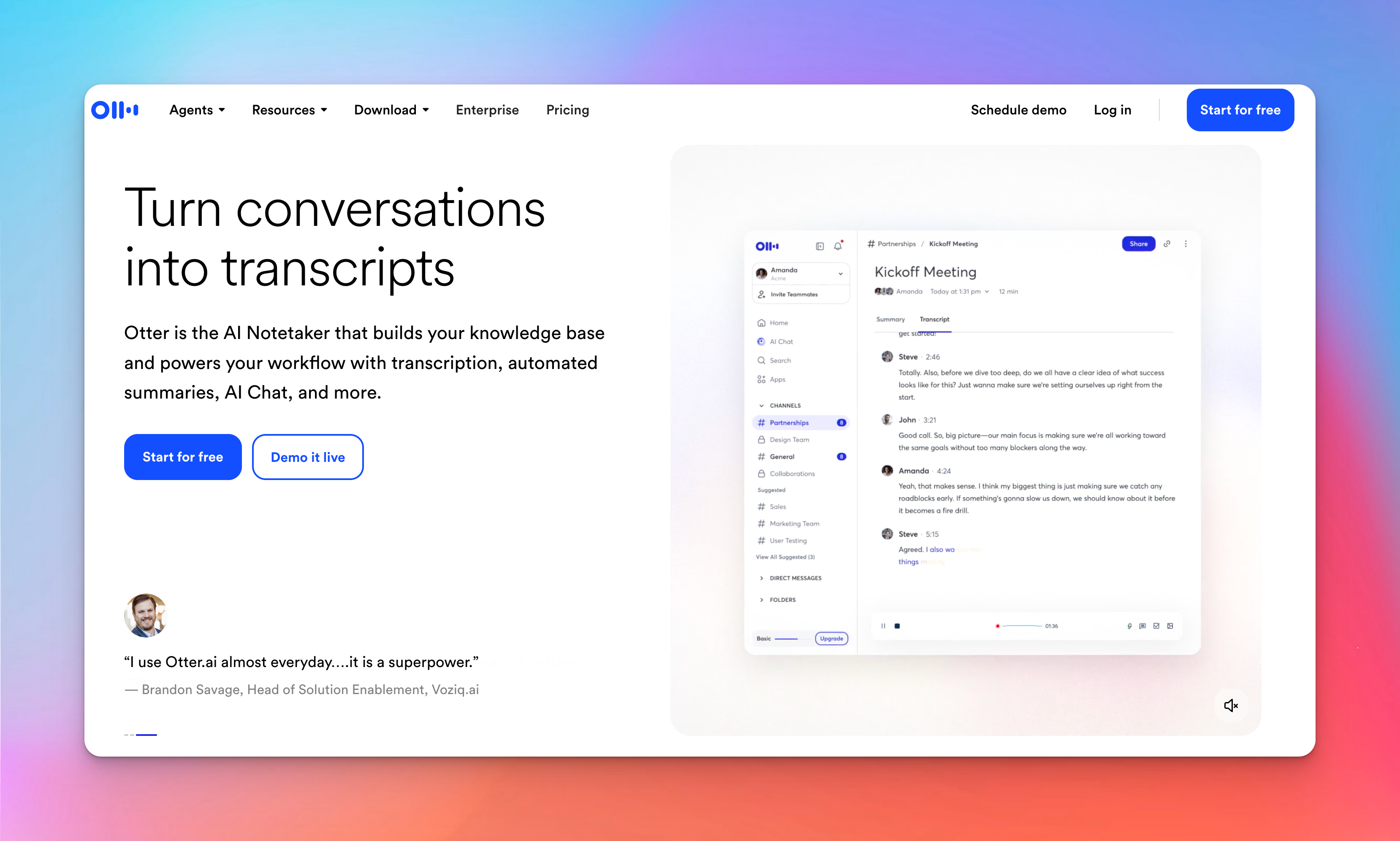
Otter.ai feels like having a quiet assistant in every meeting. It automatically joins your Zoom, Meet, or Teams calls, takes notes, and turns hours of back-and-forth into searchable transcripts and quick summaries.
Key Features:
- Queryable transcripts: After a call, you can ask questions - “What did we say about deadlines?” - and Otter pulls exact quotes instead of making you scroll through pages of notes.
- Channels for recurring work: Group-related meetings, transcripts, and async updates in one place so ongoing projects don’t lose context between sessions.
- Workflow integrations: Syncs transcripts and action items to tools like Salesforce, HubSpot, Slack, Asana, Notion, and Google Workspace without manual copying.
- Role-specific AI agents: Sales, Recruiting, Education, Media, and SDR agents add workflow-specific logic on top of the standard Meeting Agent.
Pricing
- Free: $0
- Pro: $16.99/user/month
- Business: $30/user/month
Otter is worth choosing only if meetings make up most of your work. But it falls short for content production, long-form interviews, academic research, or anything that needs precise text editing.
You won’t get subtitle-grade timing, advanced editor controls, or the multilingual range of tools like HappyScribe.
5. Submagic

Submagic is a creator-focused alternative to Veed.io - built for fast, stylized shorts rather than formal transcription. It’s built around high-impact captions, quick punchy edits, and turning long recordings into attention-ready shorts.
Key Features:
- Viral caption presets: Animated, emoji-ready captions for short-form content, ready without extra design work.
- AI highlight detection: Magic Clips identifies high-energy moments for quick short-form drafts; less suited for narrative flow.
- Auto B-roll & motion: Inserts B-roll, trims silence, adds zooms and transitions, and makes talking-head videos dynamic with minimal effort.
- Subtitle & translation output: Export SRT, refine transcripts, and translate into 100+ languages; voice translation is casual-use only.
- Brand kits & API: Standardize templates, export in 4K, and automate recurring outputs for teams.
Pricing
- Free: $0
- Starter: $19/mo
- Pro: $39/mo
- Business: $69/mo
- Magic Clips: +$19/mo add-on
You can choose Submagic only if your subtitle needs revolve around social reach: clips, kinetic captions, and fast repurposing.
Skip it if you need reliable, frame-accurate subtitles - downtime and broken exports make it risky for professional work. In that case, HappyScribe, Trint, or Veed.io are safer, more predictable options.
Now that the transcription tools are sorted, let’s move to the social-editing side of Veed.io’s alternatives.
Veed.io Alternatives for Social-Style Video Creation & Editing
Veed.io splits its focus between editing and accessibility. Social-style video needs something narrower: speed, templates, and trend-ready visuals. CapCut, Clipchamp, and InVideo handle that side of the job with fewer steps and more creative control.
1. Invideo
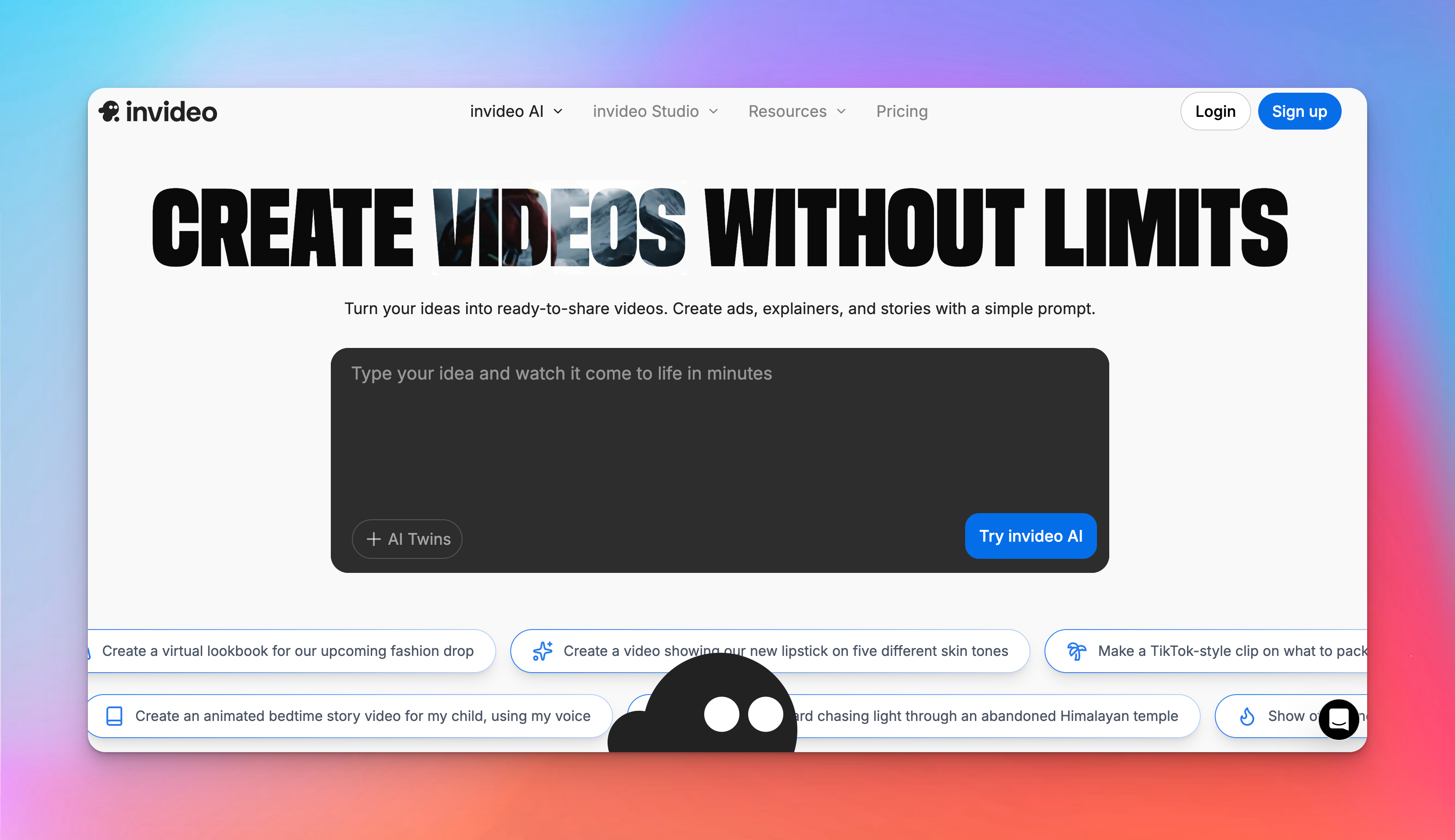
Invideo takes a different approach from traditional editors. By providing a complete text to video workflow, it avoids the blank timeline and builds the first draft for you.
You tell it what you want - a TikTok explainer, a UGC ad, a quick promo - and it pulls together footage, voiceover, captions, and pacing to match.
Key Features:
- Describe the style, tone, and required elements, and invideo produces a complete first draft.
- You edit the script, and the visuals update automatically. Great for speed; limiting if you prefer timeline control.
- Synthetic presenters and AI actors let you test concepts without recording talent.
- Translate and dub videos into multiple languages; quality is good enough for social tests but not polished campaigns.
- If the draft misses the mark, you can regenerate scenes or replace clips from the stock library.
Pricing
- Free: $0
- Plus: $17/month
- Max: $85/month
- Generative: $170/month
- Elite: $900/month
- Team: $999/month
Invideo is the most “AI-heavy” tool in this space, but that comes with a clear tradeoff: you gain speed at the expense of consistency.
If you need control, reliability, or stability, you’ll feel friction immediately. Riverside, CapCut, Clipchamp, and even Submagic give you a clearer editing environment and more predictable output.
Invideo’s workflow only makes sense if you measure productivity by how many variations you can create in a single afternoon, not how perfectly crafted each one is.
2. Movavi Video Editor
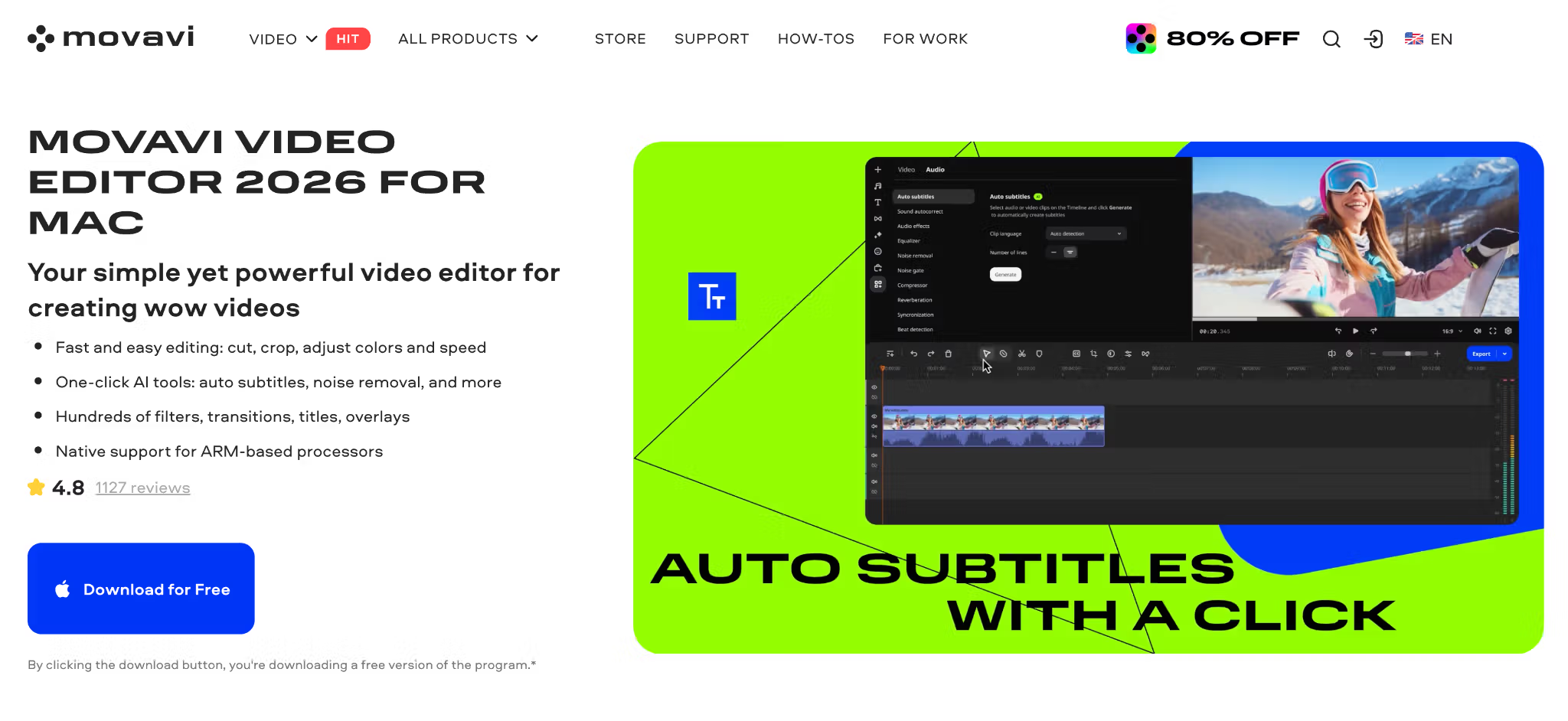
Movavi Video Editor is a desktop alternative for creators who want clearer timeline control than browser tools usually provide and don’t want to learn a complicated program.
It covers quick social videos, product clips, tutorials, and lightweight YouTube edits, with tons of built-in drag-and-drop assets and modern AI features that help you speed up editing.
Key Features:
- Beginner-friendly interface, suitable even for first-time editors.
- Simple desktop timeline for cutting, trimming, joining, speed changes, overlays, titles, filters, transitions, and color adjustments.
- AI auto-tracked cropping for reframing clips.
- One-click automatic subtitles in almost any language with 30+ subtitle styles and SRT export.
- AI background removal, noise reduction, and motion tracking.
- Silence removal that cuts unwanted pauses automatically.
- Mouse-over effects preview and fast effect copying.
Pricing
- Free trial
- Video Editor: $19.95/month
- Video Editor Plus: from $69.95/year
- Video Suite Plus: from $99.95/year
Movavi Video Editor makes the most sense when Veed.io starts to feel too light, but professional suites would be overkill.
It is still aimed at creators who want fast, approachable editing, so advanced color grading, deep compositing, and browser-based collaboration are not its strength.
3. CapCut

CapCut gives you a full short-form editing environment without forcing you onto a paid plan. It feels effortless on mobile, letting creators edit quickly and intuitively.
On desktop, it expands into a more capable workspace, handling complex projects without ever feeling clunky.
Key Features:
- Unlimited 1080p exports, templates, filters, transitions, basic effects, and simple captions - all with no watermark.
- Shoot, trim, caption, style, and export in minutes. The interface mirrors TikTok’s editing flow, so you don’t have to learn anything new.
- Multi-track timelines, keyframes, motion tracking, green screen, and speed controls give you room for more detailed edits.
- Fast auto-captions, solid background removal, and optional AI-generated visuals when you need filler or stylized clips.
- Drop in your footage and CapCut handles timing, transitions, and effects.
Pricing
- Free: $0
- Pro: $19.99/month
- Team: $24.99/month
CapCut is the easiest win for short-form creators: fast, capable, and genuinely free. If you publish often and want zero friction, it’s the clear pick. But for sensitive content, long-form stability, or team workflows, Clipchamp will serve you better.
For social-first creators, though, CapCut remains an immediate “yes.”
4. Clipchamp
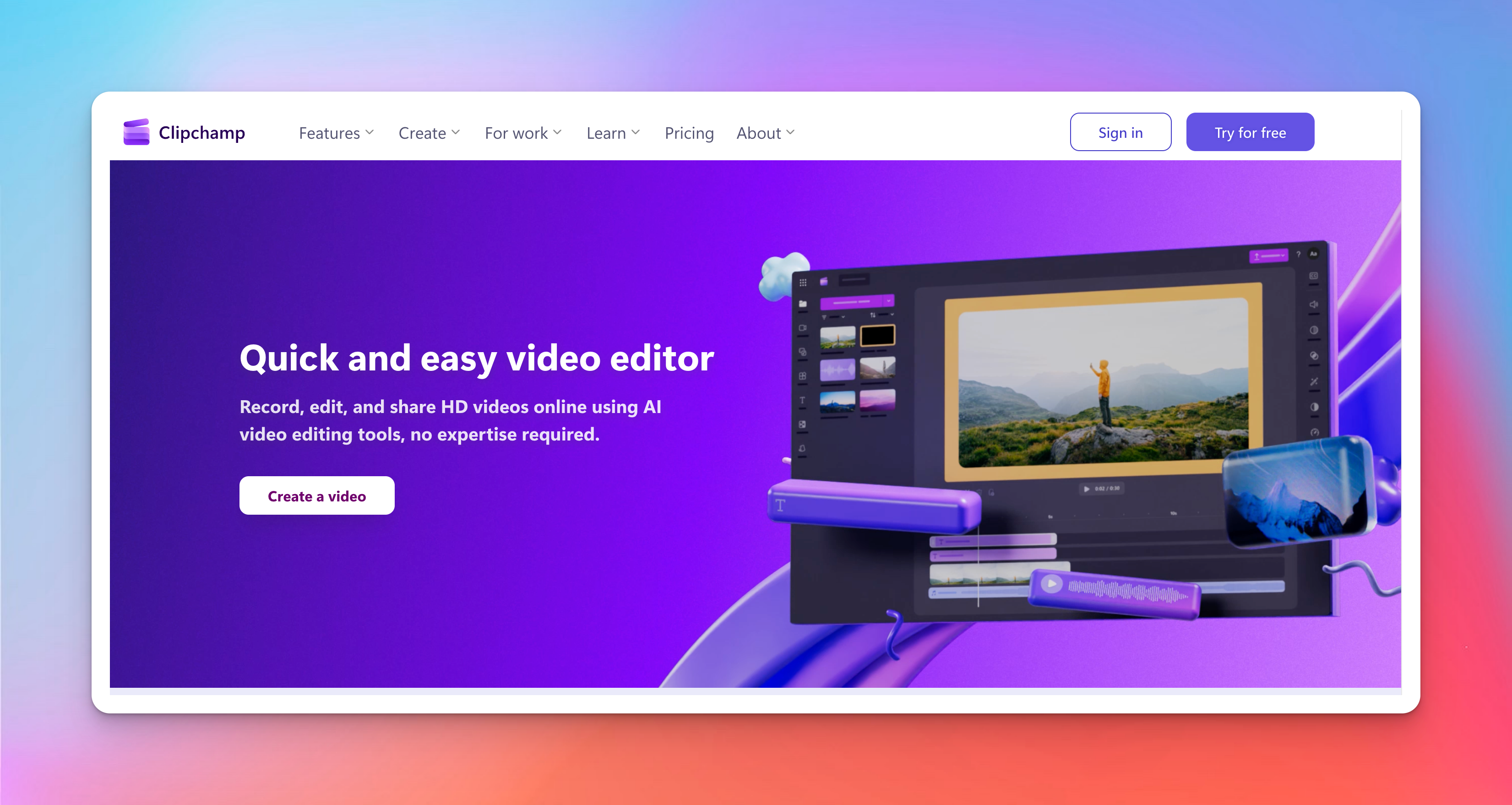
Clipchamp is Microsoft's answer to browser-based video editing, and it's better than most people expect. The platform runs entirely in your browser - no downloads, no installations, no plug-ins. You log in with a Microsoft account and start editing.
Key Features:
- A genuinely usable free plan: unlimited 1080p exports, no branding, and all the core editing tools you actually need.
- Auto subtitles in 80+ languages and text-to-speech voices that are consistent enough for explainers, tutorials, and quick social content.
- Record your screen, camera, or both directly in the browser.
- Noise removal, silence trimming, and volume leveling that tidy up laptop-mic audio without sending you into a dedicated audio editor.
- If you already subscribe, you automatically get 4K exports, premium stock, Brand Kit, and upcoming OneDrive project backup.
Pricing
- Free: $0
- Microsoft 365 Personal: $9.99/month
- Microsoft 365 Family: $12.99/month
Clipchamp works best if you’re already in the Microsoft ecosystem. On a Mac or Google-centric workflow, it can feel disconnected. It also lacks team features: no real-time collaboration, and sharing still requires manual exports.
And if you need multi-layer editing, advanced color work, or motion graphics, Veed.io, CapCut, or invideo are better suited.
Choosing the Right VEED Alternative
Choosing a VEED alternative depends on the exact workflow you want to optimize. Use these criteria to decide what direction your replacement should take:
- Workflow entry point: Look at where you naturally begin - recordings, footage, or written scripts. That starting point reveals which type of tool will feel intuitive instead of forced.
- Accuracy needs: When your output relies on precise wording, choose platforms that deliver strong transcription quality, clear speaker labels, and subtitle standards like CPS/CPL.
- Repurposing workload: If you produce several clips from long sessions, pick tools that can surface key moments, cut through transcripts quickly, and clean up raw recordings with minimal effort.
- Language scope: If you work across multiple languages or accents, choose solutions with broad coverage, stable translation, and support for regional speech patterns.
- Speed vs. control: For fast turnarounds, lean toward tools that automate captions and layouts. For detailed shaping, use editors that let you fine-tune timing and styling.
A clear view of these factors points you toward the tool that fits your workflow rather than forcing your workflow to fit the tool.
Conclusion
On the video side, tools like CapCut, Clipchamp, and invideo feel smoother simply because they focus on one job and let you move through edits without friction.
The visual work happens there, but what you can reuse later comes from the text layer underneath. That transcript becomes the quiet backbone of everything you publish.
HappyScribe keeps that part steady with accurate transcripts and clean subtitles that are ready whenever you need them.
Pair it with any video editor, and you won’t have to worry about the part most creators overlook - until it’s too late.
Frequently Asked Questions
Will switching from VEED affect file storage?
Tools organize project data differently. So, always check if your new platform keeps full-resolution media, transcripts, and subtitle versions. Otherwise, you could lose past edits or metadata.
Can I transfer VEED projects to another platform without restarting?
You can’t move the project file directly. Export videos, subtitles, and notes in open formats like MP4, WAV, SRT, VTT, and TXT, then rebuild your edits in the new platform.
Should I prioritize transcription-first or editing-first tools?
See which part you spend more time fixing: captions, wording, timing, and language consistency, or pacing, cuts, and visual polish. Whichever drains more hours should anchor your tool choice.

Akshay Kumar
Akshay builds pieces meant to reach people and stay visible where it matters. For him, it’s less about the name and more about whether the words did what they were meant to.