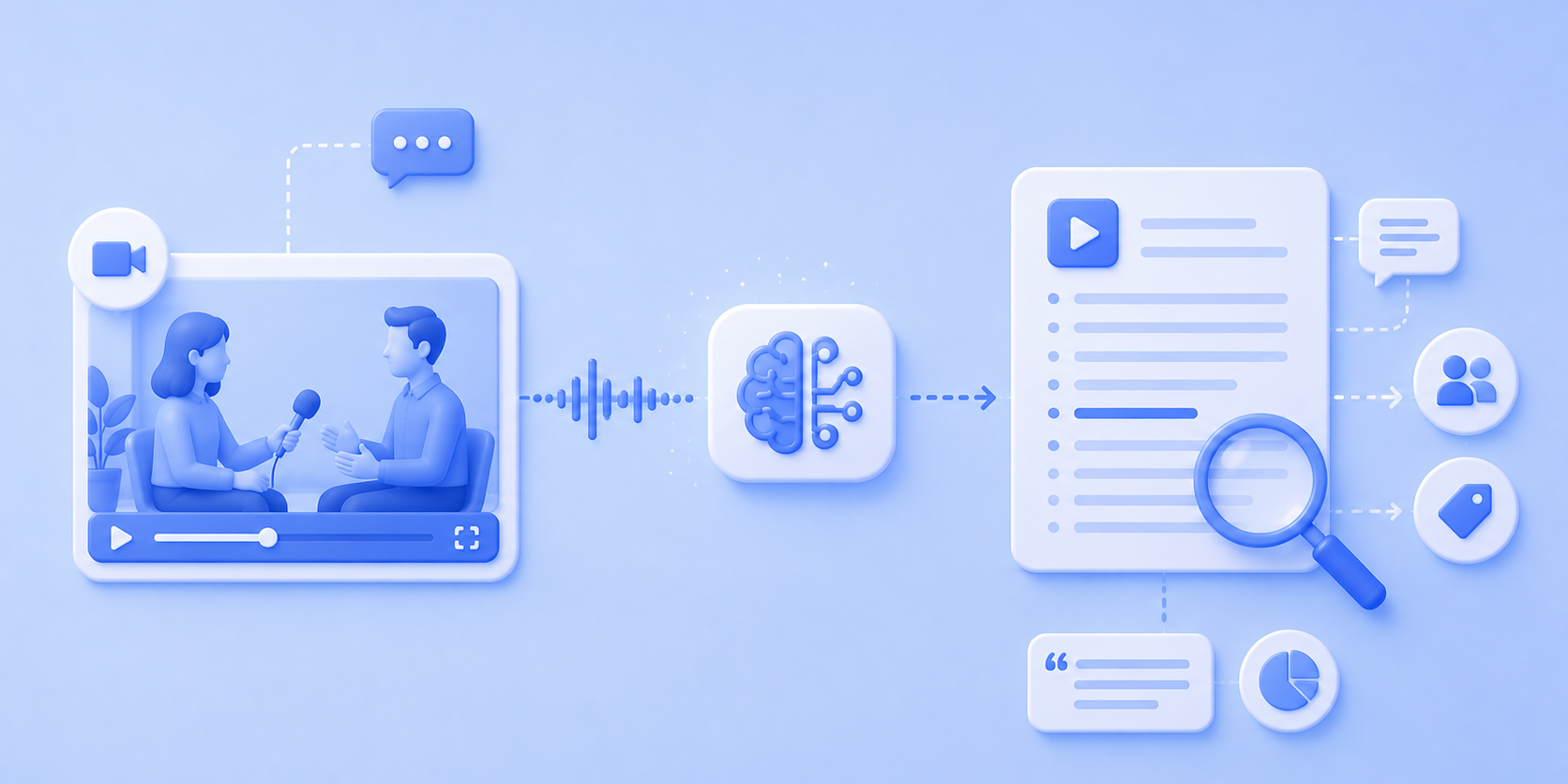
To transcribe video for academic research, upload your video file to a transcription tool, review the generated transcript against the original recording, annotate non-verbal cues that AI cannot capture, de-identify participants, and export to your qualitative data analysis software.
The process takes a couple of minutes for the AI step and additional time for human review and visual annotation.
What makes video transcription different from transcribing audio
Video transcription in academic research is not the same task as transcribing audio. If you treat them as interchangeable, you will lose data that could be critical to your analysis.
Video recordings carry a visual layer that audio alone does not provide. When you record qualitative interviews or focus groups on video, you capture gestures, facial expressions, posture, gaze direction, and spatial context.
A participant saying "I'm fine with that" while crossing their arms and looking away communicates something very different from the same words spoken with an open posture and eye contact. That visual information is research data and needs to be included in your transcript.
The challenge is that AI transcription software handles the speech in your video, but cannot see or annotate what is happening on screen. That visual annotation layer is the researcher's responsibility. For some methods, such as ethnography or interaction analysis, this layer is where the most significant insights reside.
For thematic analysis, you may only need occasional notes where body language changes the meaning of spoken words.
Julia Bailey's foundational paper on transcription noted that video transcription can take up to 10 hours per hour of recording when fine visual detail is required, compared to around 3 hours for audio-only. The time difference reflects the essential work of capturing what the camera sees, not what it hears.
Step-by-step workflow for transcribing research videos
Here’s a clear process you can follow and describe in your methodology section. Of course, the exact steps may vary depending on your research context, but this sequence covers the core workflow.
1. Prepare your recording for transcription
Check your video file format. Zoom and Google Meet export as MP4 or WebM. Microsoft Teams records to MP4. Camera recordings may be MOV or AVI.
Make sure your AI transcription tool supports these formats.
If your recording has significant background noise or poor audio quality, consider whether AI transcription will produce accurate enough results, or whether professional human transcription is the better method.
2. Run AI transcription on the audio track
Upload your video file to your chosen AI transcription software. The tool extracts the audio and generates a written record with timestamps and speaker labels.
This step takes minutes, even for hour-long recordings, and lets AI do the heavy lifting on the verbatim speech-to-text conversion. Look for a tool that supports multiple languages, which is beneficial for researchers working with multilingual data.
3. Review and correct the transcript against the video
Play back the video (not the audio alone) while reading the transcript. Correct errors, fix speaker identification for multiple speakers, and note moments where visual context changes the meaning of what was said.
For example, a participant saying "this one" while pointing at a document on screen is meaningless without that context. You need to catch these moments and annotate them.
At this stage, you can also edit the transcript to match your chosen transcription style. If you need verbatim transcription, keep filler words and false starts. If clean verbatim serves your research process better, remove them.
For guidance on choosing between styles, see types of transcription in qualitative research.
4. Add visual annotations
This step separates video transcription from audio transcription. For research where non-verbal data is important, add bracketed annotations for relevant visual elements at the exact moment they occur in the conversation. We’ll cover annotation conventions in detail.
5. De-identify the transcript
Video transcripts carry a higher identification risk than audio because participants' faces and environments are visible.
Replace names with pseudonyms in the text. If you plan to share video clips alongside transcripts with your team or in publications, discuss with your ethics board whether you need to blur faces or crop identifying features.
6. Export to your qualitative analysis software
Save in a format compatible with your preferred tools (such as NVivo, ATLAS.ti, MAXQDA). TXT and DOCX are the safest choices; Microsoft Word files import into all major platforms, and many free QDAS alternatives also accept them.
If your academic content involves supplementary transcripts for teaching or publication, DOCX gives you the flexibility to format on any computer before sharing.
Both NVivo and ATLAS.ti allow you to link video files directly to transcript segments, enabling synced playback during coding.
This lets you access the original audio and video at any point in your analysis, review content quickly, and identify patterns across both verbal and visual data. You spend less time switching between files and more time on interpretation.
If you’re looking for a secure AI transcription tool that handles both audio and video transcription, HappyScribe is a great fit for your research workflow.
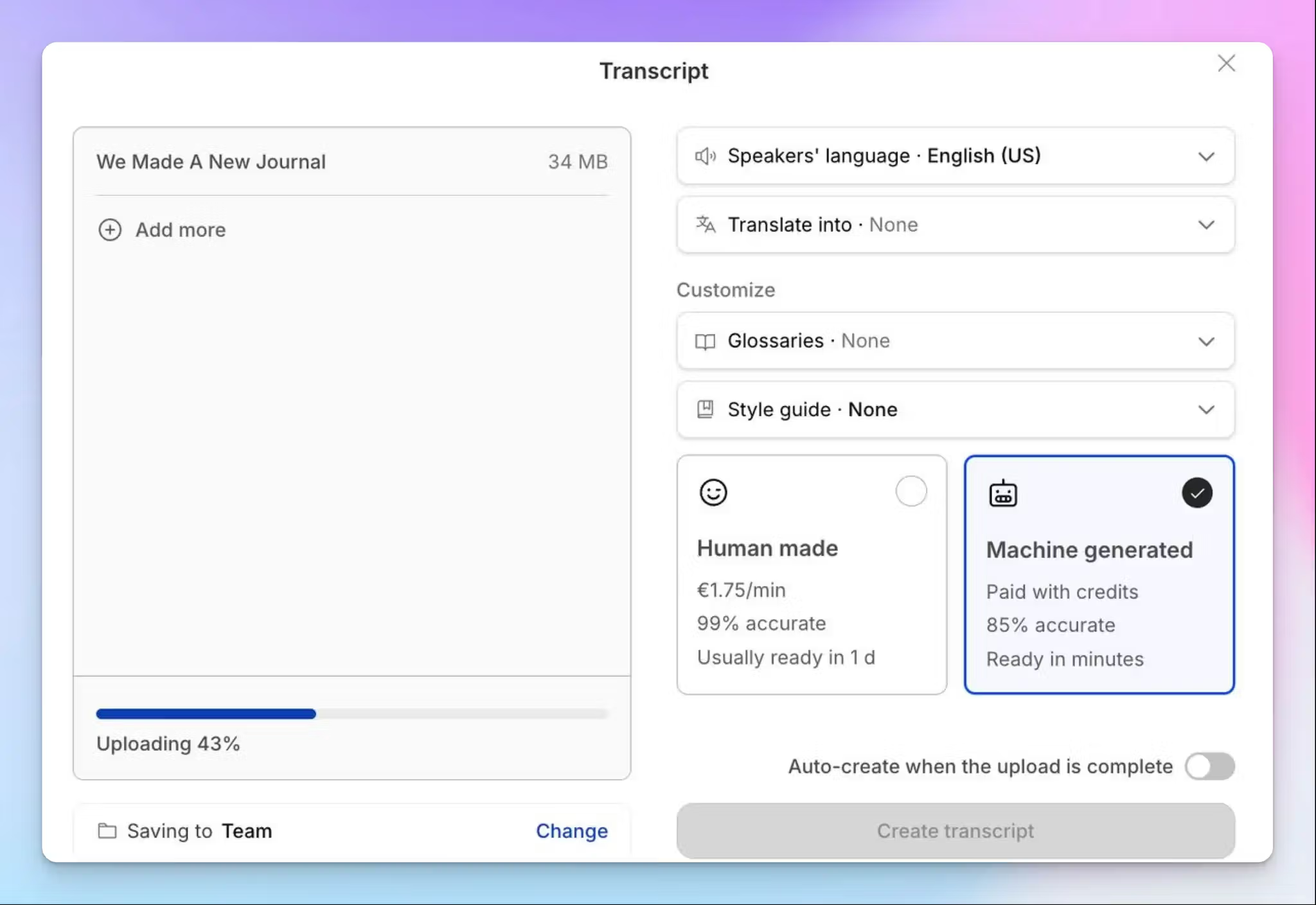
Upload video files in MP4, MOV, AVI, and 60+ other formats, or import directly from Google Drive or Dropbox. The AI transcription delivers results in minutes across 150+ languages, and the interactive editor syncs video playback with the transcript so you can review and edit in one interface.
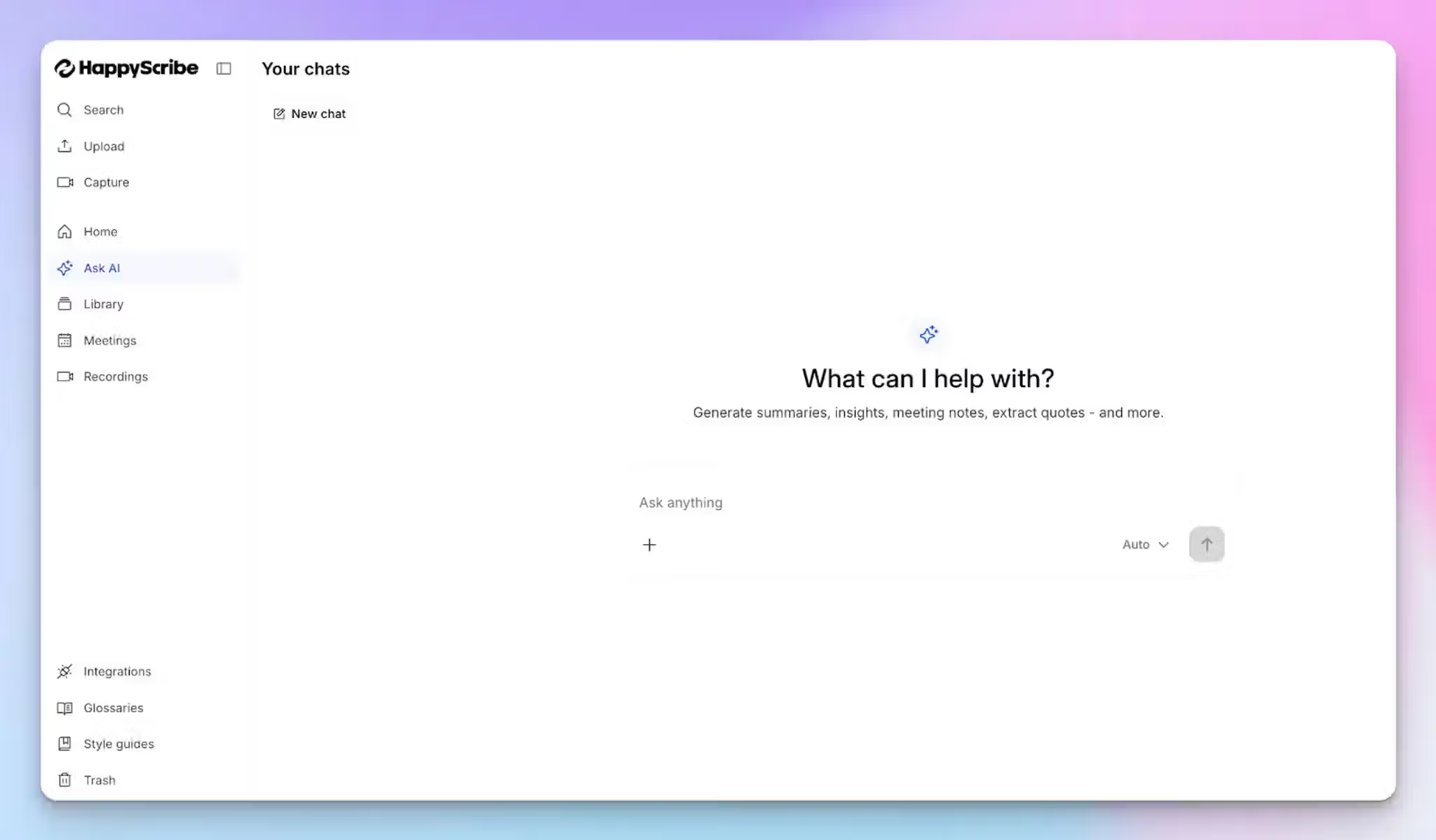
Scholars and research teams can use AI Chat to ask questions and identify patterns across transcripts. When accuracy is critical, send the AI draft for human proofreading with 99% accuracy.
How to annotate non-verbal cues in video transcripts
AI can convert speech to text, but it cannot tell you that a participant frowned, pointed at a whiteboard, or shifted uncomfortably in their chair. If your qualitative research relies on visual data, you need a consistent annotation system. Place annotations inline as they occur, not in a separate document.
Here is a simple convention table you can adapt:
| VISUAL ELEMENT | ANNOTATION EXAMPLE |
|---|---|
| Gesture | [points to diagram on whiteboard] |
| Facial expression | [frowns, looks down] |
| Body movement | [leans forward, crosses arms] |
| Interaction with object | [picks up phone, shows screen to interviewer] |
| Spatial change | [stands up, walks to window] |
| Gaze direction | [makes eye contact with second participant] |
The level of detail you need depends on your methodology. Conversation analysis and ethnographic research call for fine-grained visual annotation. Thematic analysis only requires notes where non-verbal behavior adds context to the spoken words.
Writing too much slows you down; writing too little means losing data you cannot recover later. Find the balance that serves your analysis without turning the task into an endless process.
University students and early-career academic researchers sometimes skip this step because it is time-consuming. That’s a mistake if your research questions touch on how participants communicate, not only what they say. A higher level of transcript detail provides richer qualitative data for analysis and improves the credibility of your findings when professionals and peers review your work.
Ethics and data security for video research data
Video is more identifiable than audio. Participants' faces and environments are visible on screen, which makes data security a more significant concern for academic transcription involving video.
Informed consent forms should specify that video will be recorded, how recordings will be stored, who will have access, and when files will be destroyed. If you’re using cloud-based transcription technology, participants should know their video file is being uploaded to external servers.
This is essential for meeting IRB requirements and GDPR compliance. Verify where your transcription service processes and stores data before you begin your research.
For lectures or classroom recordings involving students, check your institution's policies on recording consent. Some institutions require opt-in consent from every individual visible on camera, which can create logistical challenges for large-group recordings.
HappyScribe is GDPR-compliant with enterprise-grade security. It stores all data in a PCI DSS and ISO 27001-certified EU data center. Files are encrypted in transit and at rest.
Turn your next video recording into research-ready data
The difference between a usable transcript and a rich qualitative dataset comes down to what happens after the AI finishes its work.
Researchers who treat transcription as a single automated step risk flattening their data. Those who build in structured review and visual annotation preserve the layers of meaning that made video the right recording method in the first place.
Whichever methodology you're working with, document your transcription decisions early. Your choices around annotation depth, de-identification, and export format are methodological decisions, and reviewers will expect to see them justified.
HappyScribe takes care of the AI speech-to-text conversion in minutes, and also offers human review when you need it. Try HappyScribe for free on your next research recording.
FAQs
Do I need to annotate every non-verbal cue in a video transcript?
No. The level of visual annotation depends on your methodology. Conversation analysis and ethnographic research require fine-grained annotation of gestures, gaze direction, posture shifts, and interactions with objects. For thematic analysis, you only need to annotate moments where non-verbal behavior changes or adds to the meaning of what was said, such as a participant saying "I agree" while shaking their head.
Over-annotating slows you down without improving your analysis, but under-annotating means losing data you cannot recover later because you would need to re-watch the entire recording.
A practical approach is to do your first review pass using an editor that syncs video playback with the transcript (HappyScribe's interactive editor does this), flag moments where visual context matters, and then add bracketed annotations at those specific timestamps.
Which export formats should I use to import video transcripts into qualitative analysis software?
DOCX and TXT are the safest choices. NVivo, ATLAS.ti, and MAXQDA all accept DOCX imports, and it's also the most flexible format if you need to share transcripts with supervisors or co-researchers who use different software.
Both NVivo and ATLAS.ti also let you link the original video file directly to transcript segments, which means you can play back the recording at any point during coding without switching between applications. HappyScribe lets you export transcripts in DOCX, TXT, PDF, and other formats, so you can choose whatever your CAQDAS platform requires.
How accurate is AI transcription for academic research, and when should I use human transcription instead?
AI transcription works well when audio quality is clear, speakers don't overlap frequently, and the language used is relatively standard. For most research interviews and focus groups recorded in a quiet setting, AI produces a strong first draft that you then review and correct.
HappyScribe delivers 95%+ accuracy for its AI transcription, and if your recordings require higher precision, you can send the AI-generated draft for human proofreading at 99% accuracy.
Consider going directly to human transcription if your recordings have heavy background noise, thick regional accents, frequent cross-talk between participants, or highly specialized terminology that the AI is unlikely to recognize.
In either case, the researcher should always review the final transcript against the original video before using it for analysis.
Does HappyScribe have a mobile app?
Yes. The HappyScribe mobile app is available on iOS and Android, free on every plan. It works as a field recorder that syncs directly to your HappyScribe workspace. Recordings upload in the background and resume automatically if your connection drops.
Once a recording lands in your library, you can transcribe it, send it for human proofreading, or run queries across it with AI Chat. Useful for researchers doing fieldwork, journalists recording sources, or anyone capturing conversations away from a computer.

Rodoshi Das
Rodoshi is the Content Lead at HappyScribe, the privacy-first transcription and AI notetaker platform based in Barcelona. Shaping content strategies and building AI workflows excites her as much as exploring new SaaS tools. She specializes in product-led content that informs rather than sells, grounded in honest product benchmarking and low tolerance for empty marketing speak.