Microsoft Teams is the go-to meeting collaboration tool in many organizations. It’s where budget discussions, interviews, presentations, and daily meetings happen. You might want to record those conversations to check back later or share with teammates.
If you’re wondering how to record a meeting in Teams, the good news is that Microsoft makes it fairly straightforward. The trade-off is a lack of control, and what you can do after the meeting.
That's why many teams end up pairing Teams with an AI notetaker so they can get the best out of these meetings.
Below, I'll walk you through how to record Microsoft Teams meetings across different devices and show a smarter way to manage both recordings and transcripts.
Step-by-step guide to record a meeting on Teams on desktop
To record a meeting in Teams,
- Open the meeting link in a browser or app, or find the meeting in the Teams calendar
- In the meeting controls at the top, click More (the three-dot menu)
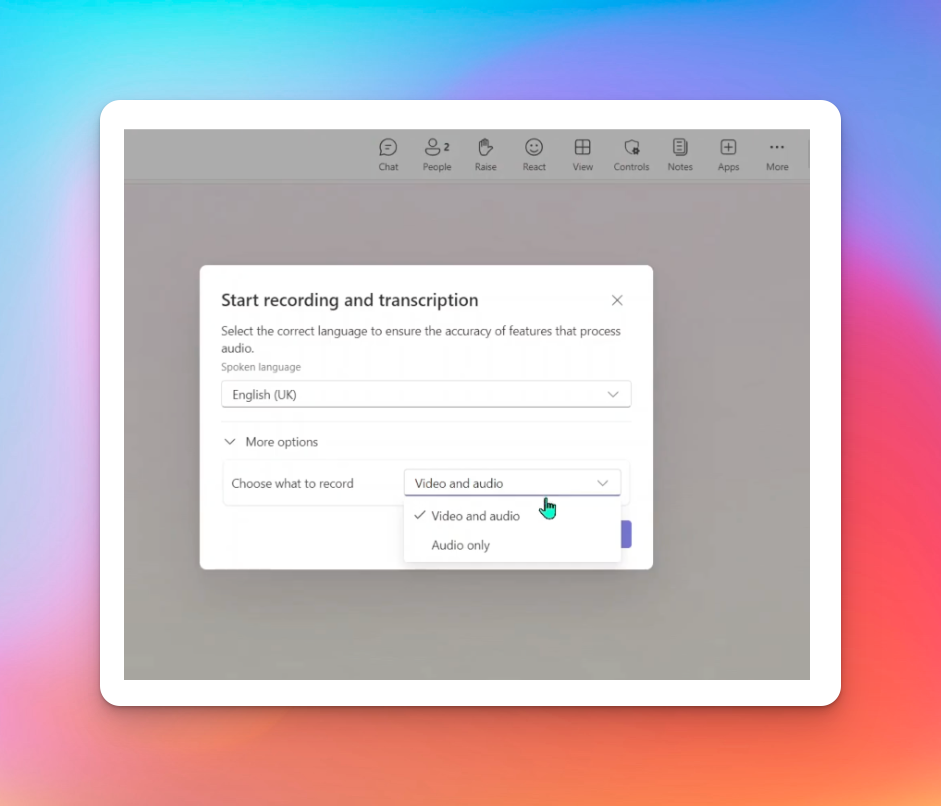
- Select Record and transcribe
- Click Start recording or expand More options to select Audio only recording
- You can also start transcription at the same time if it’s enabled for your account
- Once recording starts, everyone in the meeting is notified automatically
- To stop, click on More again and choose Stop recording. The recording ends automatically when the meeting ends
And that's it! Depending on permissions, you might find the meeting recording in chat channels, calendar events, Microsoft Stream, and OneDrive files.
Step-by-step guide to record a meeting on Teams on mobile
If you're traveling and wondering how to record a Teams meeting on your phone, follow these steps:
- Open the meeting in the Teams Android or iPhone app
- Find the meeting controls and click Moreactions (the three-dot menu)
- Click Start recording (Under Group settings)
- To stop, open More actions and choose Stop recording. The recording ends automatically when the meeting ends

Just like desktop, meeting recordings can be accessed in chat, calendar, OneDrive, and Microsoft Stream.
But on mobile, you can record your meeting only if there are three or more participants. If it’s a meeting with just two participants, the ‘Start recording’ option won’t appear.
What are the limitations of MS Teams’ native meeting recording?
Despite having an in-built solution to record meetings, many Teams users look for other meeting software.
Here are the issues I've come across that prevent me from recommending Microsoft's way of recording meetings:
1. Not everyone can record
Looking to simply record or transcribe a Teams meeting? You have to check licenses, IT admin permissions, and participant roles. Guests and external users usually can’t record, and some users won’t even see the Record button.
Inconsistent UI is the first reason people look for Teams recording alternatives.
2. Storage and ownership are confusing
Recordings are stored in OneDrive or Microsoft Stream via SharePoint, depending on the meeting type. If the organizer leaves the company or permissions change, access to past recordings can be lost.
On top of that, Microsoft keeps changing tools, so you're always adapting to new ways to access files.
3. Recordings expire by default
MS Teams recordings expire after 120 days unless someone manually changes the setting. Important meetings can be deleted automatically, often without teams realizing it, so you have to make sure to edit or ask someone else to manage expiration dates.
4. Limited control over what’s captured
Teams tends to miss capturing elements like whiteboard activity, embedded media from third-party apps, or certain shared content. You also get minimal control over layout, speakers, or output format.
5. No real meeting insights
Transcripts are basic and depend on org settings. There are no built-in meeting summaries, action items, or searchable highlights, so you have to rope in Copilot to get anything meaningful. All of these make recordings harder to review and reuse.
Given how differently users experience Teams, it's crucial to find a smarter, more unified solution.
When it comes to convenience, security, and AI notetaking, HappyScribe is the best way to record and transcribe Teams meetings.
How to record a Teams meeting using HappyScribe?
To record a Teams meeting using HappyScribe,
- Log in or sign up to HappyScribe (it's free)
- Expand the left dashboard and click on Meetings from the dropdown menu
- Click on Start recording or Send Notetaker to your meetingby pasting the meeting link
- Stop the recording when you're done or close your meeting if you've invited the AI notetaker
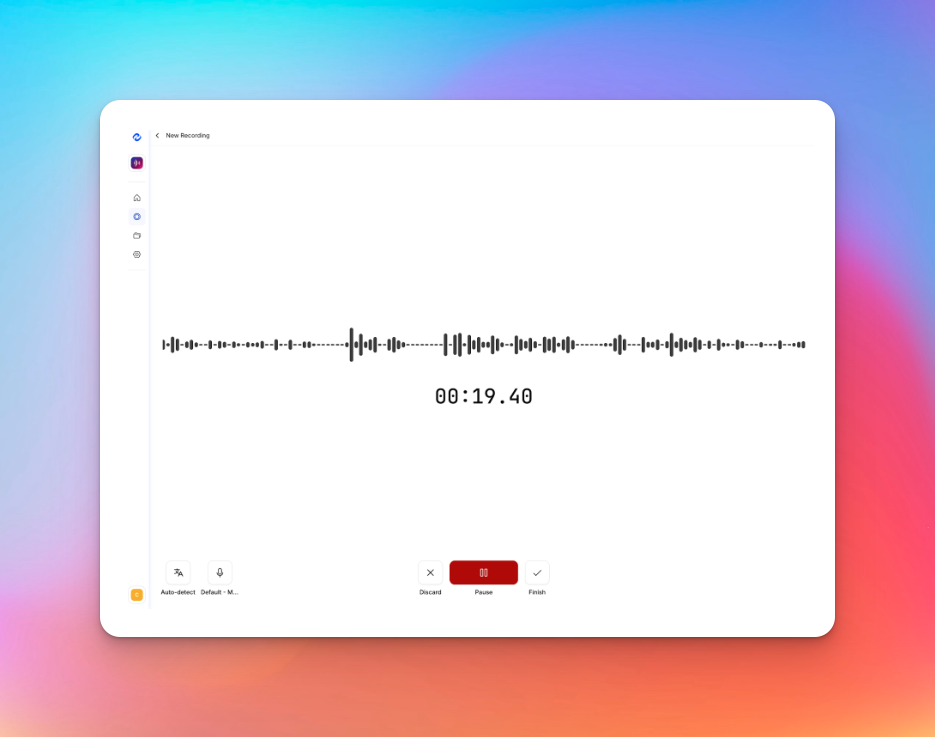
And that's it! HappyScribe records Teams meeting audio and transcribes in just a few seconds.
Why use HappyScribe to record Microsoft Teams meetings?
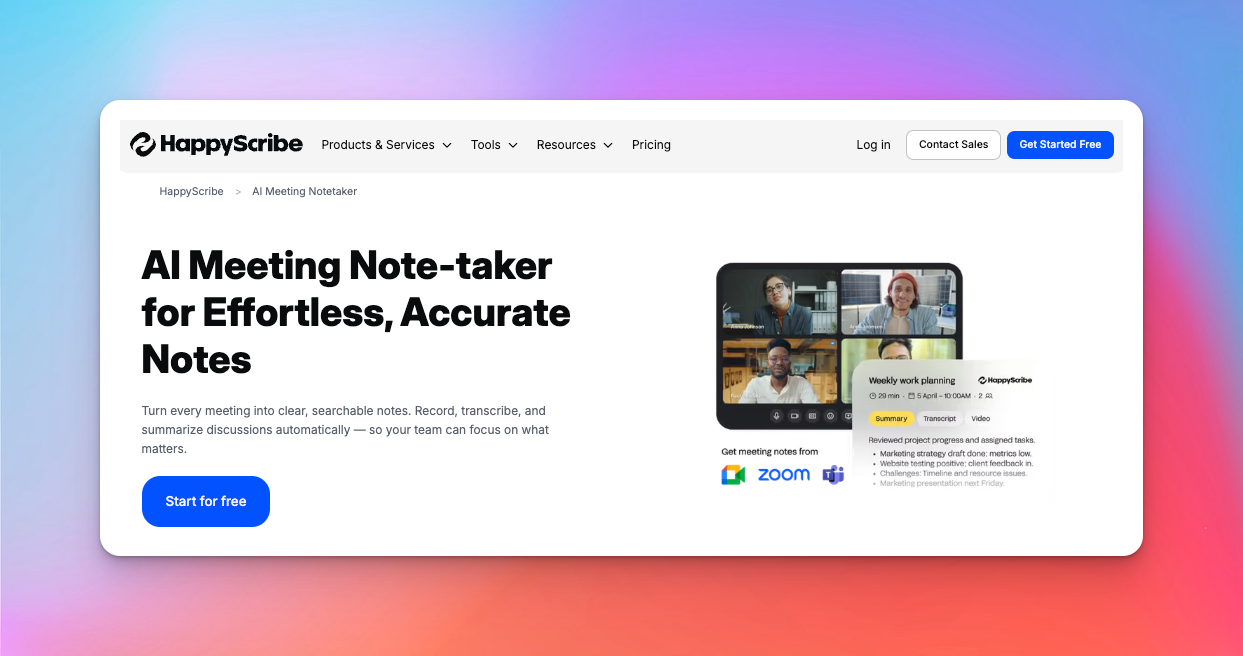
HappyScribe approaches Teams meetings differently. Instead of treating recordings as static files, it turns them into an organized, searchable, and reusable knowledge base.
You can record meetings in 140+ languages and get transcriptions in seconds. Want to do more? You can credit, edit, and add subtitles along with translating content for global teams.
Here are some key features of the HappyScribe meeting recorder:
1. Simple and lightweight recording
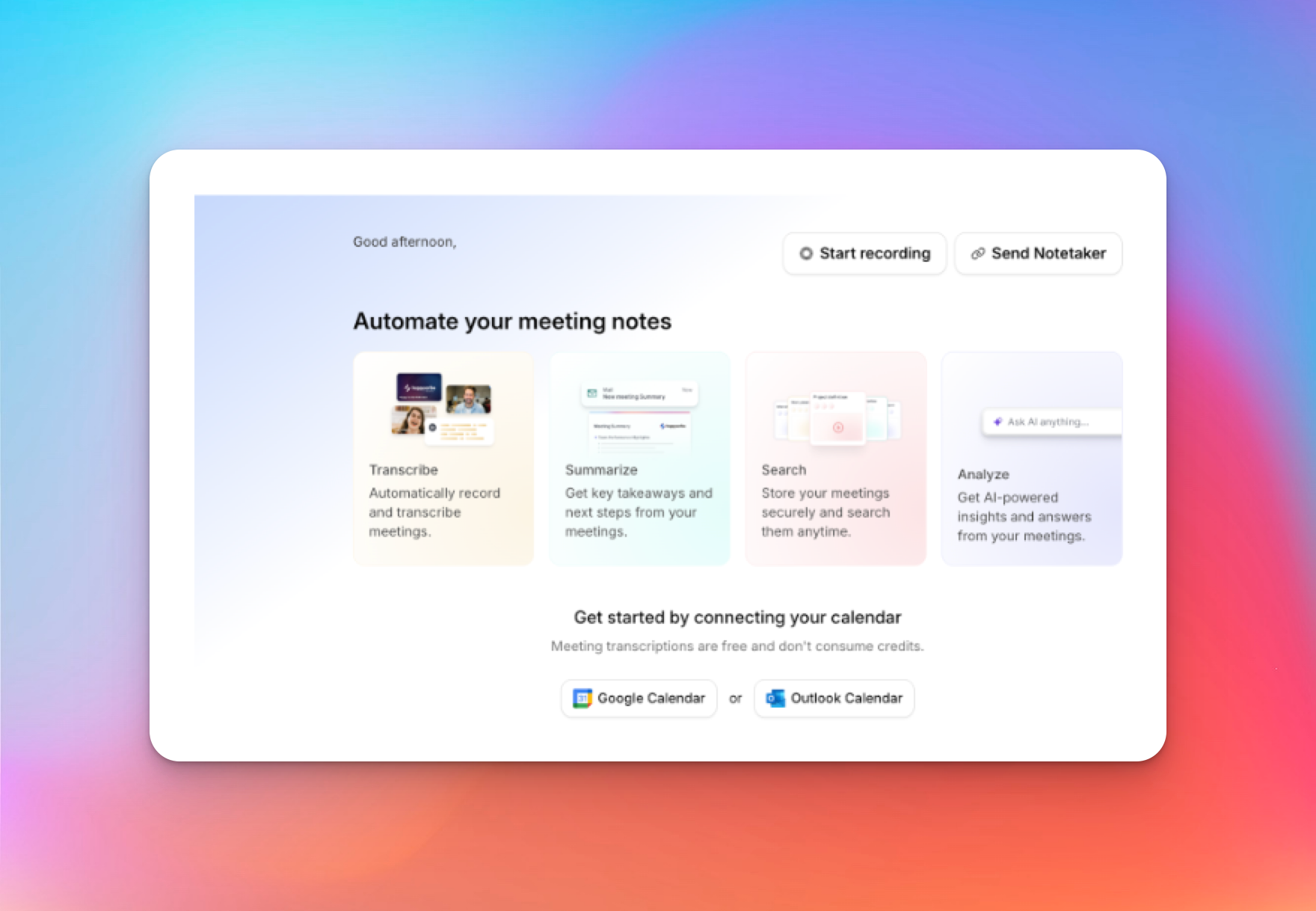
HappyScribe removes the bloat that comes with Teams’ built-in recorder. It works in any browser, and you don’t need special roles, licenses, or admin approvals to start.
You either record directly in a new tab, paste the Teams meeting link, or connect with your calendar to let HappyScribe’s Teams notetaker join automatically. All files are organized in one place so you can reference past meetings.
Since HappyScribe records only meeting audio, you save storage space and pay less.
2. AI meeting recording, transcription, and editor
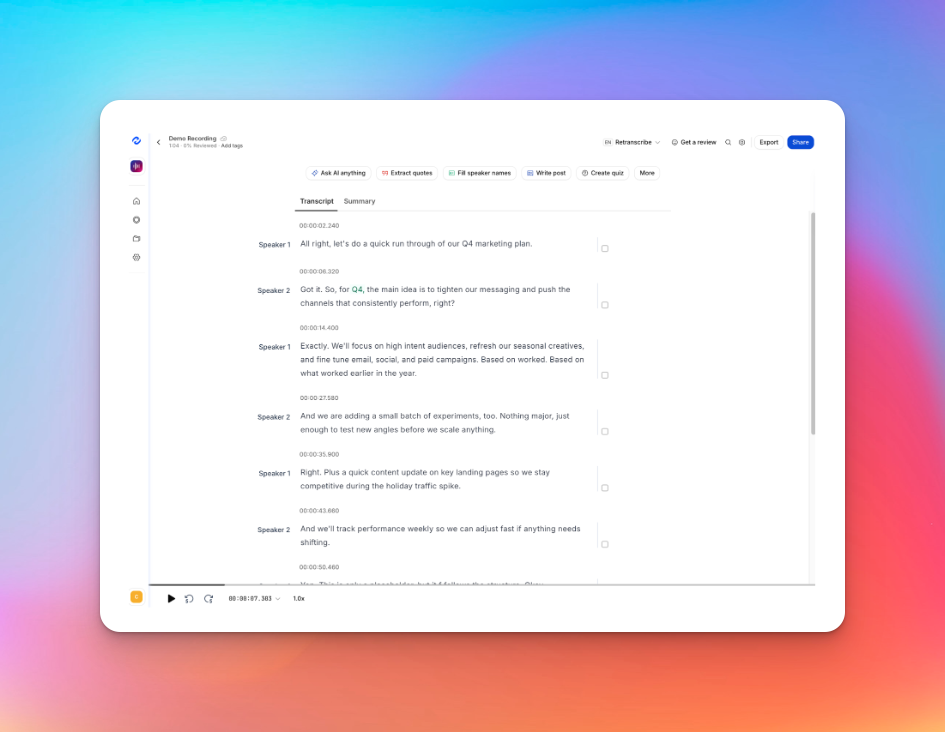
HappyScribe focuses on capturing clear, high-quality audio, which keeps your recordings lightweight and easier to transcribe with accuracy. It records audio only, so you don’t have to deal with bulky video files or unnecessary storage overhead.
Instead of a locked, read-only transcript, HappyScribe gives you an editable transcript synced to the audio.
You can correct speaker names, fix terminology, trim sections, and export clean text without running into formatting issues. Since you can scrub the audio, it's easier to follow research calls and internal reviews.
Once you're done editing, simply export the file (TXT, PDF, DOCX, CSV, SRT) or share the link with others.
3. Ask AI to summarize, extract quotes, create quiz, and draft posts
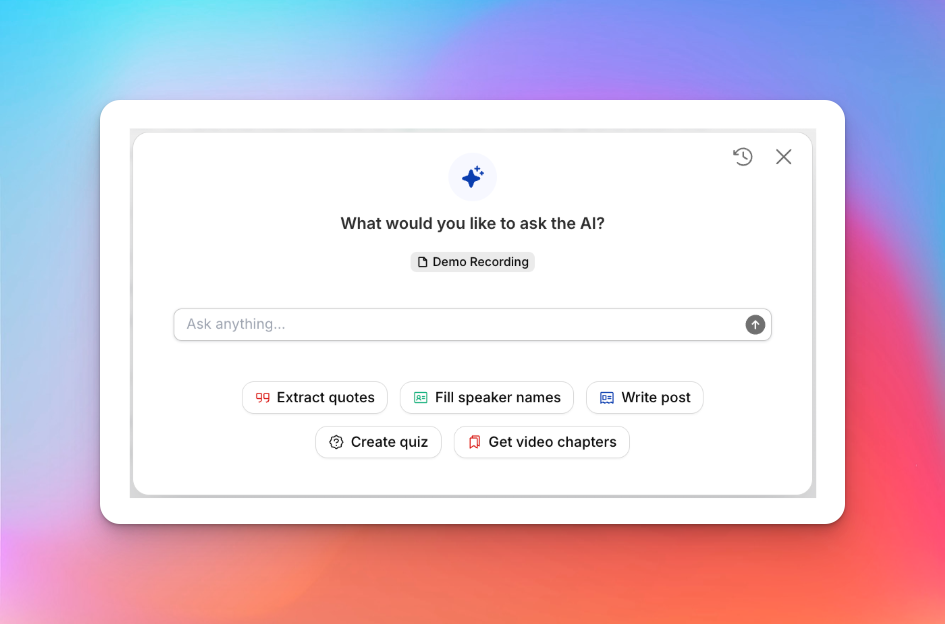
The best part about HappyScribe is that it allows you to do so much with a Teams recording. You can ask AI to summarize the meeting, pull out key quotes, extract action items, create video chapters, generate quizzes, or draft blog posts, all in one place.
By replacing multiple manual steps after downloading a Teams recording, you can improve productivity and output.
Also read: 9 AI Tools Every Content Creator Must Use in 2026
4. Enterprise-grade security
HappyScribe is built for professional and enterprise use, with secure storage, controlled access, and compliance-friendly workflows. It complies with GDPR and SOC 2 Type II, encrypts your traffic, and gives enterprise users an SSO login option for more security.
Your recordings and transcripts live in one centralized workspace, and not scattered across OneDrive, SharePoint, and chats. You get to control who has access to files, which reduces data leaks and user errors.
5. Easy to use across all meeting apps
Unlike Teams’ native recorder, HappyScribe isn’t tied to one ecosystem or platform. You can use it for recording and transcription across Microsoft Teams, Zoom, Google Meet, and other meeting apps.
That freedom matters for teams that collaborate across apps or work with external stakeholders.
MS Teams native meeting recording vs. HappyScribe notetaker: At a glance
Still not sure what's the best way to record and transcribe Teams meetings? Here's a quick comparison for you:
| Factors | HappyScribe | Microsoft Teams |
|---|---|---|
| Who can record | Any HappyScribe user can record or invite an AI notetaker to the meeting, no special permissions needed | Restricted by licenses, roles, and admin settings; guests are usually blocked |
| Storage and access | All recordings and transcripts are stored in one centralized workspace | Scattered across OneDrive, SharePoint, and chat links. Ownership can change |
| Retention and control | No silent expiration; you control access and retention | Recordings expire by default unless manually changed |
| Transcription and editing | Editable transcripts synced to audio with easy exports and sharing | Basic transcripts, editing depends on org settings |
| Post-meeting intelligence | Built-in AI summaries, quotes, action items, quizzes, and content drafts | No summaries or action items without Copilot |
| Price | Free plan available; simple and affordable paid plans scale according to your usage | Paywalled behind confusing and costly Microsoft 365 plans. Limited freedom for individual users |
The smart way to record Teams meetings with HappyScribe
Recording a meeting in Microsoft Teams is easy; turning that recording into something useful is where most teams struggle. Files expire and follow-ups get lost.
HappyScribe removes that friction. It captures Teams meetings, delivers accurate transcripts, and turns conversations into clear next steps. If your goal is more than just storing meetings, HappyScribe is the smarter way to record Microsoft Teams calls.
Frequently Asked Questions
How do you record a meeting on Teams?
Join the meeting in the Teams desktop app, click More options (three dots), select Record and transcribe, then click Start recording. The recording link appears in the meeting chat after the call ends.
Why can’t I record in a Teams meeting?
You may not see the recording feature if you’re not the meeting organizer, your account policies restrict recording, or you’re joining as a guest or from another region. In many businesses, recording permissions are controlled by IT support. On mobile, you can record your meeting only if there are three or more participants, otherwise the ‘Start recording’ option won’t appear.
Can I record a Teams meeting when I am not the host?
Usually, no. Only the meeting organizer or approved participants can record. With tools like HappyScribe, you can record Teams meetings without host permissions by using an AI meeting assistant.
How do I enable call recording in Teams?
Recording must be enabled by an admin through Microsoft Teams policies. You also need to sign in with the correct business account and join the meeting via the desktop app or a supported video conferencing setup.
Where are Teams meeting recordings saved?
For new meetings, recordings are stored in OneDrive or SharePoint, depending on whether it’s a private meeting or a channel meeting. The meeting details appear as a link in the meeting chat or channel conversation.
How can I download and transcribe a Teams meeting easily?
Native Teams transcripts are limited and depend on policies. With HappyScribe, you can record Teams calls, generate transcripts with live captions, and export files without dealing with storage restrictions or expiration limits.
What’s the best AI meeting assistant for Microsoft Teams?
For remote teams and customer-facing calls, HappyScribe is a reliable option. It records Teams meetings, supports screen sharing and PowerPoint content, offers AI chat for summaries, and stores everything securely in cloud storage.

Rodoshi Das
Rodoshi is the Content Lead at HappyScribe, the privacy-first transcription and AI notetaker platform based in Barcelona. Shaping content strategies and building AI workflows excites her as much as exploring new SaaS tools. She specializes in product-led content that informs rather than sells, grounded in honest product benchmarking and low tolerance for empty marketing speak.