


TL;DR ⏩
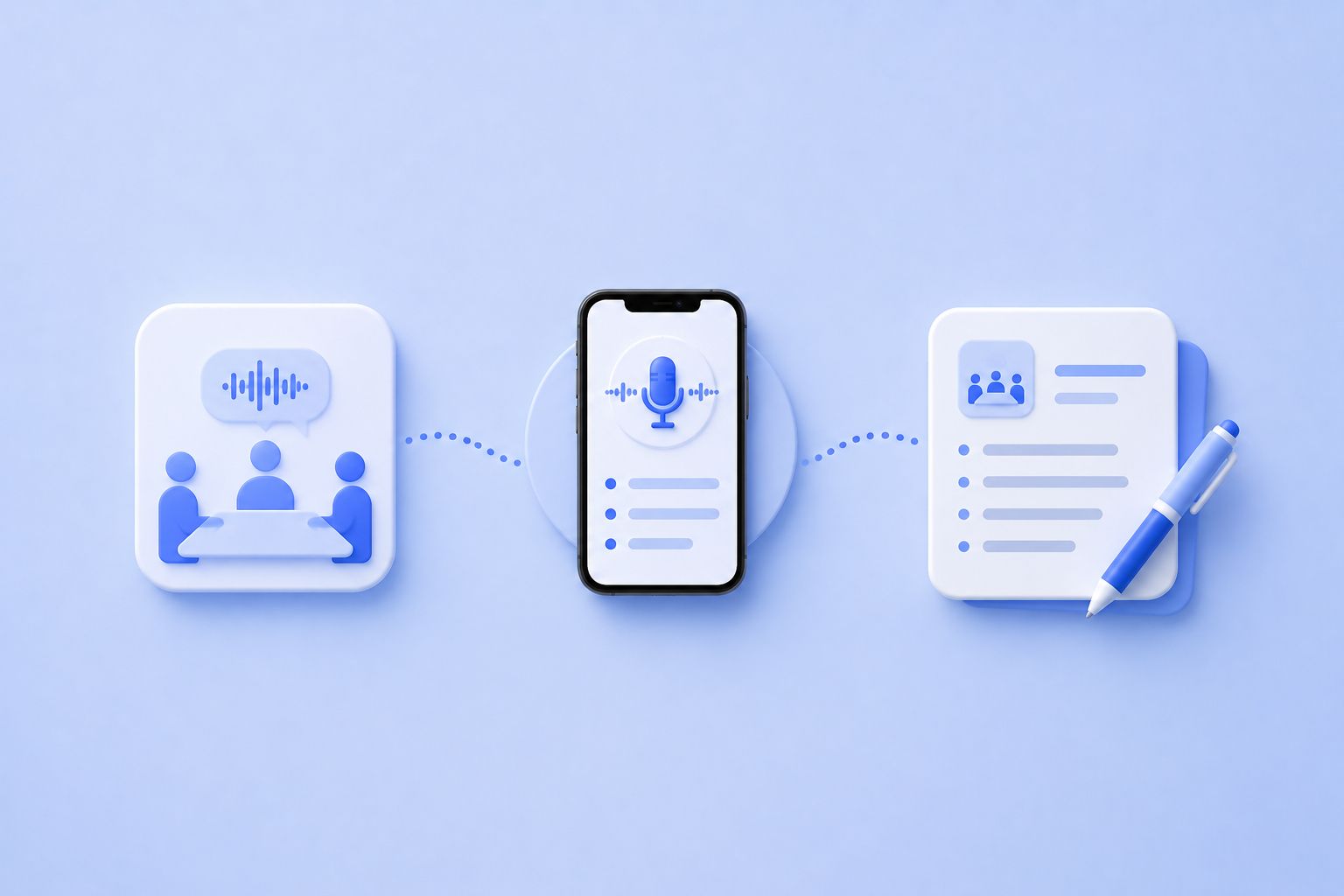
You can take meeting notes on iPhone using built-in tools like Voice Memos and Apple Notes for simple audio capture, or with an AI meeting assistant like HappyScribe that records in-person conversations, auto-joins virtual meetings, detects multiple speakers, and delivers structured notes with action items.
The right choice depends on how much you need to do with those notes afterward.
In-person or virtual meeting? Your iPhone handles both
The real question isn't which meeting type you're in. It's what you need from the output.
If you want a basic audio record and don't need speaker labels, summaries, or anything searchable, Apple's native tools cover that.
Voice Memos and Apple Notes both transcribe audio on iOS 18 and later at no cost, and they work on any iPhone 12 or later without installing anything.
Voice Memos generates a full transcript you can search and copy after the recording ends. The Notes app goes a step further and shows a live transcript as you speak, so you can type your own observations alongside the automated text in real time.
Neither app labels multiple speakers nor produces any kind of AI summary.
They're reliable for simple voice memos and one-on-one in-person conversations where a rough text record is all you need.
For a full walkthrough of how they work, see how to transcribe audio on iPhone.
If you want structured notes you can act on, share, and search later, you need an AI meeting assistant that handles both in-person meetings and virtual sessions from the same interface.
The good news is, HappyScribe's mobile app covers both scenarios.
How to take meeting notes on iPhone with HappyScribe
a. Record in-person meetings
Download the HappyScribe app on your iPhone. Open the app, tap Record, and place your phone face-up near the center of the table.
HappyScribe captures audio through your phone's microphone and continues recording in the background while you use other apps. When the meeting ends, tap Stop, name the recording, and save it.
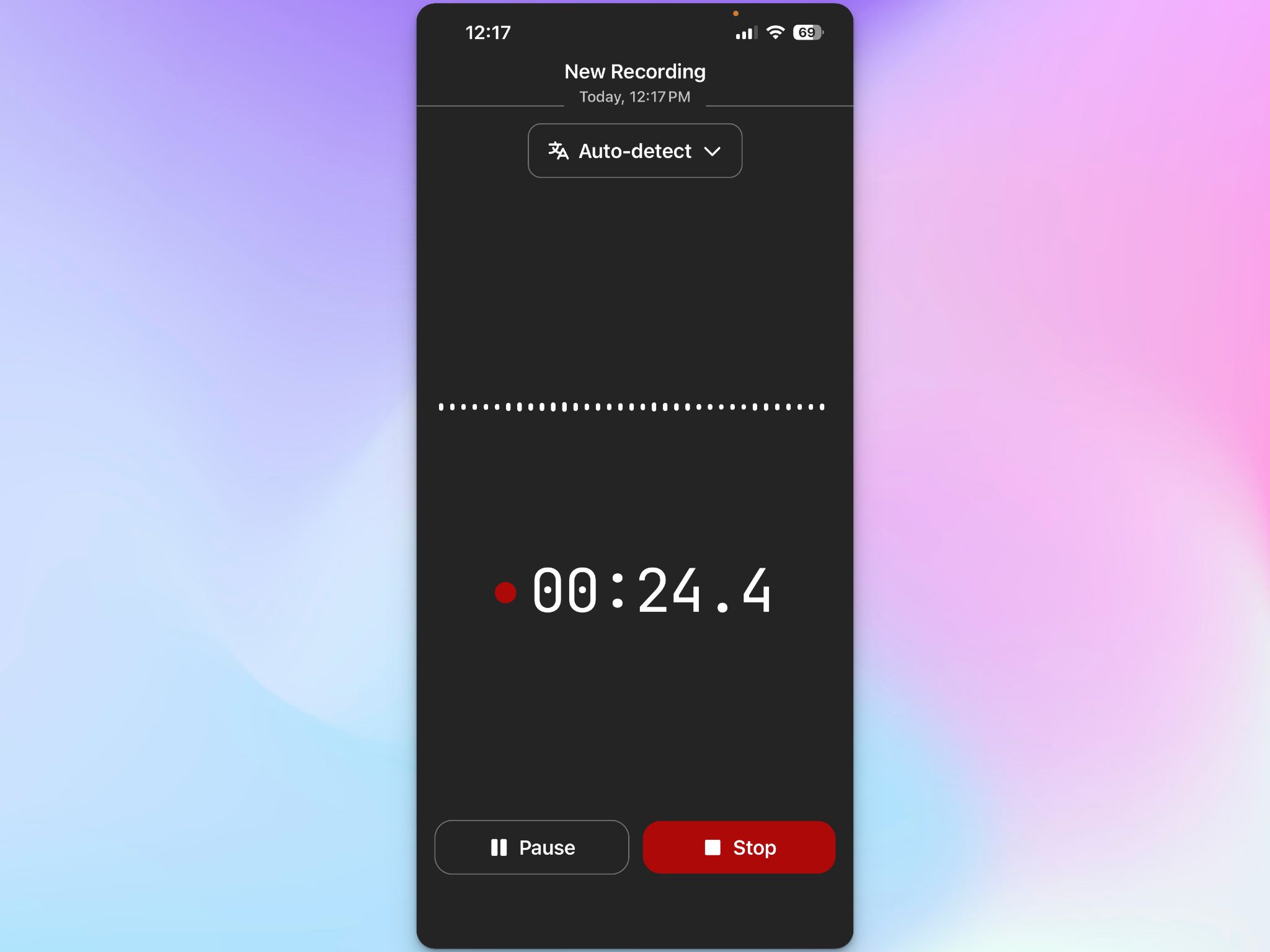
Transcription runs automatically after upload. The transcript comes back with speaker labels and timestamps, so you can see who said what rather than reading a wall of text.
Because speaker identification is built in, tracking contributions from multiple speakers across long in-person conversations is easy.
HappyScribe supports 150+ languages and dialects with automatic detection, so it handles multilingual conversations exceptionally well.
If you're recording a sensitive client conversation or sales call, the infrastructure is GDPR-compliant and SOC 2 Type II certified, with data encrypted in transit and at rest. All of your data is stored in the EU.
A note on consent:
Always tell meeting participants before you start recording.
A simple "I'm going to record this for accurate notes" satisfies consent requirements in most cases and sets clear expectations.
It's also good practice to explain how the recording data will be used and stored, particularly if your organization operates under GDPR or other data protection regulations.
b. Capture notes in virtual meetings
Joining a virtual meeting from your phone?
Connect your Google Calendar or Microsoft Outlook to HappyScribe, and the AI meeting note taker shows up in your upcoming meetings automatically.
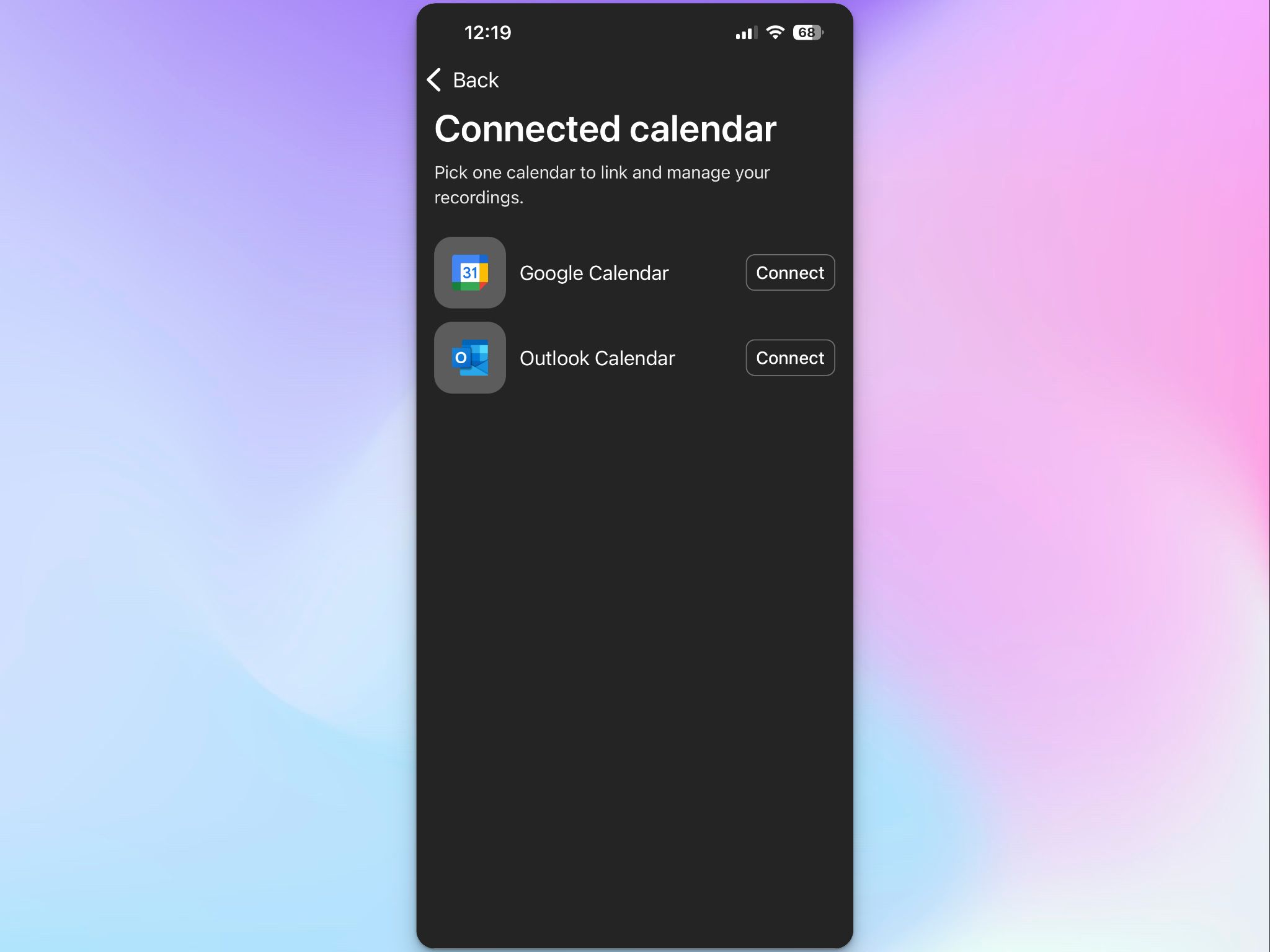
It joins your Zoom, Google Meet, or Microsoft Teams call as a participant, records the audio, and transcribes it. You don't touch the app during the call.
After the meeting ends, you get a structured set of AI meeting notes in your HappyScribe workspace: a full transcript, a summary of key points, and extracted action items.
Every recording syncs between the mobile app and the web editor, so you can review notes on your phone immediately after the meeting and do any detailed editing on a larger screen later.
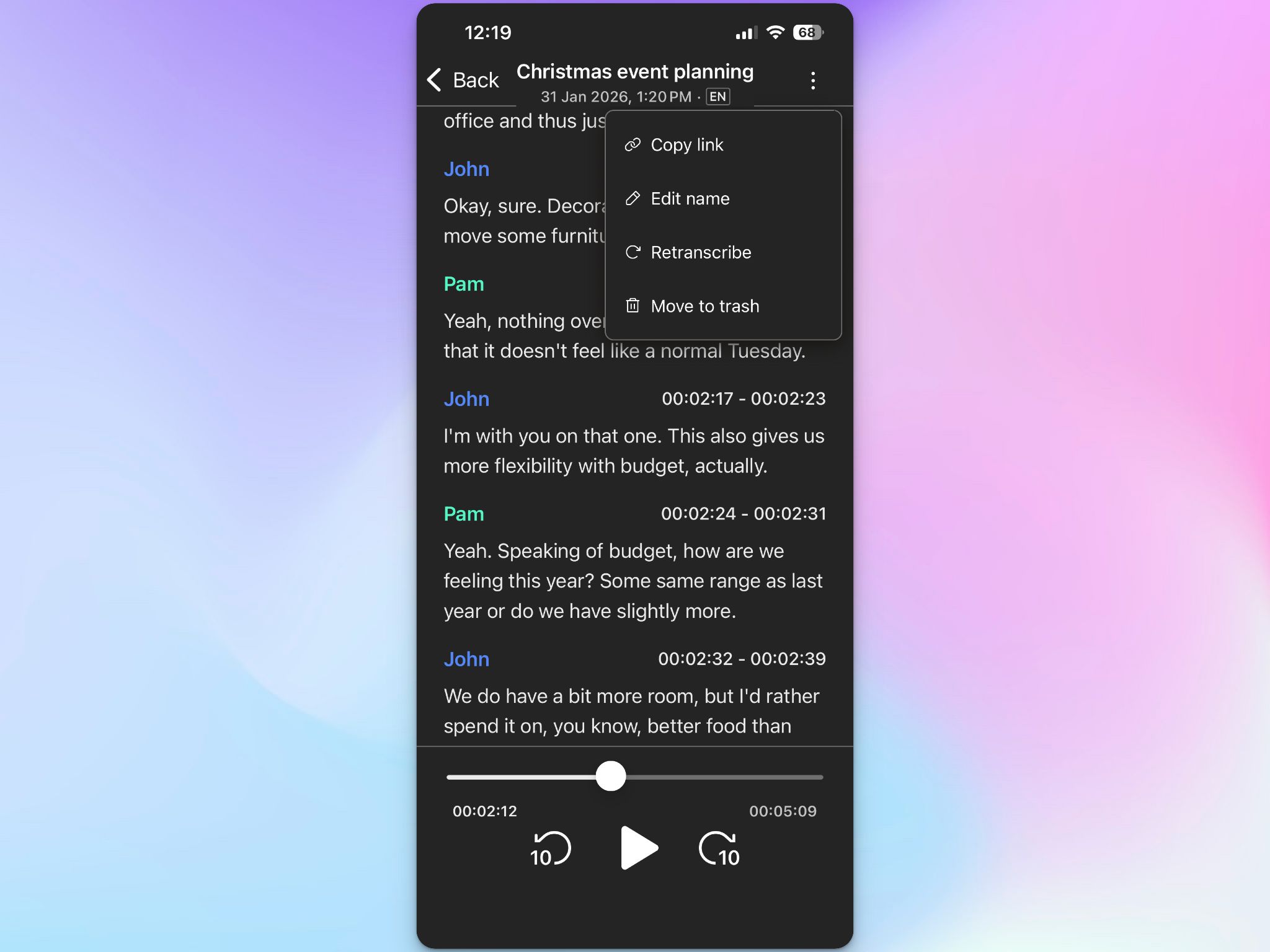
The sync also links recordings to the relevant calendar events, automatically keeping your meeting history organized.
For longer calls or when you need to run queries across multiple transcripts, the AI Chat feature lets you ask questions across your entire meeting library in natural language.
How much does HappyScribe cost?
- Free: Unlimited meeting recordings (45 minutes per recording)
- Basic: $8.50/month (billed annually) or $17/month
- Pro: $19/month (billed annually) or $29/month
- Business: $59/month (billed annually) or $89/month
- Enterprise:Contact sales
How to go from raw transcript to usable meeting output
Capturing the audio is the easy part. The value comes from what you do in the 30 minutes after the meeting ends. Here's a workflow that works whether you used HappyScribe or any other transcription tool.
1. Clean the transcript while context is fresh
AI transcription is accurate, but it stumbles on proper nouns, industry jargon, and names it hasn't seen before. Skim the transcript right after the meeting ends and fix obvious errors.
With HappyScribe, you can set up custom glossaries, style guides, and summary templates, so that the tool gets your industry terms right and the summaries follow your preferred style and format.
In case you still need editing, do it in the web editor where you have more screen real estate and can edit speaker labels alongside the text.
This pass takes a couple of minutes and turns a rough draft into a reliable record.
2. Extract action items
Go through the cleaned transcript and pull out every task, commitment, and decision. For each action item, note who owns it and when it's due.
AI tools like HappyScribe extract these automatically, but it's worth checking them against the transcript. Automated extraction catches the obvious ones; manual review catches the nuanced ones.
Once you have the list, move it into your task management tool so nothing lives only in a transcript file. If your team uses Notion or a similar platform, you can paste the action items directly into a Notion page alongside the meeting summary.
3. Share the summary
Use your iPhone's share sheet to send the meeting summary to Slack, email, or your project management platform. For remote teams across time zones, a concise written summary with decisions and follow-up tasks is more useful than a recording link. People don't watch recordings. They read summaries.
If you're writing manually, keep the summary short: two to three sentences on context, a list of decisions, and a numbered list of action items with owners. This is what turns meeting outcomes into follow-up emails and assign tasks that actually get done.
With HappyScribe, participants automatically receive meeting notes in their inbox. You can also share the notes with other participants in just a few clicks, or push them to your tech stack using the MCP server or API.
4. File the notes somewhere searchable
Store the transcript and summary where your team can find them later.
If you use Notion or Google Drive, paste the summary there with a consistent naming convention (date, project, meeting type) so it's findable three weeks from now when someone asks what was decided.
HappyScribe's meeting library is searchable by keyword across all past meeting notes. The AI Chat lets you search across your entire transcript library with natural language queries, so you can ask "what did we decide about the Q3 launch?" and get instant answers without opening individual files.
5. Set follow-up reminders
Add follow-up tasks to your calendar before you close the notes. The most common reason action items don't happen is that they exist only in a transcript no one re-opens.
A calendar reminder two days before the deadline closes that loop and helps remote workers and customer success teams stay organized across projects.
Tips for clean audio recordings in meetings
Good audio quality directly affects transcript accuracy. A few adjustments before you start recording make a serious difference.
1. Position your phone well. Place it face-up on the table, centered between the people speaking. Keep it away from laptop fans, air conditioning vents, and surfaces that vibrate. Distance from the speaker is one of the main reasons transcripts come back with missing words.
2. Ask participants to avoid crosstalk. When two people speak at the same time, even advanced AI struggles to separate the voices. A quick ask at the start of the meeting ("let's try not to talk over each other so the notes are accurate") sets the right expectation.
3. Use a microphone for critical recordings. Your iPhone's built-in mic is fine for online meetings and everyday conversations. For high-stakes interviews or recordings where every word is crucial, a clip-on lapel mic or a directional microphone will capture cleaner audio.
4. Check your battery before long meetings. Long recordings keep your screen active and your processor running. Top up before any meeting over 45 minutes so a low battery notification doesn't interrupt the recording.
Turn your iPhone into a meeting notes tool with HappyScribe
HappyScribe turns your iPhone into a complete meeting notes tool.
Tap record for in-person conversations, or connect your calendar and let the AI note taker handle virtual calls on Zoom, Google Meet, and Microsoft Teams.
When the meeting ends, you get a transcript with speaker labels, a summary, and extracted action items, all synced to your HappyScribe workspace and ready to share.
FAQs on how to take meeting notes on iPhone
What's the best app for taking meeting notes on iPhone?
For in-person meetings where you need speaker labels, multilingual support, and searchable notes, HappyScribe's mobile app transcribes audio recordings with support for 150+ languages and syncs everything to a collaborative workspace.
For virtual meetings on Zoom, Google Meet, or Microsoft Teams, HappyScribe's AI meeting note taker auto-joins calls and delivers structured notes with AI-powered summaries and action items.
Apple's built-in Voice Memos and Notes apps work for simple single-speaker recordings but don't produce meeting summaries or identify speakers.
Can I use AI tools to take meeting notes on iPhone without typing anything?
Yes. AI meeting assistants like HappyScribe automatically transcribe and summarize meetings, so you can stay focused on the conversation rather than manual note taking.
For in-person meetings, you tap record once and the app handles the rest. For virtual meetings, the AI note taker joins the call as a bot after you connect your Google Calendar or Microsoft Outlook. Speaker identification is built in, so the transcript labels each person's contributions. Features like action item extraction and AI-powered summaries are also available.
Can HappyScribe auto-join my online meetings on iPhone?
Yes. Connect your Google Calendar or Microsoft Outlook to HappyScribe, and the AI note taker joins your scheduled Zoom, Google Meet, and Microsoft Teams calls automatically. You don't need to open the app during the call. The transcript and summary appear in your HappyScribe workspace when the meeting ends, accessible from both the mobile app and the web editor. The recordings are also linked to the relevant calendar events for easy retrieval.
How do I capture meeting notes without missing what's being said?
Use an AI meeting assistant that records audio in the background so you can stay present in the conversation. With HappyScribe, you tap record once and the app handles transcription, speaker identification, and note organization after the meeting. You get detailed notes with timestamps and speaker labels without typing anything during the call. For online meetings, the AI note taker joins the call for you, which means you're not managing the app at all and can focus entirely on the discussion.
How do I share iPhone meeting notes with my team?
In HappyScribe, transcripts and summaries are shareable directly from the web editor. You can export as DOCX, PDF, TXT, or SRT, or use the share sheet on your iPhone to send a summary to Slack, email, or a project management platform. For remote teams, HappyScribe's workspace keeps all audio recordings and transcripts in one searchable place. If your team works in Notion, you can copy the meeting summary directly into a Notion page with action items and key takeaways.
Is it legal to record meetings on iPhone?
Recording laws vary by country and US state. In the United States, some jurisdictions require only one participant's consent before recording or transcribing a conversation, while others require all participants to agree. When meeting participants are spread across multiple states or countries, getting consent from everyone is the safer approach and widely considered best practice.
Before recording any meeting, tell everyone in the room or on the call. This satisfies consent requirements in most jurisdictions and sets clear expectations about how the recording will be used and stored.
Data protection regulations such as GDPR also require organizations to secure personal data including meeting recordings, so if your team operates in the EU, make sure your chosen tool is GDPR-compliant. HappyScribe is SOC 2 Type II and GDPR-compliant with data stored in certified EU data centers. If you work in a regulated industry or frequently record calls across different countries, consult a legal professional for advice specific to your situation.
How do I organize past meeting notes on iPhone?
HappyScribe stores all your transcripts in a searchable meeting library. You can search by keyword across past meeting notes to find specific decisions, names, or topics without opening individual files. The AI Chat feature lets you ask natural language questions like "what did we agree on in the Q3 planning call?" and get instant answers.
How do I transcribe a meeting recording I already have on my iPhone?
Upload the file directly to HappyScribe via the mobile app or web platform. HappyScribe accepts most common audio and video formats and returns an accurate transcript with speaker labels and timestamps. If you need human-verified accuracy, you can request professional proofreading to bring the transcript to 99% accuracy.

Rodoshi Das
Rodoshi is the Content Lead at HappyScribe, the privacy-first transcription and AI notetaker platform based in Barcelona. Shaping content strategies and building AI workflows excites her as much as exploring new SaaS tools. She specializes in product-led content that informs rather than sells, grounded in honest product benchmarking and low tolerance for empty marketing speak.