![How to Transcribe Audio on iPhone [2026]](/sanity-images/ejgwz1gl/redesign/a5088f9ff401fbae4a4a62887e8d0d84dfea0848-1774x887.png?auto=format&w=1774.0&rect=0,11,1774,876)
Your iPhone can transcribe audio out of the box. Since iOS 18, both the Voice Memos and Notes apps include built-in transcription that converts speech to text in real time, with no extra apps required. They work well for simple recordings, but struggle when you need better accuracy, more languages, or speaker labels.
Below, I'll walk through how to transcribe with Apple's native tools first, then cover how to get more from your recordings with the HappyScribe mobile app.
How to transcribe audio with your iPhone's built-in tools for free
If your iPhone runs iOS 18 or later, you already have two apps that can transcribe audio without installing anything. Both work on iPhone 12 and later.
Voice Memos
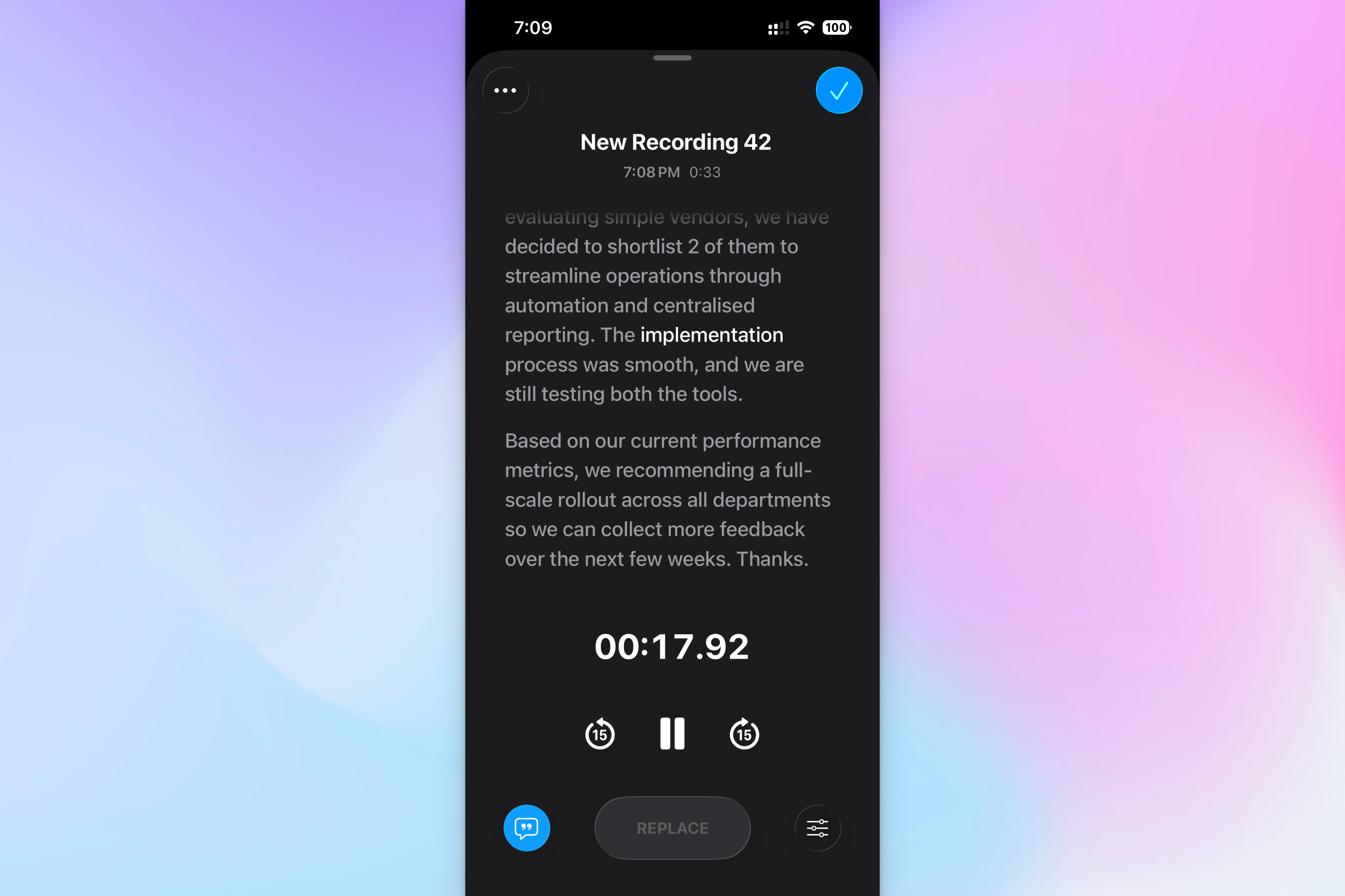
- Open the Voice Memos app (it's in the Utilities folder).
- Tap the red Record button at the bottom of the screen.
- While recording, swipe up to expand waveform window and tap the 💬quote icon at the bottom left of the screen to see the transcription in real time.
- When you're done, tap Stop and save it.
- To view the full transcript, click on the recording, tap the three-dot menu, and select View Transcript.
From there, you can select a text and start recording again to replace the transcripts. Voice Memos doesn't offer export to DOCX, PDF, or SRT, so you'll need to copy and paste manually if you want the text in another format.
Transcription in Voice Memos supports English (all variants), Spanish, Portuguese, Italian, French, German, Japanese, Korean, Simplified Chinese, and Traditional Chinese. It's not available in all countries or regions.
Notes app
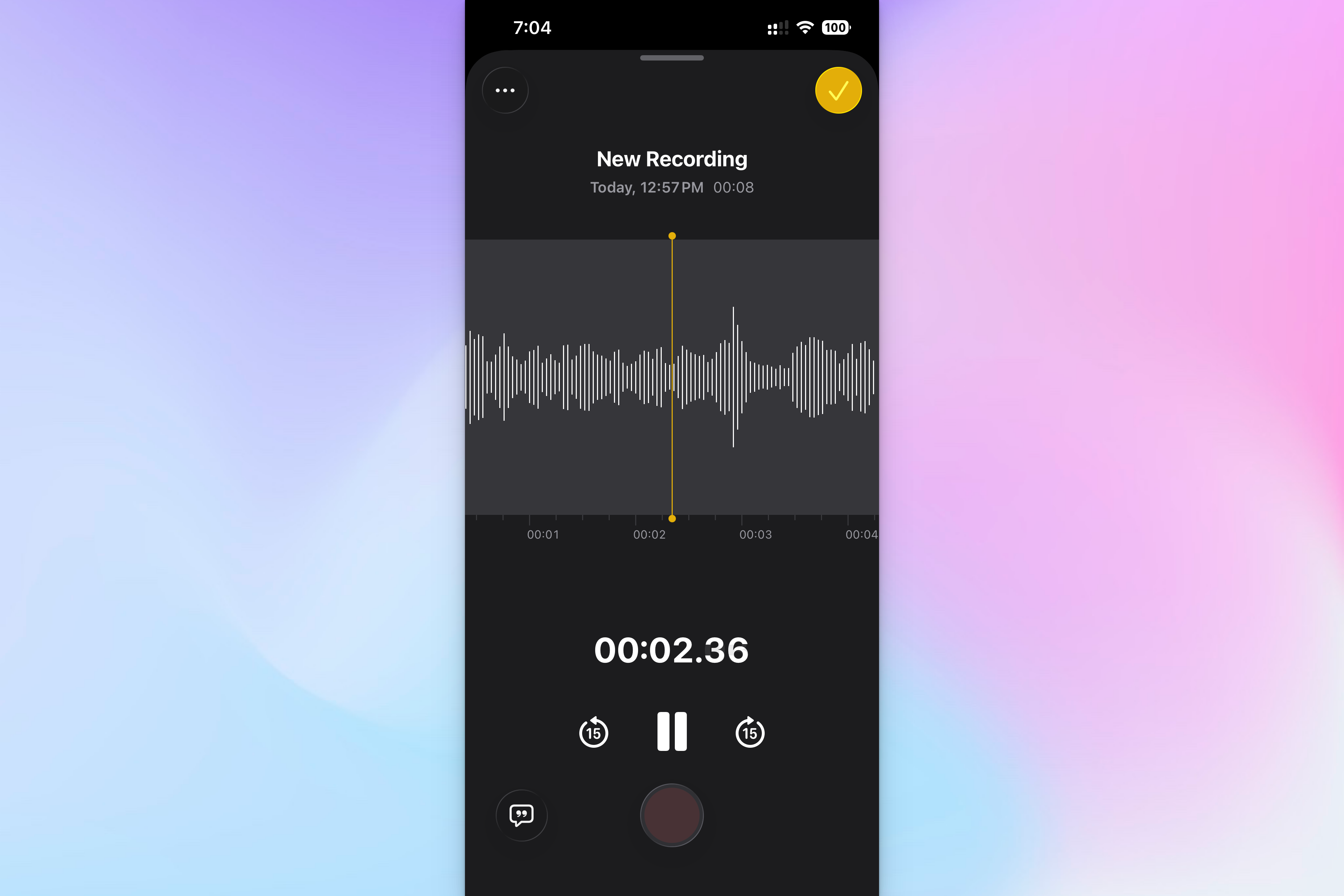
- Open the Notes app and create a new note (or open an existing one).
- Tap the 📎paperclip icon and select Record Audio from the menu.
- Tap the red button to start recording. The app transcribes in real time as you speak.
- Tap the 💬 quote icon from bottom left to view the live transcript while recording.
- When you're done, tap Stop and save it. The recording appears as an embed inside your note, along with a few lines from the transcript.
To view the full transcript after recording, tap the transcript preview. You can also tap the three-dot menu to copy the transcript text, add it directly to the note, or search through it. Notes also lets you summarize the transcript with Apple Intelligence if you have it enabled.
The Notes app supports the same languages as Voice Memos: English (all variants), Spanish, Portuguese, Italian, French, German, Japanese, Korean, Simplified Chinese, and Traditional Chinese. iPhone 12 or later required.
Phone and FaceTime apps
- To transcribe audio on a live call, tap the three-dot menu and then tap Call Recording. Participants will hear an audio alert for recording.
- To stop recording, tap the red stop icon or simply hang up the call.
To view the transcript from your call, open the Notes app, select a note in the Call Recordings folder, and then tap 💬quote icon. From there, you can copy and search transcripts just like other transcripts in the Notes app. Call transcription is only available across 15 regions and languages.
Why Apple’s native tools for transcribing audio aren't good enough
Voice Memos and Notes are ideal for quick, real-time transcription of single-speaker recordings. If you speak in one of the few supported languages, that covers the basics.
But you have more reasons to use something powerful and versatile than the built-in options:
- Voice Memos and Notes can’t auto-detect or switch between languages, so multilingual conversations produce unreliable transcripts
- There's no editor to fix typos or formatting errors, and there’s no speaker labelling, which means you can't tell who said what in multi-person recordings
- You can't export transcripts as DOCX, PDF, TXT, or SRT files directly
- Long interviews and lectures hit processing limits and may slow down your iPhone while being used
- There's no option to send a transcript for human review when flawless accuracy is needed
A dedicated transcription app gives you more control over your recordings and more features. Here's how to do it with the HappyScribe mobile app.
Transcribe audio with the HappyScribe mobile app
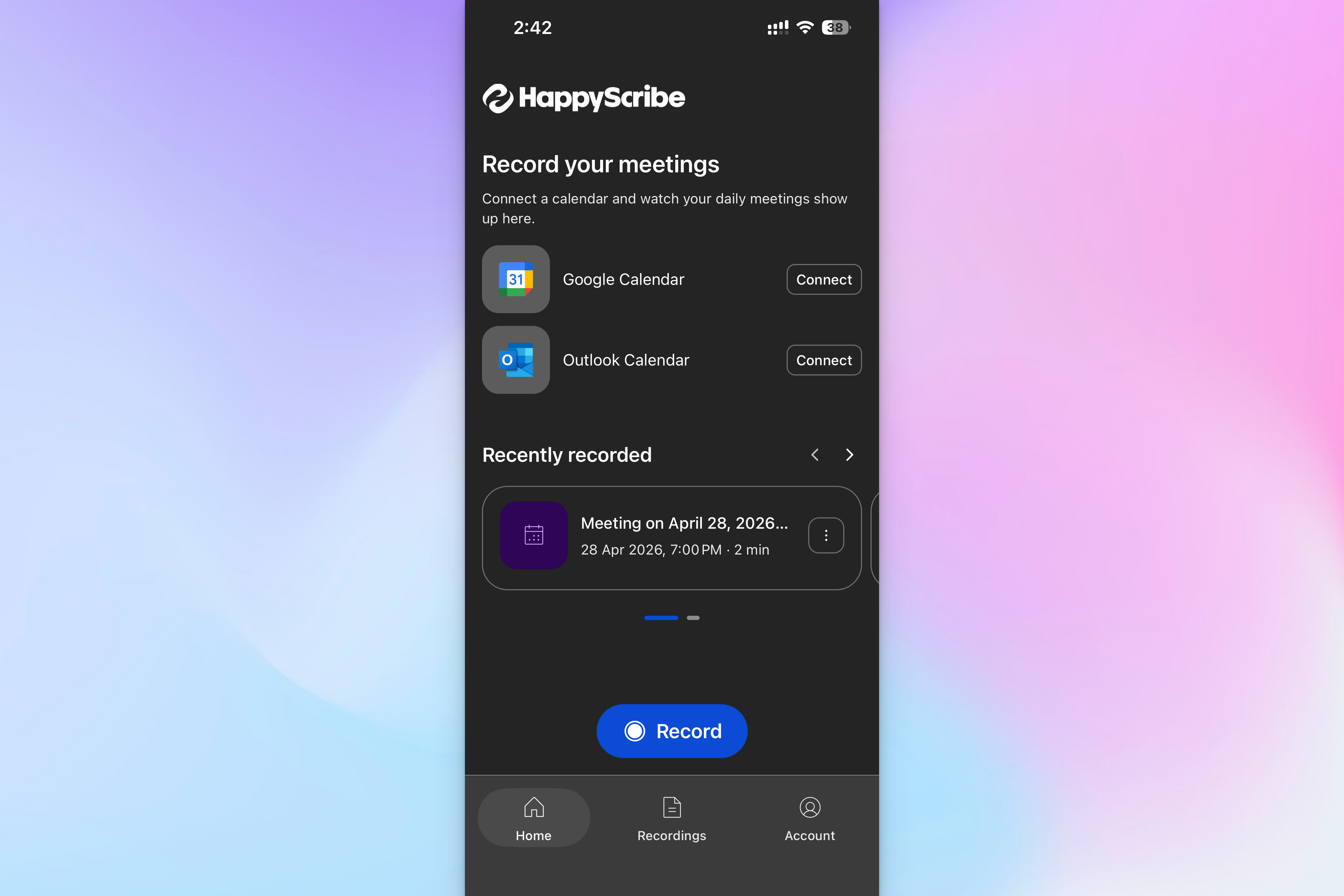
The HappyScribe mobile app uses the same powerful AI engine that powers HappyScribe on the web, so you get the same accuracy and speaker labeling on your phone. It supports 150+ languages with auto-detection, and your recordings sync to your HappyScribe workspace alongside meeting recordings, uploaded files, and AI notes.
Here's how to record and transcribe audio with HappyScribe on iPhone:
- Download the HappyScribe app from the App Store.
- Sign in with your existing HappyScribe account, or create a free one.
- Tap ⏺️ Record, give permissions, and start speaking. The recording continues even if you switch to other apps.
- You can pause/resume the recording midway and when you're done, tap Stop. Give it a name and tap Save.
- It gets uploaded to your HappyScribe workspace across devices, and within minutes, you’ll have a neatly formatted transcript ready.
Why HappyScribe app is the best way to transcribe audio on iPhone
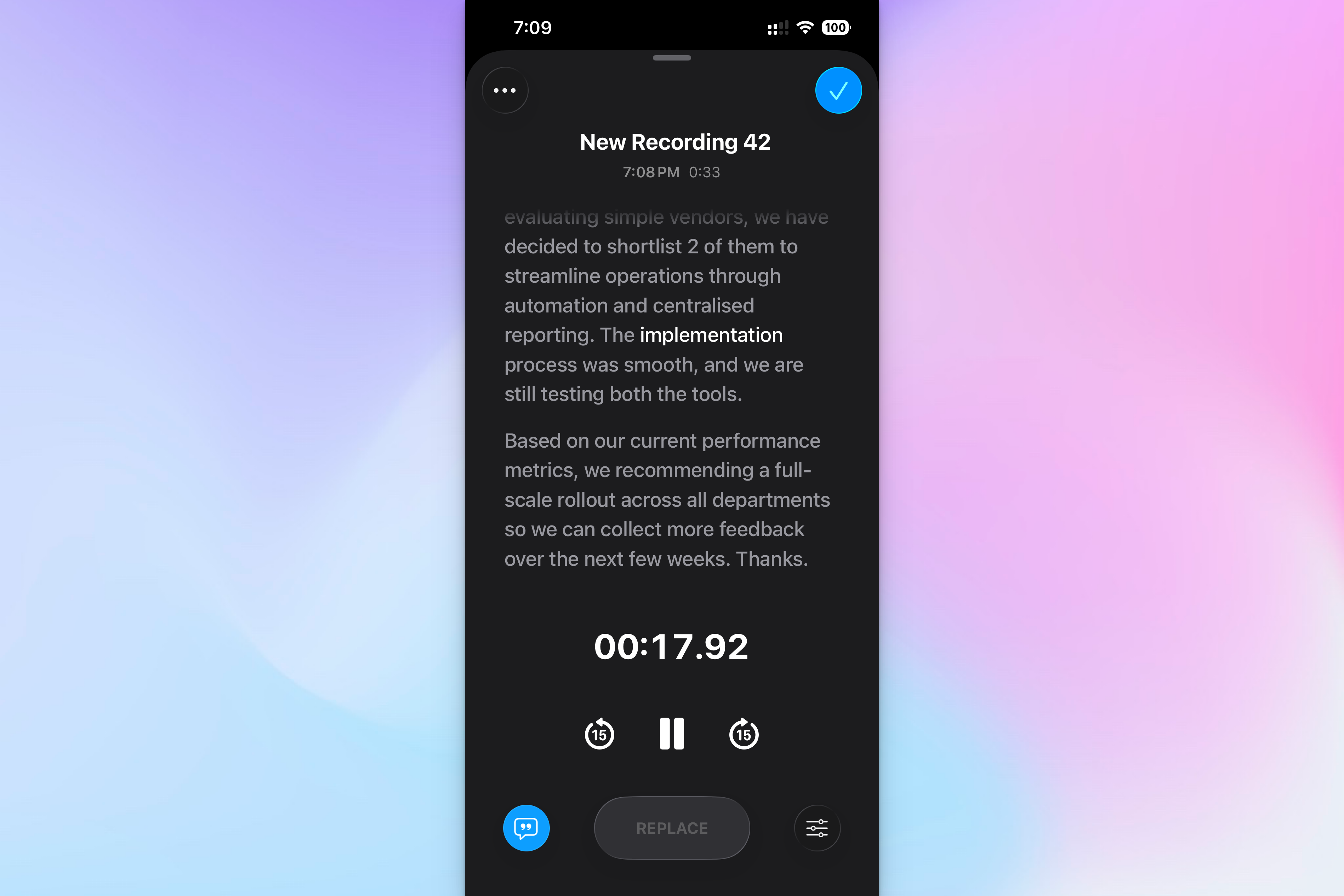
HappyScribe is built to help researchers, students, and professionals transcribe lectures and meetings on the go. Unlike Apple, HappyScribe's transcription workflows are central to HappyScribe’s strategy, so you get more flexible and reliable transcripts.
- Simple iPhone app for daily use. Tap record, stop, and save. The HappyScribe app runs in the background while you use other apps, so it fits into your routine
- 150+ languages and dialects, auto-detected. Be it Danish, Swiss German, or Korean, HappyScribe app identifies a wide range of dialects across the globe
- Works offline for recordings. You can capture audio anywhere, even without signal. The app waits for the internet to upload and transcribe, so you never lose a recording because of poor connectivity
- Same AI engine and editor as the web app. HappyScribe AI transcribes audio with 95% accuracy, and if you need 99% accurate notes, you can request human proofreading through the website
- Calendar-connected meeting capture. Connect your Google or Outlook calendar, and your daily meetings show up in the app. HappyScribe AI meeting note taker can auto-join Google Meet, Zoom, and Microsoft Teams calls to take notes
- GDPR-compliant, SOC 2 Type II-certified infrastructure. Recordings are encrypted in transit and at rest, so sensitive interviews and client conversations stay protected with HappyScribe
- AI Chat across your workspace. Every transcript you create on your phone is searchable in your HappyScribe workspace. Record from the app and ask the AI Chat to surface deeper insights and decisions from lectures and meetings on the web
Native iPhone vs. HappyScribe app for audio transcription: Quick comparison
| Feature | Voice Memos / Notes | HappyScribe app |
|---|---|---|
| Supported languages | 10 languages | 150+ languages and dialects |
| Language auto-detection | ❌ | ✅ |
| Speaker labels | ❌ | ✅ Timestamped with multiple speaker support. Editable on web |
| Real-time transcription | ✅ | ❌ Transcribed after upload |
| Offline recording | ✅ | ✅ Uploads when back online |
| Transcript editor | ❌ Copy and paste only | ✅ Fully-featured editor on web |
| Export formats | ❌ No direct export | ✅ DOCX, PDF, TXT, HTML, SRT, etc on web |
| Human proofreading | ❌ | ✅ Available via web |
| AI meeting note taker | ❌ | ✅ Auto-joins Zoom, Meet, Teams |
| AI Chat search | ❌ | ✅ Search data and insights across all transcripts |
| Security certifications | ✅ On-device processing | ✅ GDPR, SOC 2 Type II, EU data storage |
| Price | Free | Free plan available, paid plans offer more minutes |
Apple's native tools are decent options for single-language voice memos and quick reminders. For longer or multilingual recordings when you want high-quality transcripts, the HappyScribe app gives you the accuracy, language support, AI Chat, and export options that Apple's built-in tools can’t offer.
Tips for better iPhone recordings
The quality of your recording has a direct impact on how accurate the final transcript will be, regardless of which app you use. A few small adjustments before you start recording will save you from a lot of hassles later.
- Reduce background noise: Move away from air conditioning units, open windows, or crowded spaces. A quieter environment gives the AI fewer competing sounds to filter out
- Keep your iPhone close to the speaker: Place your phone on the table between you and the person speaking, or hold it within arm's reach. Distance is one of the biggest reasons transcripts come back with missing words
- Speak clearly and avoid crosstalk: If you're recording a conversation with multiple people, ask participants to avoid talking over each other. Even the best AI struggles when voices overlap
- Use a wired or Bluetooth microphone for critical recordings: Your iPhone's built-in mic is fine for casual notes, but a clip-on lapel mic or a directional microphone will capture cleaner audio for interviews and lectures
Start transcribing audio accurately on your iPhone
Your iPhone already has the basics covered with Voice Memos and Notes. But if you're regularly recording lectures, interviews, or multilingual conversations, HappyScribe lets you do more with those recordings. From deep insights and accuracy upgrades to third-party integrations, you can run full-stack transcription projects without slowing down.
FAQs on how to transcribe audio on iPhone
Does HappyScribe have a mobile app?
Yes, and it's particularly handy if you record interviews, meetings, or notes away from your desk. The HappyScribe mobile app (iOS and Android, free on all plans) works as a portable recorder that syncs directly to your HappyScribe library. Uploads happen in the background and auto-resume if your connection drops, so nothing gets lost mid-fieldwork. Once a recording is in your library, you can transcribe it, send it for human proofreading, or ask questions about it using AI Chat.
How do I transcribe an audio file to text on my iPhone?
Open the Voice Memos app, which is pre-installed on every iPhone. Record your audio, save it and then tap the three-dot menu and select View Transcript. If you already have a voice memo file opened, tap the 💬 quote icon at the bottom left to view the transcript. You can simply select the text and copy it, though there's no direct export option. For longer interviews or long files that need speaker labels and editable text, a third-party app like HappyScribe turns any audio recording into a searchable text transcript with timestamped speaker labels.
How do I transcribe audio on my phone?
For short recordings and live speech, use the Voice Memos or Notes app on your iPhone. Both are free apps that transcribe in real time as you speak. For longer or multilingual recordings, download a dedicated transcription app from the App Store. HappyScribe's app lets you record on your phone and transcribes the audio using the same AI model that powers its web platform, so you get accurate transcription with speaker labels across 150+ languages and dialects.
Does the iPhone have a transcribe function?
Yes. Since iOS 18, both Voice Memos and Notes include built-in transcription features for live speech. Voice Memos generates a full transcript you can view through the three-dot menu, and Notes transcribes audio in real time while you record. These work on iPhone 12 or later (and iPad with iPadOS 18) and support 10 languages. They're best for quick voice notes in a single language. If you need to transcribe a video file or work with content in other languages, a dedicated transcription app like HappyScribe will give you more flexibility.
How do I turn on transcription on my iPhone?
There's no setting to enable. If your iPhone runs iOS 18 or later, transcription is available automatically in Voice Memos and Notes. In Voice Memos, simply select a recording, tap the three-dot menu, and choose View Transcript. In Notes, tap the 📎 paperclip icon, select Record Audio, and the app transcribes as you speak. No additional setup required.
What's the most accurate way to transcribe voice notes on iPhone?
Apple's native tools work as a free app option for quick voice memos, but accuracy drops with background noise or multiple speakers. For higher accuracy on key points and longer interviews, use a dedicated voice recorder app that processes your audio recording through a more advanced AI model. HappyScribe transcribes voice memos with 95% accuracy and lets you edit the raw transcript into clean, editable text through the web editor. If you need flawless accuracy, you can send the transcript for manual transcription by a human proofreader, which pushes results to 99%. To share, tap Share from the editor and export as DOCX, PDF, TXT, or SRT.

Biplab Mazumder
Biplab is a content marketer and writer who helps high-growth brands scale content visibility across AI search channels. His works have been published in HubSpot, Freshworks, Atlassian, SurferSEO, etc. When he's not planning content strategy, he's testing AI content workflows and use cases.