![How to Create Transcript from Video: Step-by-Step Guide [2026]](/sanity-images/ejgwz1gl/redesign/862c03ea763a2947a2bd5dd7b7493d02faa9a7a3-1280x720.jpg?auto=format&w=1280.0&rect=111,69,1054,527&h=640)
Video holds information hostage. The insights are there inside interviews, meetings, and lectures, but without a way to search or reference them, they fade into the background.
You can’t Ctrl+F a video. You can’t skim 45 minutes for one data point or pull a precise quote without replaying the same section again and again.
This is where transcription changes everything, by turning speech into searchable text.
From interviews and video content to meeting documentation, creating transcripts involves real decisions. In this article, we’ll show how to create transcript from video and how to do it right.
TL;DR
- Decide your approach: Manual (time-consuming), automated (fast), or hybrid (best balance)
- Prepare your tool: Use a platform like HappyScribe that supports your language, allows editing, collaboration, and secure exports
- Transcribe in three steps: Upload your video to HappyScribe and get a transcript -> Edit transcript if needed -> Export in your preferred format
- Result: A searchable, quote-ready transcript that saves hours of scrubbing through a video
What “creating a transcript” actually involves
Most people think transcription is just converting audio to text. That's technically correct but functionally incomplete.
A transcript becomes useful when it preserves who said what, maintains the logical flow of conversation, and captures nuances like questions versus statements.
Here's what makes a transcript useful:
- Speaker identification: Knowing who's talking is crucial for interviews, panels, and multi-person meetings
- Contextual formatting: Breaking text into logical segments rather than one continuous stream
- Timestamp alignment: Syncing text with video moments for captions or reference points
- Accuracy verification: Catching misheard words, especially technical terms or proper nouns
- Purpose-specific cleanup: Removing filler words for readability or keeping them for authenticity
Now that we know what makes a transcript valuable, let’s look at the practical ways to create one from video.
Methods to create a transcript from video
You have three realistic paths: do it yourself manually, use video to text software like HappyScribe to automate it, or combine both approaches.
1. Manual transcription
You play the video and type what you hear. This gives you complete control over accuracy and formatting decisions as you go.
It's tedious and time-consuming (roughly 4-6 hours per hour of video), but it's free and produces the most reliable results when accuracy is non-negotiable.
2. Automated transcription
AI-powered tools process your video and generate text automatically. You'll still need to review and correct errors, but it dramatically reduces the time investment.
It works well for podcasts, YouTube videos, webinars, and internal meetings where minor errors won't cause problems.
3. Hybrid approach
Software generates the initial transcript, then you (or a professional transcriptionist) review and clean it up. It's the sweet spot for most business use cases where you need both efficiency and reliability. The good news is, if you’re using a tool like HappyScribe, you can get both AI transcription and have the content reviewed by professional transcriptionists.
Once you’ve decided which transcription method fits your needs, the next step is choosing the right tool to carry it out effectively.
How to choose the right tool for video transcription?
Transcription tools differ in ways that only become obvious in real use. Speed and accuracy are baseline expectations now.
What separates platforms is how they handle editing, language support, collaboration, export options, and content security. These details determine how usable a transcript really is.
Here’s what to look at closely:
- Language support: “Multilingual” can mean 10 languages or 100+. If you work globally, verify real accuracy in the languages you actually use, not just nominal support
- Editing workflow: A good editor lets you jump from text to audio, flag low-confidence words, label speakers, and fix errors fast. Poor editors turn transcription back into manual work
- Export formats: Plain text is limiting. Look for SRT, VTT, JSON, XML, and timestamped formats if you plan to reuse transcripts across subtitles, content, or documentation
- Security: For sensitive material, GDPR compliance, SOC 2 certification, and clear retention controls are non-negotiable. Many free tools store or reuse your data
- Collaboration: Shared access, comments, assignments, and link-based sharing are helpful if transcription is part of a team workflow
With these factors in mind, it becomes easier to see why certain tools are better suited for professional use. HappyScribe is one of them.
Why HappyScribe fits professional workflows
The criteria we just covered aren’t theoretical. They’re daily realities that determine whether transcription supports your work or slows it down. HappyScribe’s video-to-text converter addresses each of them, which is why we’re using it for this walkthrough.
At a baseline, it delivers reliable transcription at scale: support for 140+ languages and dialects with real accent recognition, word-level timestamps, accurate speaker labeling, and editing features.
Beyond that, here’s what sets HappyScribe apart functionally:
- Integrated workflow tools: Transcription, subtitles, translation, and meeting notes all live in one place instead of forcing you to juggle multiple platforms
- Real collaboration features: Add team members to workspaces, share editable links, leave comments on specific sections
- Flexible accuracy options: AI transcription when you prioritize speed and human transcription (99% accuracy, 24-hour turnaround) when precision is non-negotiable
- Professional export formats: TXT, DOCX, PDF, SRT, VTT, JSON, XML, plus burned-in subtitles rendered directly
- Enterprise-grade security: GDPR compliant, SOC 2 Type II certified, European data hosting for sensitive content
- Direct integrations: Pull files from Google Drive, Dropbox, YouTube, Vimeo without downloading and re-uploading
For accuracy-critical work, human transcription uses field-trained linguists with support for custom glossaries and style guides.
Step-by-step guide: How to transcribe a video using HappyScribe
The process is deliberately simple. Three steps, no technical complexity.
Step 1: Upload your file
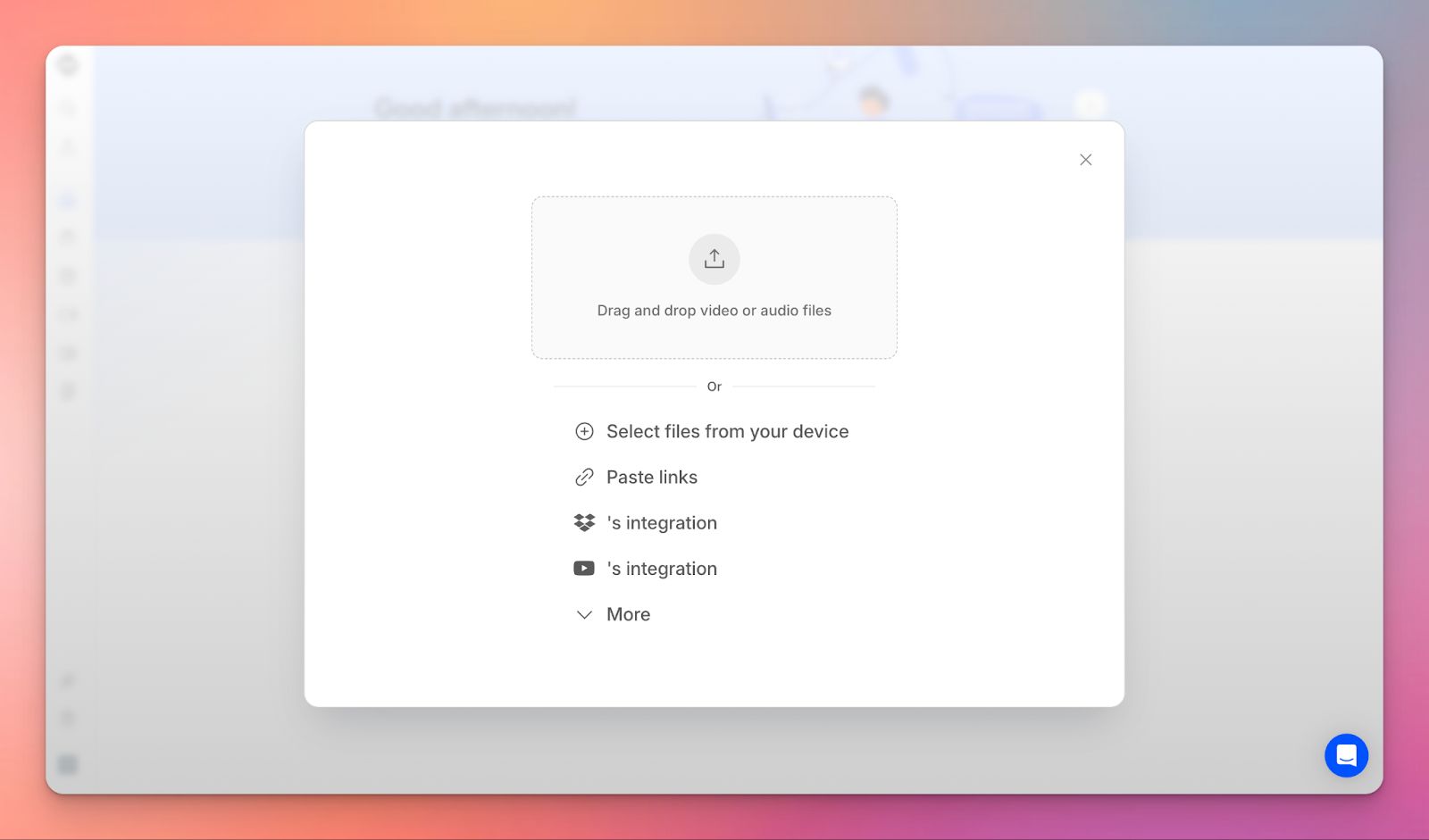
Start a new transcription in HappyScribe by uploading a file or importing one from a link or cloud service.
At this stage, you can:
- Upload common audio or video formats
- Paste a YouTube or Vimeo link
- Import from Google Drive or Dropbox
- Select the spoken language
- Choose AI transcription for speed or human transcription for higher accuracy
Click Create to begin. AI transcriptions generally complete within minutes.
Step 2: Edit in the interactive editor
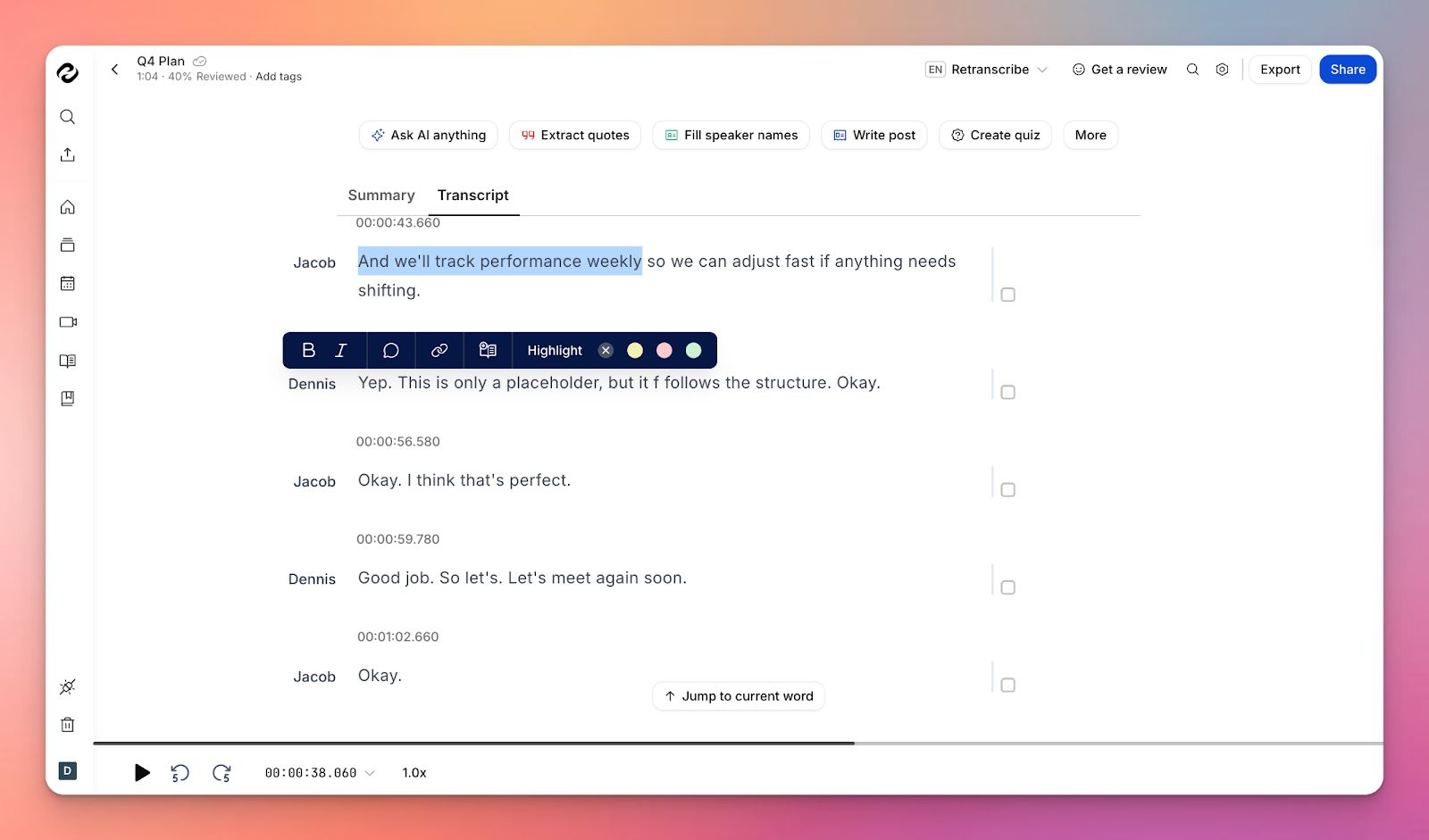
Once ready, open the file from your dashboard. The editor keeps text and audio tightly linked so the review stays fast and focused.
While editing, you can:
- Click any word to jump to that moment in the audio
- Follow playback with live word highlighting
- Rename speakers or adjust speaker breaks
- Fix repeated errors using search and replace
For teamwork, you can share editable links, add comments, or invite collaborators. If you need another language, translate the transcript directly from the editor, with human translation available for professional use.
Step 3: Export your transcript
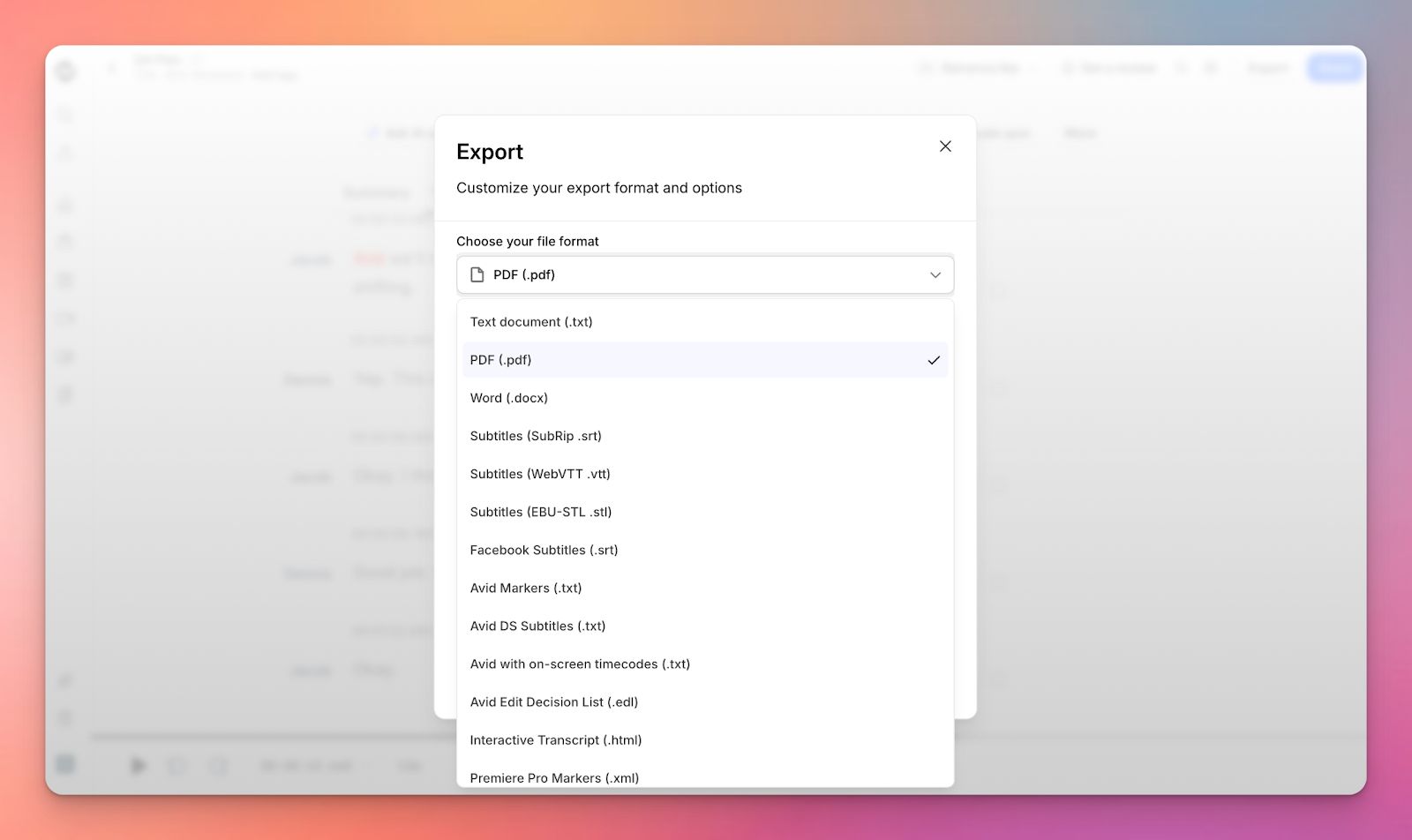
When the transcript is finalized, export it in the format that fits your workflow.
Available formats include:
- TXT, DOCX, or PDF for documents
- SRT or VTT for subtitles
- JSON, XML, or CSV for technical and analytical use
Note: Available formats depend on your plan. Basic plans include TXT, DOCX, PDF, and SRT, while Pro and Business plans add VTT, STL, HTML, XML, FCPXML, JSON, EDL, and CSV.
You can include speaker names and timestamps before exporting. Files download instantly, with additional formats available on higher-tier plans.
Wrapping up
By the end of the process, the real shift is simple: you stop going back to video.
Instead of replaying and scrubbing, you work from something you can search, quote, and trust, whether you’re pulling a line from an interview or checking what was decided weeks later.
That’s the difference a tool like HappyScribe makes when it’s used in the right context. Not by changing what transcription is, but by removing the friction that keeps video from being usable in the first place.
Frequently Asked Questions
How do I generate a transcript from a video?
Upload your video to a transcription platform such as HappyScribe, select the audio language, and choose automated or human transcription. Once processing is complete, review the transcript in the editor and export it in the format you need (TXT, DOCX, PDF, or SRT).
Can ChatGPT generate a transcript from a video?
ChatGPT can’t transcribe video or audio files directly because it’s text-only. You’ll need to use a transcription tool first, then paste the transcript into ChatGPT for summarizing, analysis, or restructuring.
Can Google create a transcript from a video?
Google can generate transcripts from uploaded videos using YouTube’s automatic captions. Accuracy varies, and editing options are limited. Google’s other tools, like Voice Typing in Docs, work in real-time and aren’t designed for pre-recorded video.
Can AI transcribe a video for free?
Some platforms offer limited free transcription, usually with caps on time or features. Free options work for basic needs, but paid plans are typically required for better accuracy, longer files, and professional exports.

Akshay Kumar
Akshay builds pieces meant to reach people and stay visible where it matters. For him, it’s less about the name and more about whether the words did what they were meant to.