Downloading a transcript from YouTube sounds simple until you actually try to do it.
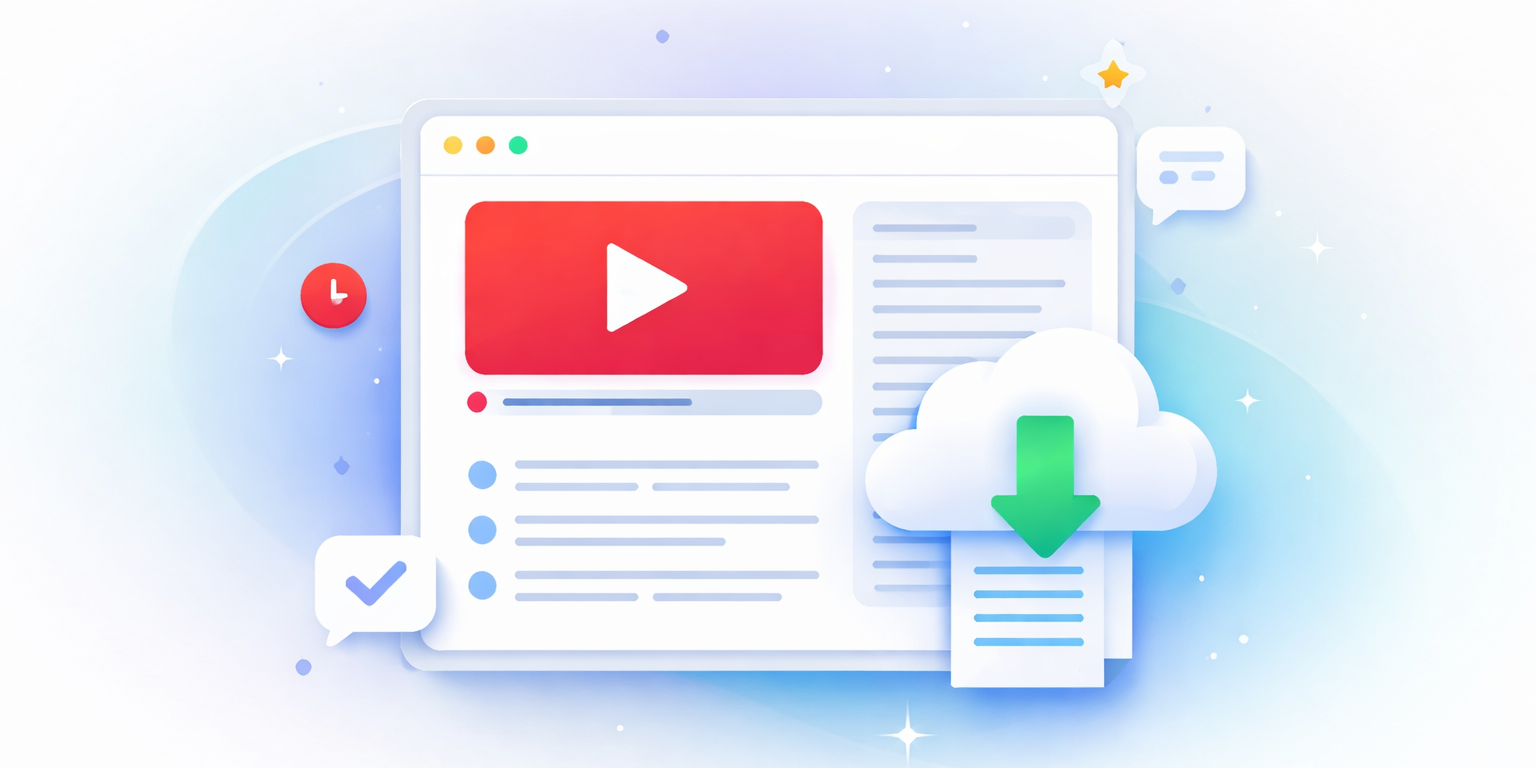
YouTube does generate captions for most videos, but getting that text out in a usable format is a little tricky.
In this guide, I’ll show you the most practical ways to download a transcript from YouTube. You’ll see:
- How YouTube’s native transcription works
- Where its limits show up
- When dedicated transcription tools like HappyScribe make more sense
Let’s go!
How to download transcript from YouTube: Top 4 ways
| Criteria | YouTube native transcript | HappyScribe | YouTube Transcript Chrome extension | DownSub |
|---|---|---|---|---|
| Best for | Quick on-screen reference | Reusable, high-quality transcripts | Fast copy on desktop | Free subtitle downloads |
| Generates its own transcript | ✅ | ✅ | ❌ | ❌ |
| Download as a clean file | ❌ | ✅ | ❌ | ✅ |
| Multiple export formats | ❌ | ✅ | ❌ | ✅ |
| Editable before export | ❌ | ✅ | ❌ | ❌ |
| Works without existing captions | ✅ | ✅ | ❌ | ❌ |
| Accuracy suitable for publishing | ❌ | ✅ | ❌ | ❌ |
1. YouTube’s native transcription
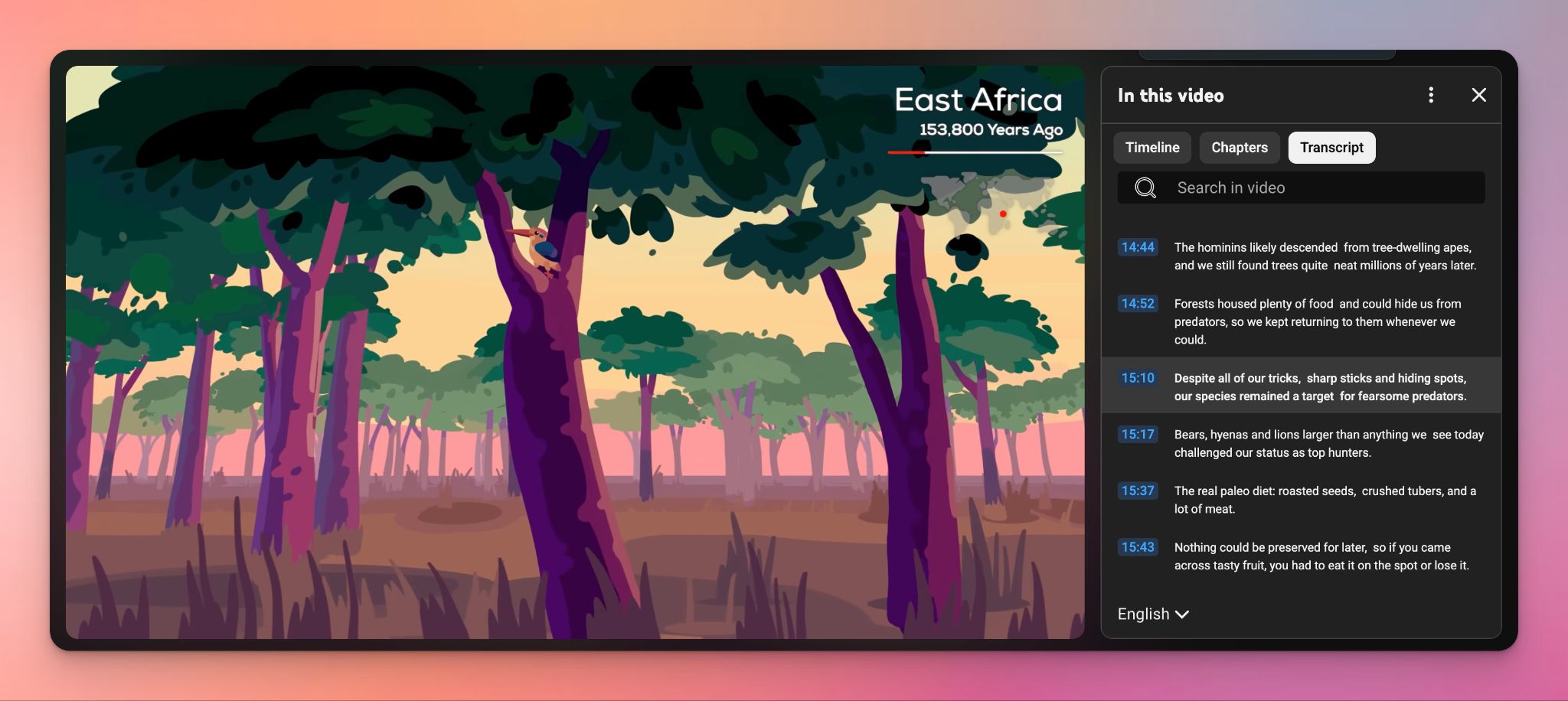
YouTube automatically generates transcripts for many videos using speech recognition. It works when you need quick access to the text and do not care much about formatting or precision.
How to access the YouTube transcript
- Open the YouTube video in your browser.
- Click the description box below the video player and scroll down.
- Select Show transcript.
- The transcript appears in a side panel next to the video.
- Scroll through the text and copy the parts you need.
Limitations of YouTube’s native transcripts
- Transcripts are tied to the video interface and cannot be downloaded as a clean text file
- Auto-generated captions often miss punctuation, speaker changes, and proper formatting
- Accuracy drops for long videos, overlapping speech, accents, or technical terms
- Editing the transcript inside YouTube is unavailable, and the transcripts are not suitable for reuse
- Exporting captions as text requires extra steps or third-party tools
YouTube’s native transcription is fine for quick reference. But it becomes frustrating when you need a complete, reusable transcript for research, content creation, subtitles, or proper documentation.
Also read: How to Transcribe YouTube Videos + 3 Best Tools to Do it Accurately in 2026
2. HappyScribe
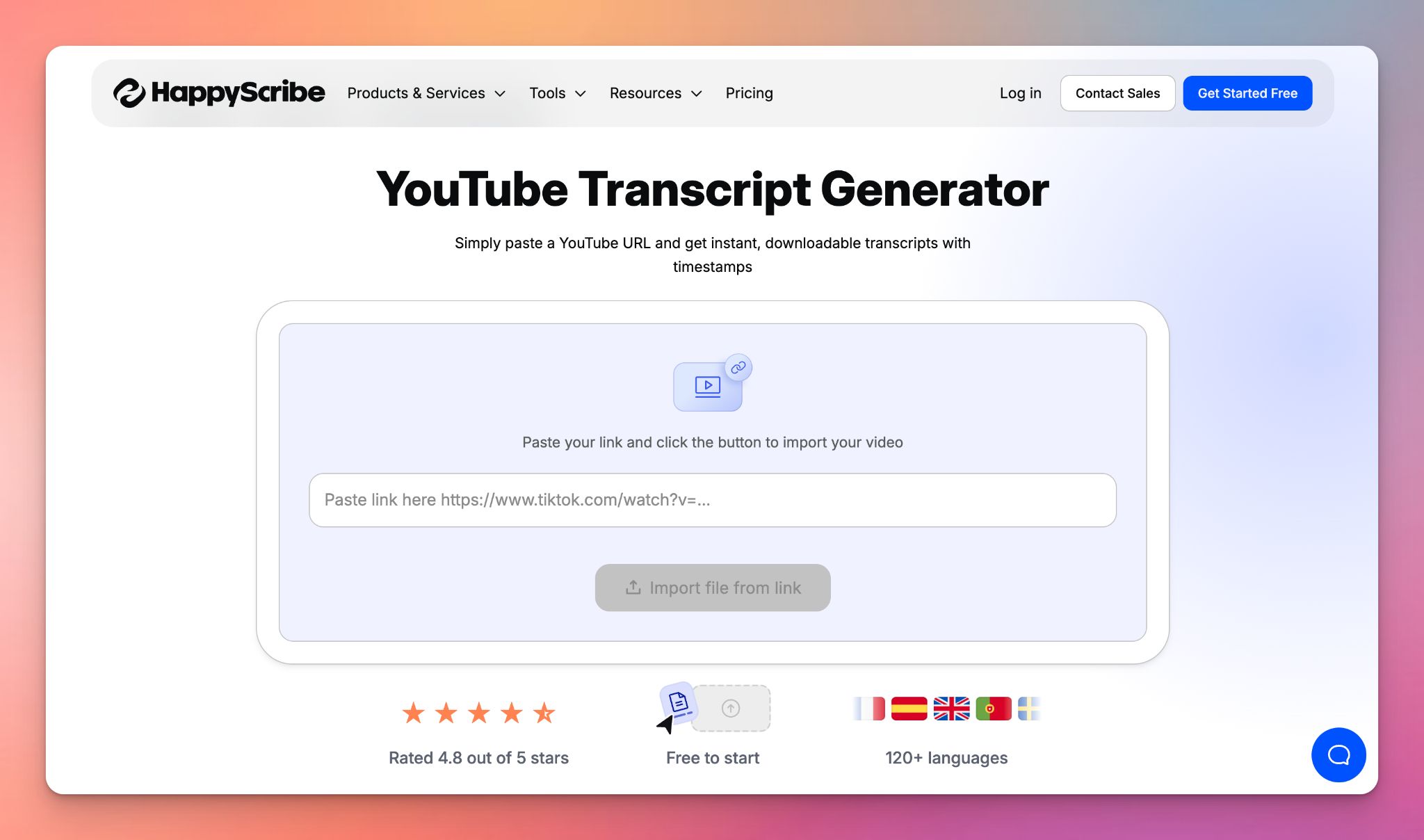
With HappyScribe’s YouTube transcript generator, you can paste any YouTube link and a clean, time coded transcript in minutes. Edit the text in an online editor, search for specific moments, and export the file in formats like TXT, DOCX, PDF, or subtitle files.
HappyScribe’s YouTube transcription feature is useful when you need to turn YouTube videos into text you can reuse in your work.
How to download a YouTube transcript with HappyScribe?
HappyScribe gives you a way to turn any public YouTube video into a clean, downloadable transcript, even when YouTube’s native captions are missing or incomplete. The process is simple and doesn’t require manual copying.
- Open HappyScribe’s YouTube transcript generator.
- Paste the YouTube video URL into the input box.
- Choose the language of the video (HappyScribe supports 140+ languages and accents).
- Select between machine-generated or human-made transcription.
- Let the tool process the video. AI transcripts are ready in minutes, while human transcripts take longer with near-perfect accuracy.
- Once the transcript is ready, export it in your preferred format (TXT, DOCX, PDF, SRT, VTT, and more).
Why use HappyScribe for YouTube transcription?
- Accurate results even when YouTube’s captions are missing or automated captions are poor. HappyScribe generates its own transcription from the audio
- Multiple export formats give you options to download clean text or ready-to-use subtitle files
- Language support covers 140+ languages and dialects, which helps when you’re working with videos in niche languages
- Choice of accuracy levels lets you pick fast AI transcripts or human-proofread versions for polished, publish-ready text
- SEO and accessibility benefits because transcripts and subtitles help videos reach broader audiences and improve search visibility
What real-life users are saying about HappyScribe’s YouTube transcription
We were using YouTube, but it was very basic, and required additional adjustments after we exported the SRT file, including timing and grammatical adjustments. HappyScribe fit what we needed exactly, saving us more time. Enjoy using the service!
3. Youtube Transcript Chrome extension
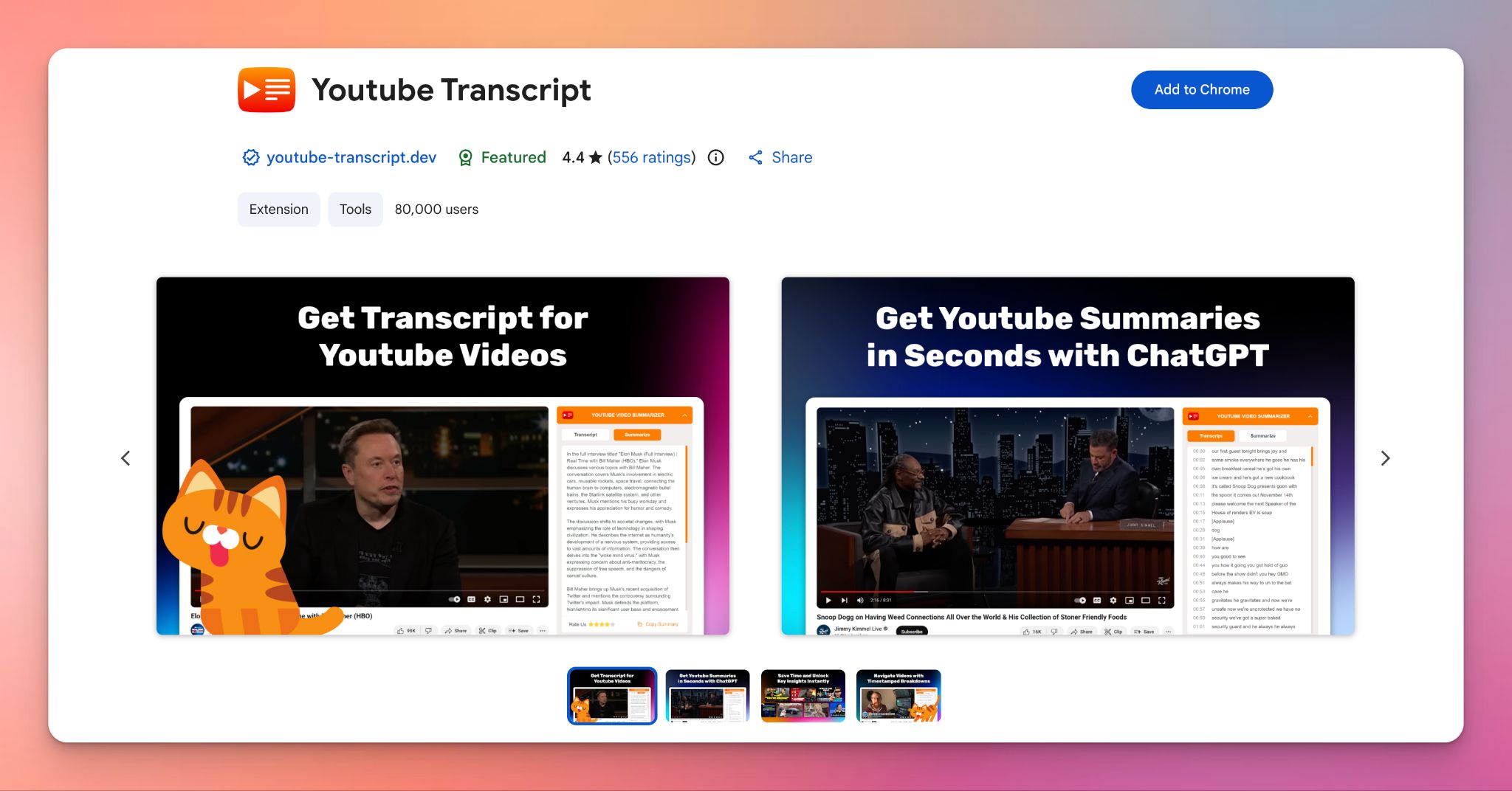
YouTube Transcript is a popular browser extension available on the Chrome Web Store. It works as a simple YouTube to text tool that lets you view, copy, and work with video transcripts directly on the YouTube page.
You can also use built-in AI summaries powered by ChatGPT to quickly understand long videos when you’re short on time.
How to download transcript using this tool
1. Go to the Chrome Web Store page for "YouTube Transcript" and click "Add to Chrome."
2. Navigate to any YouTube video you want to transcribe.
3. Look for the extension's widget or button, which appears near the top right of the video player or in the sidebar.
4. Click the button to reveal the full transcript.
5. Use the "Copy" button to grab the entire text to your clipboard, or use the "Export" feature (if available) to save it as a file. Some versions also allow you to generate a summary directly if you have a ChatGPT account connected.
Limitations
- If YouTube changes its website layout or code, the extension may break temporarily until the developer updates it
- Features like Summarize with ChatGPT usually require your own OpenAI account or API key or you may hit usage limits on the free tier
- It only works on desktop browsers (Chrome, Edge, Brave) and cannot be used on the mobile YouTube app
Also read:9 AI Tools Every Content Creator Must Use in 2026
4. Downsub
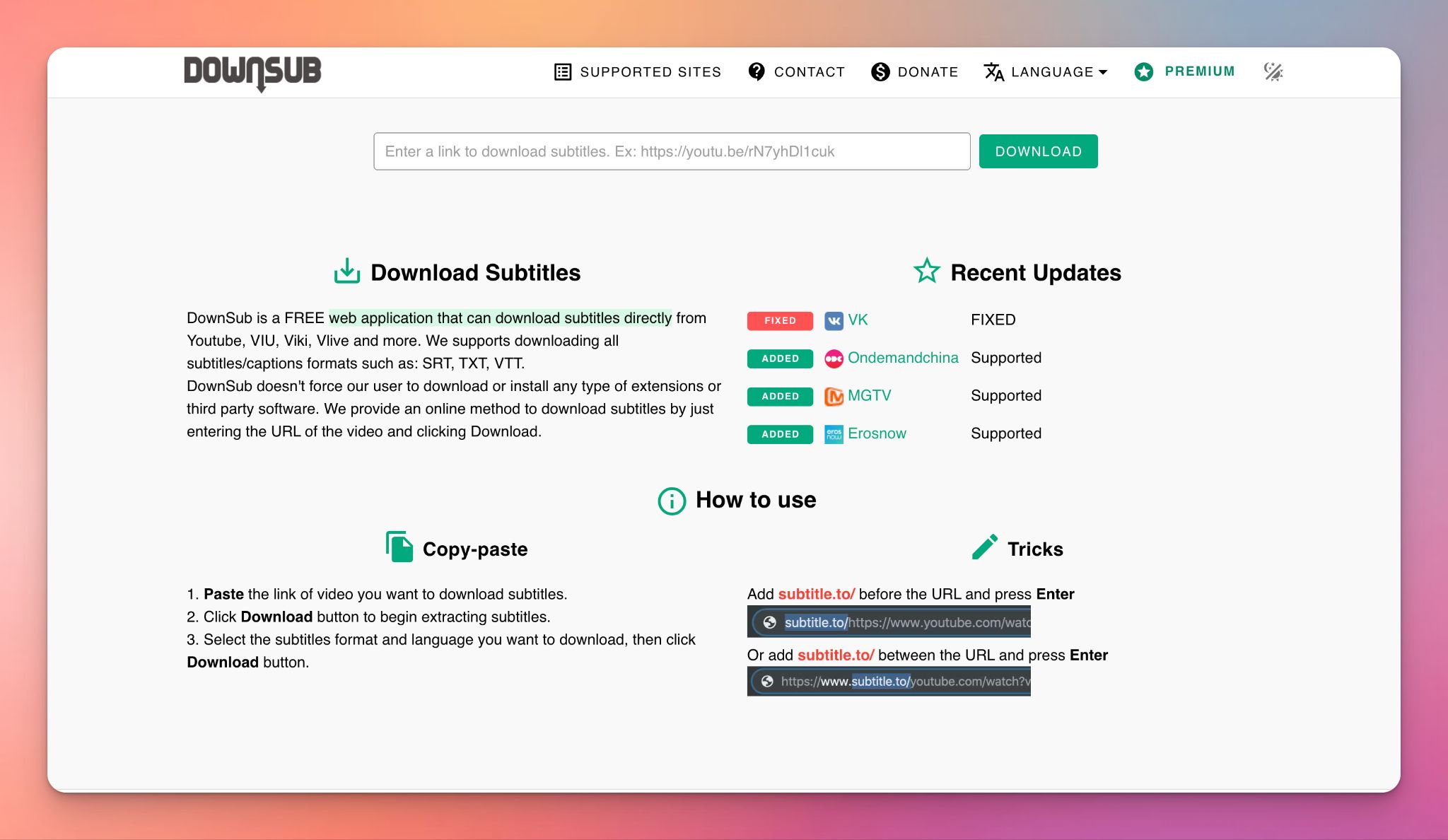
DownSub is a free web-based tool designed to download subtitles or captions from videos on various platforms, including YouTube.
You can download subtitles in multiple formats like SRT, VTT, and TXT without installing any software.
How to download transcript using this tool:
1. Go to the YouTube video you want to transcribe and copy its full URL from the address bar.
2. Open DownSub.com, paste the link into the search box on the homepage, and click the Download button.
3. Scroll down to see the list of available languages.
4. Find the language you need and click the button corresponding to your preferred file format (usually ".txt" for a plain text transcript or ".srt" for time-coded subtitles). The file will download to your device immediately.
Limitations
- Downsub cannot generate a new transcript; it only extracts what is already available on the video (either manual captions or auto-generated ones). If a video has no captions, DownSub cannot help
- As a free tool, the website displays frequent ads, which can be distracting
- Since it often pulls YouTube's auto-generated captions, the downloaded text may contain the same errors, lack of punctuation, or misheard words found in the original auto-captions
When to use HappyScribe instead of YouTube’s native transcripts?
YouTube’s built-in transcript is fine for a quick glance. But you’ll start noticing its limitations when the transcript becomes something you need to rely on.
If your workflow involves the following use cases, you should opt for HappyScribe instead of YouTube’s native transcripts:
Long-form interviews
As videos get longer, YouTube’s caption quality drops. Speaker switches are harder to follow and reviewing the text takes more time than it should. HappyScribe generates a structured transcript from the full audio, so longer conversations stay readable and usable from start to finish.
Research and analysis
Pulling quotes or scanning for themes from YouTube captions is tedious. The text is fragmented and not designed for reusing in research and analysis. With HappyScribe, you get a clean transcript you can search, edit, and export without fixing formatting or removing timestamps manually.
Subtitles and captions
YouTube transcripts are not built for subtitle workflows. Timing, formatting, and export options are limited. HappyScribe creates subtitle files you can download and reuse across platforms, which helps when you’re publishing captions or meeting accessibility requirements.
Professional or publish-ready transcripts
Auto-generated captions are risky when accuracy is critical. HappyScribe gives you the option to use fast AI transcription or human-reviewed transcripts, depending on how polished the final output needs to be.
FAQs on how to download YouTube transcript
How do I convert YouTube videos to transcripts for free?
If you want a completely free option, YouTube lets you view a YouTube transcript directly on the platform. Open the YouTube video, click the description box under the video, and select “Show transcript.” You can copy the text transcript while watching videos, which works well for short clips or educational videos. The only downsides are that this method does not create a clean text file, struggles with long videos, and offers no editing. For a fast and accurate way to go from YouTube to transcript, tools like HappyScribe offer a free version so you can test AI powered transcripts before upgrading.
Is it possible to copy text from a YouTube video?
Yes. You can copy text from a transcript of a YouTube video using YouTube’s built-in transcript viewer. Open the youtube app or desktop site, load the video, open the transcript panel, and manually select and copy the text. This approach relies on existing captions, so accuracy depends on the spoken content and audio quality. For cleaner results without manual transcription, many content creators prefer AI tools like HappyScribe, which generate accurate transcripts that are easier to reuse for note taking or market research.
How to copy a transcript from YouTube to ChatGPT?
First, open the YouTube video transcript from the description box. Copy the full text format and paste it into ChatGPT to extract key points, key insights, or get help with generating summaries. If the entire video is too long, using a YouTube video transcript generator like HappyScribe saves time. Paste the YouTube video link on HappyScribe, wait for the transcript to be ready, then copy or export the clean transcript into ChatGPT.
How to download YouTube captions as text?
To download the transcript, you need captions available on the video. Tools like DownSub let you extract transcripts using a YouTube video url and save them as a txt file or subtitle formats. If captions are missing, DownSub will not work. In that case, HappyScribe lets you transcribe YouTube videos directly from a YouTube video link, then download transcripts in multiple formats and export them to Google Docs, Microsoft Word, or as plain text file output.

Rodoshi Das
Rodoshi is the Content Lead at HappyScribe, the privacy-first transcription and AI notetaker platform based in Barcelona. Shaping content strategies and building AI workflows excites her as much as exploring new SaaS tools. She specializes in product-led content that informs rather than sells, grounded in honest product benchmarking and low tolerance for empty marketing speak.