
Ever come across those long video essays that only make sense when you follow the words? I know I did, and I used to search for accurate YouTube transcripts.
And it doesn't always have to be a Kurzgesagt video. You might be looking for transcripts of an online course, a documentary, or simply because you don't have headphones with you.
Whatever the reason may be, getting YouTube transcripts is easier than ever. There are the standard ways and then the accurate ways.
In this article, I'll show you how to quickly transcribe YouTube videos and 3 research-backed tools to get the best results.
How to transcribe YouTube videos on a desktop?
To transcribe YouTube videos on the desktop:
1. Open the YouTube video you want transcribed
2. Click on the description box below to expand it
3. Scroll to the end of the description box and click on the “Show transcript” button
4. Voila! The transcript is now visible on the right side of the video for you to follow along
Pro tip: You can switch between auto-generated and creator-provided transcriptions, along with toggling off timestamps for a distraction-free viewing
How to transcribe YouTube videos on mobile?
To transcribe YouTube videos on the YouTube app:
1. Open the YouTube video you want transcribed
2. Click on the “...more” text below the video title
3. Scroll to the end of the description box and click on the “Show transcript” button
4. The transcript is now visible below the video for you to follow along
Things to remember: The YouTube mobile app doesn’t allow toggling off timestamps or copying the whole transcript, unlike on desktop
On paper, YouTube’s default way to transcribe videos looks simple. But sometimes, it's too simple, and that limits what you can do with it.
Here's why I don't recommend YouTube-provided transcripts:
- YouTube’s automatic transcription is only 60-80% accurate, which isn't a lot. Languages are limited, and unless the creator provides more transcription languages, you're stuck with fewer options
- YouTube doesn't differentiate between speakers, so it's difficult to follow long interviews and podcasts. Not good for accessibility
- YouTube's auto-captions are poorly formatted, and you have no control over how they're presented to you
- You cannot copy transcriptions in the mobile app
- You might not get a transcript for every video. Creator settings or YouTube policy might stop you from accessing the texts
While YouTube offers a fast, basic way to get transcripts, if you're serious about it, you should look for AI tools built for this task.
How to quickly transcribe YouTube videos with AI?
To transcribe YouTube videos with AI,
1. Sign up to HappyScribe (it's free)
2. Paste the YouTube video link into the YouTube transcript generator
3. Choose whether you want “Machine generated” or “Human made” transcript
4. That's it! You have a transcript along with the video preview to follow along
Here’s how it looks:
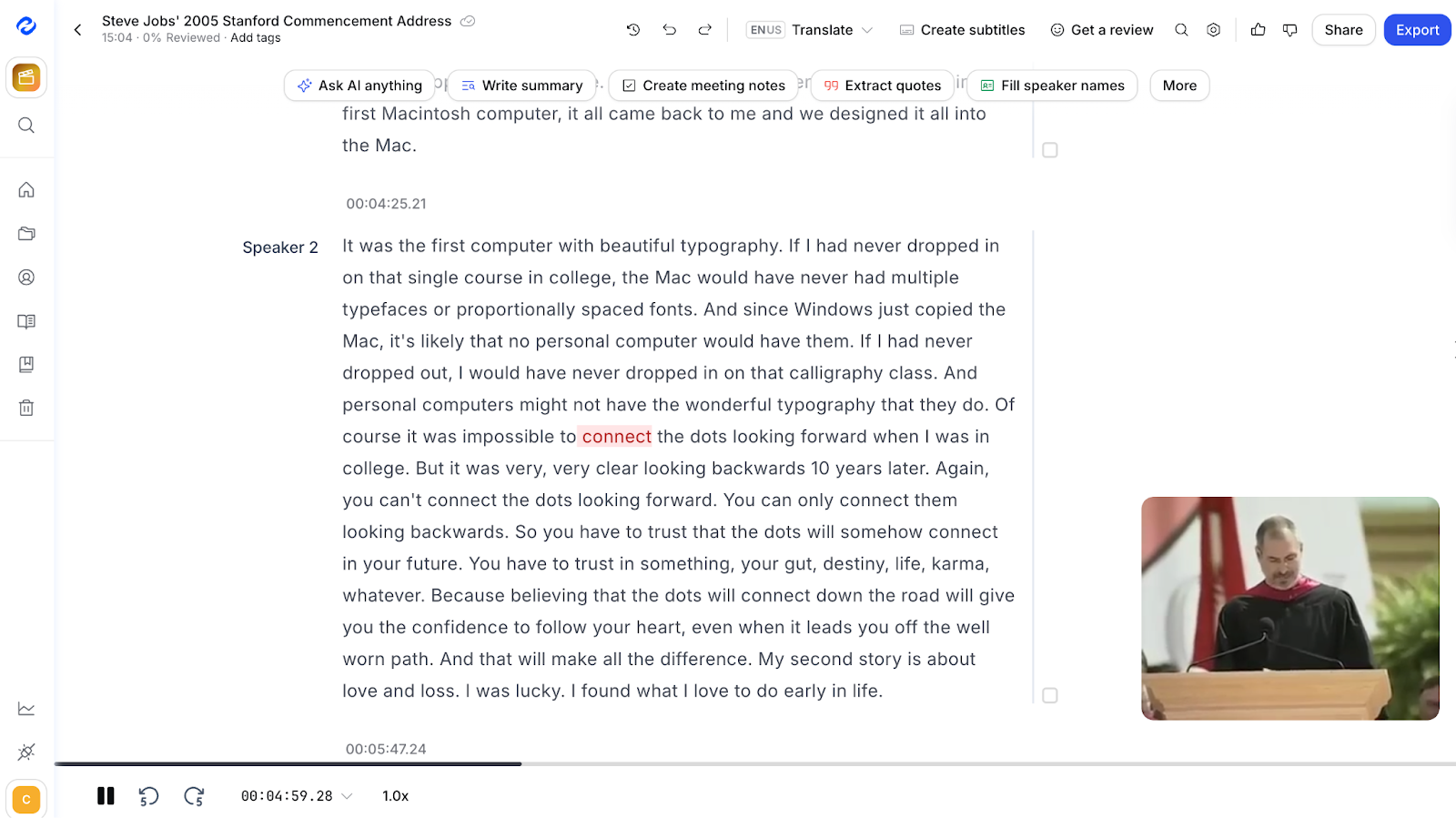
Pro tip: If you already have a HappyScribe account, click the gold icon in the top-left to open the transcription menu and paste the YouTube link there. It saves you time and keeps all your work in one place.
Best tools to transcribe YouTube videos: at a glance
| Category | HappyScribe | NoteGPT | Otter |
|---|---|---|---|
| Best for | Fast and accurate YouTube transcripts with editing and exports | Instant, no-login transcripts for casual use | Professionals needing file-based transcriptions |
| Key features | 99% accurate human transcripts, 150+ languages, AI summaries, notes, quizzes, and wide export file support | Batch transcription, 40+ languages, instant copy, AI summaries + mind maps, Chrome extension | Live and file-based transcription, AI summaries, speaker ID, strong integrations |
| Starting price | Lite at $9/month; pay-as-you-go from $12/60 minutes | $9.99/month for Pro plan | $16.99/month for Pro plan |
| Languages supported | 150+ languages | 40+ languages | 4 languages (EN, ES, FR, JA) |
| Security & privacy | GDPR + SOC 2 Type II compliant; encrypted at rest and transit; SSO | Basic web security | GDPR, SOC 2 Type II, HIPAA compliant |
1. HappyScribe
Best for: Fast and accurate YouTube transcripts and summaries
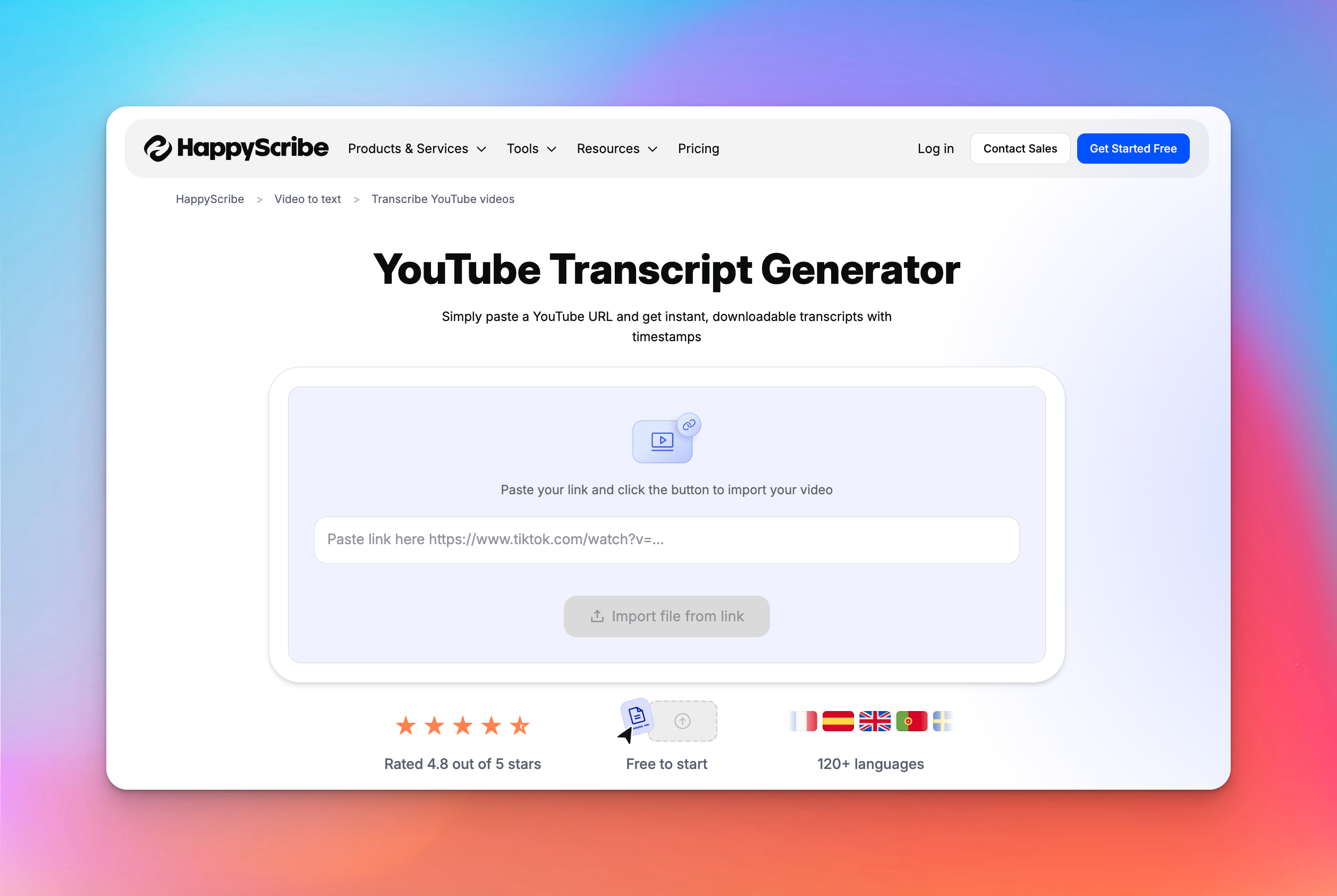
HappyScribe gives you fast and accurate YouTube transcripts, and also enables you to repurpose the text the way you want.
It handles long lecture videos, hour-long podcasts, deep-dive explainers, and multi-speaker interviews without losing structure or context.
The best part about HappyScribe is that it prioritizes speed and ease of use, something you'd appreciate while generating YouTube transcriptions.
HappyScribe’s key features
1. Up to 99% accurate transcripts in 150+ languages
HappyScribe lets you run transcripts by human experts so you get accurate and neatly formatted documents. The human-verified transcription is 99% accurate, making it ideal for lessons and interviews.
Looking for something fast? You still have the option of AI transcription that supports 150+ languages.
Need transcripts in a different language? Simply generate the transcript and translate it into one of 60+ languages supported by HappyScribe.
From Zulu to Dutch and Bengali to Korean, HappyScribe has got you covered.
2. Easy export and share options
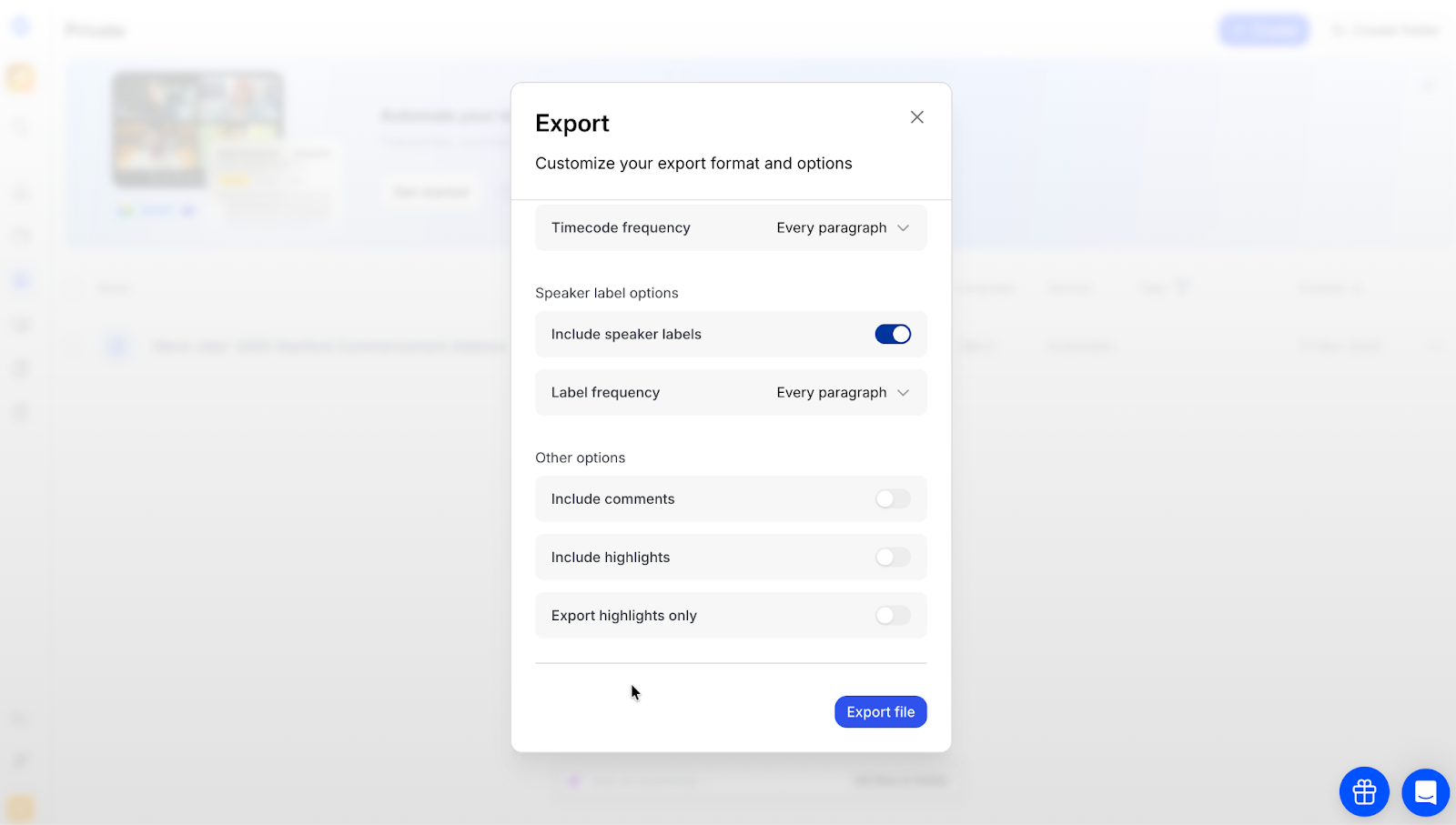
YouTube only lets you copy the transcription on desktop. HappyScribe lets you export transcripts in DOCX, PDF, TXT, SRT, HTML, VTT, and many other formats. You can even hide or show timecodes, speaker labels, comments, and highlights.
And that's not it. If you're working on a group project, you can share links to transcripts, decide their access levels, and customize what you want to share.
3. Summary, meeting notes, quotes, and quizzes
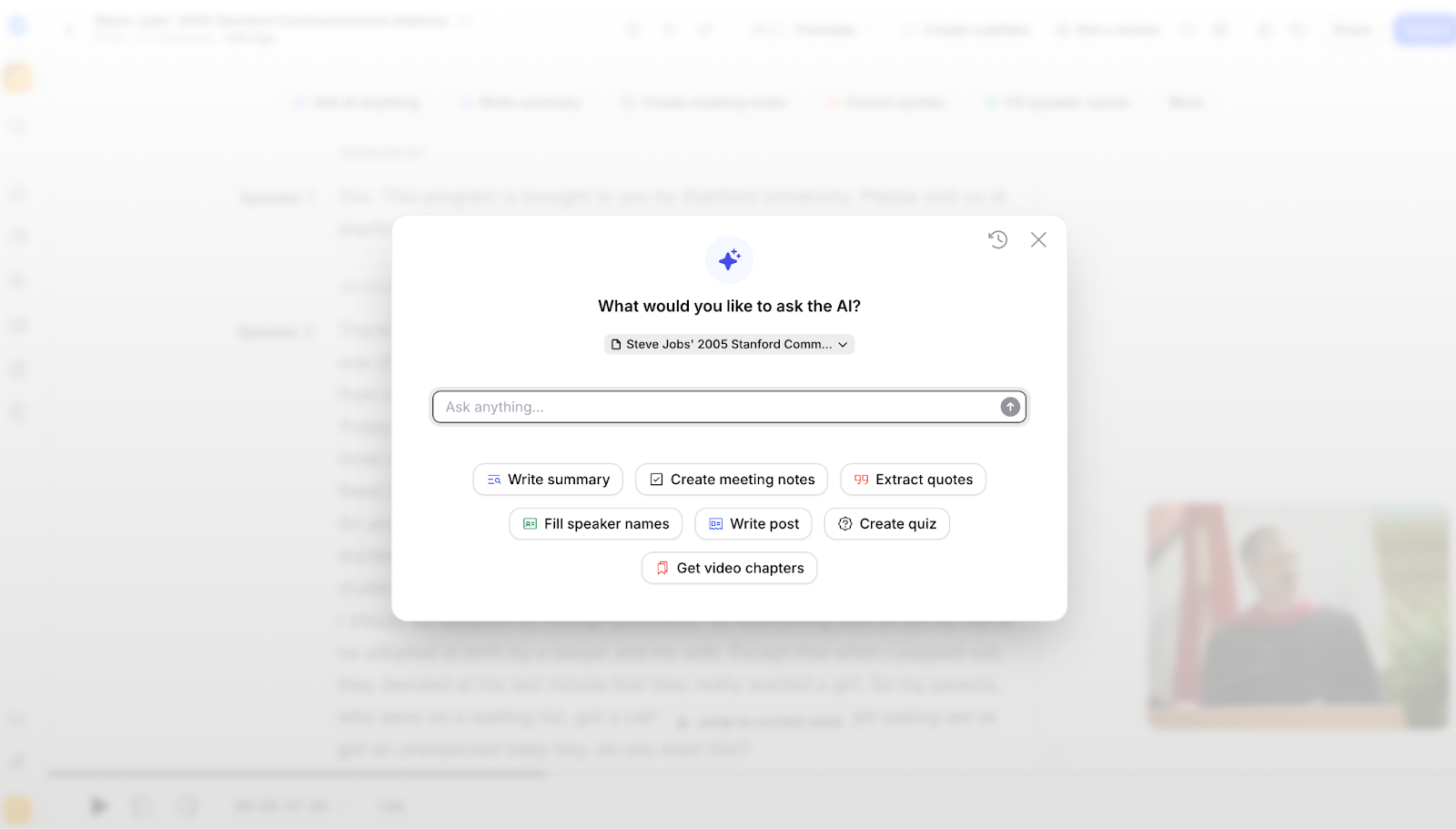
YouTube only gives you a transcript, while HappyScribe gives you summaries of the transcripts, quizzes, speaker names, and video chapters.
Want to extract quotes from videos or turn the transcript into a blog post? Simply ask the HappyScribe AI to perform the tasks for you. It's simple, it's fast, and it improves productivity for students, media pros, and journalists.
4. Secure and private
Many tools upload videos to their servers and track your YouTube usage. HappyScribe employs enterprise-grade security to make sure your files are encrypted in transit and at rest.
HappyScribe is GDPR and SOC 2 Type II compliant and offers SSO login to enterprise users. When you're in control, you feel confident with your work.
HappyScribe’s pricing

- Starter: Pay-as-you-go; starts at $12/60 minutes
- Lite: $9/month
- Pro: $29/month
- Business: $89/month
Pros
- Fast and easy-to-use YouTube transcript generator
- Additional human proofreaders to clean up your transcriptions
- Export files and share links with others
- Transcribe YouTube videos in 150 languages
- Collaborative editor for teammates
- Generate summaries, quizzes, and meeting notes
Cons
- Doesn't have a mobile app yet
2. NoteGPT
Best for: Instant, multi-language YouTube transcripts for personal use
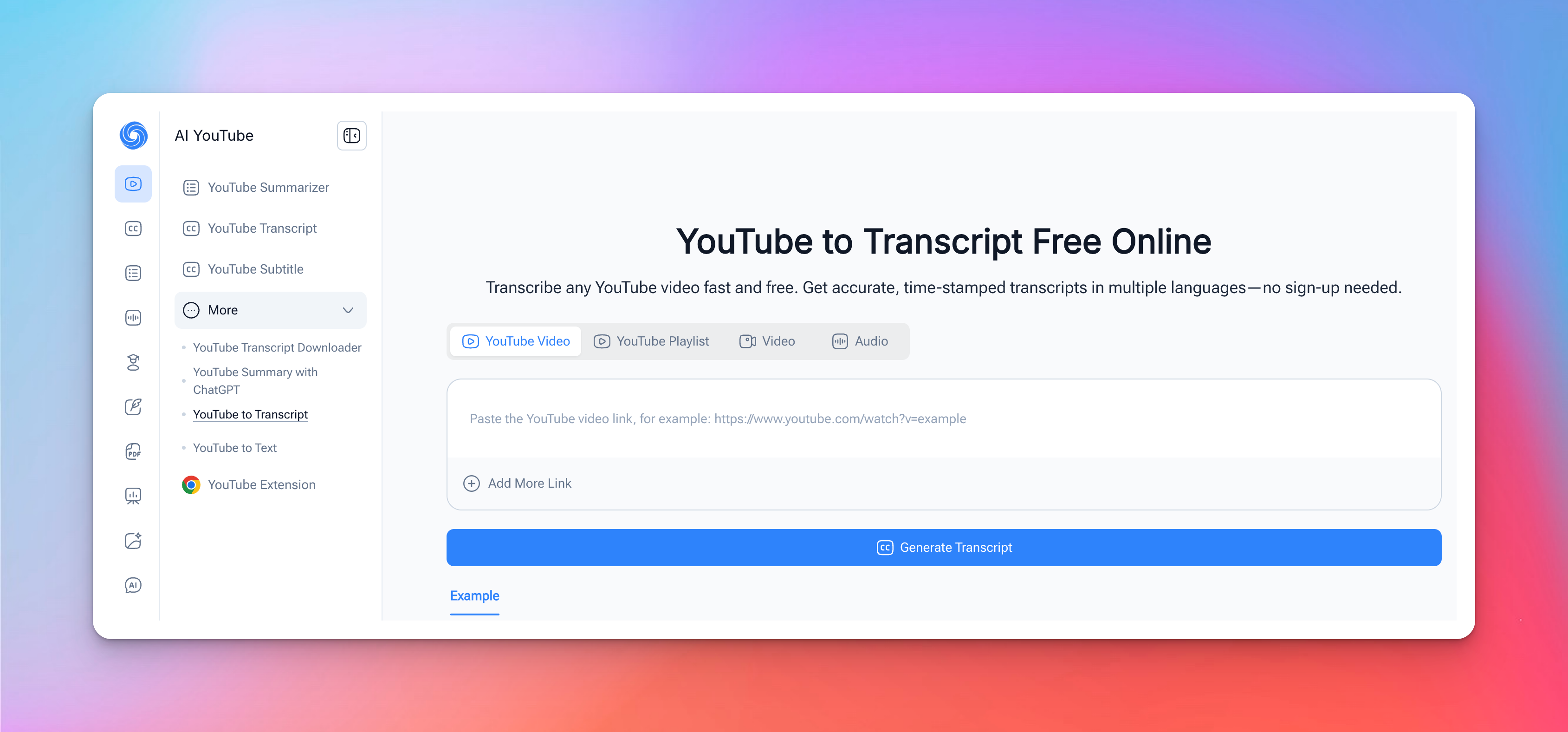
NoteGPT is a lightweight, web-based YouTube transcript generator that works even when a video has no native captions. You paste a link, and it delivers a clean, time-stamped transcript in seconds. No login required.
It’s fast, accessible, and especially useful if you deal with playlists, lecture videos, or multiple videos in different languages.
NoteGPT’s key features
- Batch transcription for videos and playlists
- Transcription and translation in 40+ languages
- Copy, download, or export transcripts with or without timestamps
- One-click AI summaries, notes, and mind maps
NoteGPT’s pricing
- Free tier: 15 quotas /month
- Pro: $9.99/month
- Unlimited: $29/month
- Max: $99/month
Pros
- Fast batch transcription, even for long or uncaptioned videos
- Strong language and translation support
- Easy-to-use Chrome extension
Cons
- Not a big focus on user data security
- NoteGPT’s AI summaries often miss nuance in complex videos
3. Otter
Best for: Professionals looking for AI-powered meeting notes
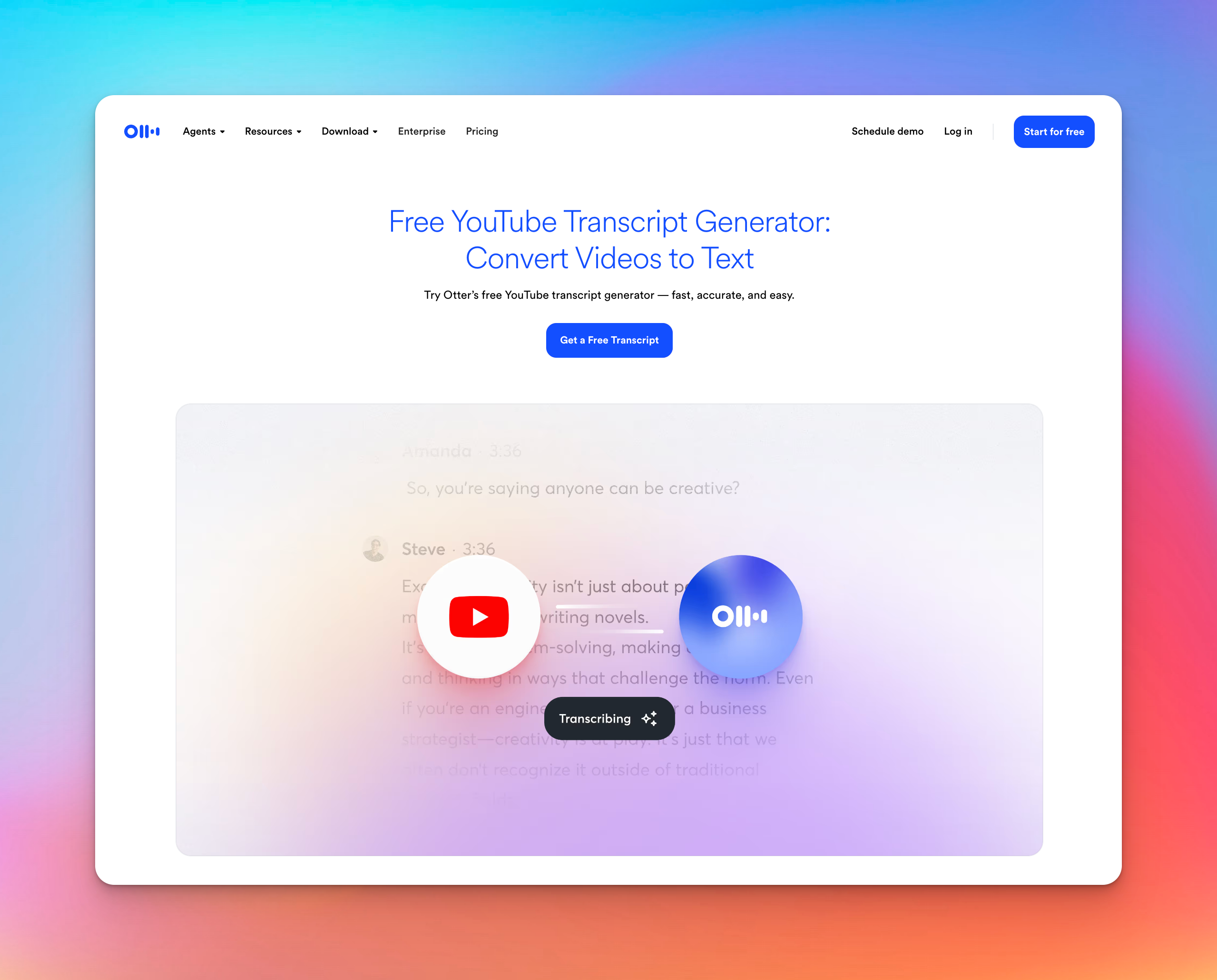
Otter is best known as a meeting assistant, but it doubles as a dependable tool for transcribing YouTube videos. You can either let Otter record and transcribe the audio as it plays or upload the video file directly.
Unlike NoteGPT, Otter works best for creators who want to generate captions or those who already have the video file downloaded.
Otter's key features
- Live or file-based video transcription across common audio and video formats
- AI summaries, highlights, outlines, and action items for productivity
- Multi-speaker identification for interviews and discussions
- TXT, PDF, DOCX, and SRT export with shareable links
Otter's pricing
- Basic: Free 300 minutes/month
- Pro: $16.99/user/month
- Business: $30/user/month
- Enterprise: Custom pricing
Pros
- Wide integrations with collaboration tools like Google Calendar, Zoom, Asana, Dropbox, Jira, Notion, RingCentral, and Slack
- Simple and consistent UX across mobile apps, Chrome extensions, and web
- AI summaries and speaker labels speed up review time
Cons
- Otter doesn’t support pasting a YouTube link to get a transcript
- Supports only 4 languages for transcription
Pick the smart way to transcribe YouTube videos
Each tool here shines in a different way. NoteGPT is a quick option if you just want a free, no-login transcript for light use. Otter is better suited for heavy workflows where you already have loads of videos downloaded.
But if accuracy, language support, and a reliable editing workspace are your priority, HappyScribe is the strongest all-around choice. It handles long videos, supports human-verified transcripts, and gives you features like summaries, chapters, and quizzes that help you get more out of the content.
Paste your YouTube link into HappyScribe’s transcript generator and get a high-quality transcript in minutes.
Frequently Asked Questions
How do I turn a YouTube video into a transcript?
The quickest way is to open the video on YouTube > expand the description > click Show transcript. If you want a cleaner, more accurate transcript for content creation or study guides, paste the video link into a tool like HappyScribe and export it in the file format you need.
Can I transcribe someone else’s YouTube video?
Yes. As long as the video is public, you can view or transcribe it using YouTube’s built-in transcript option or third-party tools. For higher accuracy and proper captions, use an AI transcription tool like HappyScribe.
Does YouTube automatically transcribe videos?
Yes. YouTube uses speech recognition to generate auto-captions, which appear in YouTube Studio and under “Show transcript.” Accuracy varies depending on audio quality, accents, and the type of video content.
How do I transcribe a YouTube video with no subtitles available?
You’ll need an external tool. Paste the video link into an AI transcription service like HappyScribe, which can transcribe videos even when YouTube provides no closed captions. Export the text in formats like TXT, PDF, or SRT.
Is there an easy way to get a YouTube video transcript?
Yes. For quick viewing, click Show transcript below the video. If you want a polished transcript to reuse for content creation, education, or note-taking, services like HappyScribe create accurate and shareable text quickly.
What is the best transcription service for YouTube videos?
For accuracy, multiple languages, and clean exports, HappyScribe is the strongest option. NoteGPT helps students with simple tasks, while Otter suits content creators who also need meeting notes and collaboration tools.

Rodoshi Das
Rodoshi is the Content Lead at HappyScribe, the privacy-first transcription and AI notetaker platform based in Barcelona. Shaping content strategies and building AI workflows excites her as much as exploring new SaaS tools. She specializes in product-led content that informs rather than sells, grounded in honest product benchmarking and low tolerance for empty marketing speak.