![5 Best Free Video Transcript Generators [2026]](/sanity-images/ejgwz1gl/redesign/f9b5b9d364a5fe8cf4c69f04e25234d72797b394-1536x1024.jpg?auto=format&w=1536.0&rect=0,128,1536,768&h=768)
TL;DR ⏩
The top free video transcript generators are:
- HappyScribe: Best for teams and creators that need accurate, multilingual video transcripts with the option to upgrade to human-verified accuracy
- Descript: Best for content creators who want video transcription built into their editing workflow
- Otter AI: Best for professionals and teams who need video transcription alongside live meeting notes in one platform
- ElevenLabs: Best for users who need high-accuracy transcription with advanced features like audio event tagging and entity detection
- TurboScribe: Best for users who prefer a simple transcription tool with a daily free tier
There's a specific kind of frustration that comes with having a perfect 40-minute video sitting on your hard drive and no clean way to pull the text out of it.
Maybe it's a client interview you need to quote from, a webinar you want to repurpose into a blog post, or a lecture you recorded and now need to study from. The content is right there. You just can't use it yet!
Video now accounts for around 82% of all consumer internet traffic. That's a lot of content trapped in a format you can't search, skim, or copy-paste from.
Good news is, free video transcript generators have gotten surprisingly capable. Some offer a permanent free plan with monthly or daily limits, while others give you a free trial with full features for a limited time.
I've included both types in this list so you can pick based on whether you need an ongoing free option or just want to test a tool before committing. Let’s go!
How I evaluated the best free video transcript generator tools
1. Transcription accuracy
I uploaded the same set of video files across all five tools. If the transcript needed heavy editing before I could use it, the tool didn't score well here.
2. Does it work on live meetings or only support file upload?
Video transcription generally works in two ways. Some tools join your live meetings on Zoom, Google Meet, or Teams and transcribe as the conversation happens. Others let you upload a recorded video file and generate a transcript after the fact. A few handle both, which is ideal if you want one tool covering all your transcription needs.
3. Language support
A video transcript generator that only handles English well is limiting for creators working with multilingual content. I checked how many languages each tool supports, whether it can handle accents within those languages, and how accuracy holds up outside of English.
4. Export formats
A transcript is only useful if you can get it out in the format you need. I checked whether each tool supports TXT, DOCX, PDF, and subtitle formats like SRT and VTT. Tools that lock common export formats behind paid tiers lost points.
5. Is it safe to use?
Video recordings often contain sensitive information, from internal strategy calls to client meetings. I looked at where each tool stores uploaded content, whether files are encrypted in transit and at rest, and which compliance certifications (such as SOC 2 and GDPR) are in place.
📚 Also read:
What are the best free video transcript generators? At a glance
| CATEGORY | HAPPYSCRIBE | DESCRIPT | OTTER AI | ELEVENLABS | TURBOSCRIBE |
|---|---|---|---|---|---|
| BEST FOR | Teams and creators that need accurate, multilingual video transcripts with the option to upgrade to human-verified accuracy | Content creators who want video transcription built into their editing workflow | Professionals and teams who need video transcription alongside live meeting notes in one platform | Users who need high-accuracy transcription with advanced features like audio event tagging and entity detection | Users who need a simple, high-accuracy transcription tool with a daily free tier |
| KEY FEATURES | 95%+ accuracy, AI Chat across transcripts, language auto-detection, human proofreading, custom glossaries, subtitle generation | Text-based video editing, filler word removal, Studio Sound noise cleanup, AI Actions for repurposing, dynamic captioning, Overdub voice cloning | Live meeting transcription on Zoom/Meet/Teams, automated summaries with action items, AI Chat, speaker identification, Dropbox and Zoom cloud sync | 99 languages, audio event tagging, entity detection, word-level timestamps, no-verbatim mode, in-browser editor | 98+ languages, audio restoration mode, ChatGPT integration, speaker recognition, translation to 134+ languages |
| LANGUAGES SUPPORTED | 150+ languages and accents with auto-detection | 25 languages | English, Spanish, French, and Japanese | 99 languages | 98+ languages |
| SECURITY AND COMPLIANCE | GDPR compliant, SOC 2 Type II certified, EU data residency | SOC 2 Type II compliant | SOC 2 Type II certified, GDPR and CCPA compliant; HIPAA on Enterprise | SOC 2, HIPAA with BAA, GDPR compliant; EU data residency available | Encrypted files and transcripts |
| FREE PLAN | Unlimited meeting recordings, 45 mins each; 10-minute free trial for file transcription | 1 hour of transcription/month | 3 lifetime file imports, 300 minutes/month | 10,000 credits/month, shared across all tools | 3 transcriptions/day, 30 minutes each |
| PAID PLANS START FROM | $8.50/month | $24/month | $8.49/month per user | $6/month | $20/month |
1. HappyScribe
Best for: Teams and creators that need accurate, multilingual video transcripts with the option to upgrade to human-verified accuracy
HappyScribe handles both sides of video transcription: file uploads and capturing live conversations.
You can upload recorded video files in MP4, MOV, AVI, MKV, WebM, and other formats, or paste a link from YouTube, Vimeo, Google Drive, Dropbox, or Zoom. HappyScribe’s video-to-text converter processes your video in minutes, identifies speakers, timestamps every word, and delivers an editable transcript you can review, refine, share, and export.
If you also need meeting transcription, HappyScribe covers that too. Connect your Google or Outlook calendar, and HappyScribe’s AI meeting note taker auto-joins scheduled calls on Zoom, Google Meet, and Microsoft Teams. You get meeting transcripts, summaries, action items, and the audio and video recordings moments after the meeting ends.
HappyScribe’s key features
95%+ accuracy in 150+ languages and accents
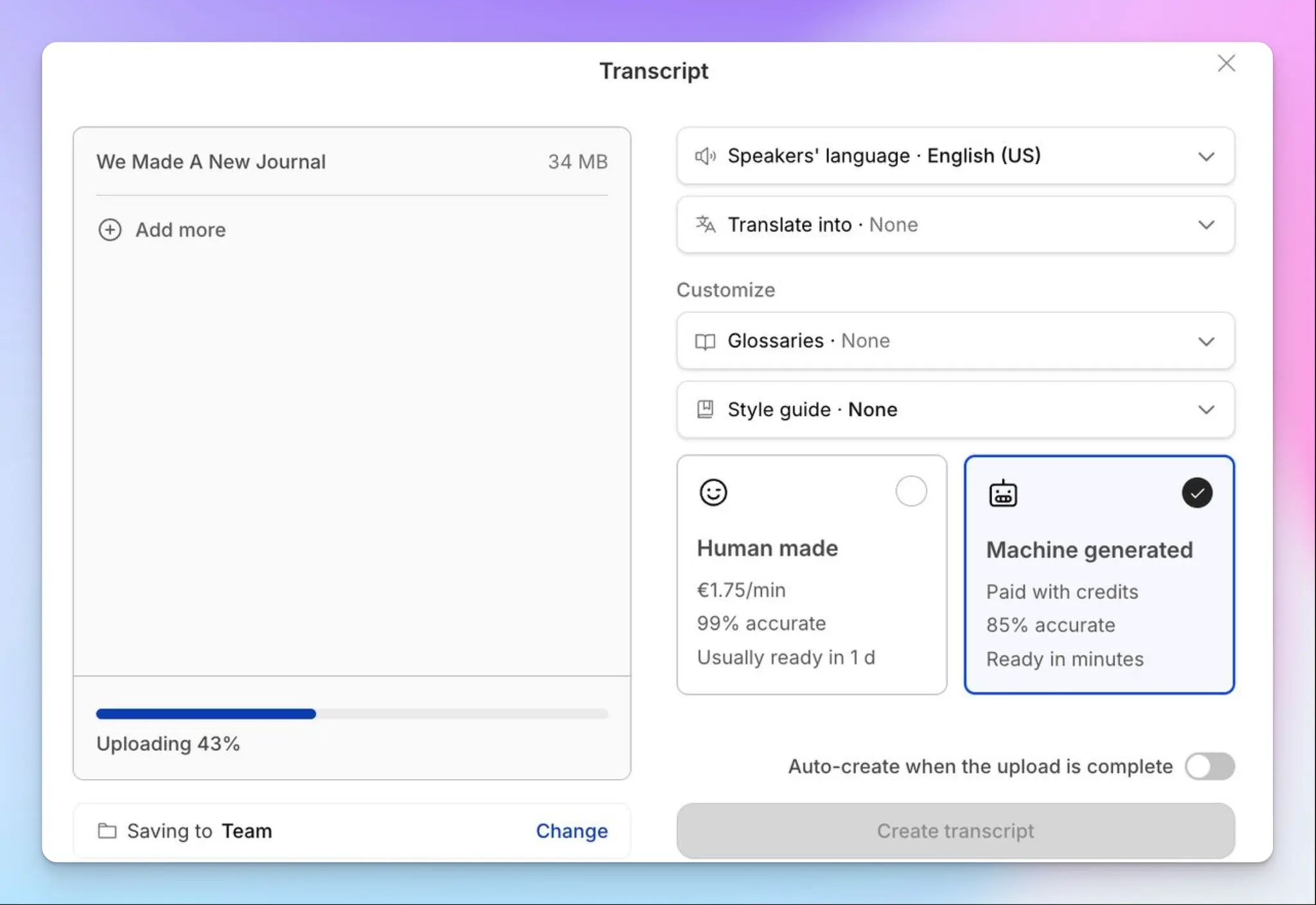
HappyScribe's speech recognition handles fast speakers, overlapping dialogue, regional accents, and domain-specific vocabulary across over 150 languages and dialects. Language detection is automatic, so you don't need to manually select the language before uploading.
You can add custom glossaries so the tool gets product names, technical terms, and brand-specific language right, across all your transcripts.
Human proofreading for critical content
When a 95%+ accurate AI transcript isn't enough, and you need higher precision, HappyScribe offers human proofreading as an add-on. Professional linguists review and correct the transcript, bringing accuracy up to 99%. Turnaround is generally within 24 hours.
Worried about data security? All proofreaders are vetted and bound by strict NDAs, so your confidential recordings stay protected.
Built-in transcription editor with synced playback
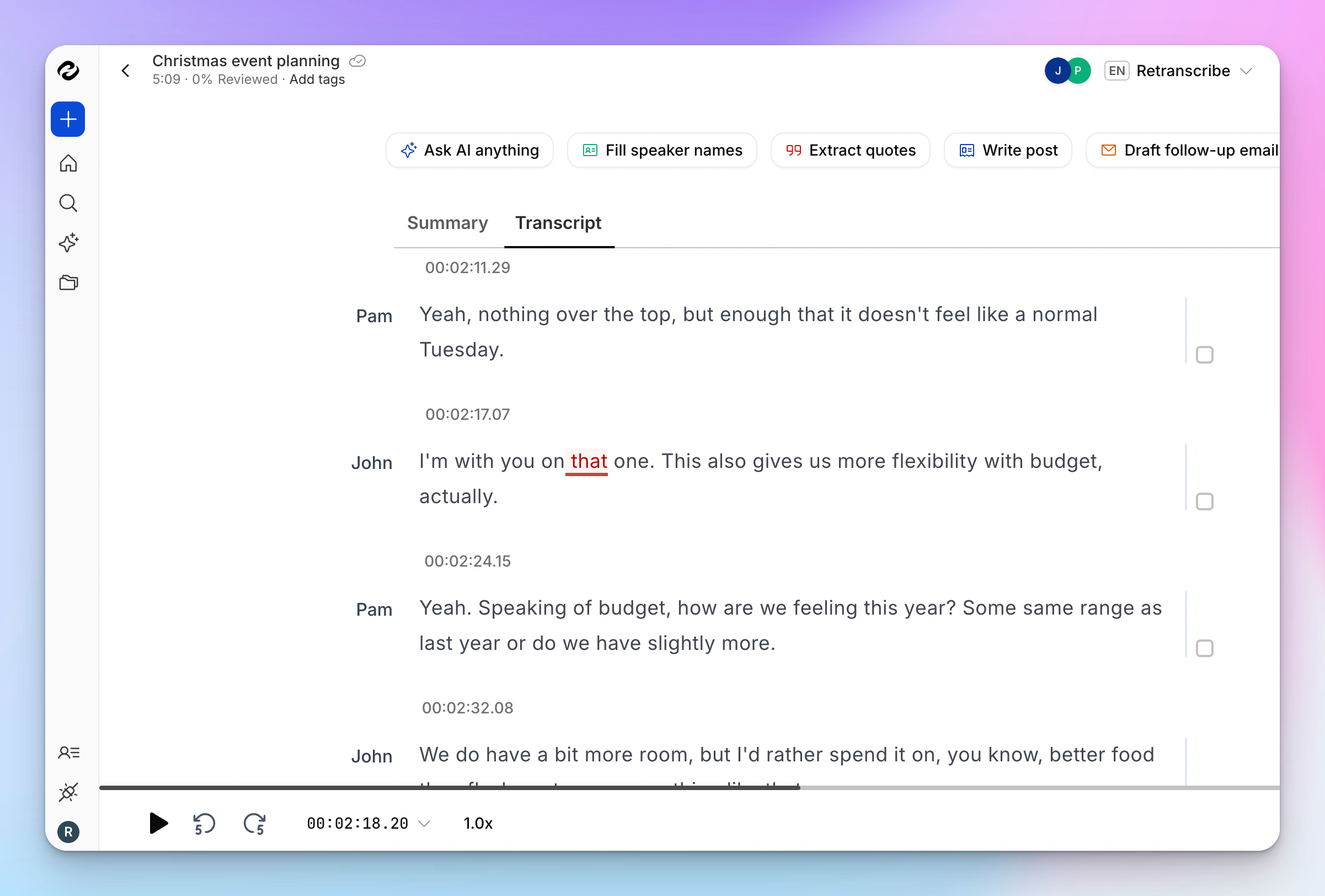
HappyScribe’s transcription editor links every word in the transcript to the corresponding moment in the video. Click anywhere in the text, and the video jumps to that point.
You can correct errors, adjust timestamps, relabel speakers, and clean up the transcript without switching between apps. The editing workflow is fast enough that you can review a 30-minute transcript in a fraction of the time it would take to rewatch the recording.
AI Chat that works across all your transcripts
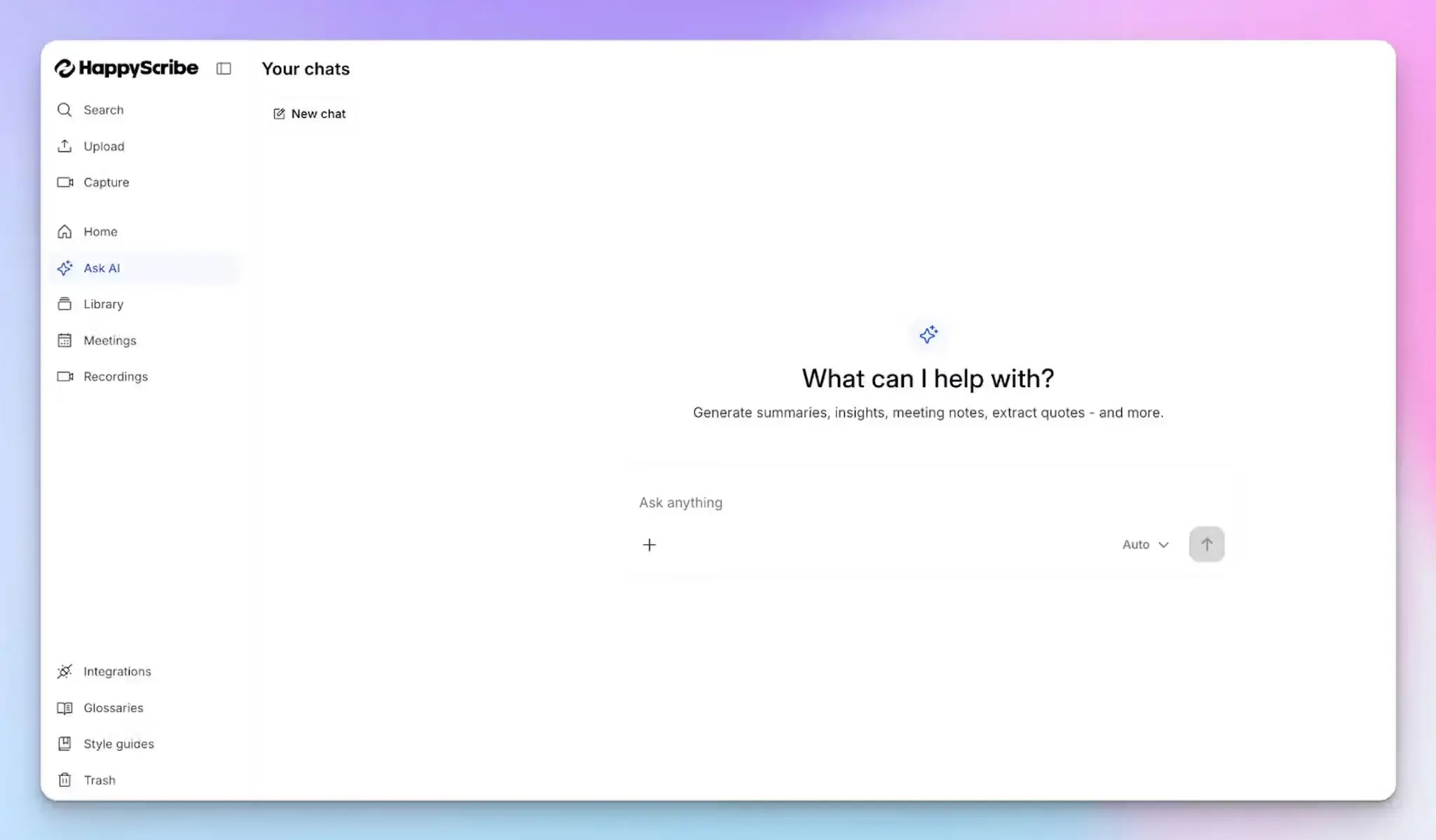
Once your video is transcribed, you can use HappyScribe’s AI Chat to ask questions about the content of the transcript. Ask for a summary, pull out key quotes, extract action items, or generate follow-up content directly from the transcript.
On paid plans, you can query across multiple transcripts at once, which is useful when you're working through a batch of interviews or a series of recorded sessions and need to spot patterns across them.
Flexible export formats
HappyScribe supports exports in TXT, DOCX, PDF, and subtitle formats like SRT and VTT. Whether you're adding captions to a YouTube video, repurposing a webinar into a blog post, or archiving legal recordings, you can get the transcript in whatever format the job requires.
Enterprise-grade security with EU data residency
All files are encrypted in transit and at rest, processed securely, and never shared with third parties.
HappyScribe is GDPR-compliant and SOC 2 Type II-certified, and all data is stored on EU-based servers, which is a significant advantage for European organizations. For added control, you can delete recordings and transcripts from your account at any time.
HappyScribe's pricing
- Free: Unlimited meeting recordings (45 mins/recording); 10-minute free trial of AI transcription, subtitling, and translation
- Basic: $8.50/month (billed annually) or $17/month (billed monthly)
- Pro: $19/month (billed annually) or $29/month (billed monthly)
- Business: $59/month (billed annually) or $89/month (billed monthly)
- Enterprise: Contact sales for tailored solutions
- Human transcription: From $2/minute
HappyScribe's pros
- Translate transcribed content into 80+ languages
- Generate automatic subtitles in 150+ languages and turn meeting recordings into shareable assets
- Integrates with your existing tech stack via API, Zapier, or MCP server
- Offers both audio-to-text and video-to-text features
- Transcript editor offers audio-synced playback, inline comments, search, and custom glossaries
- Has a range of free tools for transcription and subtitling
- Get help from human customer support agents, not chatbots
HappyScribe's cons
- Free tier for file transcription is limited to 10 minutes, though you get unlimited meeting recordings for the AI note taker
- Not built for real-time transcription
What are real-life users saying about HappyScribe?
I use HappyScribe extensively for our editorial work. In 2025 alone, I’ve already used almost 400 hours to produce transcripts for journalists and the newsroom, as well as SRT subtitles. I highly recommend it. It’s great that it offers an API — I rely on it for automations. I’ve tried cheaper alternatives, but their quality just doesn’t compare.
I've been using HappyScribe for almost a year now and have had a really good experience with it. For me, it's been more user-friendly and accurate than other transcription tools I've tried. I mainly use it to transcribe videos for research and to help templatize scripts, and it saves me a lot of time. The interface is straightforward, the transcripts are usually very accurate, and editing inside the platform is simple. Overall, it's been a reliable tool for my workflow, and I appreciate how easy it makes turning spoken content into usable text.
How to generate video transcripts with HappyScribe? A step-by-step guide
- Upload your file from your computer, or paste a link from YouTube, Zoom, Google Drive, or Dropbox. HappyScribe's video transcript generator supports 45+ audio and video formats with no size limits.
- Choose AI transcription for fast results, or human transcription for critical content. Select your language or let HappyScribe detect it automatically from 150+ options.
- Review and edit in the browser editor, then export in your preferred format: DOCX, PDF, TXT, SRT, VTT, or more.
Alternatively, you can capture online meetings and in-person conversations using HappyScribe’s AI note taker.
2. Descript
Best for:Content creators who want video transcription built into their editing workflow
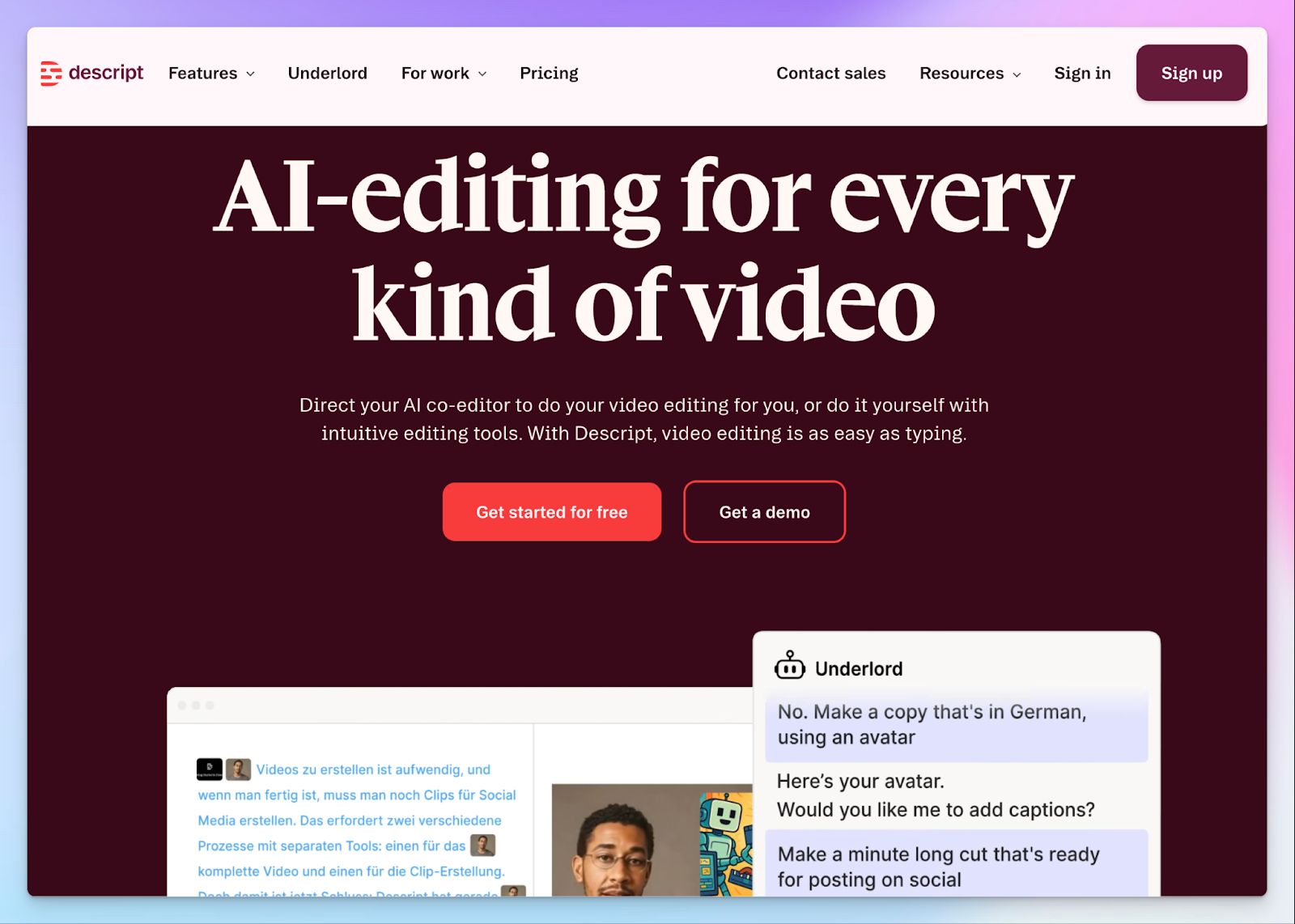
Descript approaches transcription differently from standalone transcript generators. You upload a video, it transcribes the audio, and the transcript becomes your editing timeline. Edit the text, and the video edits itself. Delete a sentence from the transcript, and that segment disappears from the video. For podcasters, YouTubers, and video marketers, this means transcription and post-production happen in the same workspace.
The free plan includes 1 hour of transcription per month with access to the full editor, filler word removal, Studio Sound noise cleanup, and dynamic captioning. It's enough to test the workflow on a real project before upgrading.
Descript’s key features
- Transcription in 25 languages with automatic speaker detection
- Studio Sound for one-click background noise removal and voice enhancement
- AI Actions to repurpose transcripts into blog posts, social clips, and summaries
- AI voice cloning (Overdub) for correcting words by typing
- Screen recording with built-in transcription
- Exports to standard video and subtitle formats
Descript’s pricing
- Free: 1 hour of transcription/month
- Hobbyist: $24/month
- Creator: $35/month
- Business: $65/month
- Enterprise: Custom pricing
Descript’s pros
- Transcription and video editing in one tool eliminates app-switching
- Free plan includes the full editor and AI cleanup features
- Filler word removal and Studio Sound save significant post-production time
- SOC 2 Type II compliant
Descript’s cons
- 25 languages supported, far fewer than multilingual-focused tools
- Free plan caps transcription at 1 hour/month
- Primarily a video editor, so the learning curve is steeper if you only need transcripts
📚 Also read:
3. Otter AI
Best for: Professionals and teams who need video transcription alongside live meeting notes in one platform
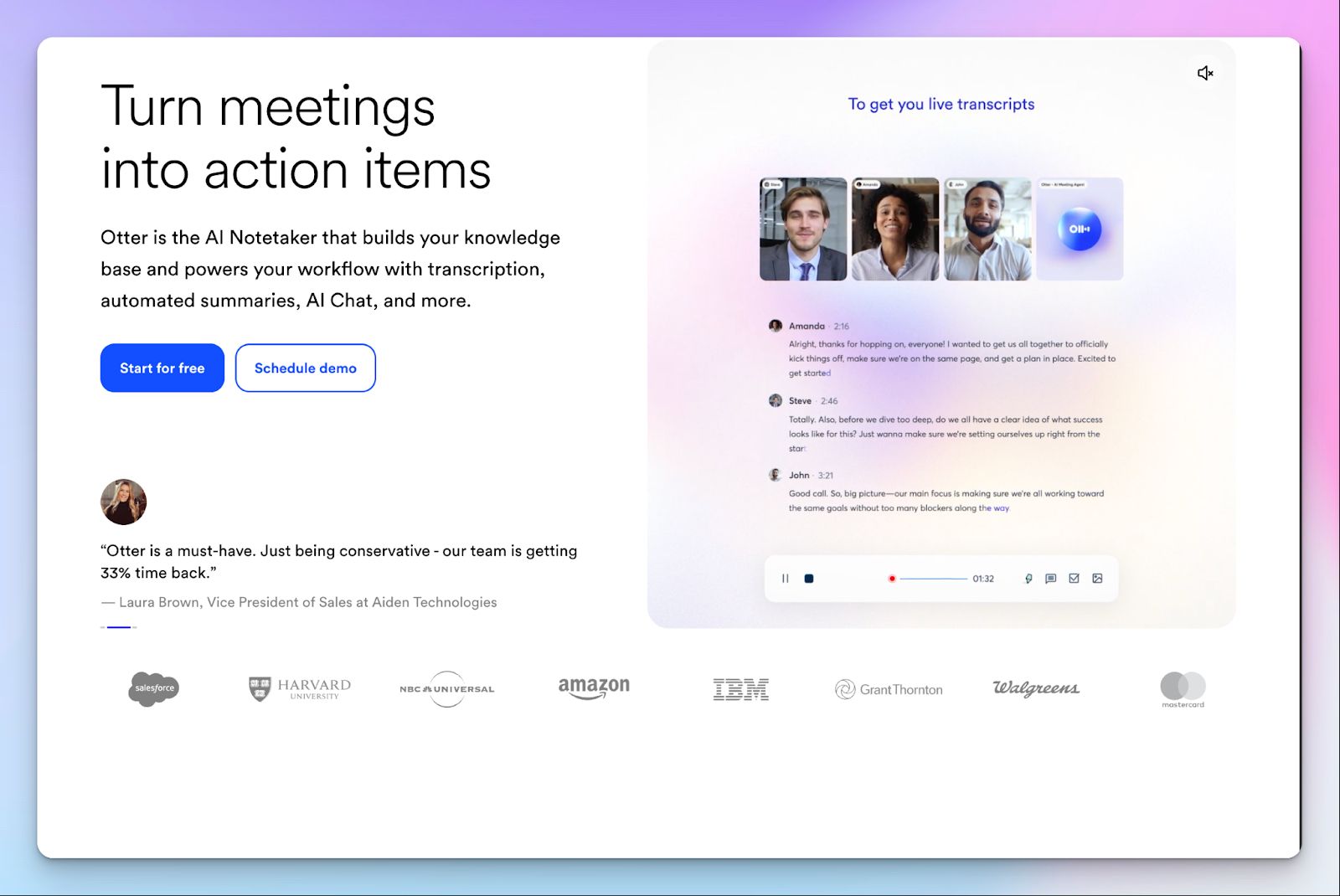
Otter is primarily known as an AI meeting assistant, but it doubles as a capable video transcript generator. You can upload recorded video files in MP4, MOV, and M4A formats and get a searchable, editable transcript with speaker labels and timestamps. You can also use Otter for live transcription: it joins your Zoom, Microsoft Teams, and Google Meet calls automatically and transcribes the conversation as it happens.
The free plan gives you 3 lifetime audio/video file imports and 300 transcription minutes.
Otter AI's key features
- Transcription in English, Spanish, French, and Japanese with speaker identification
- AI Chat for asking questions about your transcripts and getting instant highlights
- Searchable, editable transcripts with synchronized word highlighting during playback
- SOC 2 Type II certified, CCPA, and GDPR-compliant
Otter AI's pricing
- Basic: 3 lifetime file imports, 300 minutes/month, 30-minute cap per conversation
- Pro: $8.49/month per user
- Business: $24/month per user
- Enterprise: Custom pricing
Otter AI's pros
- Exports to TXT, DOCX, PDF, and SRT (on paid plans; free plan supports MP3 and TXT)
- Available on web, desktop (Mac and Windows), iOS, Android, and as a Chrome extension
- Integrates with Slack, Salesforce, HubSpot, Google Docs, Notion, Jira, Asana, and Zapier
Otter AI's cons
- Only 4 languages supported, way less than what multilingual transcription services offer
- Export formats like DOCX, PDF, and SRT require a paid plan
- Data stored on US-based servers (AWS West), no EU data residency option
📚 Also read:
4. ElevenLabs
Best for: Users who need high-accuracy transcription with advanced features like audio event tagging and entity detection
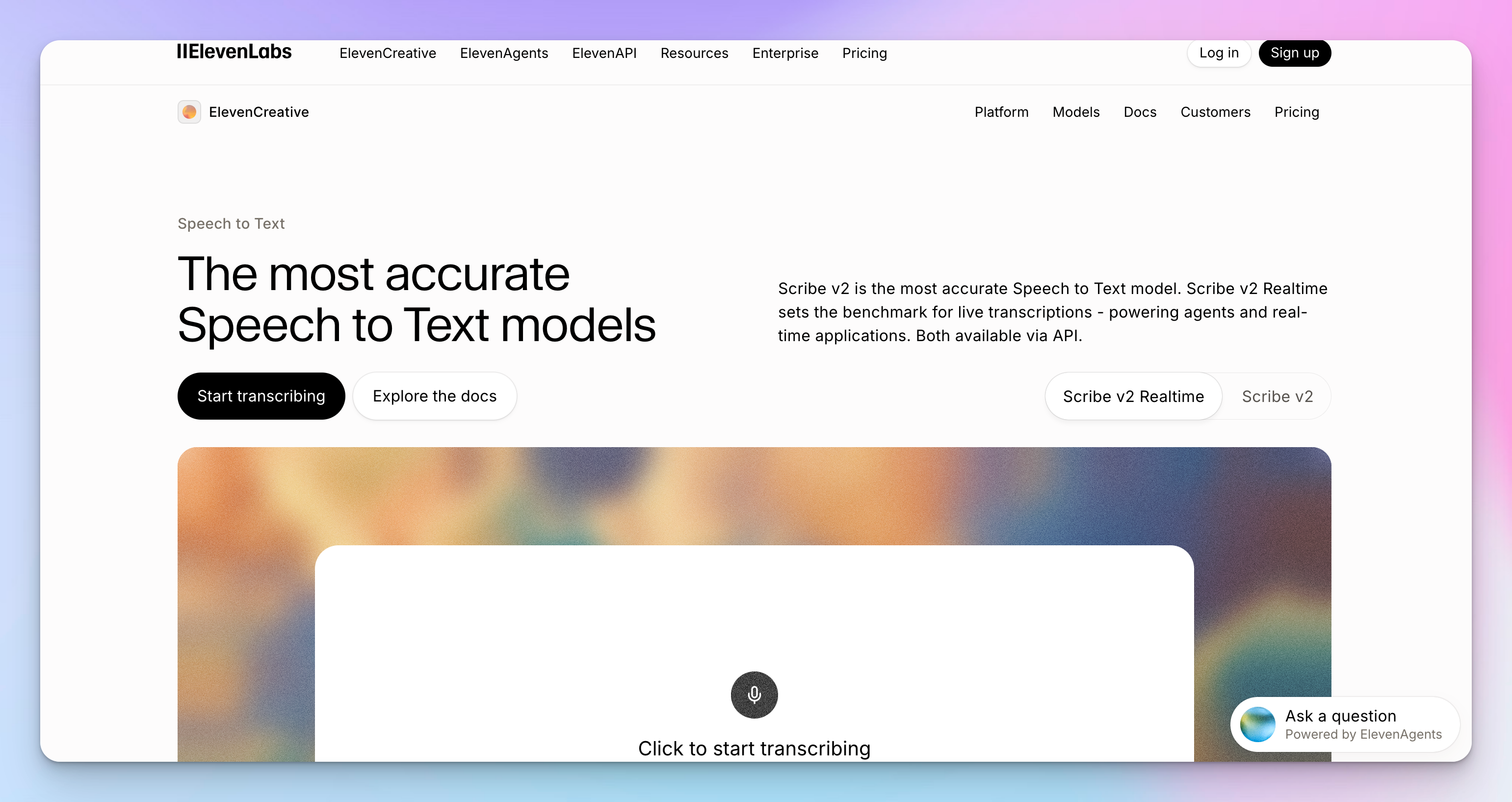
ElevenLabs is best known for its text-to-speech and voice AI, but its Speech to Text tool, powered by the Scribe v2 model, deserves special mention. It transcribes video and audio files in 99 languages with automatic speaker labeling and word-level timestamps.
ElevenLabs' standout feature is audio event tagging, which detects non-speech sounds such as laughter, applause, and background noise and labels them in the transcript.
The free plan includes 10,000 credits per month, which covers Speech to Text alongside other ElevenLabs tools like text-to-speech and sound effects. The workflow is simple: you can upload a video file, get a transcript with speaker labels, edit it directly in the browser, and export in TXT, DOCX, PDF, JSON, SRT, or VTT.
ElevenLabs’ key features
- 99 languages supported
- Automatic speaker labeling and word-level timestamps
- Audio event tagging for non-speech sounds
- Entity detection for names, numbers, and sensitive information with timestamp mapping
- In-browser editor for correcting and formatting transcripts
- Exports to TXT, DOCX, PDF, JSON, SRT, VTT, and HTML
- SOC 2, HIPAA (with BAA), and GDPR compliant
ElevenLabs’ pricing
- Free: 10,000 credits/month (shared across all ElevenLabs tools)
- Starter: $6/month
- Creator: $11/month
- Pro: $99/month
- Scale: $299/month
- Business: $990/month
- Enterprise: Custom pricing
ElevenLabs’ pros
- EU data residency and zero retention modes available
- SOC 2, HIPAA, and GDPR compliant with EU data residency option
- No-verbatim mode removes filler words and false starts for cleaner output
ElevenLabs’ cons
- Primarily an AI audio platform, so the transcription UI is less polished than dedicated tools
- No built-in video editor or content repurposing features
- Credit-based pricing can be hard to predict for high-volume transcription
📚 Also read:
5. TurboScribe
Best for: Users who need a simple transcription tool with a daily free tier
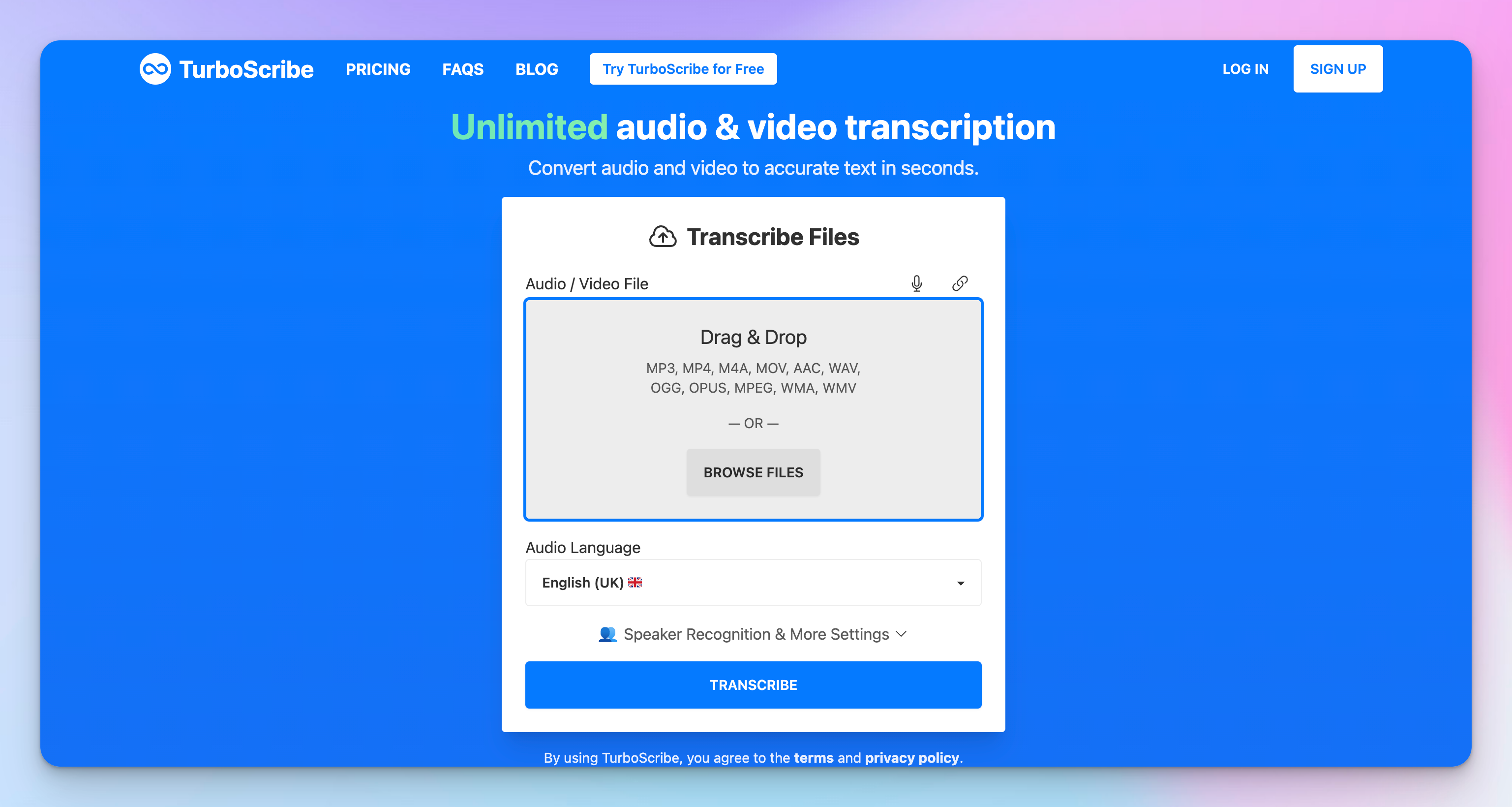
TurboScribe uses OpenAI's Whisper model to convert audio and video files into text. The experience is barebones: there's no built-in video editor, no content repurposing features, and no live meeting support. You upload a file, choose your settings, and get a transcript back.
The free plan allows 3 transcriptions per day, each up to 30 minutes long. That's generous enough to work through a backlog of recordings over several days without hitting a paywall. But the clunky editing interface and unreliable speaker diarization mean extra cleanup time before the transcript is actually usable.
TurboScribe’s key features
- Supports 98+ languages for transcription, translation to 134+ languages
- Speaker recognition for labeling multiple speakers
- Audio restoration mode for cleaning noisy recordings before transcription
- Exports to DOCX, PDF, TXT, SRT, and VTT
- Built-in ChatGPT integration for summarizing and analyzing transcripts
TurboScribe’s pricing
- TurboScribe Free: 3 transcriptions/day (30 minutes each)
- TurboScribe Unlimited: $20/month
TurboScribe’s pros
- Daily free tier resets every 24 hours instead of monthly caps
- No signup required for free transcriptions
- All files and transcripts are encrypted, only accessible by you
TurboScribe’s cons
- Free-tier files are processed with lower priority, so there are longer wait times
- No built-in editor for reviewing or correcting transcripts in-app
- No live meeting recording or calendar integration
📚 Also read:
How to choose the best free video transcript generator
All of these five tools reliably convert video to text. Where they diverge is in how much work they save you after the transcript lands.
👉 If you're a content creator who edits video alongside transcription, Descript lets you cut and polish your footage by editing the text, so transcription and post-production happen in the same workspace.
👉 For professionals who move between uploaded recordings and live meetings, Otter AI covers both in one platform, with automated summaries and action items that save post-meeting cleanup time. The trade-off is limited language support (only 4 languages) and US-only data storage.
👉 ElevenLabs stands out for specialized transcription needs, with features like audio event tagging, entity detection, and no-verbatim mode.
👉 TurboScribe is the simplest option. Its daily free tier resets every 24 hours, which is generous for working through a backlog, but the barebones experience means more cleanup time on your end.
👉 If you need one tool that covers a wide range of use cases, HappyScribe is the strongest option on this list. With 150+ languages at 95%+ accuracy, human proofreading for critical content, a synced transcription editor, AI Chat across your entire library, and GDPR-compliant EU data storage, it handles everything from a quick YouTube transcription to a sensitive client recording without forcing trade-offs.
Try HappyScribe for free and turn your next video into a searchable transcript in minutes.
FAQs on free video transcript generators
Why should I transcribe my videos in the first place?
A video is a locked format. You can't search it, skim it, or copy a quote from it without rewatching the whole thing. Transcribing your videos turns that content into text you can actually work with. You can pull key points for social media, repurpose a webinar into an article, or build a searchable archive of interviews and meetings. Video transcription also improves SEO by giving search engines indexable text tied to your video content, making your videos more discoverable. And for accessibility, adding captions or subtitles from your transcript makes your content accessible to viewers who are deaf or hard of hearing, as well as non-native speakers watching without audio. Tools like HappyScribe let you generate both transcripts and subtitle files from the same upload, so you can cover content creation and accessibility in one step.
Do free video transcript generators produce accurate enough results to use without editing?
Under good audio conditions, most AI video transcription tools deliver 90-95% accuracy, which is strong enough for internal notes, content drafts, and reference material. Where accuracy drops is with heavy background noise, overlapping speakers, strong accents, or domain-specific jargon the AI hasn't encountered before. For everyday use cases like repurposing a recorded presentation or pulling highlights from a team call, the transcript will need only light cleanup. For long recordings or high-stakes content like legal proceedings, published research, or client deliverables, consider a tool like HappyScribe that offers both custom glossary support to handle specialized terms and a human proofreading add-on to push accuracy closer to 99%. It's a great tool for producing accurate transcripts when the margin for error is small.
Can I transcribe a YouTube video without downloading it first?
Yes. Several tools on this list let you paste a YouTube link directly and get a complete transcript without downloading the video file first. HappyScribe's video to text converter works this way: paste the link, and it automatically transcribes the spoken audio, adds speaker labels and timestamps, and delivers an editable youtube video transcript in just a few minutes. This is useful for students who want to repurpose a YouTube lecture into a blog post, or researchers who need a text version of a long recording without having to convert video files manually. You can then export the youtube transcript in multiple formats, including DOCX, SRT, and VTT, or download it as a text file for offline use.
Can I use a free video transcript generator for both file uploads and live meetings?
Some tools handle only file uploads, while others also capture meetings in real time. HappyScribe covers both: upload your video in 45+ supported formats or paste a link from YouTube, Zoom, Google Drive, or Dropbox, and you can also connect your calendar so HappyScribe's AI note taker joins scheduled calls on Zoom, Google Meet, and Microsoft Teams. If your workflow involves a mix of recorded content and live calls, choosing a tool that covers both saves time and keeps all your transcripts in one place.
What's the best way to create subtitles and closed captions from a video transcript?
Once you have an accurate transcript, generating subtitles is usually just a few clicks away. HappyScribe lets you create subtitles in SRT and VTT formats directly from your video transcript, with each line synced to the corresponding timestamp in the video. Closed captions go a step further than standard subtitles by including non-speech elements like sound effects and speaker identification, which makes your content accessible to a wider audience. Adding captions also helps with discoverability, since search engines can index subtitle text and surface your video in relevant results. For content creators working with long videos or bulk transcription across multiple files, look for a user-friendly tool that lets you generate and export subtitles alongside the transcript in one workflow rather than switching between different formats and separate tools.
Are there free alternatives to dedicated video transcription tools?
You can transcribe video to text using free alternatives like Google Docs' Voice Typing feature, which lets you play a video and capture the audio as text online in real time. It works in any browser and requires no sign ups, but it lacks speaker identification, timestamps, and the ability to handle multiple supported languages reliably. The accuracy also depends heavily on your microphone and playback setup. For anything beyond basic note taking, a dedicated free AI video transcriber like HappyScribe is a better go-to tool. It produces accurate text with speaker labels, supports 150+ languages, and lets you export in different formats.

Rodoshi Das
Rodoshi is the Content Lead at HappyScribe, the privacy-first transcription and AI notetaker platform based in Barcelona. Shaping content strategies and building AI workflows excites her as much as exploring new SaaS tools. She specializes in product-led content that informs rather than sells, grounded in honest product benchmarking and low tolerance for empty marketing speak.