Turning an audio file into text should be a simple task in 2026, but here we are. Manual transcription is a chore that kills time, and there's always the risk of errors in automated transcriptions.
And somehow, even if you get a good transcript, the free tools don't give you many editing or export options.
The solution? This blog post.
I've compiled only the best ways for you to transcribe audio to text in 2026. Pick from these to fit your use cases, and get accurate transcriptions ready in seconds.
TL;DR:
1. HappyScribe AI: Best for fast, easy, and accurate audio-to-text transcription
2. Built-in voice typing tools: Best for light transcriptions on the go
3. ChatGPT Record: Best for ChatGPT Plus users on macOS
4. Professional transcription services: Best for regulated industries, such as legal and healthcare teams
5. Speech-to-text API: Best for developers who want control over costs
Best ways to transcribe audio file to text
Here are 5 ways to transcribe audio file to text, starting with the easiest and most accurate one.
1. HappyScribe’s AI speech-to-text app
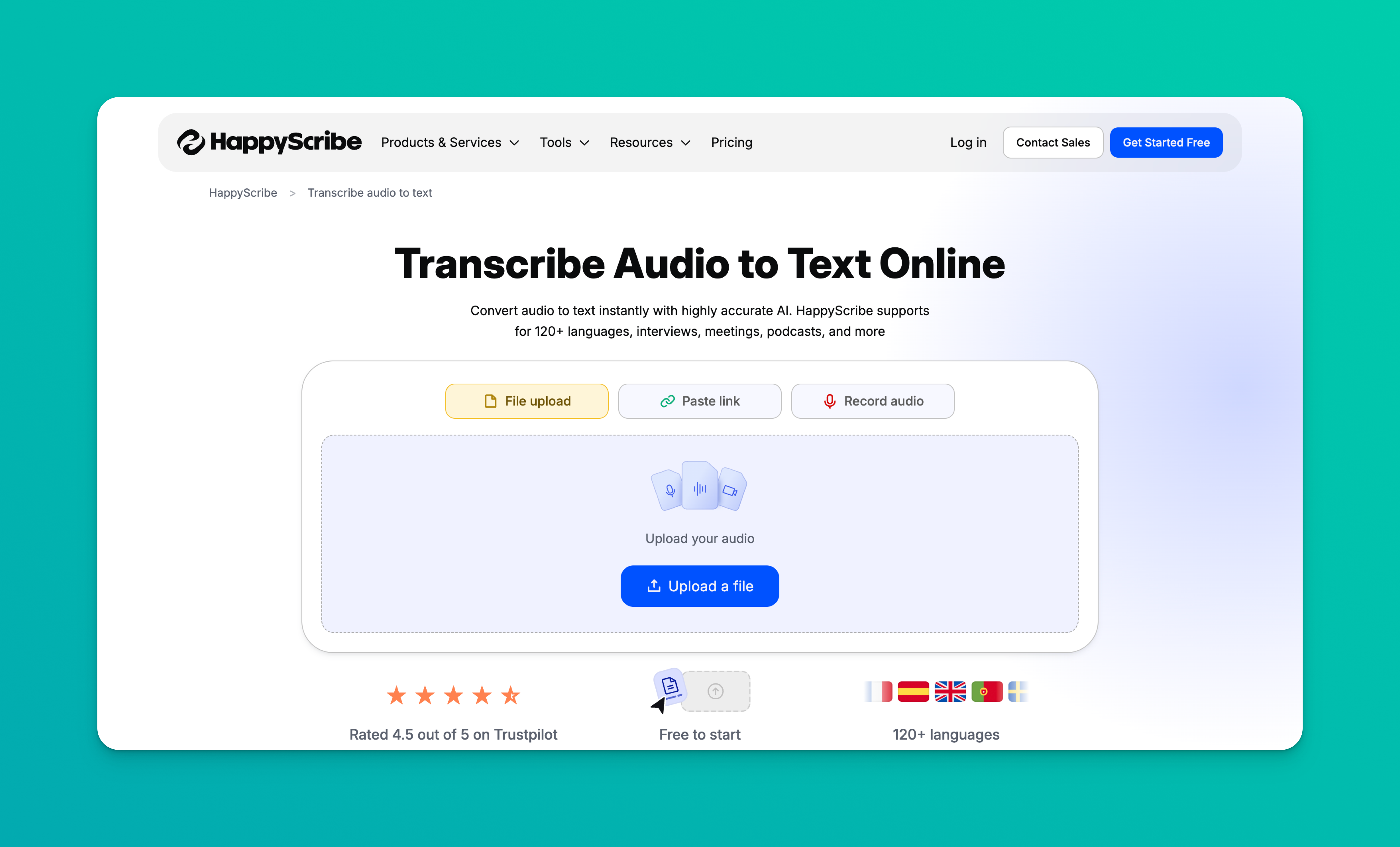
HappyScribe's AI takes the top spot because it's not only accurate (95%) but also covers a wide range of languages (140+).
Once you have the transcript ready, you can edit speaker labels, invite others to collaborate, summarize the text and create notes, and export in whatever format you prefer.
Steps to transcribe audio to text with HappyScribe
-
1
Go to the audio-to-text converter and upload your audio file/paste link/record audio
-
2
Select the language and click on Transcribe
-
3
And that’s it! HappyScribe gives you the transcript in seconds
If you already have an account, log in to HappyScribe first, and you can generate subtitles, translate texts, and automate meeting note-taking.
Pros of using HappyScribe AI to transcribe audio to text:
- Clean and easy-to-use interface, even for casual users
- Up to 95% AI accuracy with optional expert-reviewed transcripts for 99% accurate transcripts
- 140+ language support so you can transcribe any audio from any part of the world
- Wide file support for professionals, including AAC, M4A, MP3, OGG, WAV, FLV, MOV, MP4, MPEG, SRT, TTX, PDF, DOCX, etc.
- Ask HappyScribe AI to summarize, extract quotes, write a post, and create quizzes out of transcripts
- GDPR and SOC 2 Type II support, along with end-to-end encryption for secure data handling
- Affordable plans support personal use, while bulk discounts offer better deals to enterprises
Cons of HappyScribe
- Web-based, so relies on the internet to work
- No mobile app yet
2. Built-in voice typing tools
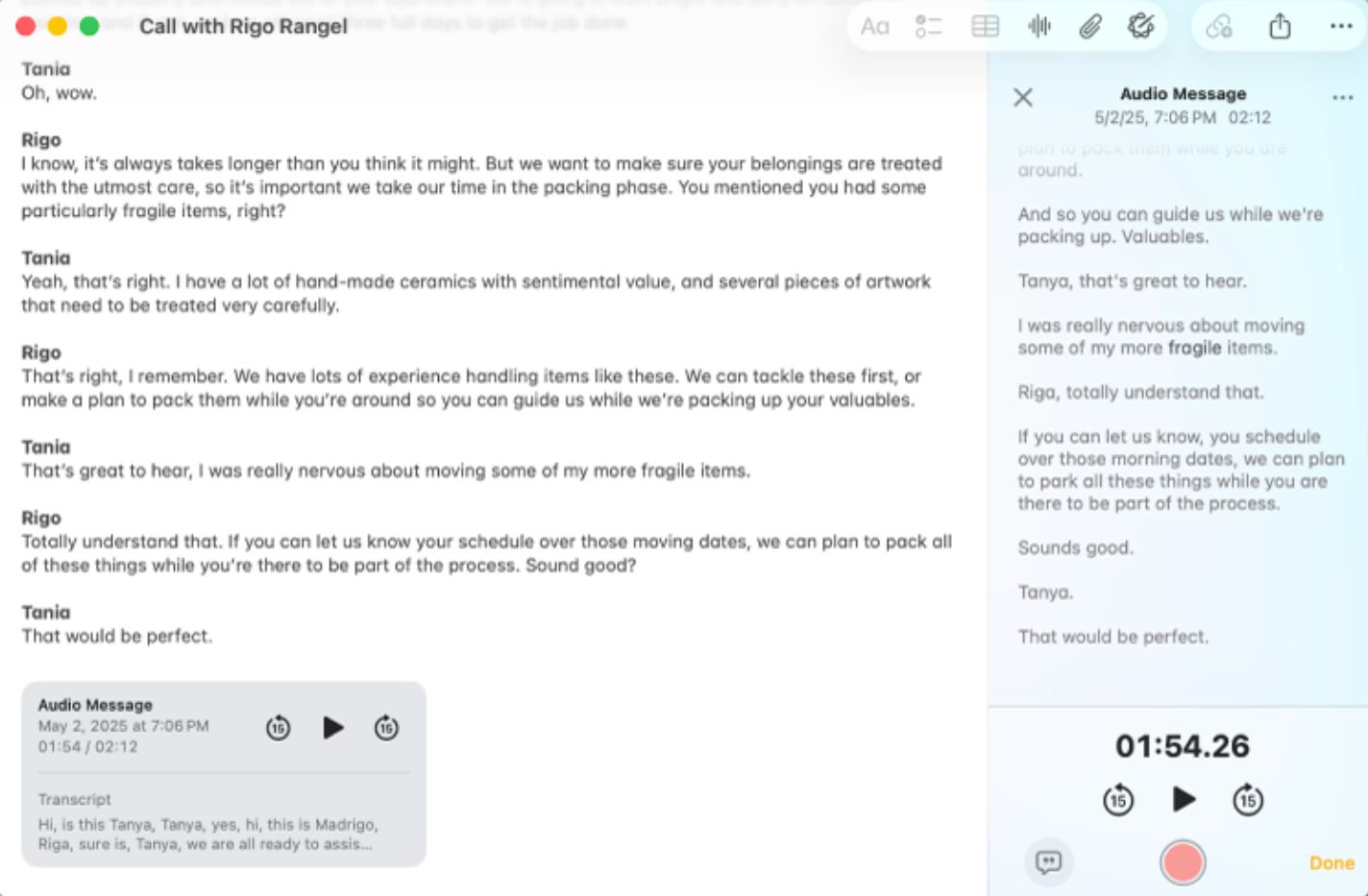
Be it Windows, Android, or Apple devices, you have some sort of speech-to-text functionality built into your devices.
These options are not feature-packed but get the job done for simple audio files.
Here's how you can transcribe audio to text in Apple devices:
- Open the Notes app, click on the “ 📎” icon, and select Record Audio. Once you finish recording, click on “💬” to see the transcript
- Alternatively, you can open the Voice Memos app, record audio, and tap on “💬” from the options to view the transcript
In Windows, you can transcribe audio to text by opening Word and pressing the Windows logo key + H to trigger dictation. Both Microsoft Word and OneNote allow you to record or upload audio by going to Home > Dictate dropdown > Transcribe.
If you’re using an Android device, download the Live Transcribe & Sound Notifications app, give the necessary permissions, and start speaking.
Google Docs voice typing is another option that’s built into Google Docs. Simply go to Tools > Voice typing. It’s not limited to any device, and it’s good for basic live transcription.
Check out:How to record meetings in Microsoft Teams
Pros of built-in voice typing tools
- Usually free to use
- Simple UI with basic features for quick tasks
- Often processed on-device, so privacy-focused
Cons of built-in voice typing tools
- No standardized workflow. You have to tinker around to see how it works in your device
- Limited language support and features for power users
- Requires a flawless audio source, and the transcript quality is inconsistent
- Audio file upload is rarely offered; you’re mostly stuck with live recording
3. ChatGPT Record
ChatGPT Record was released last year as a meeting notetaker for macOS users. To use it, you open the macOS ChatGPT app, tap on the record button beside the microphone icon, and a floating window will start recording your conversation.
After you press Stop, it'll prompt you to Send the file to the ChatGPT server and create a summary of the discussion in a new canvas. ChatGPT Record is different from the voice typing mode, which allows hands-free interaction with ChatGPT.
Pros of ChatGPT Record
- Quickly start recording meetings or discussions up to 120 minutes long
- Ask the AI follow-up questions to dive deep into the summary, action items, agenda, and brainstorming
- Summaries and chats are available across devices
- ChatGPT Record is available to ChatGPT Plus and above without extra cost
Cons of ChatGPT Record
- ChatGPT Record doesn't offer audio file uploads, templates, or editing
- You can't automate meeting transcription and have to manually start recording for every meeting
- Only available in the macOS desktop app and users in the ChatGPT Plus tier and above
4. Professional transcription services
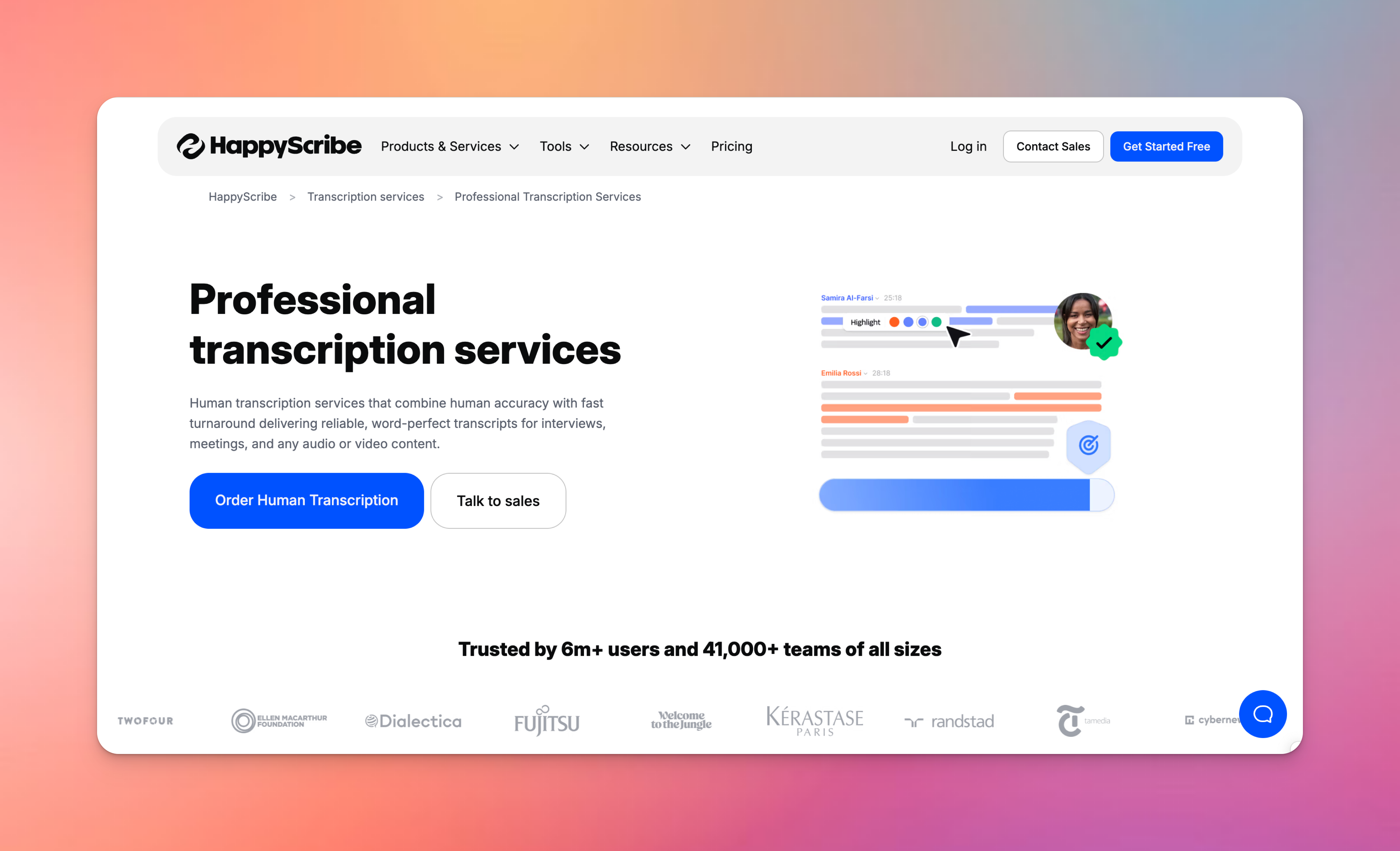
So far, I've included options that are easy to use or come as an extra feature to your devices. But if you feel like you can't trust AI-powered transcriptions, a professional transcription service might work for you.
Professional services use linguists and expert transcriptionists to verify spoken content, fix contextual errors, and run complex edits. As a result, you get transcripts that are up to 99% accurate and ready to be used in sensitive projects.
This option is useful for journalists, healthcare, legal, and research teams.
HappyScribe is the go-to professional transcription service for teams that can't afford errors. The human-made transcription covers 140+ languages and is 99% accurate, while being one of the most affordable options in the market, with rates starting as low as $2/minute.
If you're shopping around, you can also check GoTranscript, Ditto Transcripts, and Rev.
Read more:6 Best Human Transcription Services in 2026
Pros of using professional transcription services
- Accurate transcriptions are useful in highly-regulated industries with complex requirements
- Context and terminology stay intact in lengthy discussions
- Project-specific NDAs, flexible deliverables, and enterprise-grade security
- Supports niche languages, formats, and hard-to-decipher audio
Cons of professional transcription services
- Tends to be more expensive than AI transcriptions
- Turnaround time varies between a few hours and to few days
- Primarily geared towards large orders from enterprises
5. Speech-to-text APIs
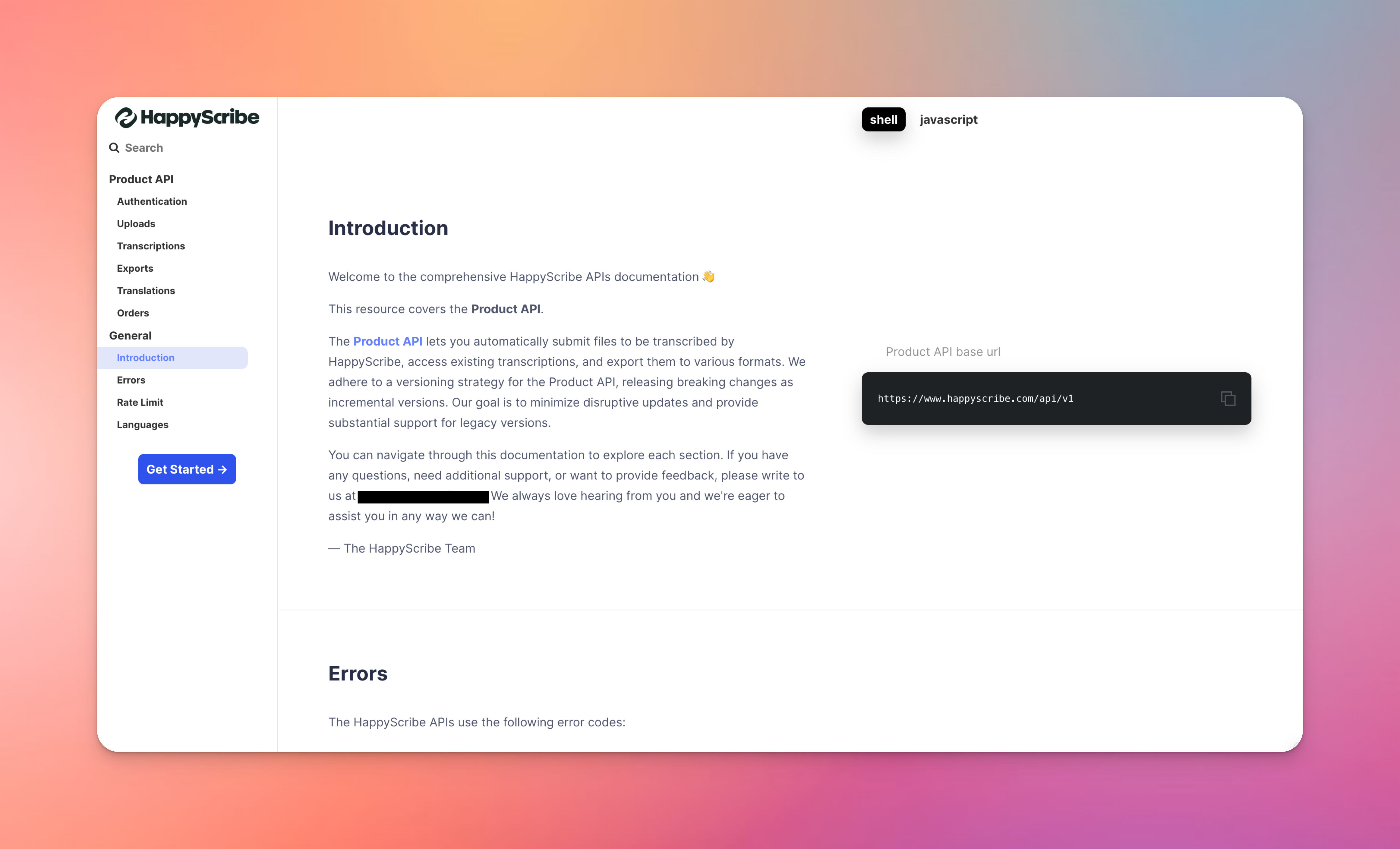
If you have dev experience and want to be in control of cost and workflows, you can look into speech-to-text APIs to transcribe audio.
Take the HappyScribe API, for instance. Developers can trigger fast AI transcription, human-reviewed transcription, and hybrid options without leaving their task window. It supports 100+ languages, flexible file uploads, order management, parallel processing, and reasonable rate limits.
Apart from that, OpenAI’s Whisper API continues to power popular transcription apps in the market. You can also look into Deepgram API and Google speech-to-text API documentation to see what works for you.
Pros of speech-to-text APIs
- Scalable pricing lets you pay only for the minutes you use
- Ability to automate workflows by integrating with other apps
- Granular control of privacy and data retention
Cons of speech-to-text APIs
- Requires significant technical expertise to set up and maintain
- You have to build and manage the interface and integration stack, leading to more work
Picking the best way to transcribe audio to text in 2026
If you want reliable, publish-ready transcripts with minimal friction, HappyScribe is the clear winner. It is the only option that combines high accuracy, broad language support, editing, collaboration, summaries, professional transcription, and easy export in one workflow.
Use built-in voice typing only for quick, throwaway notes. Use ChatGPT Record if you need meeting summaries inside ChatGPT on a Mac. Pick speech-to-text APIs only if you are building or automating at scale.
For everyone else, the fastest and safest path from audio to usable text is HappyScribe.
FAQ
How do I transcribe an audio file to text?
Upload your audio file to an AI transcription tool like HappyScribe, choose the language, and start the transcription process. The ASR model converts speech to text in minutes and gives you editable transcribed files you can export or share with collaborators.
Where can I transcribe audio to text for free?
You can use free tiers of AI tools like HappyScribe, Google Docs voice typing, or device dictation. The free tools or free versions work for short clips, but they usually support limited audio formats, accuracy, and downloads for longer recordings.
Can ChatGPT transcribe audio to text?
Yes, but only if you upload or record audio in transcription mode, which is called ChatGPT Record. It uses speech recognition technology to generate text and summaries, but it lacks structured exports, file handling, and editing tools that dedicated transcription platforms offer.
Can Google Docs transcribe an audio file for free?
Not directly. Google Docs can only transcribe live audio through voice typing. Unlike Microsoft Word, it cannot upload audio or video files, so you must play the recording out loud. It reduces accuracy and control over file formats.
How can I transcribe an audio file into text automatically?
Use an AI transcription platform like HappyScribe. It supports multiple audio formats, handles video content and podcasts, and turns files into searchable, shareable transcripts without manual work.
What’s a reliable way to convert long audio recordings into text?
For long interviews, meetings, or podcasts, use a service that combines AI with optional human review, like HappyScribe. You get high accuracy, strong security and privacy, and clean transcripts you can reuse across documents, video format exports, and smart AI Notes.

Rodoshi Das
Rodoshi is the Content Lead at HappyScribe, the privacy-first transcription and AI notetaker platform based in Barcelona. Shaping content strategies and building AI workflows excites her as much as exploring new SaaS tools. She specializes in product-led content that informs rather than sells, grounded in honest product benchmarking and low tolerance for empty marketing speak.