


Taking notes during a Zoom meeting sounds easy until the conversation starts moving faster than your typing.
Someone shares a decision. Someone else adds context. A deadline changes. A client mentions a detail you know you’ll need later. By the end of the call, your notes are either too thin to use or too messy to share.
There are two main ways to take notes in Zoom meetings:
- You can use Zoom’s native note-taking and AI features
- Go for an AI meeting note taker for Zoom like HappyScribe to capture the transcript, summary, and action items automatically
In this guide, we’ll walk through both methods.
Method 1: Take notes using Zoom’s native features
Zoom has a few built-in ways to capture notes and summaries from meetings. The right option depends on whether you want private notes, a shared note page, an AI-generated recap, or a post-meeting recording summary.
📌 Important update:
Zoom has retired the “AI Companion” name. Zoom’s release notes say AI features that used to sit under the AI Companion brand, including Meeting Summaries and Smart Recording, will remain available across Zoom Workplace.
a. Use My Notes for personal Zoom meeting notes
My Notes is Zoom’s native option for personal note-taking. It lets you take manual notes during a Zoom meeting or webinar, and enhance those notes with a transcript. The notes belong to you and are not automatically shared with the meeting host or other participants.
This works well when you want your own record of a meeting without creating shared minutes for everyone on the call.
Steps to use My Notes during a Zoom meeting:
- Sign in to the Zoom desktop app.
- Start or join a Zoom meeting.
- Click the My Notes icon at the top of the meeting window.
- Click Start taking notes.
- Type your notes in the My Notes editor.
- If transcription is supported, Zoom can start transcribing once you begin taking notes.
- Click Done when you are finished.
📌 Note:
Both hosts and participants need supported app versions to manage and use the full My Notes functionality during meetings. The feature is not designed for Zoom Phone or Zoom Contact Center participants.
My Notes is useful for:
- One-to-one calls
- Internal check-ins
- Classes or lectures
- Interviews where you want private notes
- Meetings where you want to add context manually while Zoom captures the transcript
The downside is that My Notes is still a user-controlled note-taking flow. You may need to enable the feature first, check whether transcription is available, and review the notes before sharing anything.
b. Use Zoom Canvas to take notes during a meeting
You can also take notes during a Zoom meeting with Zoom Canvas.
During a meeting, click Docs in the meeting controls. If you do not see Docs, click More, then Docs. From there, you can create a doc for meeting notes, action items, project plans, or other meeting content.
This option works when you want a visible note page inside the meeting. Zoom Canvas notes are useful for:
- Shared agendas
- Collaborative meeting minutes
- Workshops
- Team planning calls
- Meetings where participants need to comment on the notes
The limitation is that someone still needs to structure the notes. Canvas gives you a place to write and share notes, but it does not do all the manual work for you. You still need to pull out decisions, owners, deadlines, and follow-ups.
c. Use Zoom Meeting Summary
Zoom’s Meeting Summary can generate an AI summary of what was discussed in a meeting. It’s useful when you want an automated recap instead of manual notes.
Meeting Summary is useful for:
- Quick meeting recaps
- Internal team calls
- Status updates
- Meetings where you need a summary but not a full transcript
- Teams already using Zoom’s AI features
The limitation is that this is more of a recap feature than a complete note-taking workflow. It can help you understand the broad conversation, but you may still need a full transcript, speaker labels, searchable records, or more detailed action-item tracking.
There are also pricing and usage requirements.
Zoom offers limited AI features on the free Workplace Basic plan, including meeting summaries for 3 hosted meetings per month, in-meeting questions for 3 hosted meetings per month, and AI note-taking with My Notes for 3 uses per month.
Higher ZoomMate plans add monthly AI credits and unlimited AI note-taking.
d. Use Smart Recording after the meeting
Smart Recording is another native Zoom option, but it works after the meeting.
Instead of helping you take live notes, Smart Recording uses cloud recordings to create outputs such as recording highlights, smart chapters, summaries, next steps, and meeting analytics.
Smart Recording is useful for:
- Webinars
- Training sessions
- Lectures
- Long client calls
- All-hands meetings
- Calls you want to review after the meeting
The limitation is that Smart Recording depends on cloud recording and processing. It is useful for reviewing a meeting later, but it is not the same as having clean, structured notes ready to use right after every call.
Downsides of Zoom’s native note-taking features
Zoom’s built-in features can work well if your team already lives inside Zoom. But they come with a few practical limitations.
1. Some features depend on admin settings
Features like My Notes, Meeting Summary, transcription, AI enrichment, and Smart Recording need to be enabled by an admin or account owner.
If the option is missing from your Zoom app, it may not be included in your plan, available in your region, supported by your current app version, or enabled for your account.
2. Free Zoom AI usage is limited
Zoom offers some AI features on the free Workplace Basic plan, but usage is limited.
For example, the ZoomMate Basic plan includes meeting summaries for 3 hosted meetings per month and AI note-taking with My Notes for 3 uses per month.
That means Zoom’s native AI notes may work for light use, but frequent meeting recording or recurring team workflows require a paid Zoom plan, a higher ZoomMate tier, or one of the free AI meeting assistants.
3. Someone still needs to check the output
AI-generated notes can save time, but they still need review.
Before sharing notes, check names, numbers, product terms, acronyms, technical vocabulary, and decisions. This is important for client-facing meetings, interviews, sales calls, and legal or compliance-sensitive conversations.
Method 2: Take Zoom meeting notes automatically with HappyScribe
If you want more than a basic meeting recap, use HappyScribe’s AI note taker.
HappyScribe joins Zoom (as well as Google Meet and Microsoft Teams) calls to record, transcribe, and summarize meetings. It supports AI note-taking in 150+ languages and delivers a full transcript, summary, and action items after the call.
It’s ideal for European teams, multilingual interviews, international client calls, and research sessions.
HappyScribe offers unlimited meeting recordings on its free plan (capped at 45 minutes per recording), automatic speaker detection, and integrations with Zoom, Google Meet, Teams, Google Calendar, Outlook Calendar, and more.
You can connect HappyScribe to your own tech stack via Zapier or the API, or use the MCP to connect it with your AI tools.
Here’s how you can take notes in Zoom Meetings using HappyScribe:
Step 1: Connect your calendar
Start by connecting your Google Calendar or Outlook Calendar to HappyScribe.
Once your calendar is connected, HappyScribe can detect upcoming meetings and join calls automatically. I’d recommend this if you have back-to-back Zoom meetings and do not want to start a note-taking workflow manually every time.
Alternatively, you can paste your meeting link and HappyScribe will join your meetings automatically.
💡 Quick tip:
Use HappyScribe on your desktop browser, or record meetings on your iOS or Android device using the HappyScribe mobile app.
Step 2: Let HappyScribe join your Zoom meeting
When the meeting starts, HappyScribe can join the Zoom call as a meeting bot.
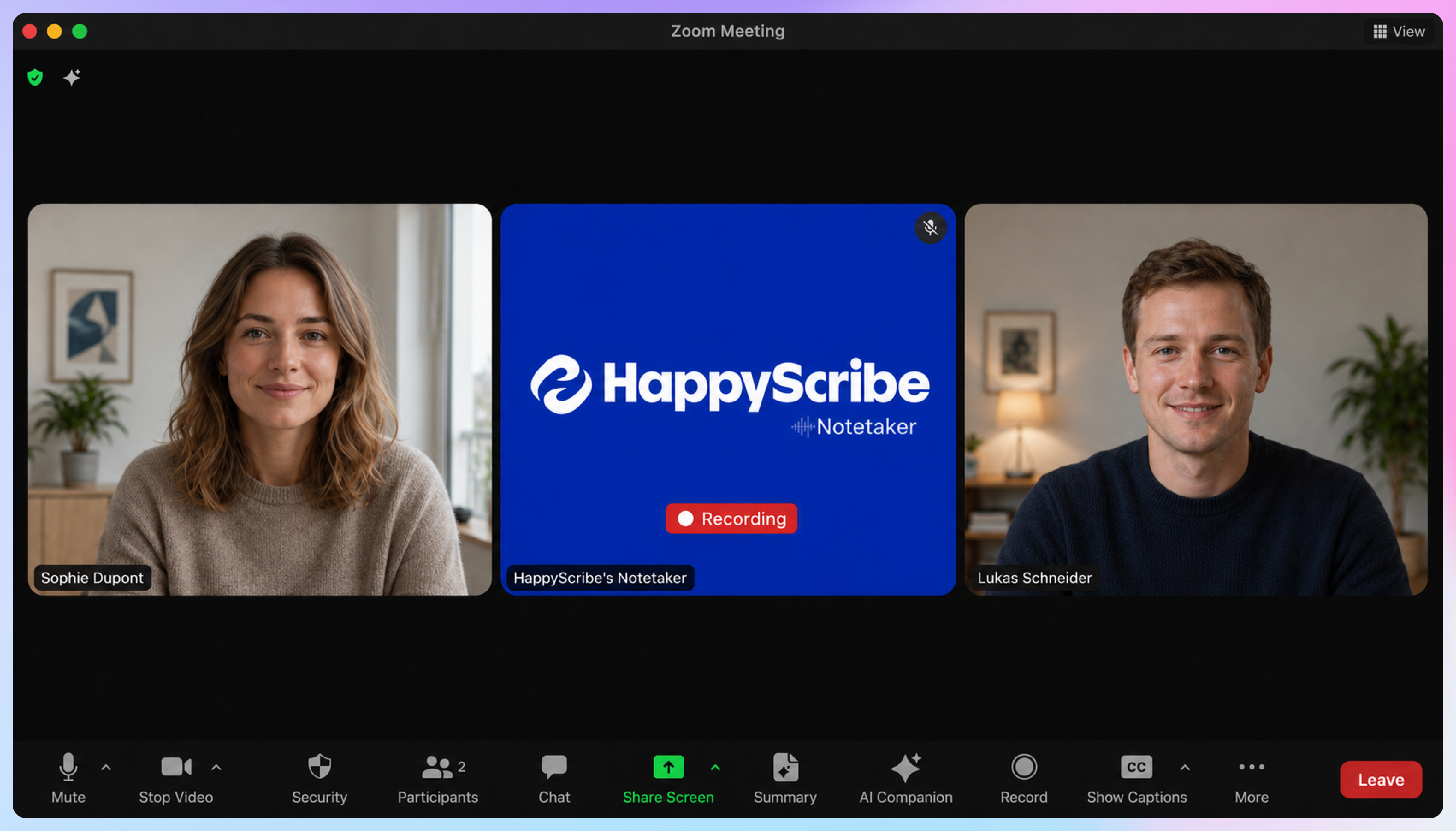
It records, transcribes, and summarizes the conversation while you stay focused on the meeting. Instead of choosing between listening and typing, you get a full meeting record after the call.
The HappyScribe bot announces itself at the beginning of the call to let participants know that the meeting is being recorded or transcribed.
Step 3: Get Zoom notes and transcripts in 150+ languages
After the meeting, HappyScribe gives you a transcript, summary, and action items.
This is where HappyScribe is stronger than a basic Zoom notes setup. It supports 150+ languages, so teams can use it for multilingual meetings, international interviews, global customer calls, and cross-border collaboration.
You might run a customer call in English, a research interview in Spanish, and an internal meeting in French in the same week. HappyScribe can support those workflows from one place.
A full transcript is also useful because meeting notes often miss nuance. You can revisit what was actually said, check exact wording, find quotes, and clarify decisions without replaying the entire meeting.
For customer calls, research interviews, hiring conversations, and client meetings, that context is often just as useful as the summary.
Step 4: Review the summary, highlights, and action items
HappyScribe also generates meeting notes from the transcript.
That means you can quickly review the main points, decisions, and action items without reading the entire transcript from top to bottom.
It’s helpful for recurring meetings. Instead of ending every call with a messy note doc and a vague follow-up, you get a clearer record of what happened and what needs to happen next.
Step 5: Use AI Chat across your meeting transcripts
HappyScribe helps you work with meeting content after the transcript is created.
You can use AI Chat to ask questions across your transcript library. That turns your Zoom meeting notes into a searchable knowledge base.
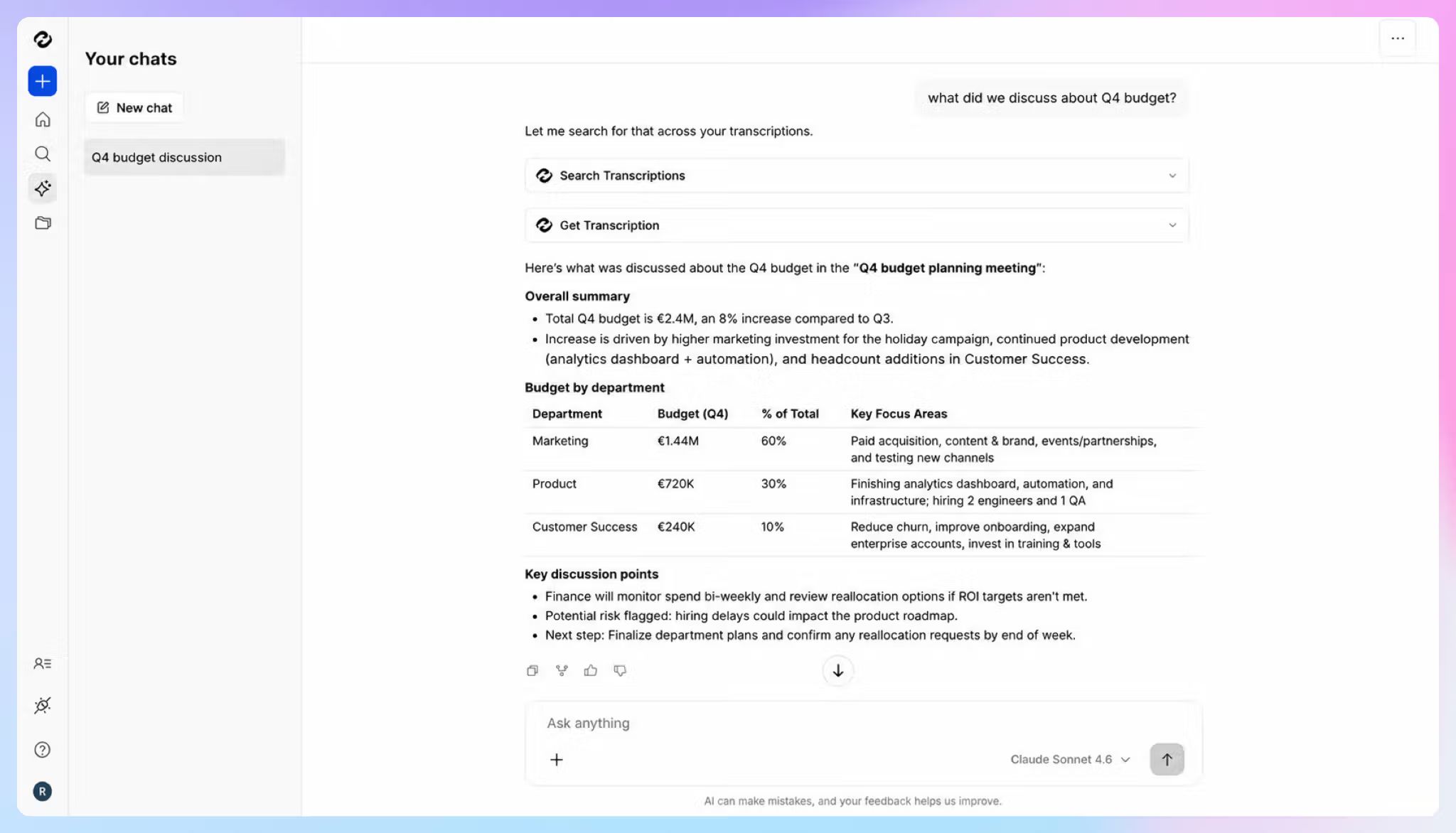
For example, you can ask:
- What did the client say about pricing?
- Which action items came up in last week’s project calls?
- What were the main objections across our sales meetings?
- Pull quotes from customer interviews about onboarding
- Summarize recurring feedback from our last five research calls
Step 6: Search, edit, share, and reuse your notes
Once your Zoom meeting notes are ready, you can search the transcript, review the summary, edit the output, and share it with your team.
You can turn meeting transcripts into client follow-ups, research summaries, sales notes, project updates, training material, or internal documentation.
HappyScribe is a better fit when your meeting notes need to be accurate, multilingual, searchable, and easy to reuse later.
Zoom native notes vs HappyScribe: Which one should you use?
| Need | Best option |
|---|---|
| Personal notes during a Zoom call | Zoom My Notes |
| A shared note page inside the meeting | Zoom Canvas |
| A quick AI-generated recap | Zoom Meeting Summary |
| Highlights from a cloud recording | Zoom Smart Recording |
| Full transcript, summary, highlights, and action items | HappyScribe |
| Zoom meeting notes in 150+ languages | HappyScribe |
| Unlimited meeting recordings on a free plan | HappyScribe |
| Searchable meeting transcripts across calls | HappyScribe |
| AI Chat to extract insights from past meeting transcripts | HappyScribe |
| Meeting notes across Zoom, Google Meet, and Microsoft Teams | HappyScribe |
👉 Use Zoom’s native features if you only need light note-taking inside Zoom.
Zoom’s My Notes is useful for personal notes. Zoom Canvas works well for in-meeting note pages. Meeting Summary can help you generate a recap. Smart Recording is useful when you want to review a cloud recording after the meeting.
👉 Use HappyScribe if you need a more complete meeting workflow.
HappyScribe is better when you want automatic meeting notes, a full transcript, summaries, action items, searchable records, 150+ language support, AI Chat that works across your meeting transcripts, and EU data residency by default.
FAQs on how to take notes in Zoom meetings
Can Zoom take notes automatically?
Yes, Zoom can help with automatic note-taking through features like My Notes, Meeting Summary, and Smart Recording. My Notes supports transcription and note enrichment, Meeting Summary creates an AI-generated recap, and Smart Recording helps you review cloud recordings with highlights, chapters, summaries, and next steps. Availability depends on your Zoom plan, account settings, app version, and admin permissions.
Is Zoom’s AI note-taking free?
Zoom offers limited AI features on its free Workplace Basic plan through ZoomMate Basic. The current ZoomMate page lists meeting summaries for 3 hosted meetings per month and AI note-taking with My Notes for 3 uses per month on the free tier. Higher ZoomMate plans add AI credits and unlimited AI note-taking.
Is HappyScribe free for Zoom meeting notes?
Yes. HappyScribe has a free plan that includes unlimited meeting recordings, capped at 45 minutes per recording. It offers meeting summaries, automatic speaker detection, and integrations with Zoom, Google Meet, and Teams.
Can HappyScribe take Zoom meeting notes in languages other than English?
Yes. HappyScribe’s AI note taker supports meeting notes in 150+ languages, which makes it useful for multilingual teams, global customer calls, research interviews, and international collaboration.
Can I search across past Zoom meeting transcripts?
Yes, if you use HappyScribe. After your Zoom meetings are transcribed, you can use AI Chat to ask questions across your transcript library. It helps you find past decisions, customer quotes, action items, objections, and recurring feedback without opening every meeting transcript manually.
Do I need to record the Zoom meeting to get notes?
It depends on the method. Zoom Smart Recording requires a cloud recording. Zoom My Notes can be used during meetings for personal notes and supported transcription. HappyScribe joins the meeting as an AI notetaker, records and transcribes the conversation, then delivers the notes and summary minutes after the call.
Should I tell participants before using an AI note taker?
Yes. If you record or transcribe a Zoom meeting, inform participants first. In the US, consent rules vary by state: some follow one-party consent, while others require all parties to agree, so the safer practice is to tell everyone. Across Europe, GDPR and national laws generally expect a clear legal basis and transparency, which in practice means notifying participants before recording.
Beyond the law, company policy and meeting context matter too. A short note at the start of the call keeps the process transparent and compliant.

Rodoshi Das
Rodoshi is the Content Lead at HappyScribe, the privacy-first transcription and AI notetaker platform based in Barcelona. Shaping content strategies and building AI workflows excites her as much as exploring new SaaS tools. She specializes in product-led content that informs rather than sells, grounded in honest product benchmarking and low tolerance for empty marketing speak.