
In today’s fast-paced digital world, to transcribe audio into text tutorials is an invaluable skill, whether you’re a student, journalist, podcaster, or business professional. Converting spoken words into written format improves accessibility, helps with content organization, and can streamline the editing and review process. This step-by-step guide will walk you through the process of transcribing audio files into text using HappyScribe, one of the most user-friendly and accurate transcription tools available. By the end of this audio transcription guide, you'll have the knowledge you need to convert your audio to text efficiently, helping you save time and focus on what matters most.
Understanding the Basics of HappyScribe
HappyScribe is a user-friendly platform that transcribes audio and video files into text across over 119 languages, offering both automatic and human-made transcription options. This audio transcription guide, which is ideal for journalists, researchers, students, and legal professionals, leverages advanced speech-to-text technology to accurately transcribe even complex industry-specific terms, scientific jargon, or regional dialects. The interactive editor allows users to listen to audio alongside the text, add timestamps, and distinguish multiple speakers—perfect for interviews and group discussions. With secure data handling and automatic file deletion, HappyScribe ensures confidentiality, making it a reliable choice for accurate audio transcription.
How to Prepare Your Audio Files for Transcription
Before diving into the transcription process, it’s important to ensure your audio files are well-prepared. This will not only make the transcription process smoother but also enhance the accuracy of the end product. Here are a few steps to guide you on how to prepare your audio files for transcription using HappyScribe.
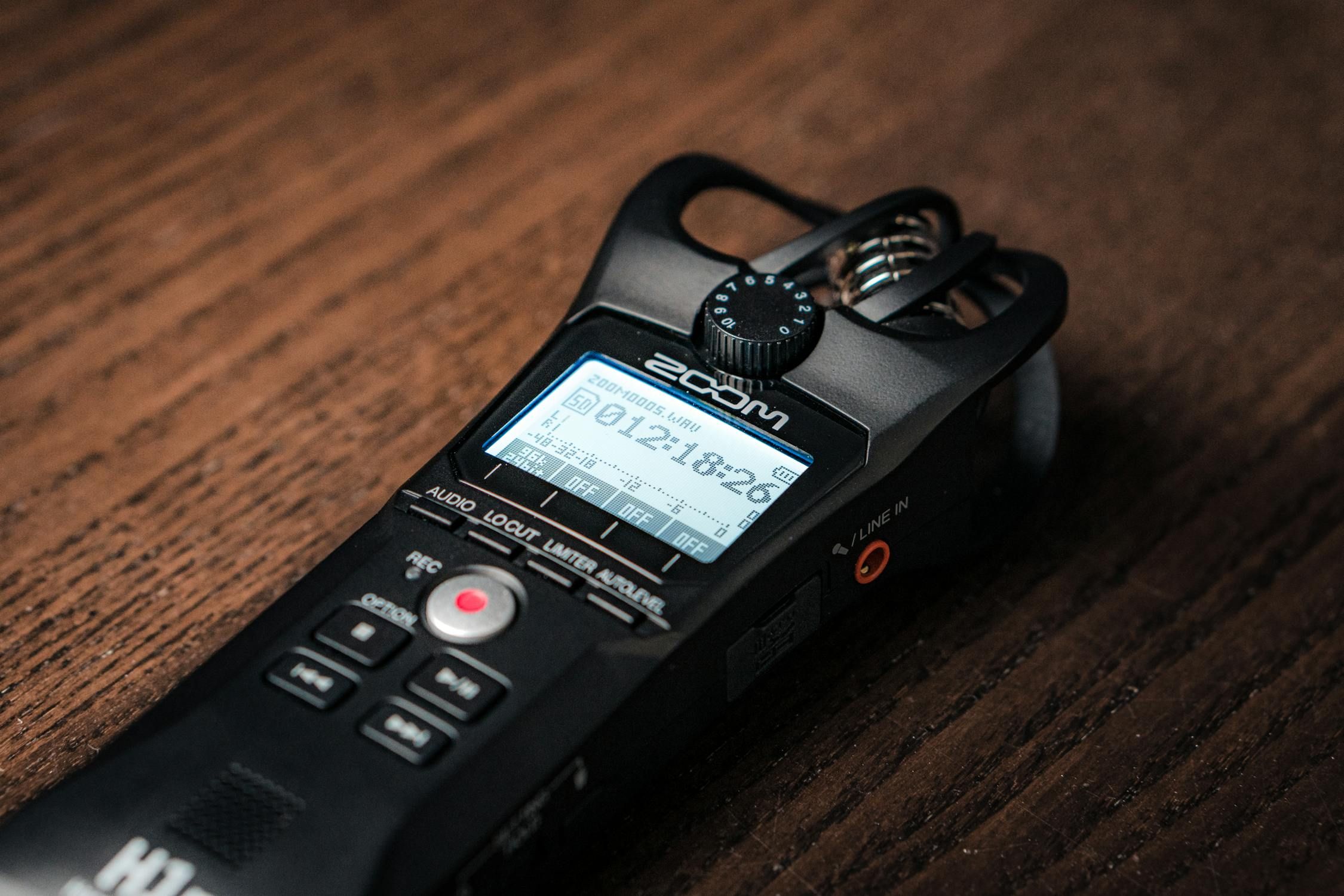
- Ensure that your audio is of high quality. Poor audio quality can result in inaccurate transcriptions. To achieve good quality audio, consider using a high-quality microphone during the recording process. Additionally, try to minimize background noise as much as possible, as this can interfere with the clarity of the voice being transcribed.
- Check support for audio file format by HappyScribe. The platform accepts a wide array of audio formats including MP3, MP4, M4A, AAC, WMA, OGG, WAV, and FLAC. If your file is in a different format, there are several online tools that you can use to convert it into one of the accepted formats.
- It is also vital to check the size of your audio file. HappyScribe can handle files of any size. However, larger files may take more time to upload and transcribe. If you have a very large file, consider compressing it or splitting it into smaller files for a faster transcription process.
- Be sure to have a stable internet connection before you start the upload process. This is because the audio file needs to be uploaded to the HappyScribe server for transcription. Any interruptions during the upload can lead to errors and may require you to restart the process.

Step-by-Step Process of Transcribing Audio Files with HappyScribe
The process of transcribing audio files with HappyScribe is quite straightforward, regardless of whether you're a tech guru or a novice. Here's the step-by-step process:
The first step is to sign up and create a HappyScribe account. This is free and relatively simple to do. Once you have a HappyScribe account, you can begin to upload your audio files. Navigate to the dashboard and click on 'New Upload.' Here, you'll be given the option to either drag and drop your audio file or browse your device to select the file. HappyScribe supports a variety of file formats, including MP3, WAV, and M4A, among others.
After selecting your file, you'll be asked to choose the language and accents used in the audio file. HappyScribe supports over 119 languages and accents, so you should be able to find the appropriate selection for your audio content. Once you have selected the language and accents, click 'Transcribe' and HappyScribe will begin the process of converting your audio file into text.
Depending on the length of your audio file, the transcription could take anywhere from a few minutes to a couple of hours. It's important to note that HappyScribe uses automatic speech recognition (ASR) technology, which is not 100% accurate, so you may need to review and edit the transcript afterwards.
Once your transcription is ready, you can access it from the dashboard. HappyScribe offers a built-in editor that allows you to play the audio file and simultaneously read through the transcript, making it easy to spot and correct any inaccuracies. You can also highlight, add notes, and export your transcript in various formats including PDF, Word, SRT, and VTT.
Tips to Improve the Accuracy of Transcriptions
Transcribing audio files into text may seem like a straightforward task, but there are several tips that you can follow to improve the accuracy of your transcriptions. Regardless of whether you're a professional transcriber or a beginner, these tips will help you achieve better results when using HappyScribe.
Firstly, always opt for high-quality audio files. The better the quality of the audio file, the more accurate the transcription will be. This is because HappyScribe’s AI is better able to distinguish and interpret words from clear, high-quality audio. If the audio file is of poor quality, with a lot of background noise or muffled voices, it can lead to errors in the transcription.
Secondly, try to use audio files where the speaker speaks clearly and slowly. If a speaker talks too fast, it can be challenging for HappyScribe's AI to keep up and transcribe accurately. If possible, ask the speaker to slow down or pause between sentences. This will give the AI enough time to catch up and ensure every word is transcribed correctly.
Another tip to improve the accuracy of transcriptions is to use the tool’s vocabulary feature. This feature allows you to add industry-specific words, acronyms, or names that the AI may not recognize. By adding these words to the vocabulary list, you can ensure that they are transcribed correctly.
Lastly, always review and edit your transcriptions. Even though HappyScribe provides high-accuracy automated transcriptions, there will be times when you need to make minor corrections. This could be due to the AI misinterpreting a word or phrase, especially in the context of homophones or words with multiple meanings. It's always a good idea to review the transcription for any errors and make necessary adjustments.
Reviewing and Editing Your Transcribed Text in HappyScribe
After HappyScribe has completed the transcription process, it's now time for you to review and edit the transcribed text. The platform presents the transcriptions in a user-friendly interactive editor. The text is neatly time-stamped and placed side-by-side with the audio player, enabling you to easily follow along with the audio as you review the text.
Upon clicking on a word in the transcript, the audio will automatically jump to the corresponding part, allowing you to cross-check the accuracy of the transcription. If you come across any mistakes in the transcript, whether it's a typo, incorrect punctuation, or misheard word, simply click on the word and edit it directly in the editor. HappyScribe allows you to make any necessary changes to ensure that your final transcript is accurate and ready for use.
In addition to basic editing, HappyScribe also provides advanced features such as speaker identification and highlighting. If you're transcribing a conversation or an interview, the platform can automatically identify different speakers and differentiate their speech in the transcript. You can also manually assign names to the speakers for easier tracking. The highlighting feature allows you to mark important parts of the transcript, making it easier for you to find or reference them later.
Take note of the 'Confidence Score' as well. This feature shows you how confident the system is about the transcriptions it made. Lower scores indicate parts of the audio that the system found difficult to transcribe, which might need your attention during the review process.
Reviewing and editing your transcribed text is a crucial step in the transcription process. While HappyScribe's automatic transcription service is highly accurate, it's always recommended to review the transcript for any potential errors or inaccuracies manually. By carefully reviewing and editing your transcript, you're ensuring that the final output is as precise and useful as possible.

Niek Leermakers
Niek is a former tech journalist who swapped his pen for a Google Analytics in 2015 account and has been working in content marketing ever since. He really loves writing for HappyScribe about media localisation and AI!