


MP3 to AAC Converter Online
Turn any MP3 file into AAC in seconds. Nothing to install, no watermark, 100% free.
 Free to try, no credit card
- Rated 4.7 on Trustpilot


Why choose HappyScribe?
-

40+ Formats
Convert from MP3 to AAC, plus 40+ other formats.
-

100% Free
No signups, no fees, no hidden restrictions. Convert MP3 to AAC online for free.
-

Secure
We take your security seriously. All file transfers use 256-bit SSL encryption.
-

Online
No installs needed; convert MP3 to AAC right from your browser, on any device, anytime.
How to convert MP3 to AAC?
-
Upload your MP3 file
Start by dragging and dropping your MP3 file into the upload area, or click to browse your device and select your file in the list.
-
Choose AAC format
Next, pick AAC as the format you’d like to convert your file into. We support 40+ formats in total. When you’re ready, hit the Convert button.
-
Download your converted AAC
Once the conversion is complete, you’ll get a download link right away. Just click to save the file to your device. It’s fast, easy, and doesn’t require any software installation.

What is MP3?
MP3 is the ubiquitous lossy audio format that shrank the music industry onto the early Internet. Employing perceptual coding, it removes frequencies masked by louder sounds, producing acceptable fidelity at 128‑320 kbps. The Fraunhofer team finalised MPEG‑1 Layer III in 1994, but it wasn’t until Winamp (1997) and Napster (1999) that MP3 exploded. Patent pools expired between 2012‑2017, freeing open‑source encoders like LAME. Streaming giants now favour AAC or Opus, yet MP3 remains the safest choice for maximum backward compatibility.
What is AAC?
AAC (Advanced Audio Coding) is a lossy audio format designed as the successor to MP3. It delivers better sound quality at similar or lower bitrates and is the default format for Apple devices, YouTube, and most streaming platforms. AAC files typically use the .aac or .m4a extension.
Free Online MP3 to AAC Converter
HappyScribe’s free MP3 to AAC converter changes the format of an audio or video file online. Upload the file, choose AAC and download the result, usually within seconds. When both formats can hold the same audio and video streams, we copy them without re-encoding, so there is no quality loss. There is no signup or watermark, and files are deleted from our servers one hour after processing.
Need to convert your file from MP3 to AAC? It’s simple. Just upload your file, choose the output format, and click ‘Convert’. That’s it — no downloads, no complicated software, and no hidden costs. Our tool is designed to be fast, secure, and completely free, so you can turn your files into the format you need in seconds.
Whether you’re converting audio for sharing, editing, or playback on different devices, our converter ensures high-quality output every time. After your conversion, you’ll also have the option to transcribe audio to text, making it easy to turn your AAC files into accurate, editable text in just a few clicks.
Frequently Asked Questions
Is the MP3 to AAC converter really free?
Yes. There is no account, no watermark and no limit on the number of files.
Will converting MP3 to AAC reduce quality?
Not when both formats support the same codecs: we copy the streams without re-encoding. When a re-encode is needed, quality stays close to the original for everyday use.
How long does it take?
Most files are ready in a few seconds. Long or high-resolution videos take longer, mostly depending on upload speed.
Can I convert a YouTube link?
No. The converter works with files on your device. It does not download from YouTube or other sites.
How to open a MP3 file?
Every operating system, car stereo, game console, and smart speaker plays MP3. For editing, Audacity or Pro Tools convert to 32‑bit float internally. To reduce size for podcasts, re‑encode to mono 96 kbps using LAME’s `‑V` variable bit‑rate presets.
How to open a AAC file?
iTunes, Music (macOS/iOS), VLC, and Windows Media Player all handle AAC natively. Most smartphones and Bluetooth speakers decode AAC as their default streaming codec. In the studio, Logic Pro and Adobe Audition import AAC directly. If an older device refuses the file, convert to MP3 with FFmpeg: `ffmpeg -i input.aac -codec:a libmp3lame -q:a 2 output.mp3`.
Related articles
-
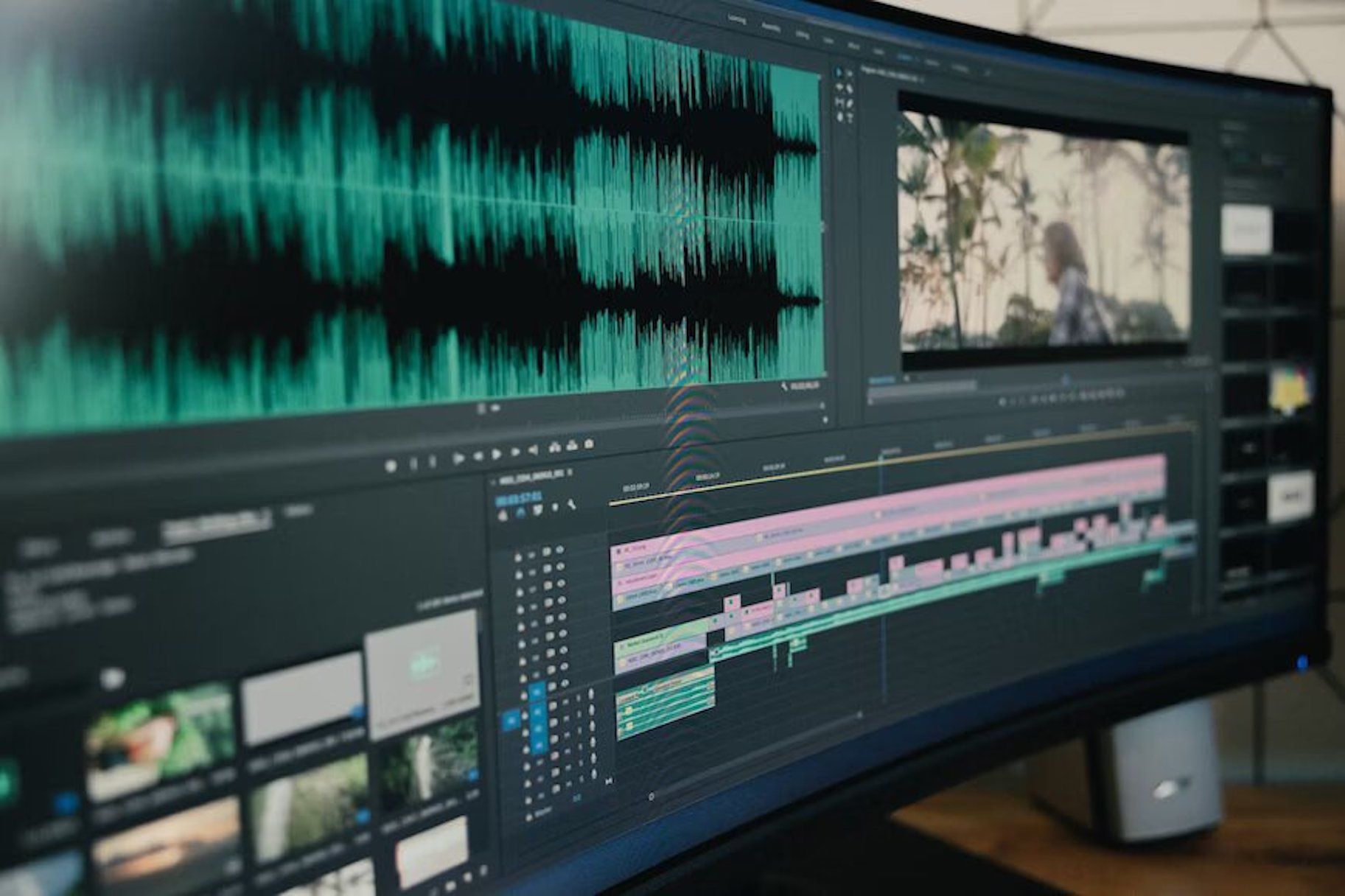
Transcription and Subtitling for Media Production and Distribution Teams
HappyScribe: Your essential tool for transcription and subtitling, empowering media teams to overcome language barriers and connect with global audiences efficiently and effectively."
-

How to transcribe a Vimeo video with a third party tool
Third-party transcription tools offer highly accurate transcripts written by human transcriptionists. Users can upload their video transcription files to Vimeo by creating an account with a transcription service, ordering the transcription, downloading it, and uploading it to Vimeo.