TL;DR ⏩
- Claude works on meeting transcripts, but it can't record your call. Give it a transcript, and you get summaries, key decisions, action items, and follow-up drafts
- HappyScribe handles meeting capture. The AI notetaker joins Zoom, Google Meet, and Microsoft Teams, then transcribes the conversation with speaker labels and timestamps
- Connecting HappyScribe with Claude takes three steps. HappyScribe's MCP server gives Claude 40 tools and direct access to your transcript library
- Cross-meeting analysis is the real payoff. Claude answers using up to 50 transcripts at once, so you can surface recurring objections or track decisions over time
- Verify before you act. Claude can check any quote against the source transcript in seconds
Claude started as an AI chatbot, but we’re long past that. It feels like every other day Claude gets some new tools and capabilities to help us work smarter.
Meetings and lectures are one of those things that take up a large chunk of the day, and it’s easy to miss out on key points. So it begs the question: can Claude help us with meeting notes? The answer is yes, but Claude also needs some help.
Can you use Claude for meetings?
You can use Claude for meetings, as long as it has a transcript. Hand Claude the text of a conversation, and it will:
- Write a meeting summary
- Pull out key decisions
- List action items with owners and deadlines
- Find the moment someone raised an objection
- Draft follow-ups
It reads PDFs, Word docs, HTML, markdown, and plain text, so most exports work without issues. A 90-minute marathon call is no problem either, because Claude's large context window is well-suited for long transcripts.
What Claude won't do is join the call. It doesn't support real-time audio capture, so it can’t take notes while you talk. It also can't write meeting minutes for a conversation without you feeding it the text.
So think of Claude as a meeting copilot rather than a note-taker. It's strong at reasoning over what was said, so you'll want a separate tool handling the recording.
How to use Claude before a meeting
The best way Claude can prepare you for your next meeting is when it’s up to speed with previous discussions.
Feed it the agenda and notes from the last call, and see how prior context keeps output relevant. Use specific prompts, and you’ll avoid vague talking points.
For recurring meetings, you can set up a dedicated project in Claude. Add your account notes, past meeting summaries, and product docs once, and every future conversation starts with the loaded context.
Then ask for something specific:
Here's the agenda for tomorrow's renewal call with Acme and my notes from our last two calls. Give me five questions to ask, and flag anything we promised last time that we haven't delivered.
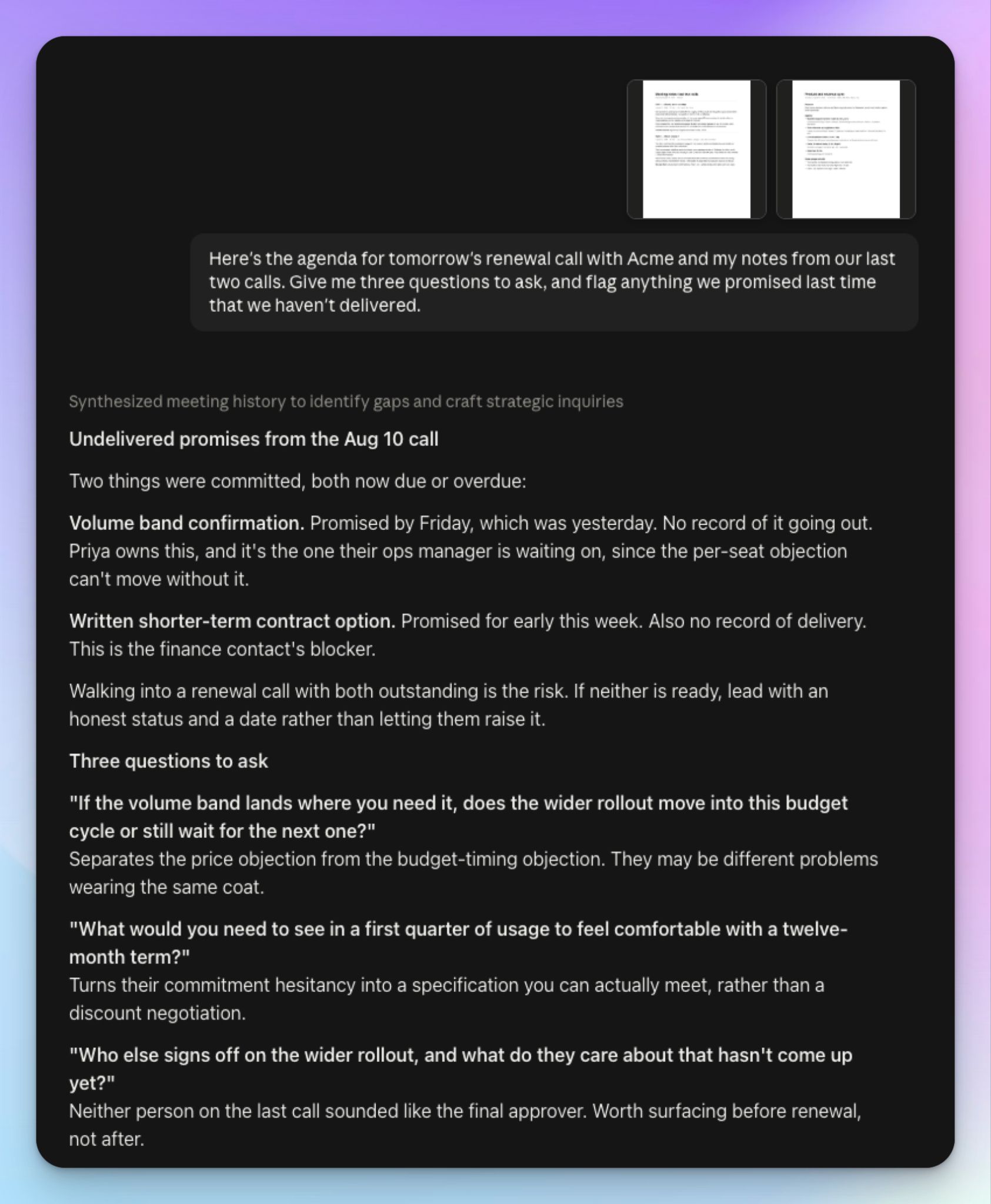
Keep it structured. If you ask Claude to work through several agenda items at once without separating them, it will blur the ideas together.
How to use Claude during a meeting
Claude can't join your meeting, so during the call, you have to use a tool to capture it. HappyScribe's AI meeting notetaker joins Zoom, Google Meet, and Microsoft Teams, records the conversation, and transcribes it.
Automated transcription beats manual note-taking for two reasons:
- Claude gets the actual discussion instead of an abbreviated version filtered through a human’s attention
- Speaker attribution preserves who said what, so you can ask about a specific participant later
How to use Claude after a meeting
Once you have the transcript, you can ask Claude to do several things:
1. Summarize in your preferred structure
Teams want to read meeting notes in structures that suit their work. Executive summary for leadership, bullet points for the team channel, structured notes for the CRM, and so on.
Tell Claude what you want:
Summarize this meeting in three sections: decisions made, open questions, and next steps. Keep it under 200 words.
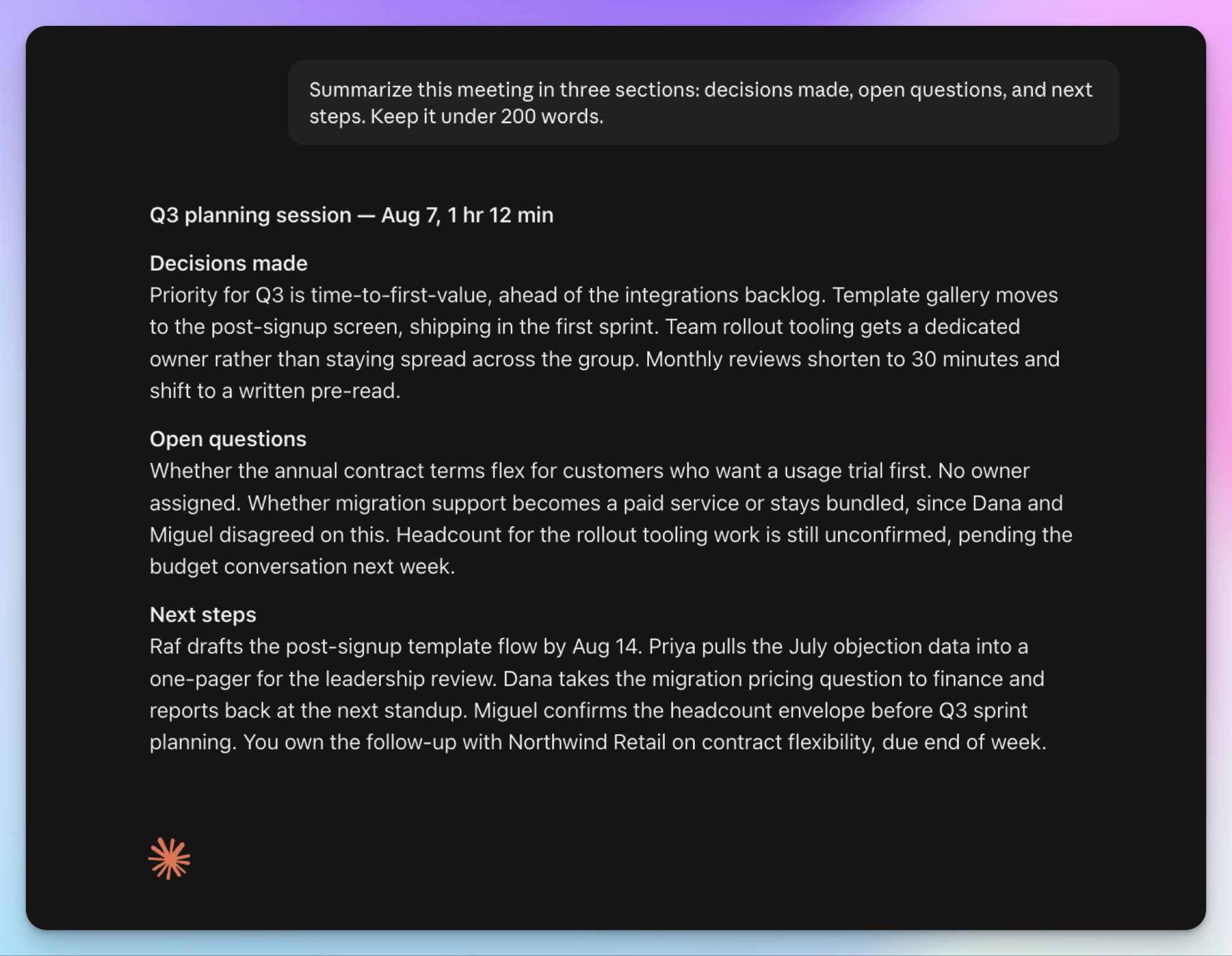
With HappyScribe connected, you can save that format as a summary template and apply it to every future meeting.
2. Pull action items with owners and deadlines
Ask Claude to extract every task, who owns it, when it's due, and highlight the ones that nobody claimed, so you can assign the correct stakeholders.
List every action item from this meeting with the owner and deadline. Flag any task where no owner was named or no date was agreed.
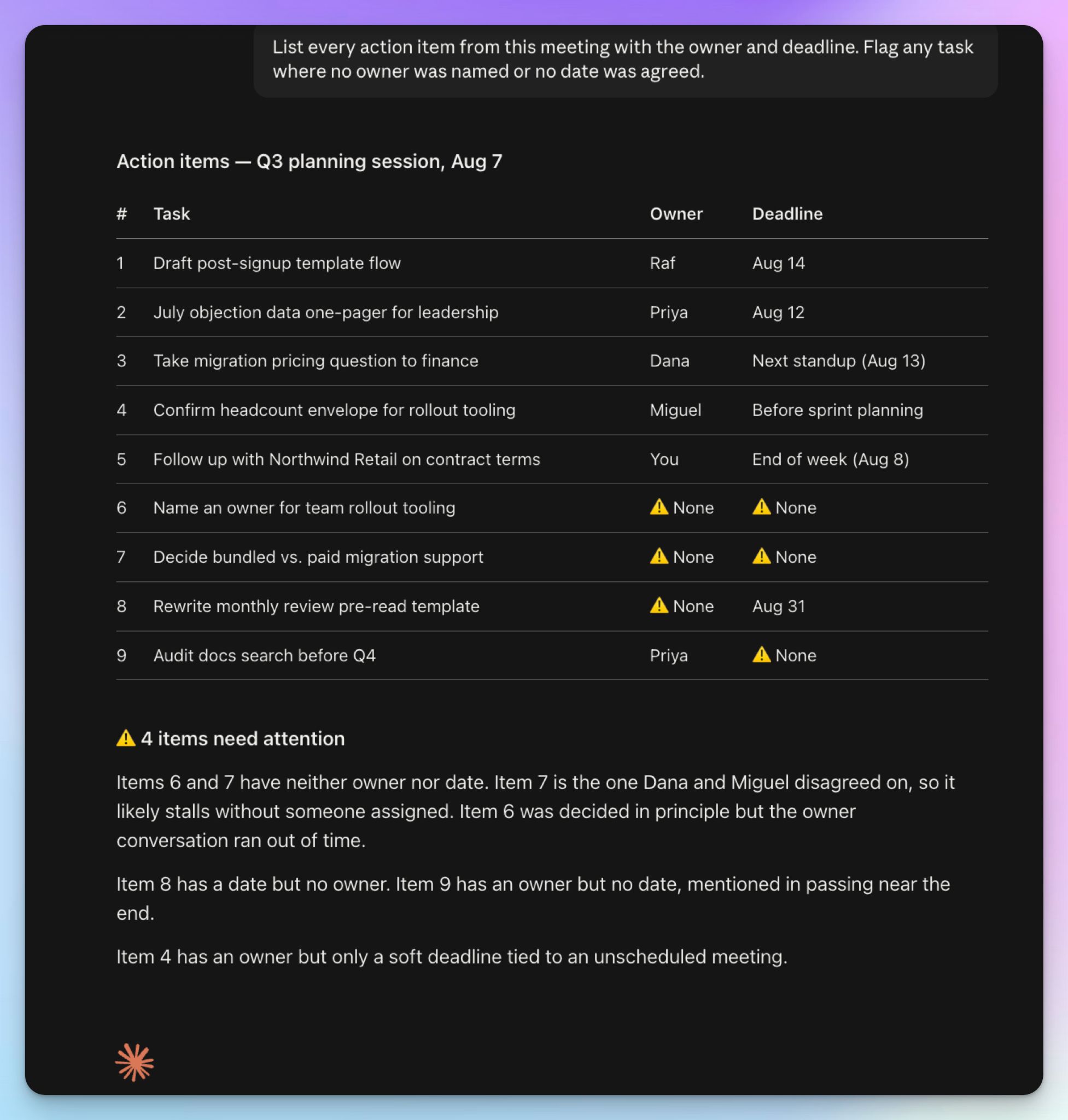
Claude can also sort tasks by owner or priority, which makes the output easier to paste into whatever project tracker your team uses.
3. Find decisions and check the exact words
You don't need to reread the entire transcript to find what was decided. Ask it directly:
What did we decide about the launch date, and what concerns did Sarah raise about the pricing?
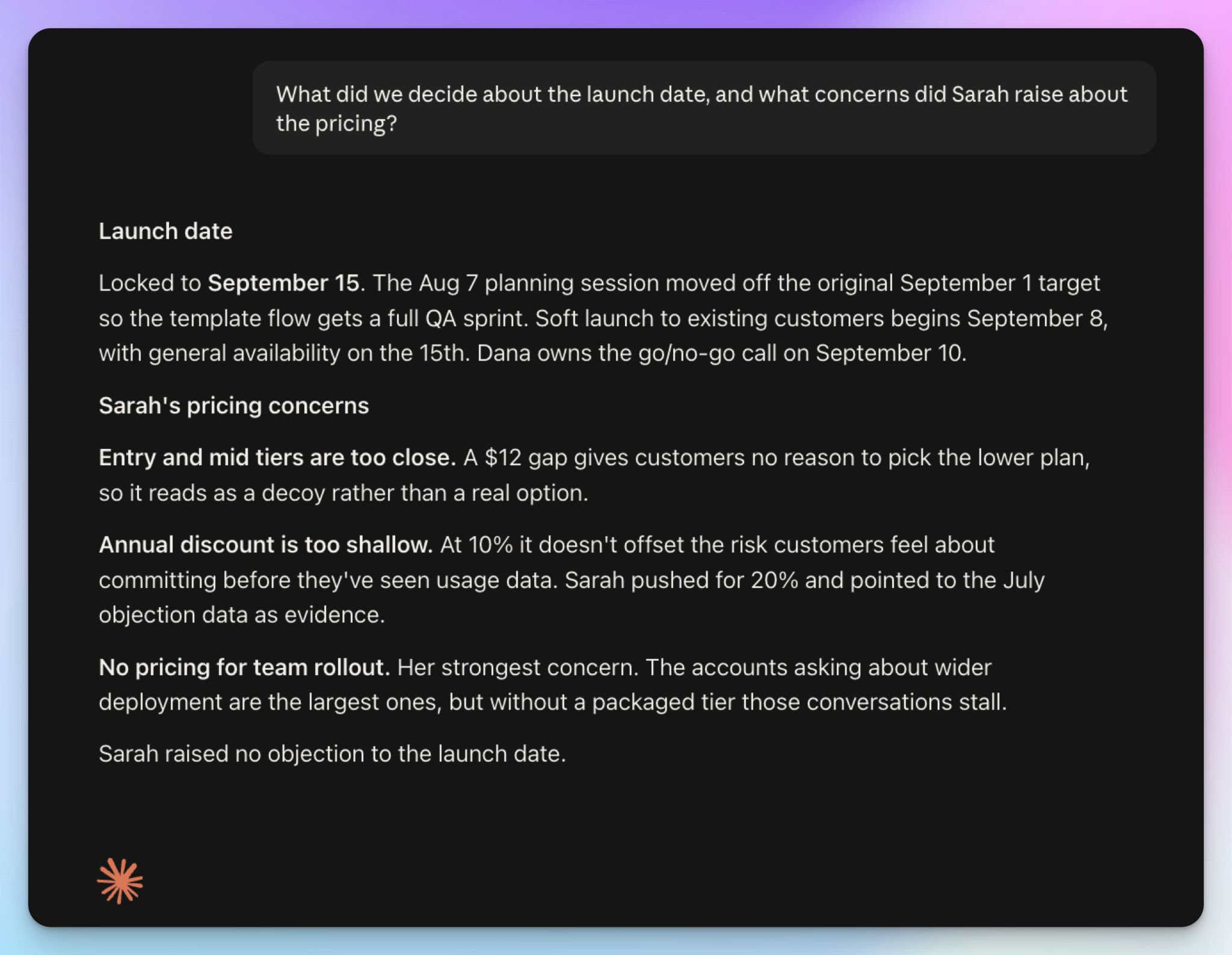
Once you have the data, you should verify. AI summaries can misattribute quotes, and a decision you report to a client should be checked against the source.
With HappyScribe connected, Claude can confirm a quote against the transcript and listen to the audio at that timestamp. For screen shares, it can pull the video frame from the moment someone said, "look at these numbers."
4. Draft meeting follow-ups
The follow-up is where you start saving time with meeting tasks. Claude drafts it from the transcript, so the recap matches what was actually said.
Draft a follow-up email to the client covering what we agreed, what we owe them, and when. Keep it warm and under 150 words.
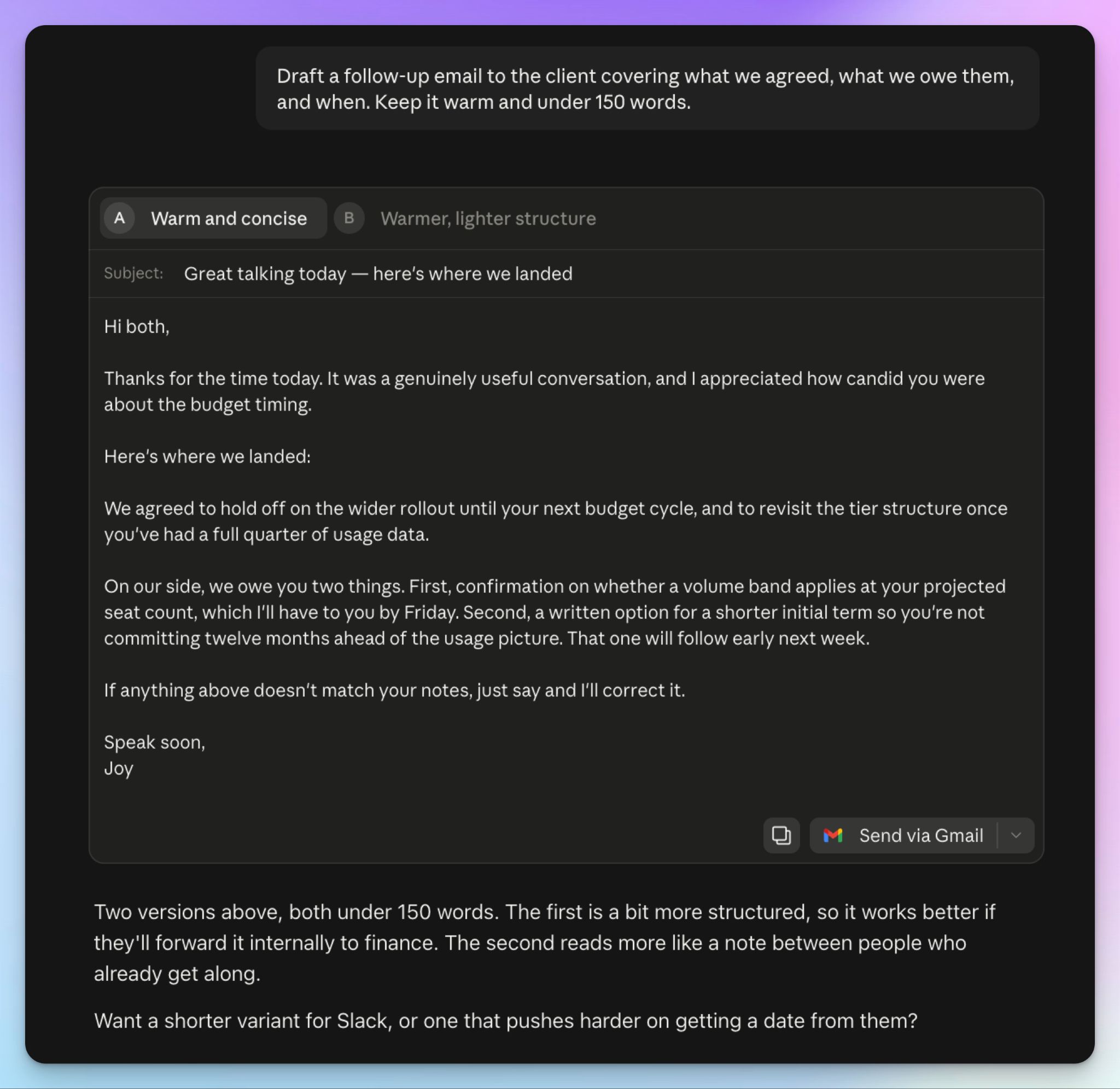
The same transcript also gives you internal updates and project briefs. Consistent recaps keep stakeholders aligned on decisions and next steps, which is the whole point of writing them.
5. Analyze multiple meetings together
This is where Claude stops being just an AI summarizer. A single meeting tells you what happened, but only a bunch of meetings together can give you the whole story.
You can use a prompt like this:
Across my customer calls this month, which pricing objections came up most often, and who raised each one?
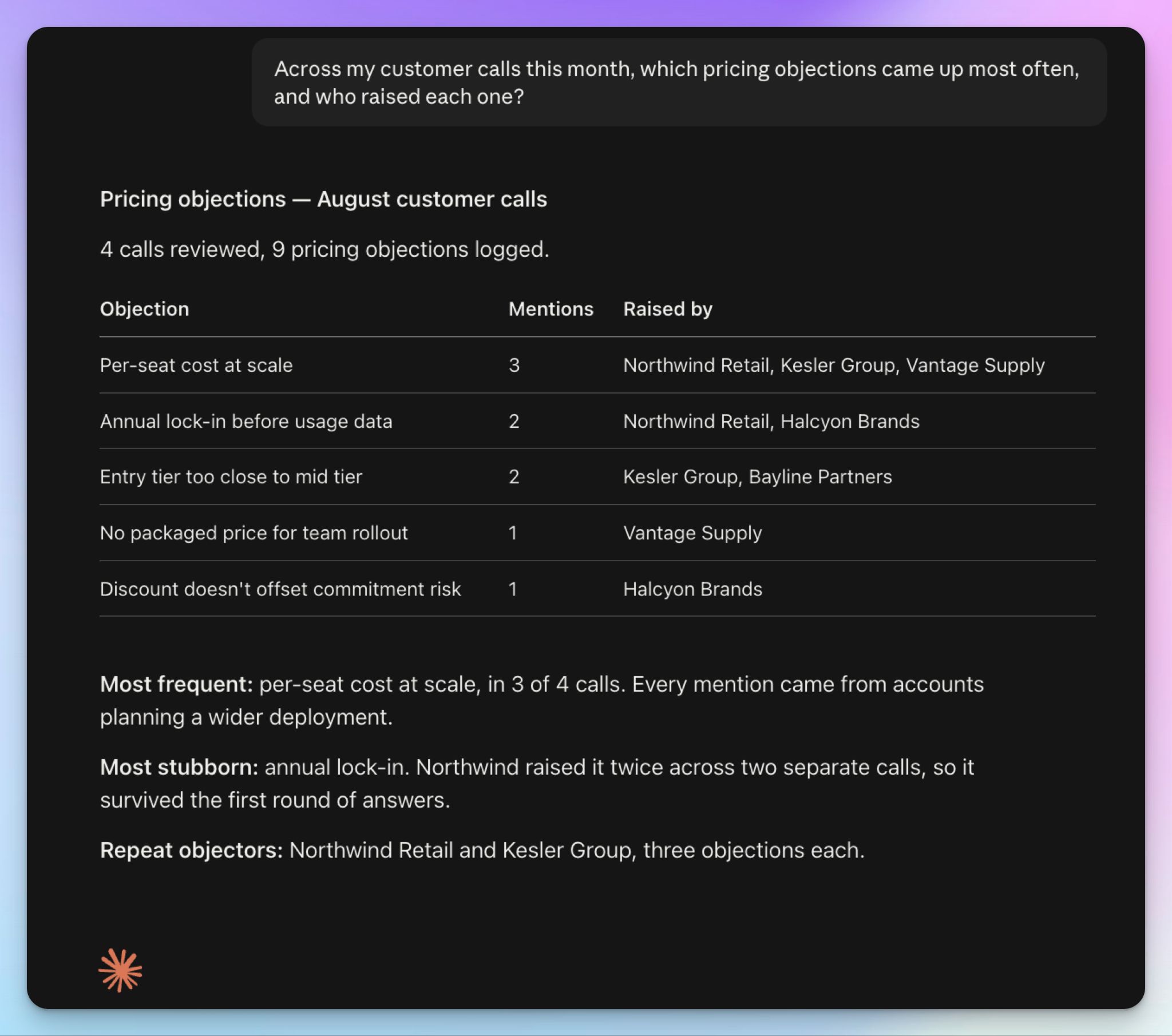
Claude can work across past meetings to surface recurring objections, compare feedback between interviews, or track how a client's priorities shifted.
How to connect Claude to your meetings with HappyScribe
Everything we’ve discussed so far runs on copy-paste. You open HappyScribe, find the meeting, download or copy the transcript, paste it into Claude, and start over for the next one. It’s a chore when you attend multiple meetings a week.
HappyScribe's MCP server cuts down the time wasted. MCP is an open standard that lets Claude connect to outside tools, the same way it connects to Asana or Slack. Connect HappyScribe once, and Claude finds your transcript library directly.
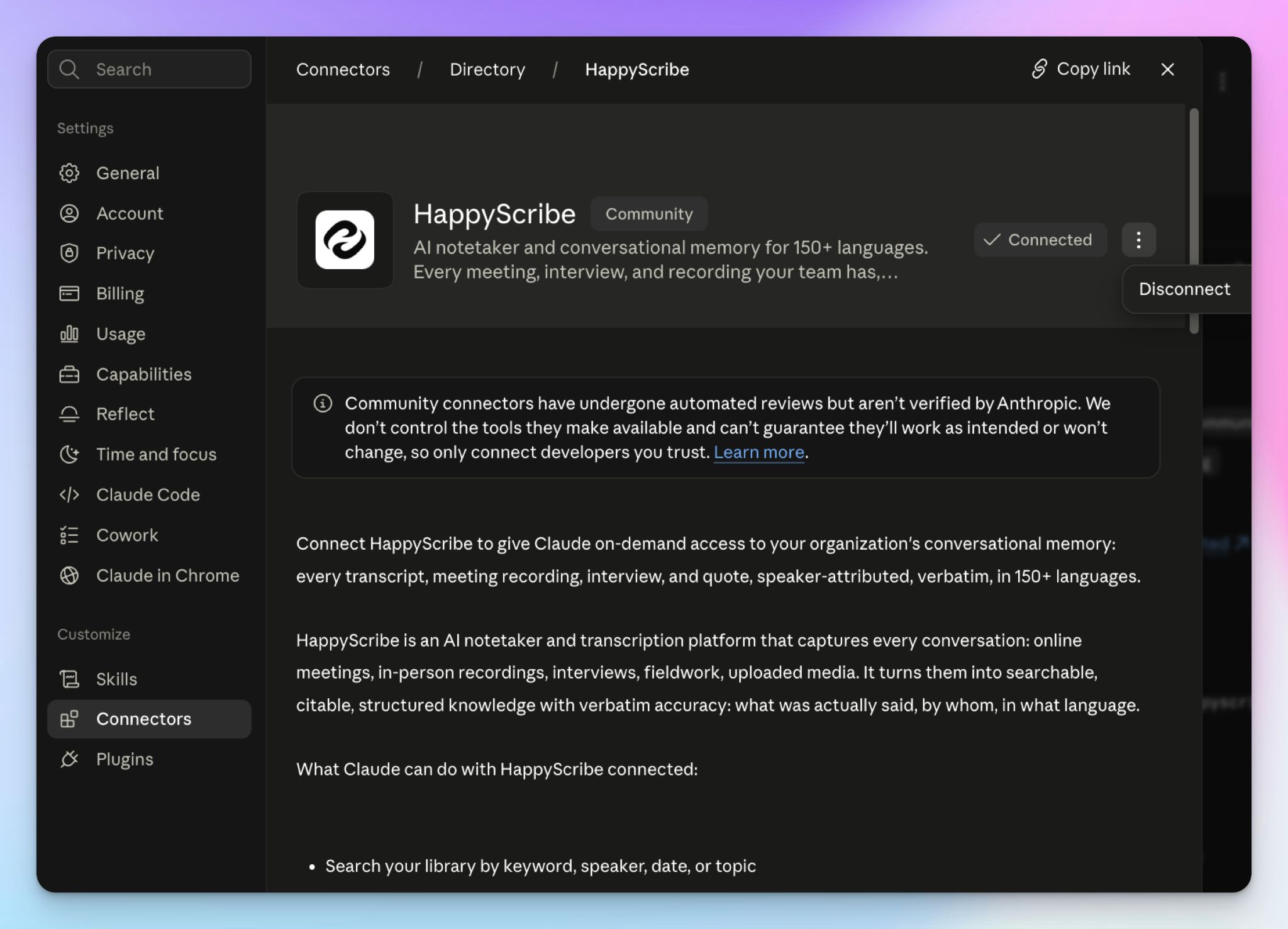
How to connect HappyScribe to Claude in three steps
- In Claude, expand the left sidebar and click on Customize > Connectors
- Search for HappyScribe and click the + icon or Connect to Claude button
- Sign in to your HappyScribe account and authorize access
You'll be done in a couple of minutes.
If your workspace restricts the connector directory, you can add it as a custom connector using [https://www.happyscribe.com/mcp.] The same server works in Claude Desktop, Claude Code, and Cursor. You can check the setup in the HappyScribe MCP guide.
On Team and Enterprise plans, an owner adds HappyScribe at the organization level first. Each person then connects their own account, so Claude only reaches meetings that person can already see. Custom connectors work on Free, Pro, Max, Team, and Enterprise, with the free plan capped at a single custom connector.
Keep in mind that adding a Claude connector doesn't switch it on everywhere. You enable it per conversation from the + button in the chat.
What Claude can do once connected
Claude gets 40 HappyScribe tools. They cover five major tasks.
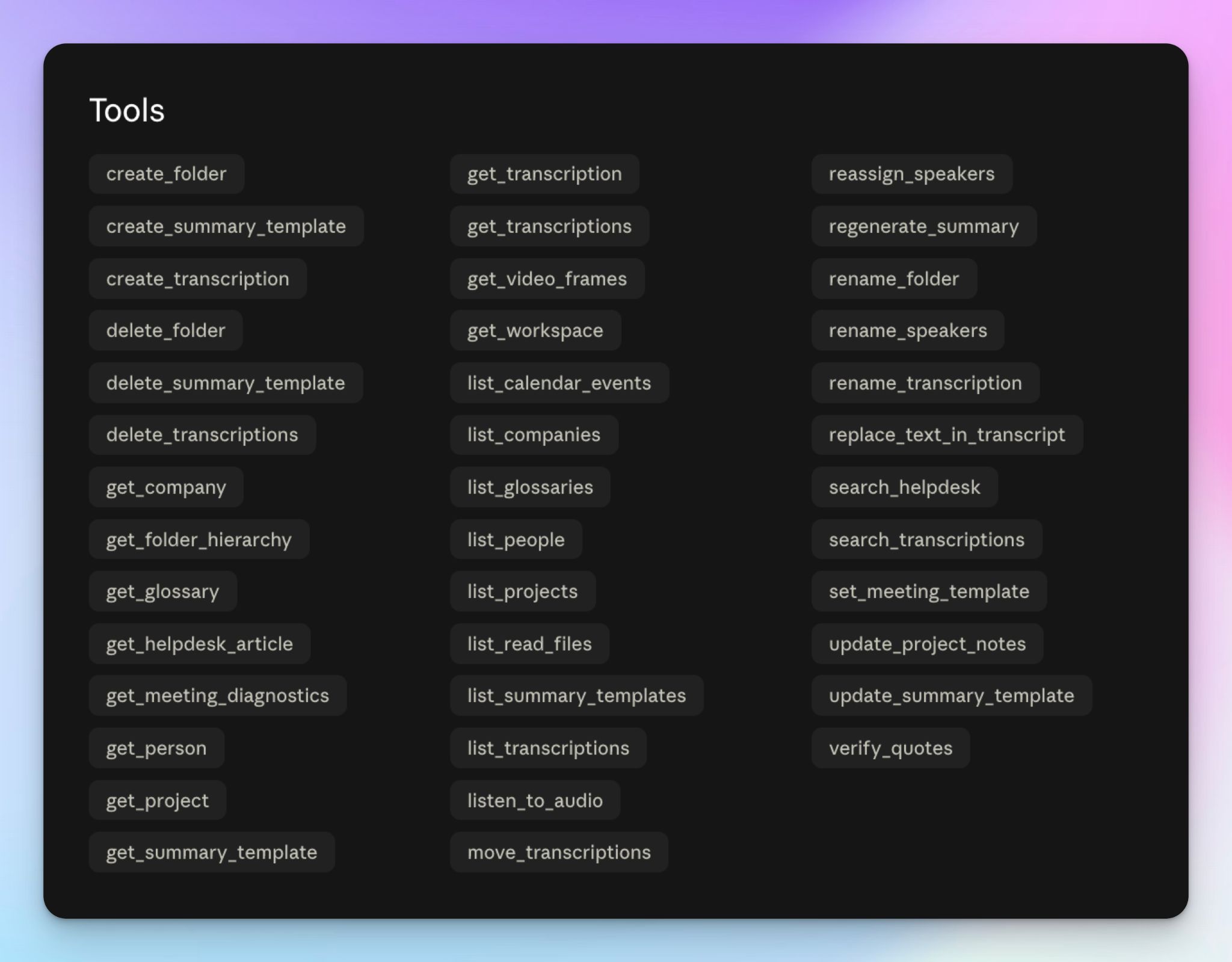
1. Find. Search your library by keyword, speaker, date, or topic.
Show me meetings from last week where onboarding came up.
2. Verify. Confirm a quote against the transcript, check the audio, or pull a video frame from a screen share.
Find where Daniel discussed the new pricing and give me the quote and timestamp.
3. Format. Build folders and summary templates and apply them to future meetings.
4. Organize. Rename speakers, list glossaries, move files between folders, or correct a name the transcript got wrong.
5. Create. Transcribe new media from a URL without leaving Claude.
Transcribe this YouTube link and give me the key takeaways.
Claude also reads HappyScribe's knowledge graph, which maps the people and companies across your recordings. So you can ask what a contact has said over six months of calls instead of opening files one at a time.
What happens to your meeting data
You sign in through OAuth, so you don’t hand Claude a password or an API key. Claude reaches the folders your account can already see, it pulls a transcript only when you ask for one, and you can disconnect at any time from the same Connectors screen.
HappyScribe is a GDPR and SOC 2 Type 2 certified note taker and stores meeting data in an ISO 27001-compliant European data center.
What if it isn't working?
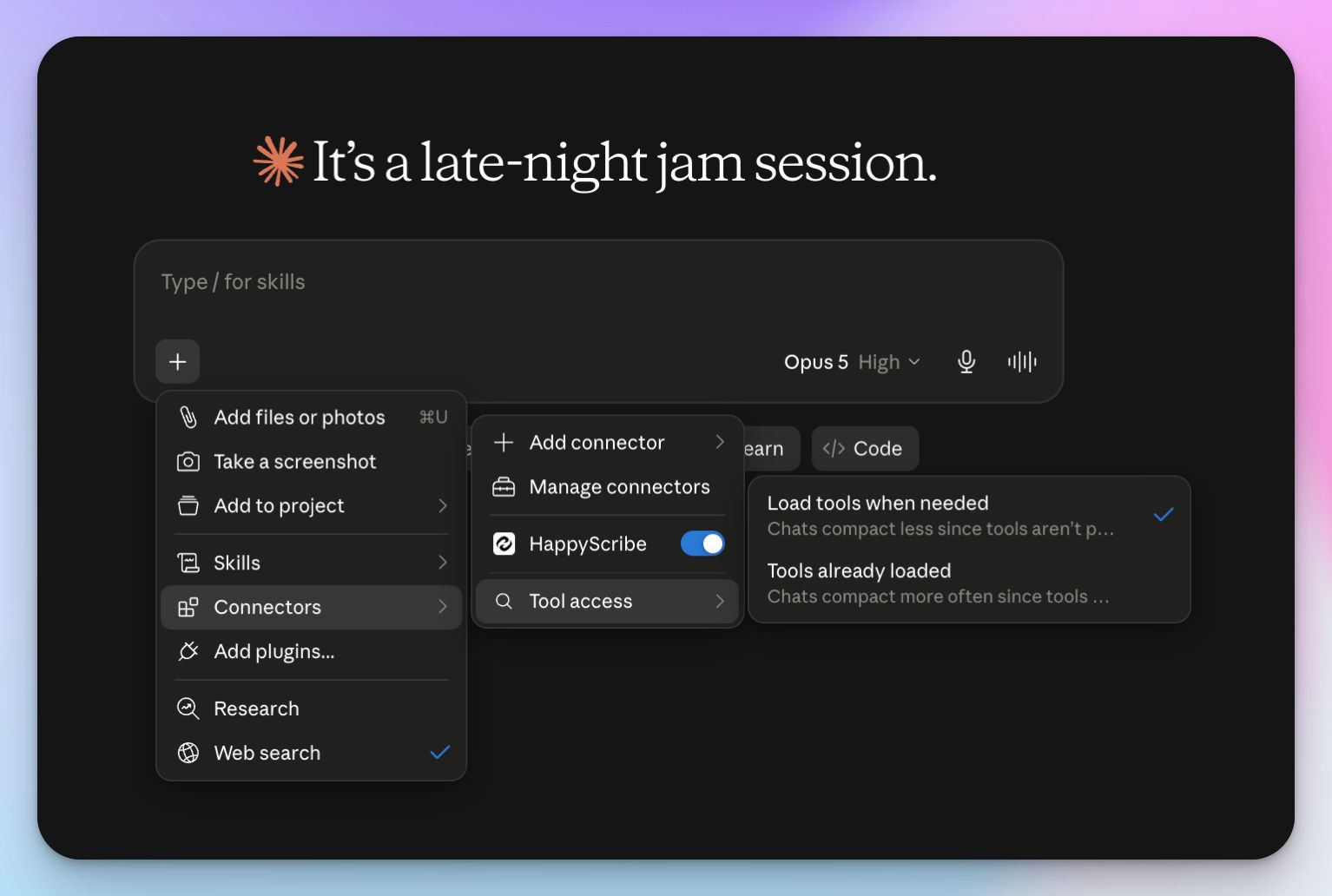
Check that the HappyScribe connector is toggled on in that conversation, because that's usually the answer. If Claude says it can't read a file, ask which files it has already read this month and how much of your allowance is left.
What Claude can read in a month depends on your HappyScribe plan.
And when a meeting is missing entirely, ask Claude to diagnose why it wasn't recorded, since it can pull the recording status for that calendar event.
Claude connector or HappyScribe AI Chat?
HappyScribe has its own AI chat, which acts similarly to Claude. Which one you use depends on how your meeting tech stack is set up.
| Factors | HappyScribe AI Chat | HappyScribe in Claude |
|---|---|---|
| Where you work | Inside HappyScribe, from the sidebar or a file | In a separate Claude tab/app |
| What it reaches | One file or a whole folder | Your library, plus your other connected tools |
| Model choice | Pick a model from Opus, Haiku, GPT, GLM, and Mistral, or leave it on auto | Only Claude models |
| Setup | None | Connect once |
Claude meeting workflow examples
Sales and customer calls
Your sales notetaker records every discovery call and demo, and Claude scans all of them.
A prompt like this will help you find decisions faster:
Review our customer calls from July. Which objections came up most often, and which customers raised each one?
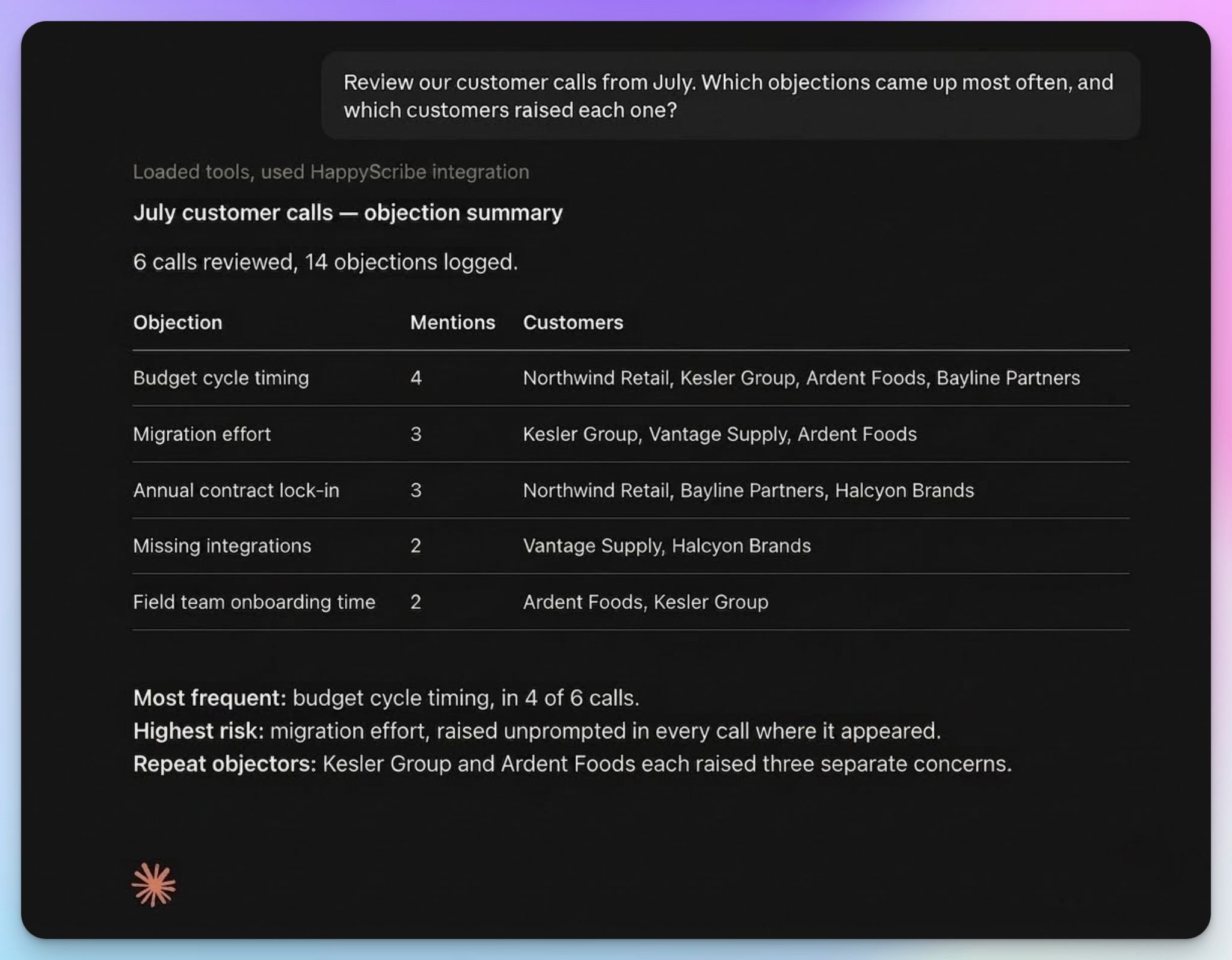
You get the pattern rather than one rep's recollection. Ask a follow-up, and Claude names the customer and gives you the timestamp, so you can send the clip to your product team.
The same conversation answers other questions: Which competitor keeps coming up? Which feature request repeats across accounts? What did the team promise in the last round of renewals?
User research and interviews
Qualitative research analysis is where the copy-paste method breaks down completely. Fifteen sessions means fifteen files, and the themes only appear when you read them together.
Across my user interviews from the past month, what did people say about onboarding? Give me the recurring themes with supporting quotes and timestamps.
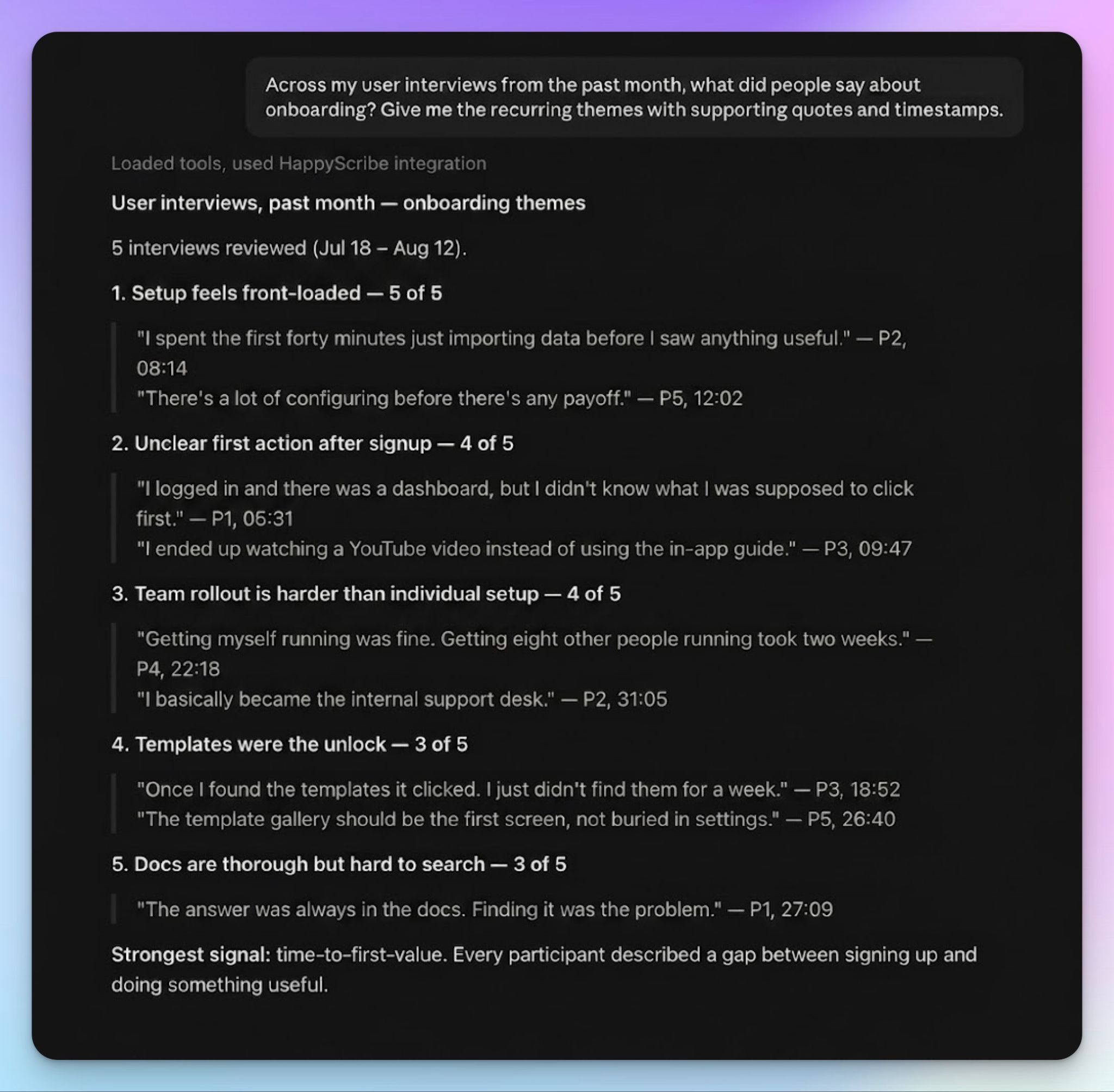
Claude returns the themes with evidence attached. Since quotes come back with timestamps, you can verify the takeaways before it goes into a report or a slide.
This works the same way for lectures, hiring interviews, or any recurring conversation where the real value lies in the themes and patterns across transcripts.
Limitations of using Claude for meetings
Claude is only as good as what you give it. Three things to keep in mind:
1. Transcript accuracy sets the ceiling
AI transcription might struggle with product names, acronyms, numbers, and unusual phrases. A garbled transcript gets you a garbled summary.
HappyScribe's custom glossaries fix this at the source. Add the terms your team uses, and they come through correctly on every recording.
2. AI summaries need verification
Claude can misattribute quotes and emphasize certain phrases. It’s a problem when you're in a client-facing role and have to make decisions based on transcripts. With HappyScribe connected, you can ask Claude to check the quote against the transcript, and that takes seconds.
3. A connected account gives Claude access to sensitive files
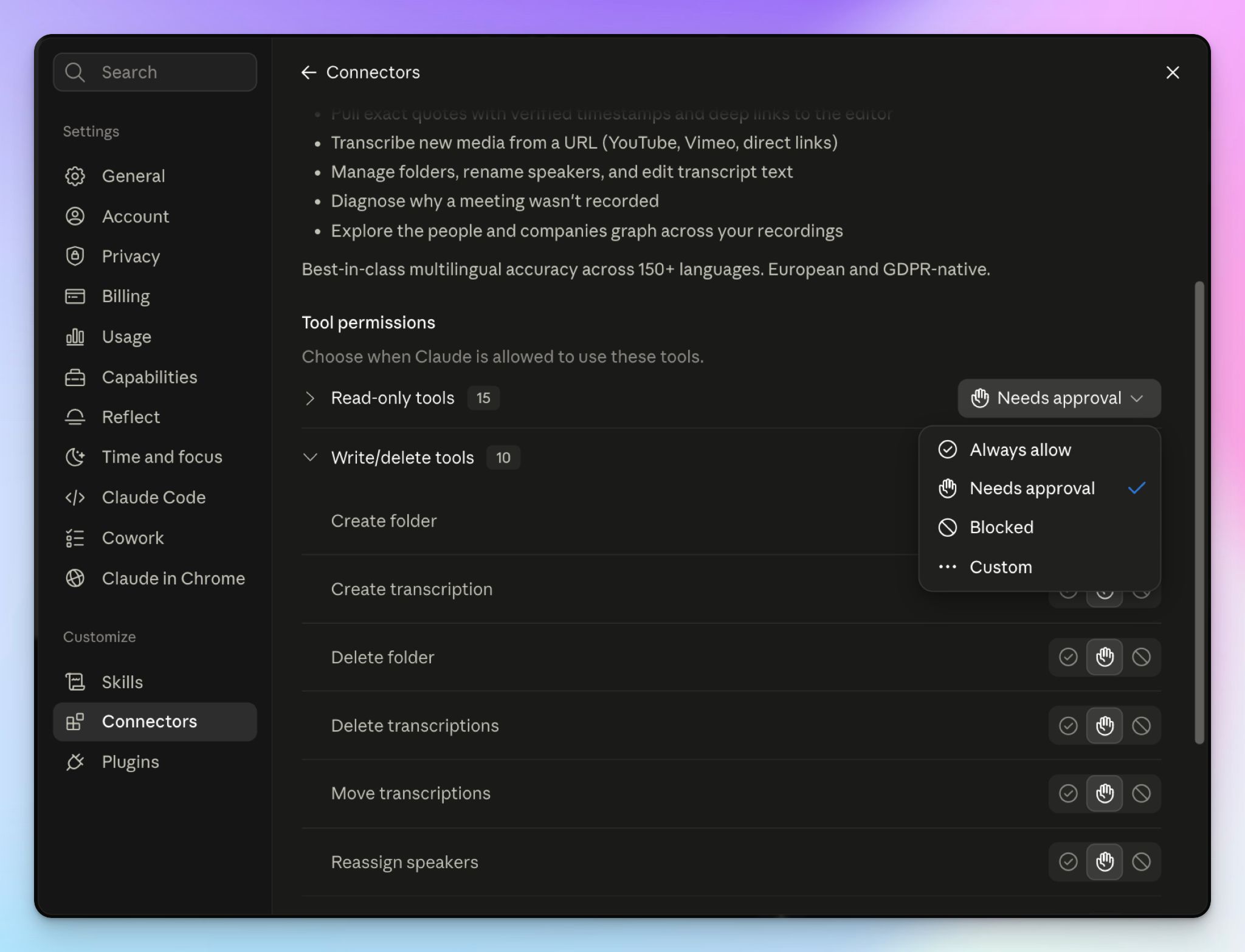
Depending on the HappyScribe connector tools, Claude can rename speakers, edit transcript text, and delete files when you ask it to. It might also check sensitive conversations unless you isolate them.
That’s why you should verify each permission and only grant read/write access to specific functions. Claude lets you manually toggle approvals for the connector’s tools.
Turn Claude into a searchable meeting assistant with HappyScribe
Claude is good at reasoning over conversations. It just needs the conversation first.
HappyScribe handles the meeting recordings and transcription. Its bot-assisted and bot-free AI note taker joins your call, captures what was said, and keeps it with speaker labels and timestamps. Claude does the rest.
FAQs on how to use Claude for meetings
Can I use Claude to schedule meetings?
Not by itself. Claude has no calendar of its own, so it can't book a slot or send an invite. What it can do is prepare the meeting: turn rough notes into an agenda item list, suggest times to propose, and draft the invite. Connect a calendar, and Claude can read your schedule and use that meeting context, though the booking still happens in the calendar app or through other AI tools built for scheduling.
Can claude.ai join meetings?
No. Claude doesn't join Zoom, Google Meet, or Microsoft Teams calls, and it can't attend as a participant. You need a separate meeting tool built specifically for capture. HappyScribe's AI notetaker joins the call, records it, and produces accurate transcripts with speaker labels that Claude can work from.
Can Claude listen to Zoom meetings?
No. Claude doesn't support real-time audio capture, so nothing is transcribed while you talk. Record the Zoom call with a notetaker instead, then hand Claude the new transcript afterward. Without a connection, this means manual steps every time: export the file, upload it, repeat. With HappyScribe connected, the whole process runs without you exporting or pasting anything.
Is there a way to connect meetings with Claude?
Yes. Claude supports connectors built on MCP, an open standard that lets it reach outside tools. HappyScribe's connector takes about five minutes to set up and gives Claude access to your transcript library. Custom connectors work on Claude's free tier with a one-connector limit, and a paid plan removes that restriction. From there, you can build AI workflows that pull meeting data into Claude directly.
What's the best meeting connector to Claude?
It depends on what you need from it. Some connectors only let Claude read transcripts. HappyScribe gives Claude 40 tools to work with, so it can search across meetings at once, verify quotes against the source, draft follow-up emails, and write meeting minutes in a format you save once and reuse. Data privacy decides it for the vast majority of business buyers, and HappyScribe is GDPR and SOC 2 Type 2 certified, with meeting data stored in Europe. Either way, a clean and complete transcript is what gets you the best output.

Biplab Mazumder
Biplab is a content marketer and writer who helps high-growth brands scale content visibility across AI search channels. His works have been published in HubSpot, Freshworks, Atlassian, SurferSEO, etc. When he's not planning content strategy, he's testing AI content workflows and use cases.