TL;DR ⏩
- Teams offers native note-taking through intelligent recap, live transcription, Facilitator, Loop-based collaborative notes, and OneNote, but each comes with licensing, admin, or accuracy trade-offs
- AI-generated notes require a Teams Premium or Microsoft 365 Copilot license. There's no free tier for automated meeting notes
- Copilot works best in English and supports around 40 languages for prompts. Multilingual recap covers 9 languages and is still in public preview
- HappyScribe works across Teams, Zoom, Google Meet, and in-person meetings with 150+ languages, 95% accuracy, and no admin setup required
- You can try HappyScribe for free with unlimited meeting recordings (45 min per meeting), AI summaries, and a searchable workspace
20 meetings a week sounds a lot less scary when you have detailed meeting notes you can revisit later. If all of your work happens inside the Microsoft ecosystem, you have a few ways to take notes in Microsoft Teams meetings.
These methods work, but they're clunky, and your mileage depends on the Microsoft 365 tier you pay for.
Below, I'll walk you through how to take manual notes and automate note taking in Teams. I'll also show you a smarter way to capture meeting notes if the native options don't cut it.
How to take notes in Microsoft Teams meetings natively
From AI summaries to shared documents that your team can co-edit, Teams offers multiple built-in ways to capture meeting notes. The two most relevant for automated note-taking are intelligent recap and live transcription. I'll walk through both in detail, then cover the other options worth knowing about.
1. Intelligent recap (AI notes, tasks, and chapters)
Recap is Microsoft's flagship post-meeting AI feature. Once a meeting ends, the Recap tab surfaces AI notes, recommended tasks, speaker timelines, meeting chapters, and personalized markers.
It works across scheduled meetings, Meet Now, webinars, town halls, PSTN calls, and VoIP calls.
Prerequisites
Before you can use the Recap tab, you need the following in place:
- A Teams Premium or Microsoft 365 Copilot license (either one qualifies)
- For the full experience, transcription and recording policies turned on for both the meeting organizer and the user. Recap works without recording, but you lose chapters and speaker markers
- For webinars and town halls, only organizers, co-organizers, and presenters can access recap
How to access intelligent recap
- Join or schedule a meeting in the Teams desktop app
- Make sure recording or transcription is started during the meeting (click More > Record and transcribe > Start recording or Start transcription)
- After the meeting ends, open your Teams calendar and select the past meeting
- Click the Recap tab
- You'll see AI-generated notes, recommended tasks, speaker timelines, and chapters under their respective sections
- To share the recap, select Share and send it via Outlook to any attendee, including external participants
2. Live transcription
Live transcription creates a real-time written record of your meeting with speaker attribution and timestamps.
It’s made for documentation and doesn't summarize or extract action items on its own. Transcription must be running for the recap to work.
Prerequisites
- Admin must enable the Transcription toggle in Teams Admin Center > Meetings > Meeting Policies (it's on by default for new policies)
- Both the meeting organizer and the user who starts transcription must have the transcription policy enabled
- Transcripts are stored in OneDrive/SharePoint, so storage must be provisioned
How to start live transcription
- Join the meeting in the Teams desktop or mobile app
- Click More (the three-dot menu) in the meeting controls
- Select Record and transcribe
- Click Start transcription
- Choose the spoken language for the meeting if prompted
- The transcript appears in real time on the right side of the meeting window, with speaker names and timestamps
- To stop, click More again and select Stop transcription
- After the meeting, the transcript is available in the meeting chat and the Recap tab in your Teams calendar
3. Other ways to take notes in Teams
Beyond recap and transcription, Teams offers more options depending on how you work.
Facilitator (AI-powered meeting agent)
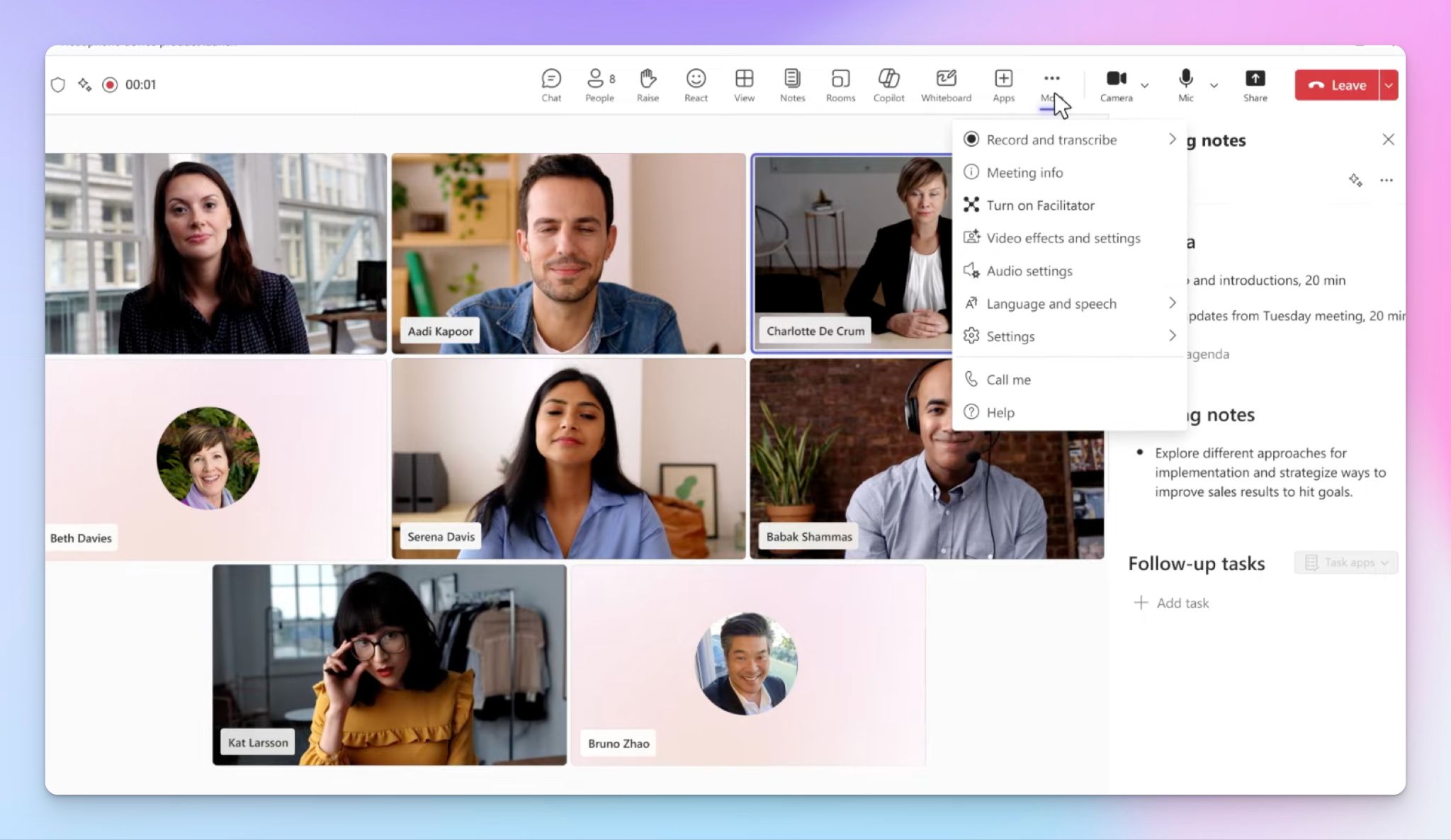
Facilitator is an AI agent that generates real-time notes during meetings, tracks the meeting agenda, and captures action items as the conversation unfolds. It works on desktop, web, and mobile.
On mobile, you can start a dedicated in-person meeting by tapping Take notes with Facilitator in the Teams app, which auto-records and transcribes the discussion without a formal calendar invite.
It requires a Microsoft 365, Teams, and Microsoft 365 Copilot license to work.
Copilot in Teams Phone (live calls)
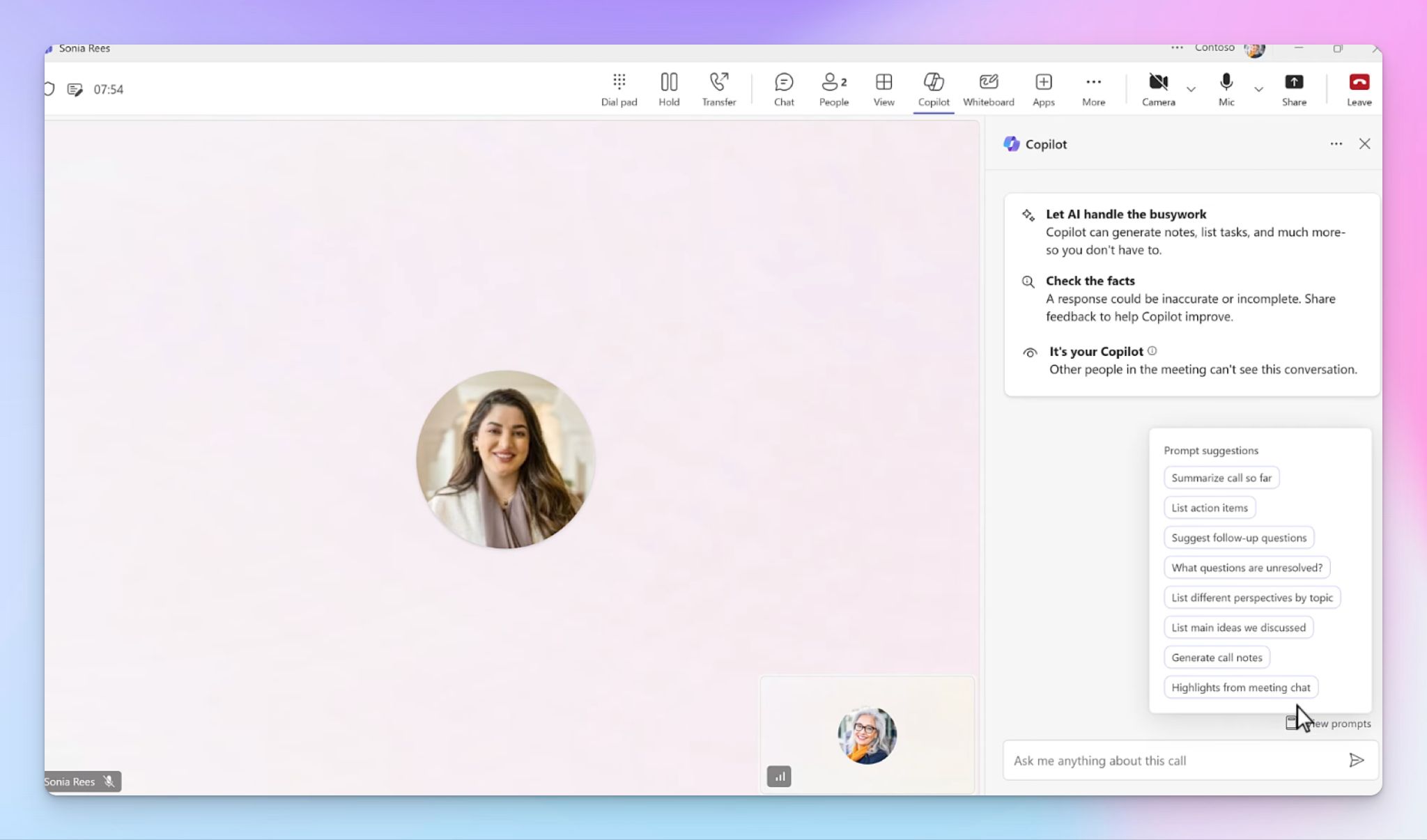
If you use Teams Phone for PSTN or VoIP calls, Copilot can generate real-time summaries and surface relevant context from prior emails and meetings during the call. It requires both a Microsoft 365 Copilot license and a Teams Phone license with a calling plan.
Manual meeting notes for collaboration (Loop-based)
This is the default manual note-taking experience in Teams. It's powered by Microsoft Loop, and all invited participants can co-edit agenda items, notes, and tasks before, during, and after the meeting.
It doesn't require any extra license beyond a standard Microsoft 365 work or school account, but external attendees can't access or edit the notes. Loop components must be enabled by your admin.
OneNote integration
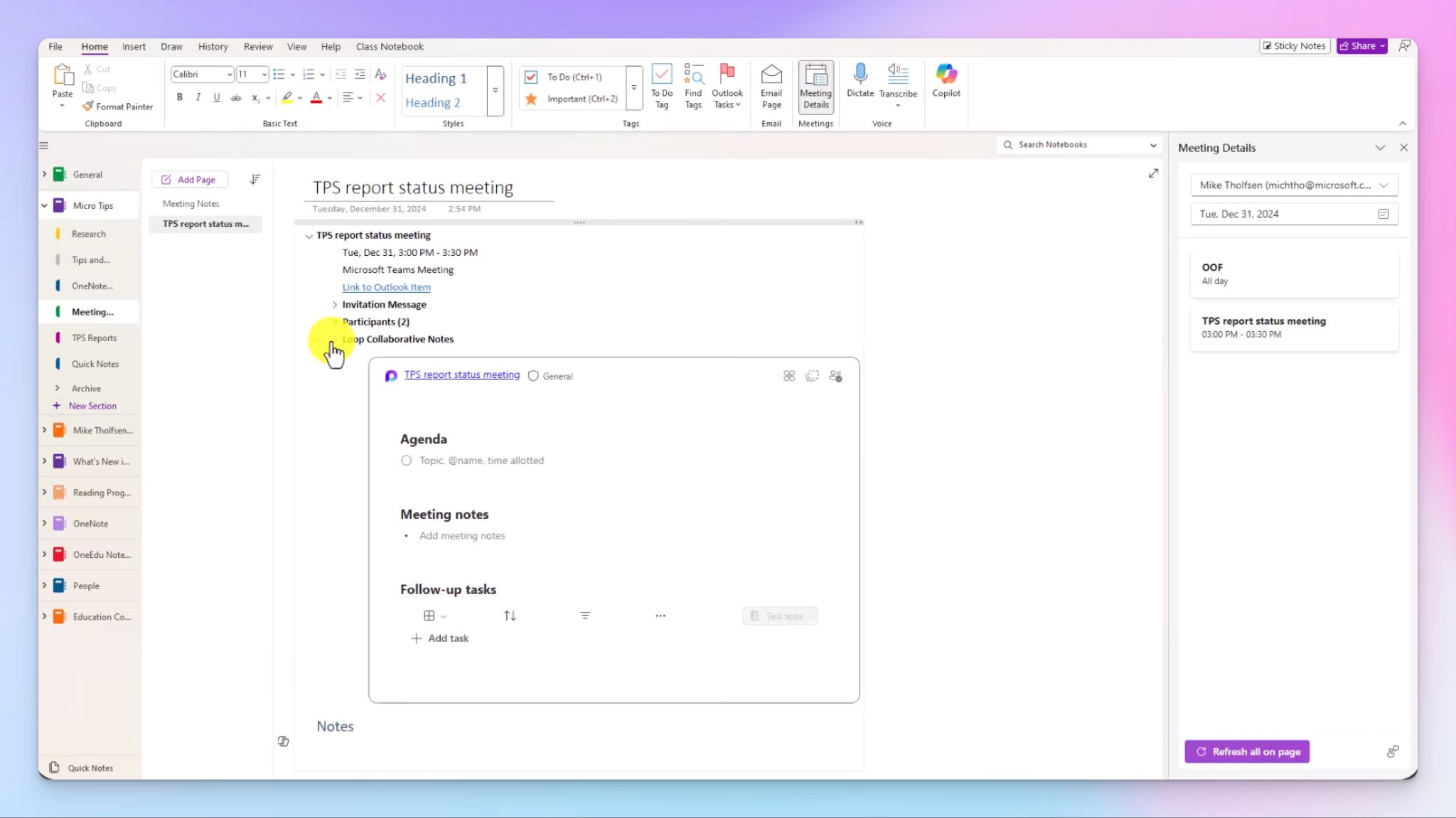
You can also link a OneNote notebook page to a Teams meeting invite and co-author notes during the meeting. It's fully manual, and it doesn't support Meet Now meetings.
So there you have it, all the native ways Microsoft allows you to take notes across use cases and apps. But we see a lot of Teams users looking for Copilot AI alternatives for note taking.
Limitations of Microsoft Teams’ native note taking
1. Licensing gates the best features
Microsoft licenses are a stress you can do without. There's no free tier for AI-generated meeting notes in Teams, and every feature is linked with some other plans or policies that you have to navigate.
Intelligent recap requires a Teams Premium or Microsoft 365 Copilot license. Facilitator needs Copilot too. Without either, you're limited to raw transcripts and manual Loop notes.
2. Language support is limited and English-biased
Microsoft's own documentation confirms that English inputs produce the best responses. Multilingual recap covers only 9 languages, and they’re still in public preview. If your team runs meetings in other languages, expect lower accuracy for summaries, missed action items, and occasional speaker misattribution.
3. Admin dependencies create access gaps
From transcription and recording to Copilot and Loop, each tool is impacted by separate admin policies. Both the organizer and the user who starts transcription must have the policy individually assigned and external, and guest participants can't access collaborative notes or recap at all.
As a result, two people in the same meeting can have completely different note-taking access depending on their license, role, and admin configuration.
4. AI accuracy drops in fast-paced meetings
Teams notes work best when speakers follow structured discussions with clear agendas. Factors like rapid back-and-forth conversations, overlapping speakers, and jargon don't fare as well.
You might come across several transcription accuracy issues, such as misattributed statements, merged topics, and missed action items because of wrong phrasing.
5. Notes stay locked inside the Microsoft ecosystem
Recaps, transcripts, and collaborative notes live within the Microsoft Office ecosystem. If your workflow involves a CRM, a project management tool, or any platform outside the Microsoft stack, you'll need to export and redistribute everything manually. For teams that work across ecosystems, the native notes create more friction than they help.
The better alternative: Use HappyScribe for note taking in Microsoft Teams meetings
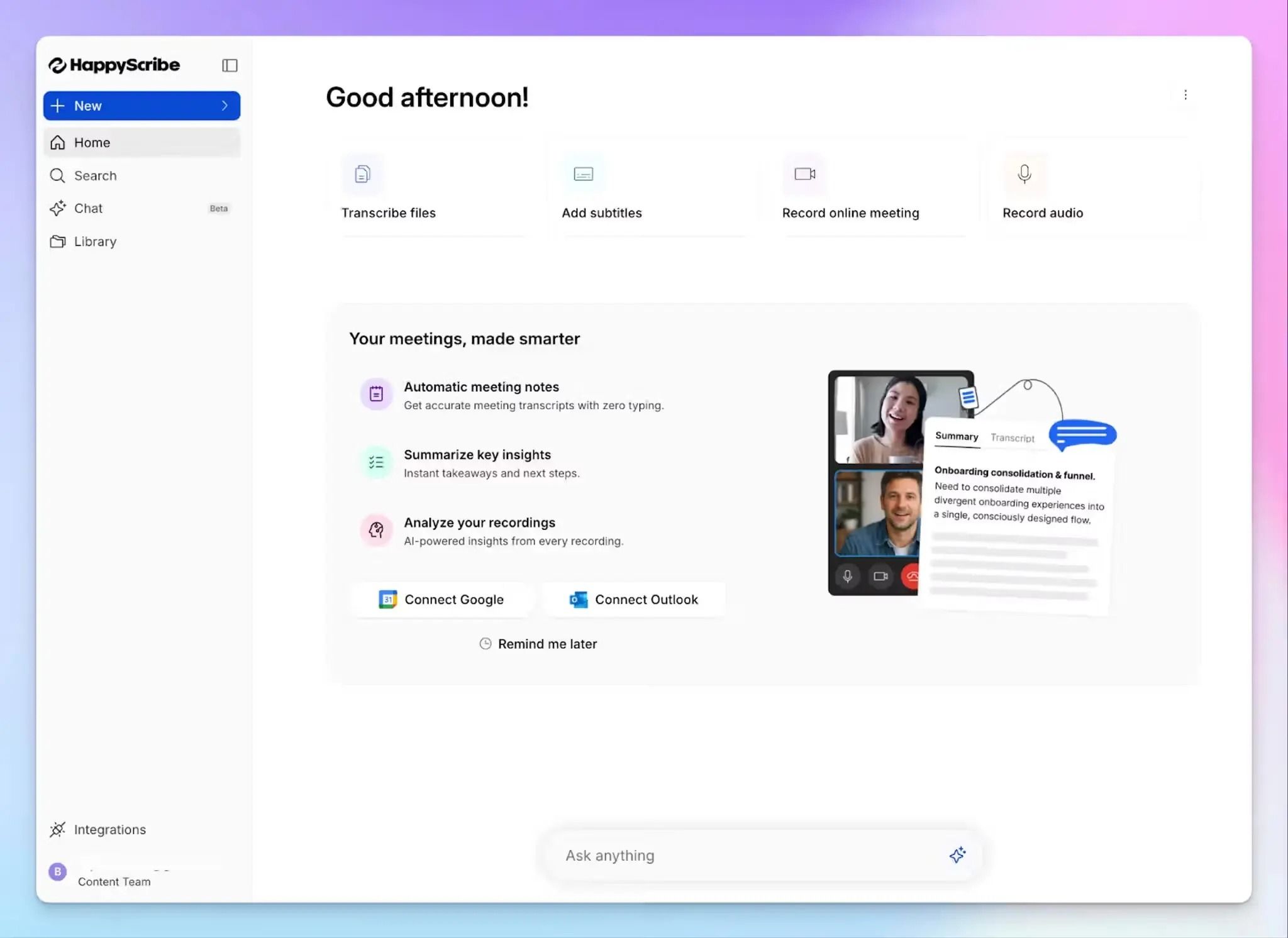
If you don't want to navigate Microsoft's licensing maze just to get usable meeting notes, HappyScribe AI meeting note taker for Teams is a simpler path. It works with Microsoft Teams, Google Meet, Zoom, and in-person meetings. No Copilot license or extra add-ons required.
HappyScribe supports 150+ languages with 95% accuracy, so global teams can trust their meeting notes for key decisions.
I needed to transcribe talks given 30 years ago and the accuracy was astounding. Highly recommend it!
If you'd rather skip the bot entirely, the HappyScribe mobile app and the browser-based recorder capture meeting audio from your device without adding a visible participant to the call.
And that’s not all. All your recordings, notes, and files live in one workspace, not scattered across OneDrive, SharePoint, and Loop. You can search across past meetings and find specific points by chatting with your notes.
HappyScribe is SOC 2 Type II certified, GDPR compliant, and stores data in an ISO 27001-compliant EU data center. For teams that care about where their meeting data lives, HappyScribe provides one of the most secure AI note taking experiences.
How to take notes in Teams meetings using HappyScribe AI meeting note taker
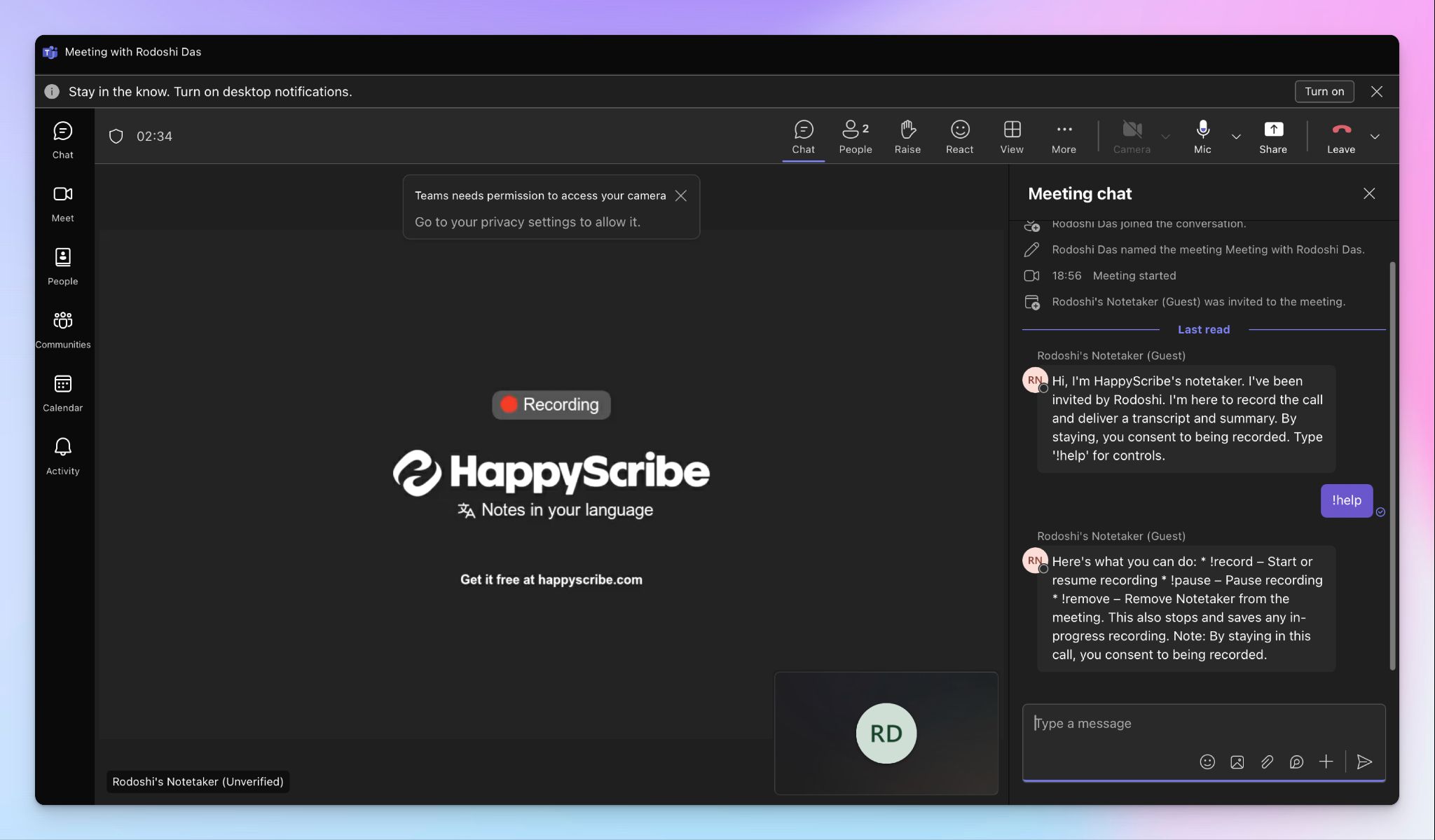
- Link your Google or Outlook calendar or paste the Teams meeting link to invite the HappyScribe note taker. For in-person meetings, you can record audio without a bot.
- For more control, open Settings from the bottom left menu to customize when the note taker should join, who can view transcripts, and who should receive the email summary.
- During a Teams call, the note taker must be admitted by the meeting host to start recording. You can chat with the note taker to control it mid-call.
- The meeting will be saved in your Workspace files or in the Private section, depending on your privacy settings.
How to record bot-free meetings with HappyScribe
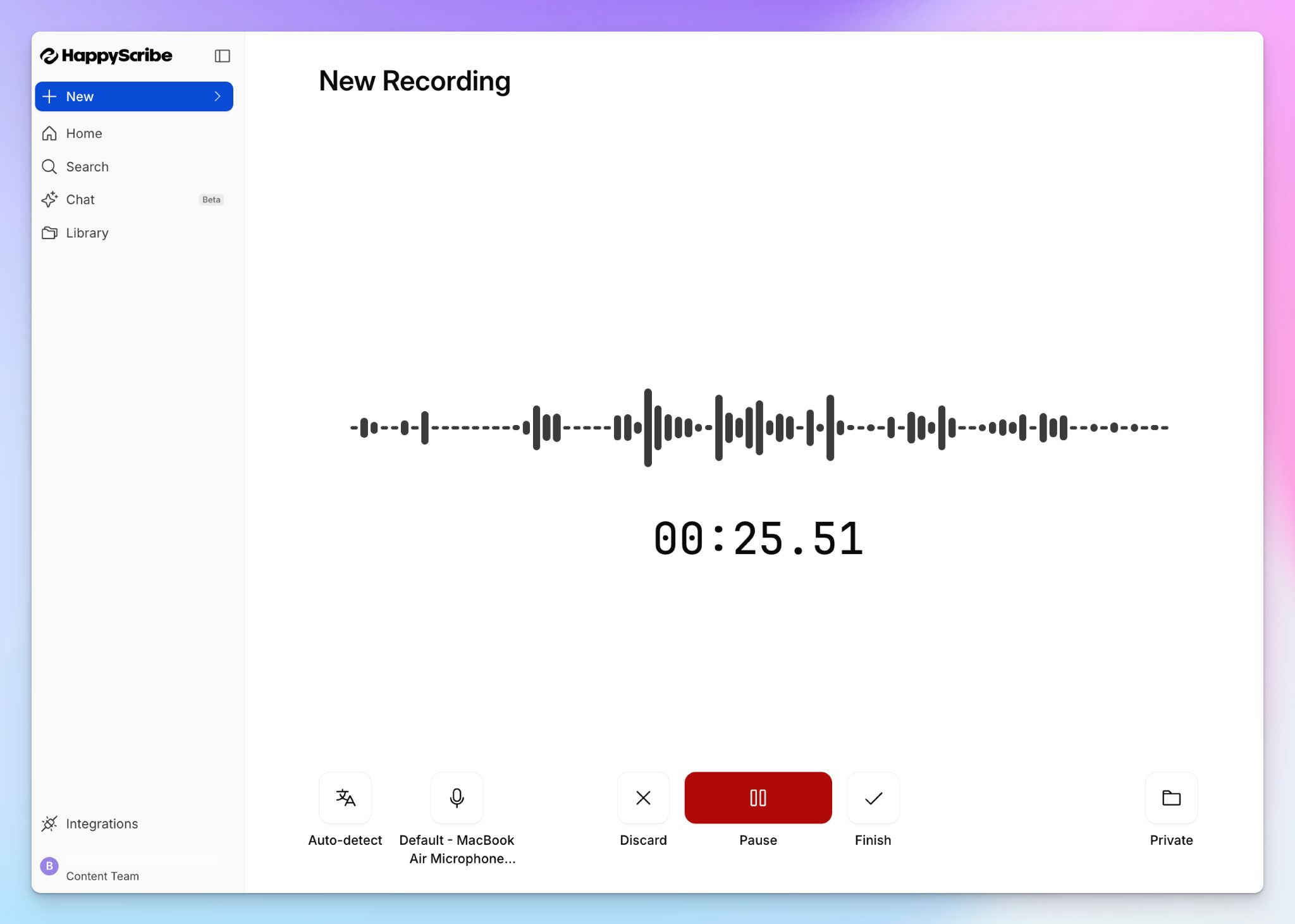
If you’re joining an ad-hoc call or an in-person discussion, you can record bot-free meetings by following these steps:
- Log in to your HappyScribe account and select Record audio.
- Give necessary permissions and press Start recording.
- You can change the language, pick the audio source, and the storage folder.
- Once you’re done, you save the recording, and the transcript will be ready in seconds. It’s that easy!
💡 Did you know?
With HappyScribe, you can upload pre-recorded Teams meetings and other video files from your device, Google Drive, Dropbox, and Box, and transcribe them with the same accuracy as online meetings.
Microsoft’s native options vs HappyScribe: which note taker is best for Microsoft Teams meetings?
| Feature | Microsoft Teams (native) | HappyScribe |
|---|---|---|
| AI-generated meeting notes | ✅ Requires Teams Premium, Microsoft 365, or Copilot license | ✅ Available on all plans, including free |
| Language support | ❌ Supports around 40 languages. Auto-detects only 10 languages in multilingual meetings | ✅ 150+ languages and dialects with automatic detection |
| File transcription | ❌ Not supported in Teams | ✅ Upload video and audio files from your device or cloud storage to transcribe them |
| Works without admin setup | ❌ Requires IT admin to enable transcription, recording, and Copilot policies | ✅ Connect your calendar and start |
| Cross-platform support | ❌ Teams meetings only | ✅ Teams, Google Meet, Zoom, and in-person meetings |
| Bot-free recording | ❌ Not available natively | ✅ Bot-free audio recorder works in the browser and on the mobile app |
| Integrations outside Microsoft 365 | ❌ Notes work best across Microsoft tools such as OneDrive, SharePoint, and Loop | ✅ Route meeting data to other tools via MCP, API, and Zapier |
| Security and compliance | ✅ Microsoft 365 compliance framework | ✅ SOC 2 Type II, GDPR-compliant, and stores data in an ISO 27001-compliant EU data center |
| Free tier with AI notes | ❌ No free option for AI-generated notes | ✅ Unlimited recordings (45 min per meeting) on the free plan |
What’s the best way to take notes in Microsoft Teams?
Microsoft Teams gives you the tools to take meeting notes natively, but the experience depends on your license tier, admin configuration, and how forgiving you are with AI accuracy outside English. If your team runs entirely within Microsoft 365 and you only have a couple of meetings per month, the built-in options can work.
For everyone else, HappyScribe removes the friction. It works across Teams, Google Meet, Zoom, and in-person meetings with over 95% accuracy and no admin setup. You get enterprise-grade security and a unified workspace that doesn't lock your data inside one ecosystem.
FAQs on how to take notes in Microsoft Teams meetings
Can I take notes during a Microsoft Teams meeting?
Yes. Once a meeting starts, you can open the Notes pane from the meeting controls to manually type agenda items, key points, and action items on a Loop page. All meeting participants who are invited can co-edit the same page in real time, so everyone stays on the same page. You can also share notes after the meeting through the Recap tab or the meeting chat.
Is there a meeting note taker in Teams?
Teams includes an AI note taker if you have a Teams Premium or Microsoft 365 Copilot license. It uses intelligent recap to generate AI meeting summaries with recommended tasks, speaker timelines, and chapters after the meeting ends. Without either license, there's no built-in way to automatically summarize discussions. Third-party tools like HappyScribe work as an AI note-taking tool across MS Teams, Zoom, and Google Meet without requiring a premium Microsoft license.
Can I just transcribe a Teams meeting without recording?
Yes. You can start live transcription from the meeting controls without turning on the recording. The transcript captures spoken words with speaker attribution and timestamps, and it's stored in OneDrive or SharePoint after the meeting. Keep in mind that transcription alone doesn't generate meeting summaries or extract action items. You'll get a raw written record, not processed insights.
What is the best way to take notes in Teams?
If your organization has Copilot or Teams Premium, intelligent recap can automatically summarize a discussion and surface important details after the meeting ends. For teams that don't have those licenses or need support for more languages, HappyScribe connects to your calendar and captures meeting notes in Microsoft Teams with 150+ language support, AI-generated summaries, and a searchable workspace. Either way, the best approach is one that runs automatically so you can focus on the conversation instead of typing.
How to take meeting notes in Teams for free?
Open a new meeting or join an existing one, then click Notes in the meeting controls to start a collaborative Loop page. You can type agenda items, assign tasks, and capture key points during the meeting at no extra cost. This is a manual process, so you won't get AI-generated meeting summaries on the free Microsoft 365 tier. If you want automated note-taking for free, HappyScribe's free plan offers unlimited meeting recordings (45 minutes per meeting) with AI summaries and transcripts on any mobile device or desktop browser.
What's the best way to transcribe Microsoft Teams meetings?
The native option is live transcription, which converts spoken words into a timestamped written record during the meeting. It works well for English-language meetings, but accuracy drops in other languages and fast-paced conversations. For teams that need higher accuracy across more languages, HappyScribe transcribes Teams meetings in 150+ languages at 95% accuracy and lets you edit meeting notes, search across past conversations, and share notes with anyone through a single link. You can also upload pre-recorded meeting files if you prefer to transcribe after the fact.

Biplab Mazumder
Biplab is a content marketer and writer who helps high-growth brands scale content visibility across AI search channels. His works have been published in HubSpot, Freshworks, Atlassian, SurferSEO, etc. When he's not planning content strategy, he's testing AI content workflows and use cases.