![How to Transcribe Audio on Android [2026]](/sanity-images/ejgwz1gl/redesign/deda60783d58a8102f4c2e8b23176d7676dac78d-1536x1024.jpg?auto=format&w=1536.0&rect=0,0,1536,1024)
Android doesn't have consistent transcription tools as the iPhone does. How you transcribe audio depends on the phone you use. For instance, Pixel phones have Google Recorder, Galaxy devices come with Samsung Voice Recorder, while other OEMs ship with their proprietary options. I tested the major approaches to audio transcription on Android so you can pick what works best for your setup.
How to transcribe audio with your Android phone's built-in tools (free)
If you have a Pixel or a recent Samsung Galaxy, your phone already has a free transcription tool built in. Both work offline and handle short recordings well, though they differ in how they process audio and what you can do with the transcript afterward. Here's how each one works.
Google Recorder (Pixel phones)
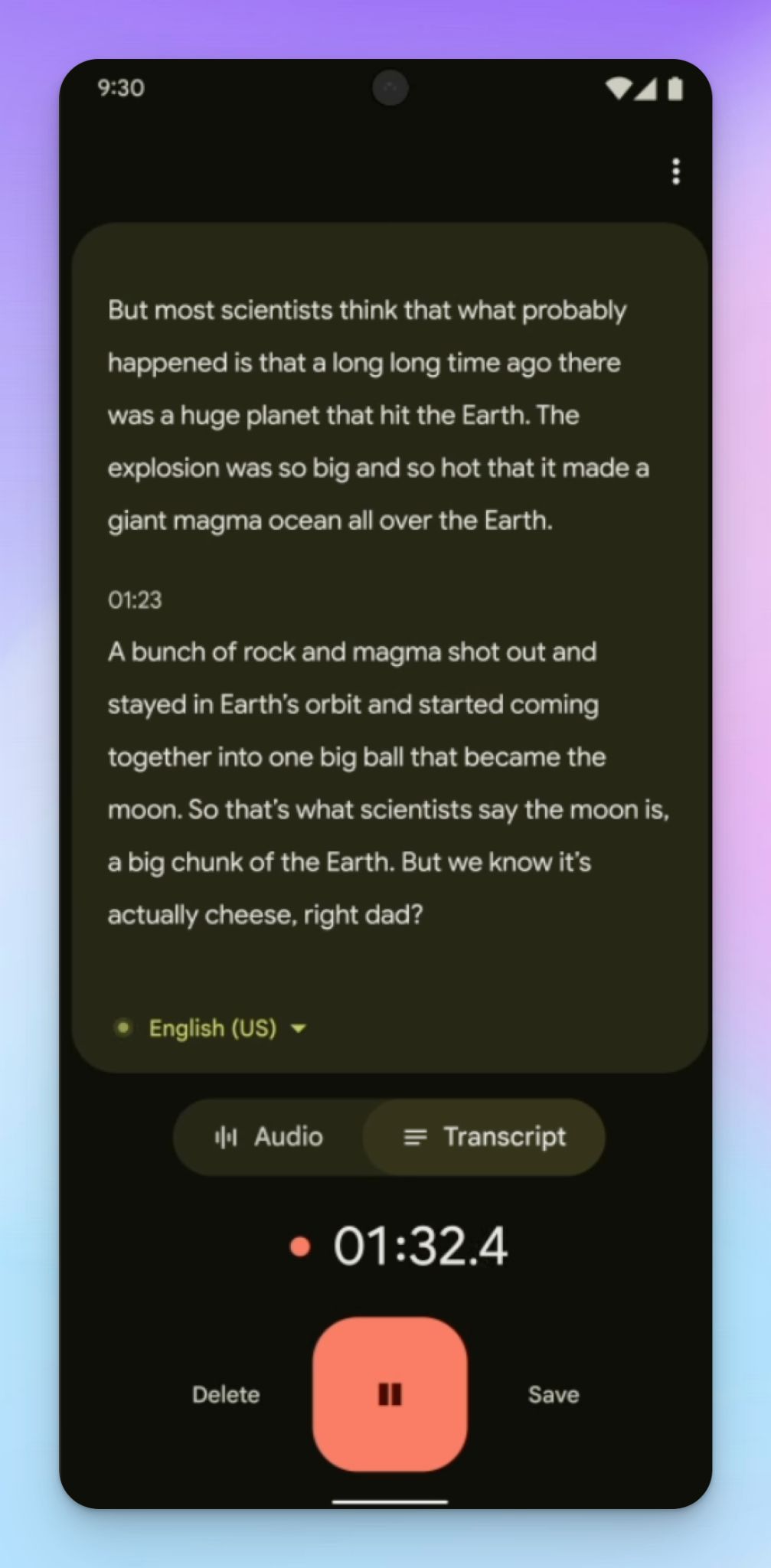
Google Recorder comes pre-installed on Pixel phones and transcribes audio in real time as you record. Everything runs on-device, but it's exclusive to Pixel.
Here's how to record and transcribe with Google Recorder:
- Open the Recorder app on your Pixel phone. It's pre-installed, so you'll find it in your app drawer or by searching for it.
- Tap the red record button at the bottom of the screen and give permissions to start recording.
- Switch from the Audio tab to the Transcript tab to see your words appear in real time as you speak.
- You can pause it, and when you're done, tap Save. Give your recording a name.
- To share the transcript, long-press the recording, tap Share, and choose Transcript (.txt) to export as a text file or Share transcript to Google Docs to send it directly to your Drive.
If you're on Pixel 6 or later, you can turn on speaker labels through Recorder settings so the transcript tags different voices as Speaker 1, Speaker 2, and so on.
Note that speaker labels only work in English. You can also re-transcribe an existing recording in a different language, which expands your language options from 15 (real-time) to over 40 (post-recording).
On a Pixel 8 or later, you get AI-powered summaries that condense recordings between 5 minutes and 1 hour into key points. Summaries work in English, Chinese, Hindi, Italian, French, German, and Japanese for Pixel 10.
Why Google Recorder isn’t always the best for audio transcription:
The Pixel Recorder app has too many asterisks to function reliably:
- It only exports transcripts as plain text files or to NotebookLM and Google Docs, with no DOCX, PDF, or SRT option
- Speaker labels are restricted to English, so recordings in other languages won't get multiple speaker identification
- AI summaries are limited to Pixel 8 and later, and only for recordings between 5 minutes and 1 hour
- It's a Pixel exclusive feature, so it's not available on Samsung, OnePlus, Motorola, or any other Android phone. Even among Pixel devices, the experience is inconsistent due to feature lock-in
Samsung Voice Recorder (Galaxy phones)
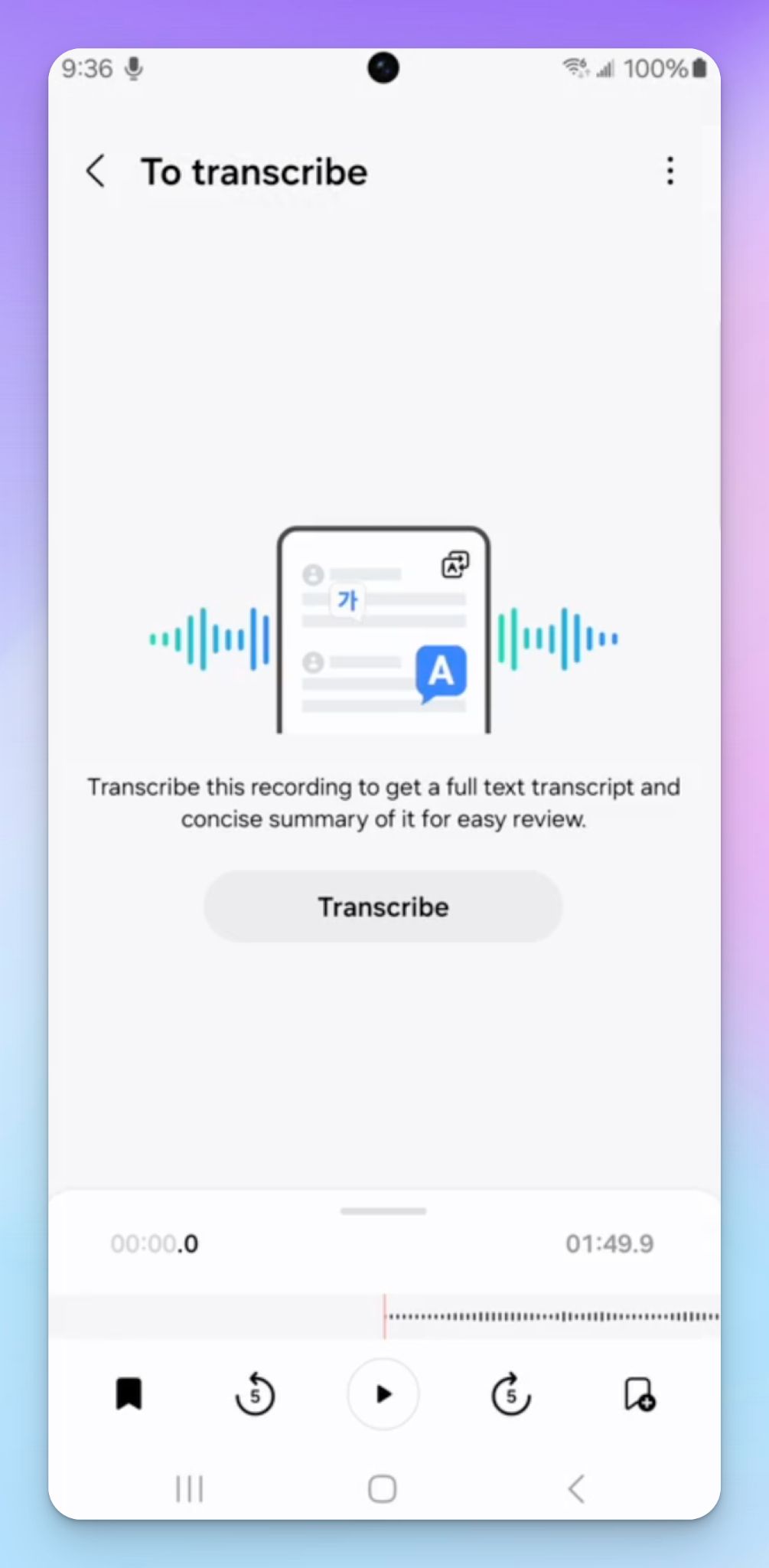
Samsung's Voice Recorder app comes pre-installed on Galaxy phones and covers basic audio recording out of the box. If you have a recent flagship like the Galaxy S24, S25, S26, or Z Fold/Flip 5 or later, you also get Transcribe assist, a Galaxy AI feature that converts your recordings into text with speaker identification.
Here's how to record and transcribe with Samsung Voice Recorder:
- Open the Voice Recorder app from your app drawer or by searching for it.
- Tap the red record button to start recording.
- When you're done, tap Stop, give your recording a name, and tap Save.
- Open the saved recording and tap Transcribe.
- If it can’t auto-detect the language, select your language and tap Transcribe again. The app will process the audio and display a full-text transcript.
Once you have a transcript, tap Summary to get an AI-generated summary with keywords.
Transcribe assist supports 20+ languages, including Chinese, English, German, Hindi, Japanese, Russian, and Vietnamese. That's a wider range than Google Recorder's 15 for real-time transcription, though narrower than what a dedicated transcription app would offer.
Why Samsung Voice Recorder isn’t always the best for audio transcription:
- Transcribe assist only works on recent flagships (Galaxy S24 and later, Z Fold/Flip 5 and later). If you have an older Galaxy A series, M series, or S series phone, you can record audio, but you can't transcribe it
- There's no real-time transcription during recording. You record first, then transcribe later, which means you can't see your words appear as you speak
- Samsung doesn’t pick up spoken language reliably, so you have to select the language before transcribing
- Export options are limited. You can share recordings as audio files or copy transcript text, but there's no structured export to DOCX, PDF, or SRT
Voice typing with Gboard (any Android phone)
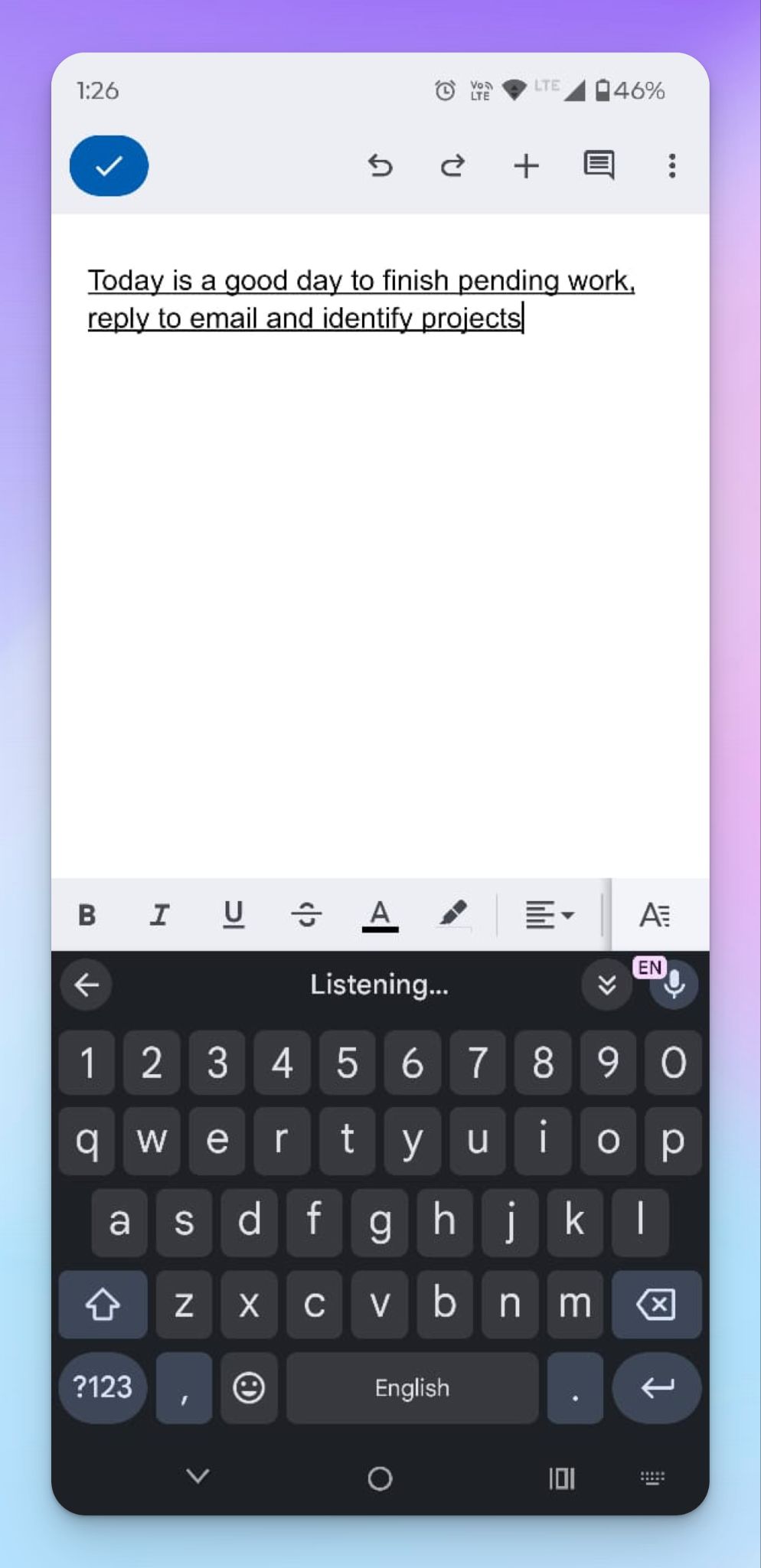
If your phone isn't a Pixel or a recent Galaxy, you might not have a built-in transcription app. But every Android phone with Gboard installed (which is most of them) has voice typing that converts speech to text in real time. It’s generally a dictation tool, but for capturing live meetings, lectures, or interviews, it's a free option that works on any Android device.
Here's how to use Gboard voice typing:
- Open any app where you can type, like Google Keep, Google Docs, or even a blank email.
- Tap the text field to bring up Gboard.
- Tap the Microphone icon at the top of the keyboard.
- When you see "Speak now," start talking. Your words appear in the text field as you speak.
- Tap the Microphone again to stop.
Gboard supports hundreds of languages and adds punctuation automatically. Google recently added Rambler, a Gemini-powered dictation upgrade that strips filler words like "ums" and "ahs" and supports switching between languages mid-sentence.
Why voice typing isn’t always the best for audio transcription:
- As a dictation tool, it only works with live speech and for a short time. You can't feed it a pre-recorded audio file and get a transcript back
- There are no speaker labels, so if multiple people are talking, the text runs together with no way to tell who said what
- The microphone stops listening after a few seconds of silence, which means you'll need to tap it again if there's a pause in the conversation
- Google voice typing’s accuracy drops noticeably in noisy environments or when speakers talk quickly over each other
For Xiaomi (HyperOS), Vivo, and Oppo (including OnePlus and Realme) flagship phones, you’ll find similar native audio recorder apps using AI to transcribe speech.
All the native Android options do a solid job with quick, on-device recordings in a single language. But if you need professional export formats like DOCX or SRT, speaker labels across languages, or human-reviewed accuracy for critical recordings, you'll run into the same issues with these tools.
That's why a dedicated transcription app like HappyScribe can help you get the most out of your audio.
Transcribe audio with the HappyScribe mobile app
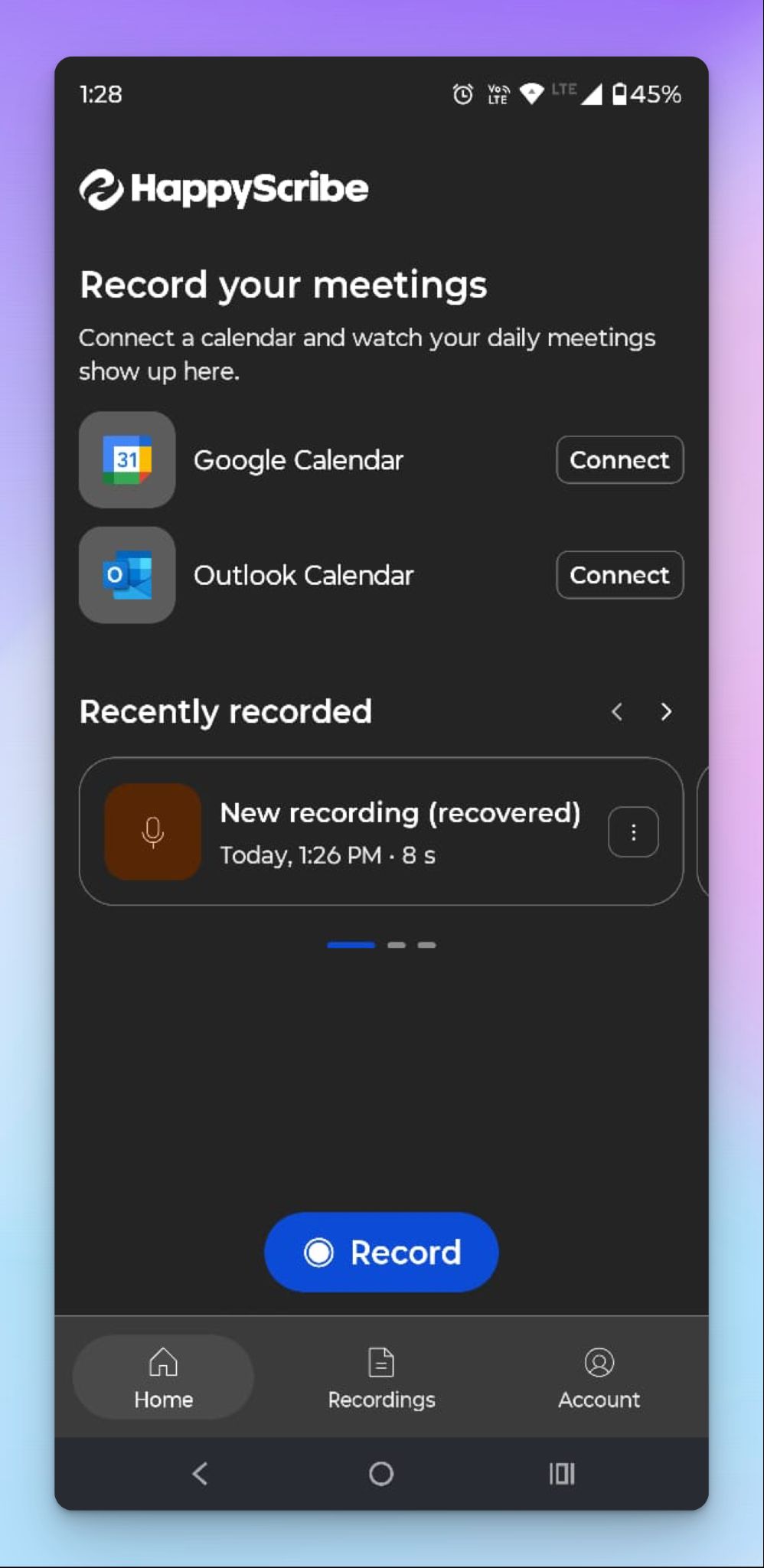
Unlike Google or Samsung recorders, the HappyScribe mobile app isn't locked to a specific phone brand. It runs on any Android device and supports 150+ languages with auto-detection, so you're not limited by what your manufacturer decided to include.
Every recording syncs to your HappyScribe workspace along with meeting recordings, uploaded files, and AI notes.
Here's how to record and transcribe audio with HappyScribe on Android:
- Download the HappyScribe app from the Google Play Store.
- Sign in with your existing HappyScribe account, or create a free one (No credit card needed).
- Tap ⏺️ Record, give permissions, and start speaking. The recording continues even if you switch to other apps.
- You can pause/resume the recording midway, and when you're done, tap Stop. Give it a name and tap Save.
- It gets uploaded to your HappyScribe workspace across devices, and within minutes, you'll have a neatly formatted transcript ready.
Why the HappyScribe app is the best way to transcribe audio on Android
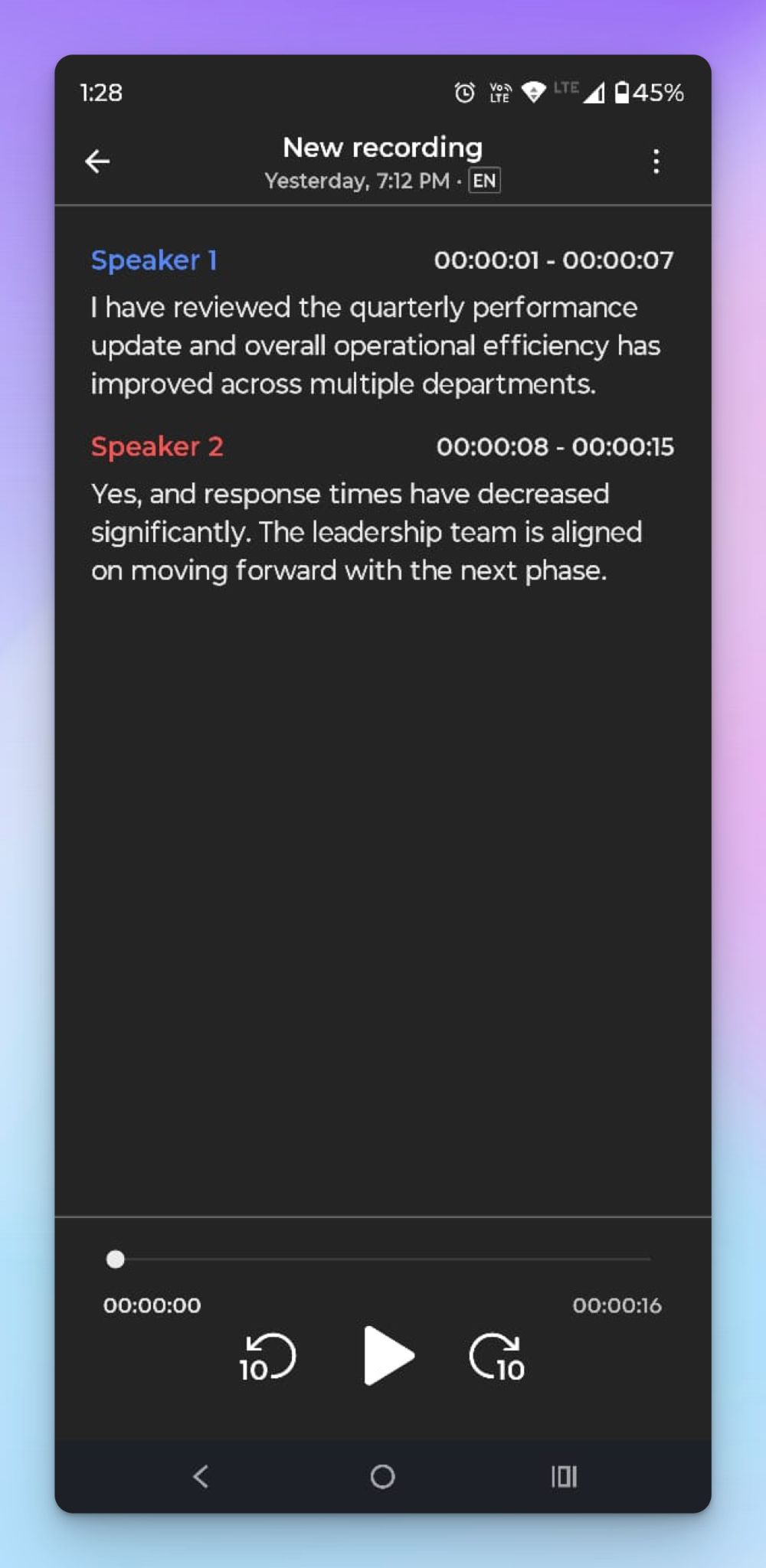
Android's built-in transcription options are fragmented across brands, and you never know the quality of features you’ll get to use. HappyScribe helps journalists, students, and business leaders transcribe audio reliably across devices without worrying about quality.
- One app, any Android phone. No flagship requirements, no compatibility issues. Download the app, record audio, and transcribe text. It works the same on a Pixel, Galaxy, OnePlus, or Motorola
- Auto-detects 150+ languages and dialects. From Catalan and Danish to Swahili and Vietnamese, HappyScribe identifies the languages on its own, even when speakers switch mid-conversation
- Recording continues with app switching and poor signal. The upload runs through native Android background services. Close the app, lose Wi-Fi, or switch to a different task. HappyScribe continues when connectivity returns
- 95%+ accuracy with a human proofreading option. Transcripts come back with timestamped speaker labels and rich formatting options on the web. For recordings where errors aren't acceptable, you can rope in an expert linguist to proofread the transcript
- Your calendar meetings show up in the app. Connect Google or Outlook, and the AI meeting note taker auto-joins your Zoom, Google Meet, and Microsoft Teams calls
- Every recording is searchable with AI Chat. Phone recordings sit alongside your meeting notes, uploaded files, and AI notes in one workspace. Ask AI Chat a question about any of them
- Export as DOCX, PDF, TXT, HTML, or SRT. The native tools give you plain text or a copy-paste job. HappyScribe lets you download in the format your workflow actually requires
- GDPR-compliant and SOC 2 Type II certified. Recordings are encrypted in transit and at rest, making HappyScribe one of the most secure transcription tools in the market
Native Android tools vs. HappyScribe app for audio transcription on Android: Quick comparison
| Feature | Google Recorder | Samsung Voice Recorder | HappyScribe Mobile App |
|---|---|---|---|
| Availability | Pixel phones only | Galaxy phones only (Transcribe Assist on S24+ and Z Fold/Flip 5+) | Any Android phone |
| Supported languages | 15 real-time, 40+ re-transcription | 20+ via Transcribe Assist | ✅ 150+ languages and dialects |
| Language auto-detection | ✅ Pixel 6+ only | Limited | ✅ |
| Speaker labels | English only | ✅ | ✅ Timestamped with multiple speaker support. Editable on web |
| Real-time transcription | ✅ | ❌ Transcribe after recording | ❌ Transcribe after recording or file upload |
| Offline recording | ✅ On-device processing | ✅ | ✅ Record offline and upload when back online |
| Transcript editor | Single-word edits only | ❌ Copy text only | ✅ Fully-featured editor on web |
| Export formats | TXT, Google Docs, NotebookLM | Share as audio file or TXT | ✅ DOCX, PDF, TXT, HTML, SRT, etc on web |
| AI summaries | ✅ Pixel 8+ only, 7 languages | ✅ Via Galaxy AI | ✅ Available on all plans |
| Human proofreading | ❌ | ❌ | ✅ Available via web |
| AI meeting notetaker | ❌ | ❌ | ✅ Auto-joins Zoom, Meet, Teams |
| AI Chat search | ❌ | ❌ | ✅ Search data and insights across all transcripts |
| Security | On-device processing | On-device processing | ✅ GDPR, SOC 2 Type II, EU data storage |
| Price | Free | Free (on supported devices) | Free plan available, paid plans for more minutes |
Android voice recorders are decent options for quick recordings if you already own the right phone. For anything that involves multiple languages, longer recordings, professional export formats, or a transcript you can actually edit and share, HappyScribe covers what the native tools can't.
Tips for better Android recordings
The quality of your recording directly affects how accurate the final transcript will be, regardless of which app you use. A few adjustments before you hit record can save you from cleaning up errors afterward.
- Cut background noise before you start: Move away from fans, open windows, or busy rooms. Android microphones pick up ambient sound easily, and the AI will try to transcribe all of it
- Place your phone close to whoever is speaking: Set it on the table between you, or prop it within arm's reach. The further the mic is from the speaker, the more words get lost or misheard
- Avoid crosstalk in group recordings: When multiple people talk at the same time, even the best transcription engine struggles to separate voices. If you're recording a group conversation, ask participants to take turns
- Use an external microphone for important recordings: Your phone's built-in mic works fine for casual notes, but a clip-on lapel mic or a Bluetooth microphone will capture much cleaner audio for interviews, lectures, or client calls
Start transcribing audio accurately on your Android
You've seen what each tool can do. The next step is to try one on a real recording. Open a recorder on your Android device for a quick voice memo and see if the output works for you. When you hit the limit with audio quality, languages, speaker labels, or export formats, HappyScribe is available for free on the Google Play Store.
FAQs on how to transcribe audio on Android
How do you transcribe audio files on Android?
Android's built-in tools like Google Recorder and Samsung Voice Recorder only transcribe audio you record live on the device. They can't process pre-recorded audio files or video files. To get a full transcription of an existing file, you'll need a dedicated tool. Open HappyScribe mobile app on your Android to upload any audio or video file from your phone or cloud storage and get an accurate text transcript with speaker labels and timestamps. You can then export the transcript as DOCX, PDF, or SRT for subtitles.
Is Google Transcribe free?
Yes. Google Recorder is free and pre-installed on Pixel phones, with offline transcription that works without an internet connection. However, "Google Transcribe" isn't a single product. People often confuse Google Recorder with Live Transcribe, which is a separate accessibility app. Live Transcribe produces real-time captions on your screen for people who are deaf or hard of hearing, but it doesn't save or export transcripts. If you're looking for a full transcription you can edit, share, or store, Live Transcribe won't do that. Google Recorder will, but only on Pixel.
Does Android have a transcribe option?
It depends on your phone. Pixel phones have Google Recorder, which transcribes audio in real time with offline use. Samsung Galaxy flagships (S24 and later) have Transcribe assist, which converts recordings into text after you stop recording. Both are free but locked to their respective devices. Most other Android users on brands like Vivo, OnePlus, Motorola, or Xiaomi have inconsistent transcription tools and will need to download a third-party app to transcribe audio across their devices.
What is the easiest way to transcribe audio to text?
For quick notes, open Gboard on any Android phone, tap the microphone, and start speaking. It dictates live speech with decent accuracy for short recordings. For longer recordings where you need high accuracy, different speakers labeled, and a document you can export, use a dedicated transcription app. HappyScribe supports 150+ languages, auto-detects the language, returns results with fast turnaround, and gives you access to a web-based editor where you can review the transcript and export it in multiple formats.
What's the benefit of transcribing on your phone?
Transcribing on an Android phone means you can capture and convert speech to text from anywhere, whether you're in a meeting, an interview, or out in the field. Instead of typing up notes afterward or relying on memory, you get a written record in minutes, with most apps processing a one-hour conversation faster than you could summarize it by hand.
That transcript can then be exported directly to Google Docs, Notion, or your email, so it fits into your existing workflow without extra steps. For anyone who is deaf or hard of hearing, it also makes spoken content far more accessible.
What's the best app to transcribe audio on Android?
For Android users who need accurate results across languages and devices, the HappyScribe app is the strongest option. It works on any Android phone, supports 150+ languages, and produces transcripts with timestamped speaker labels. Transcription accuracy sits at 95%+ for clear audio, and you can send any transcript for human proofreading when you need higher accuracy. Unlike native tools that only handle live recordings, HappyScribe on a web browser also transcribes uploaded audio and video files and lets you export as documents, subtitles, or plain text. If you want feedback on your transcript before sharing, the web editor lets you play back the audio alongside the text to verify every line.

Biplab Mazumder
Biplab is a content marketer and writer who helps high-growth brands scale content visibility across AI search channels. His works have been published in HubSpot, Freshworks, Atlassian, SurferSEO, etc. When he's not planning content strategy, he's testing AI content workflows and use cases.