![6 Best Speech-to-Text Software You Must Try [2026]](/sanity-images/ejgwz1gl/redesign/342489262f6074ffae592c138c614b89846e02ab-1536x1024.jpg?auto=format&w=1536.0&rect=0,128,1536,768&h=768)
TL;DR ⏩
Based on my experience of using these tools, here's the best speech-to-text software for you:
- HappyScribe: Best for fast and accurate transcription of voice and recorded audio in 150+ languages across files and online meetings
- Otter AI: Best for teams that want a simple speech-to-text engine for online meetings in English
- Whisper: Best for developers and privacy-first users who want free, open-source transcription they can run on their machine
- Wispr Flow: Best for people who want to dictate instead of type, with clean text appearing in their preferred app
- Google Docs Voice Typing: Best for anyone who writes in Google Docs and wants free, built-in dictation
- Krisp: Best for people in noisy spaces who want clean meeting transcripts without a bot
Search "best speech-to-text software," and you’ll see everything from meeting bots to developer APIs. Converting speech to text takes many forms, and your use cases define what works best for you.
I tested 15 speech-to-text options across categories to build this list. What stood out is how little they overlap. Some were fast but inaccurate, some were reliable but expensive, some excelled at dictation, while others did better with meeting notes and file transcripts.
So instead of ranking them head-to-head, I sorted them by output quality, usability, and the use cases each one is built for. Here's how they stack up:
5 best speech-to-text software: At a glance
| Category | HappyScribe | Otter AI | Whisper | Wispr Flow | Google Docs Voice Typing | Krisp |
|---|---|---|---|---|---|---|
| Best for | Fast and accurate speech-to-text conversion of files and meetings | Simple English meeting notes | Free, self-hosted option for developers | Voice dictation across apps | Free dictation inside Google Docs | Clean transcripts in noisy rooms |
| Key features | AI and human transcription, AI meeting note taker, translation, and AI Chat insights | Live transcription, AI agents, and wide integrations | Open-source model, runs offline, GPT-4o API option | System-wide dictation, AI cleanup, custom dictionary | Built-in dictation, voice commands | Two-way noise cancellation, action items |
| Supported languages | 150+ | 6 | 99 (reliable in about 50) | 100+ | 100+ | 16+ |
| Security | SOC 2 Type II, GDPR, stores data in an ISO 27001-compliant EU data center | SOC 2 Type II, GDPR, HIPAA | Self-hosted, runs offline, you control the data | SOC 2 Type II, ISO 27001, HIPAA-ready | Standard Google account security | SOC 2 Type II, GDPR, HIPAA (Enterprise) |
| Starting price | Free plan available. Paid plans from $8.50/month billed annually or $17/month billed monthly | Free plan. Paid plan starts from $16.99/mo | Free, or $0.006/min API | Free plan. Paid plan starts from $15/mo | Free | 7-day trial, then $16/mo |
1. HappyScribe
Best for: Fast and accurate transcription of voice and recorded audio in 150+ languages across files and live meetings
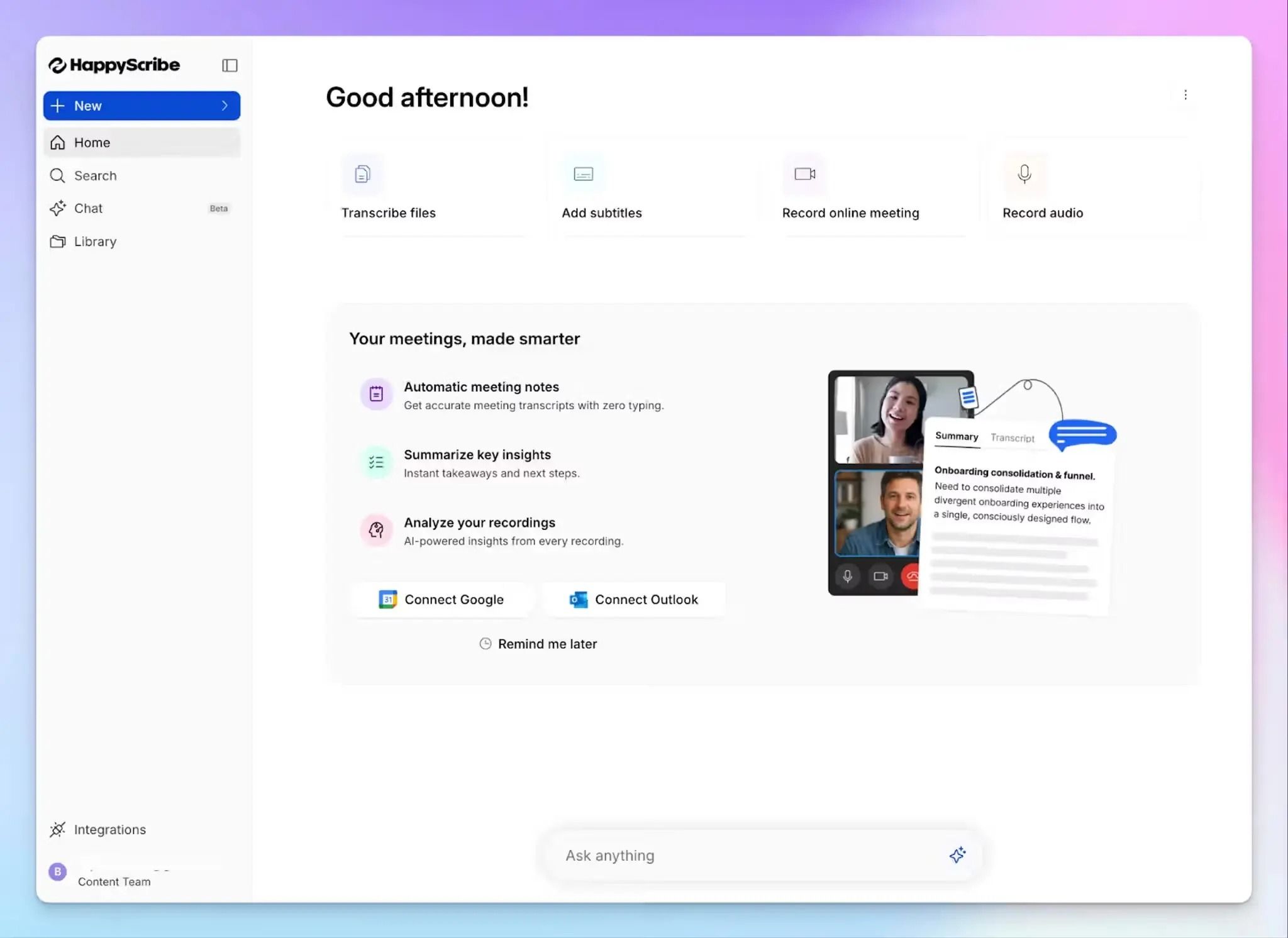
HappyScribe meets your speech-to-text needs in two ways: it accurately transcribes pre-recorded audio and video, and its AI note taker captures live meetings just as well.
I reach for HappyScribe when accuracy is non-negotiable, like interviews and client calls. If you want a single speech-to-text tool that doesn't make you choose between quality and speed, you can start here.
HappyScribe's key features
1. Convert speech to text with up to 99% accuracy in 150+ languages and dialects
HappyScribe AI transcribes audio to text with 95% accuracy across 150+ languages and dialects. From Korean and Bengali to Finnish and Swiss German, automatic language detection handles accents and regional variations reliably.
When the text needs to be airtight, like a research interview or a legal record, you can upgrade it to HappyScribe’s human transcription service, where professional linguists review the output and ensure 99% accuracy.
2. Record meetings with or without a bot, online or in person
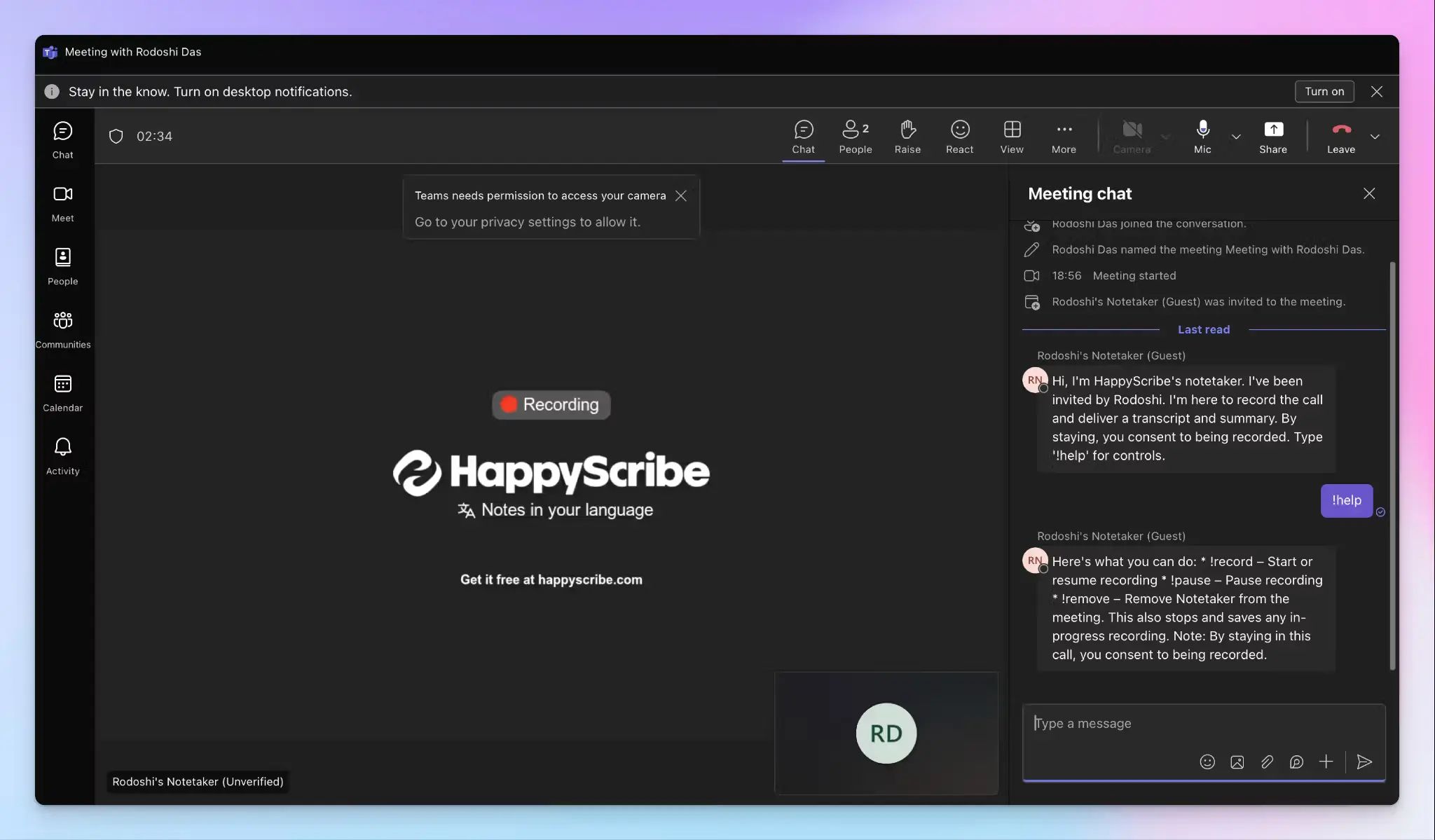
For live calls, HappyScribe AI note taker syncs with your Google or Outlook calendar and auto-joins meetings on Zoom, Google Meet, and Microsoft Teams. Paste a link, and it joins ad hoc calls on the spot as well.
But when a visible bot would disrupt a sales or client call, the audio recorder captures everything without showing up as a participant. You can also use HappyScribe’s iOS and Android apps for bot-free, in-person meetings and sync the transcripts with your workspace.
The capture method adapts to your meeting type rather than forcing everything through a bot.
3. Upload audio and video files for fast, clean transcripts
HappyScribe goes beyond meeting transcriptions. Upload an existing audio or video file, or import straight from Google Drive, Dropbox, Box, YouTube, or Vimeo, and you get a timestamped transcript with speaker labels in minutes.
When it's ready, export to TXT, HTML, DOCX, or PDF for documents, or SRT and VTT for subtitles, with 45+ formats in total. For anyone sitting on a backlog of recorded interviews or old footage, this is the fastest way to make them accessible.
4. Use AI Chat to pull insights from your transcripts
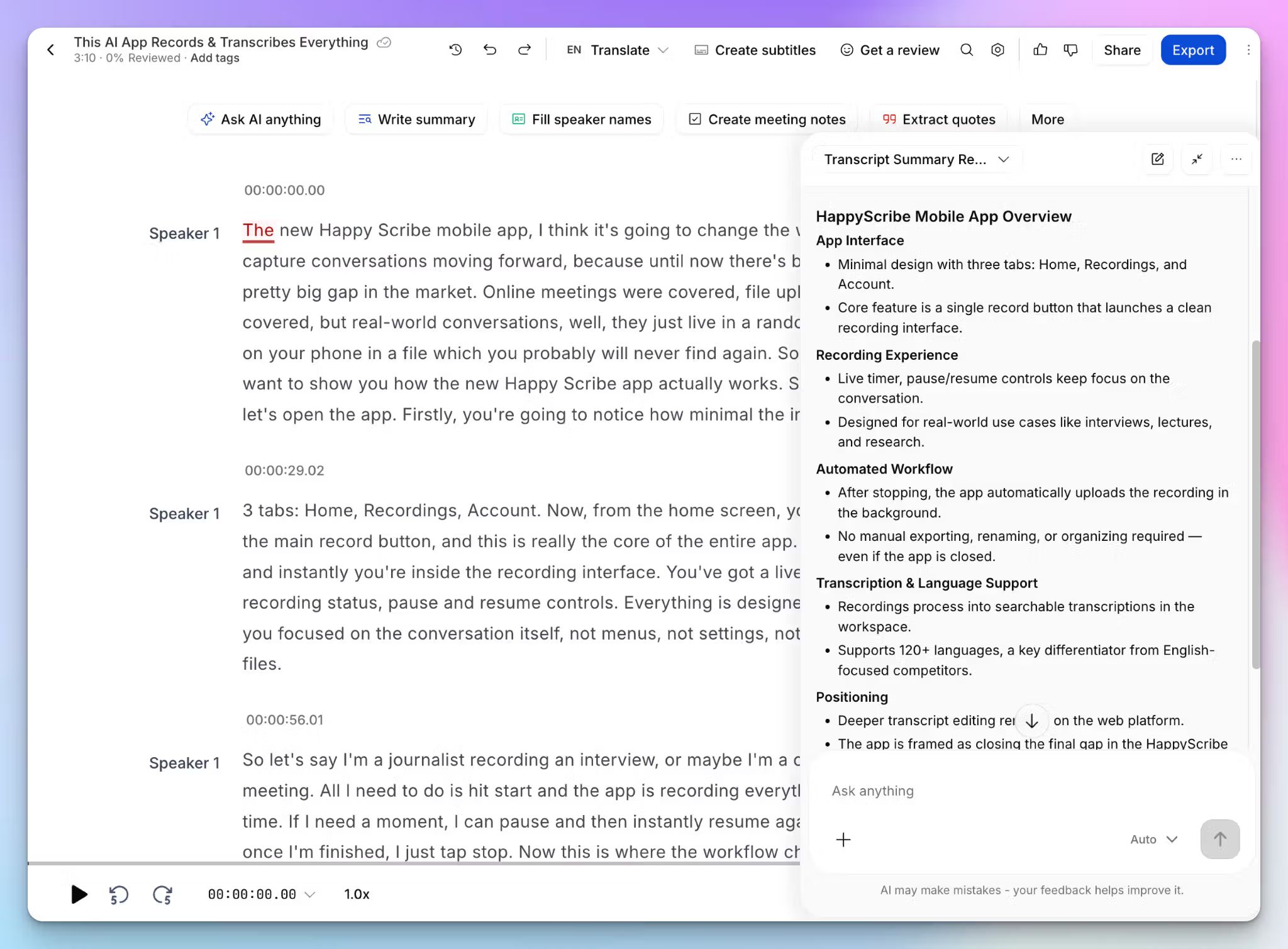
Instead of manually going through the entire library, you can ask HappyScribe AI Chat to answer your questions. Get a summary, lift direct quotes, find insights, or write a follow-up email inside the chat window.
AI Chat also reaches across all your past calls, so a question like "what did the client say about the timeline last Tuesday?" highlights an answer without opening the file. Through the MCP server, you can also connect your transcriptions and meeting notes to Claude or ChatGPT.
5. Fast, simple, and affordable enough for daily use
HappyScribe is powerful, but speed and simplicity are what make it stick. AI transcripts come back in minutes, the interface stays consistent across platforms, and the free plan gives you unlimited meeting recordings before you pay anything.
When you do upgrade, paid plans start at $8.50/month billed annually, which stays approachable for solo users and small teams. If you want that output flowing into the rest of your stack, the HappyScribe API and Zapier connect HappyScribe to thousands of apps.
HappyScribe's pricing
AI transcription plans
- Free: Unlimited meeting recordings (45 mins per recording), 10-minute trial of AI transcription, subtitling, and translation
- Basic: $8.50/month (billed annually) or $17/month (billed monthly)
- Pro: $19/month (billed annually) or $29/month (billed monthly)
- Business: $59/month (billed annually) or $89/month (billed monthly)
- Enterprise:Contact sales for tailored solutions
Human transcription service: Starts from $2.00/min. Extra discount for Business users
HappyScribe's pros
- Accurately convert spoken content into text and then create and edit subtitles for accessibility
- SOC 2 Type II, GDPR compliance, and EU data storage to keep your data safe
- Supports a wide range of file formats for easy import and export, including MP3, WAV, AAC, FLAC, MP4, MOV, AVI, TXT, PDF, HTML, CSV, DOCX, SRT, VTT, etc.
- Translate texts and create subtitles for your audio or video
- Human transcription service when a transcript needs to be perfect
- Bot-assisted and bot-free meeting recordings for consent and privacy
- Android and iOS mobile apps for fast speech-to-text conversions
- Fast, responsive support from real humans, not bots
HappyScribe's cons
- It isn't ideal for live, real-time transcription
What are users saying about HappyScribe?
I have tried many systems in the past to convert speech to text. I recently did an initial test with Happyscribe and I have to say, it worked sensationally well. And that was with German. It really makes work easier!
The transcription is reliable and the AI's involvement remains subtle, resulting in a rather literal but faithful rendition of the original text.
How to convert speech to text with HappyScribe: a step-by-step guide
- Sign in and link your Google or Outlook calendar, or paste the meeting link to invite the HappyScribe note taker. For in-person meetings, you can record audio without a bot
- Click Transcribe files at the top of your dashboard to upload your file directly, or import it from YouTube, Vimeo, Dropbox, Google Drive, or Box
- Configure preferences and choose between AI transcription or human transcription
- Open the finished transcript in the interactive editor to fix names or terms while you listen along
- Export it as DOCX, TXT, HTML, SRT, VTT, or PDF, or open AI Chat to find deeper insights
2. Otter AI
Best for: Teams that want a simple speech-to-text engine for online meetings in English
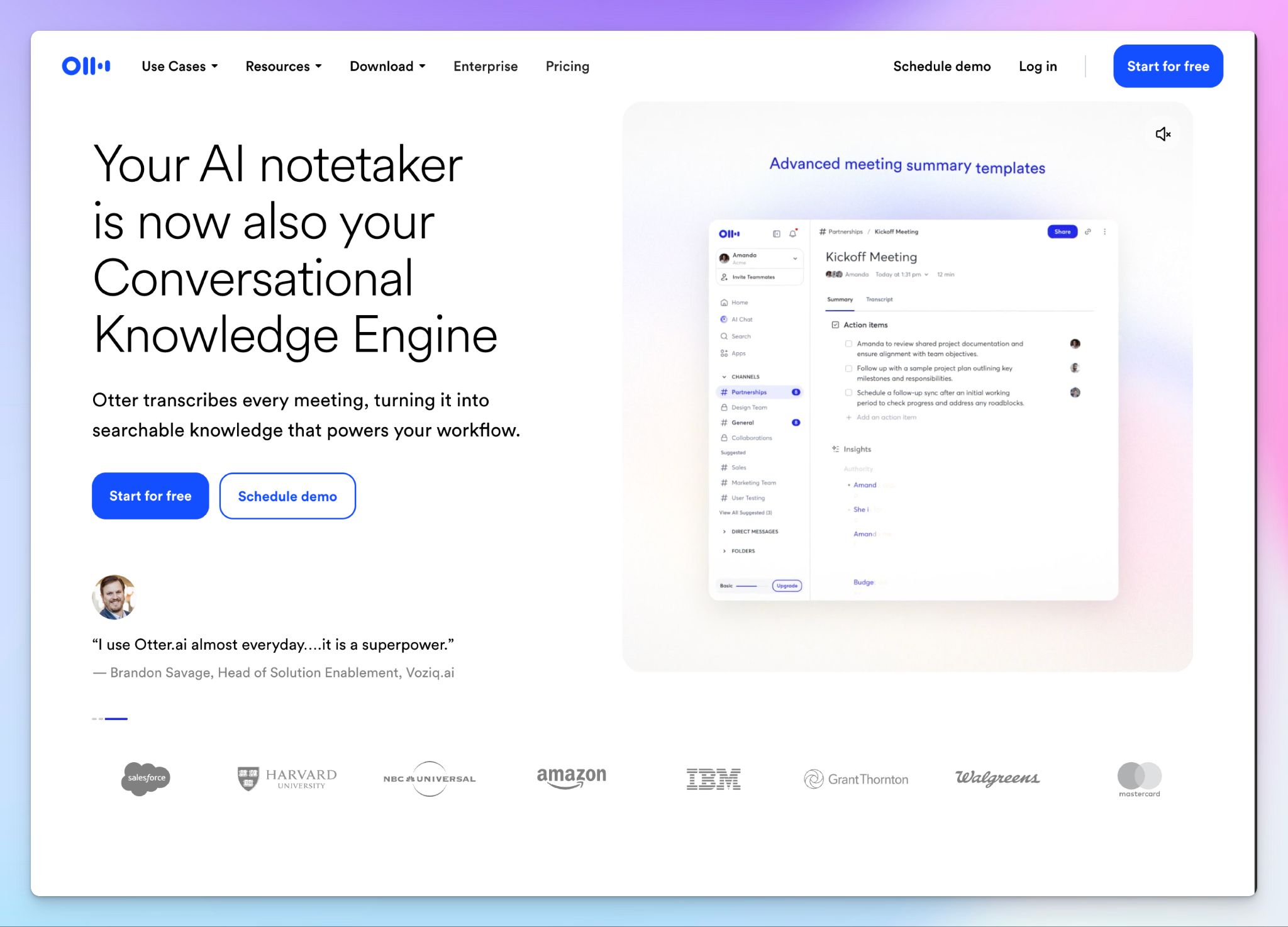
When it comes to transcribing online meetings, Otter AI is one of the names that often pop up. Connect your calendar, and OtterPilot shows up to your calls, records them, and generates notes after you hang up.
I’ve been running Otter AI as part of my testing for months, and it’s a neat app if you have simpler meeting documentation requirements. It works best for English-first teams, so how far it takes you depends on the languages you deal with.
Otter AI's key features
- Get real-time transcription with live captions from all speakers as the meeting happens
- Ask Otter AI Chat questions within and across meetings to surface answers or draft follow-ups
- Customized AI agents tailored to the STT workflows of sales, HR, media, and education
- You can integrate your Otter meeting data with a wide range of tools like Airtable, Dialpad, Egnyte, Jira, Salesforce, Zoho, and Slack
Otter AI's pricing
- Basic: Free
- Pro: $16.99/month
- Business: $30/month
- Enterprise: Custom pricing
Otter AI's pros
- Searching across past meetings is quick, and the Channels help you organize meetings with filters
- Otter is easy to pick up, so a whole team can adopt it without multiple training sessions
- The new desktop app finally lets you record meetings without a bot
Otter AI's cons
- Otter still supports only 6 languages. This is why international teams collaborating on large projects look for better Otter AI alternatives
- Otter’s speech-to-text accuracy nosedives with strong accents or overlapping speakers, so you'll have to spend a few minutes correcting transcripts
- Otter’s meeting bot is visible on the web and in mobile apps, reinforcing the privacy issues Otter is criticized for
3. Whisper
Best for: Developers and privacy-first users who want free, open-source transcription they can run on their machine
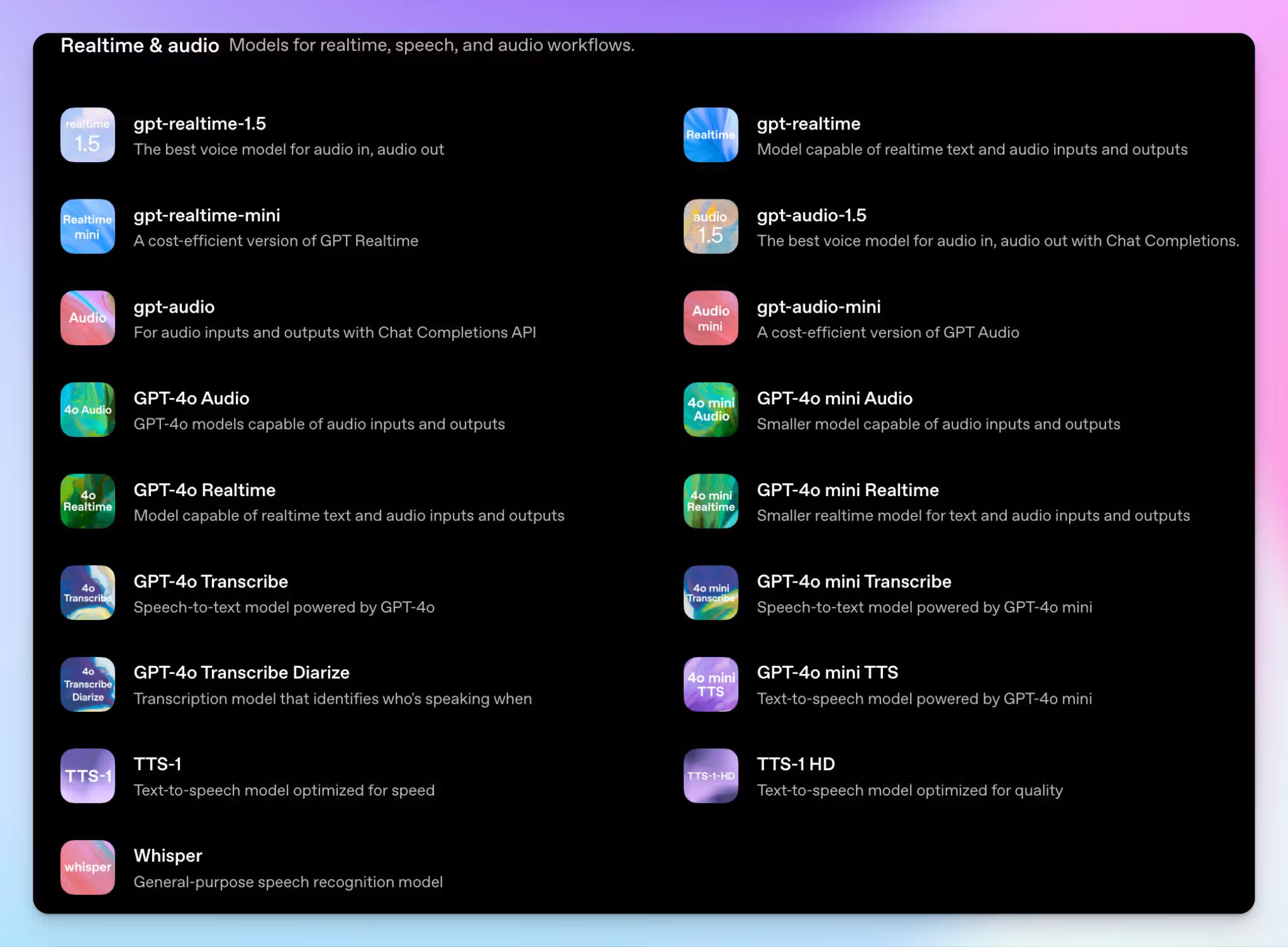
Whisper is the odd one out on this list because it isn't an app you sign up for. It's an open-source speech recognition model from OpenAI that you run on your own hardware, and that’s Whisper’s strength and weakness.
Since you host it yourself, nothing you transcribe has to leave your machine, which is great for anyone working under strict ethics terms or data-governance rules.
The flip side is that Whisper is a model and not much else. How well it serves you comes down to how comfortable you are setting it up. OpenAI's newer GPT-4o transcription models offer a managed path if you'd rather skip the tinkering.
Whisper's key features
- Transcribe audio in 99 languages offline on your own hardware. Translation works for English only
- Choose large-v3 for top accuracy or large-v3-turbo for much faster processing with minimal quality loss, with smaller models (tiny, base, small, medium) for limited hardware
- You can switch to OpenAI's managed API instead of self-hosting, where the gpt-4o-transcribe-diarize model adds speaker labels and stronger transcription accuracy
Whisper's pricing
- Open source: Free (MIT license)
- OpenAI API: $0.006/minute
- GPT-4o Transcribe: $0.006/minute
- GPT-4o-transcribe-diarize: $0.006/minute
- GPT-4o Mini Transcribe: $0.003/minute
Whisper's pros
- The open-source weights are free to run at any volume once you have a proper setup, with no caps and no subscription
- Community-built wrappers like whisper.cpp and faster-whisper get it running efficiently on consumer hardware, including M-series Macs
- Whisper’s MIT license lets you fine-tune and redistribute the model for any use case without restrictions
- On clean audio with 1-2 speakers, the newer GPT-4o class is accurate enough to compete with paid tools
Whisper's cons
- Whisper's setup is a real barrier, since you work in the command line with Python and FFmpeg, and the more accurate models demand capable GPUs
- Self-hosted Whisper gives you no speaker labels and can invent text during silence or noisy passages, so you have to fix errors yourself
- Despite the 99-language claims, OpenAI is upfront about the fact that Whisper is reliable and accurate in around 50 languages
📚 Also read:
4. Wispr Flow
Best for: People who want to dictate instead of type, with clean text appearing in their preferred app
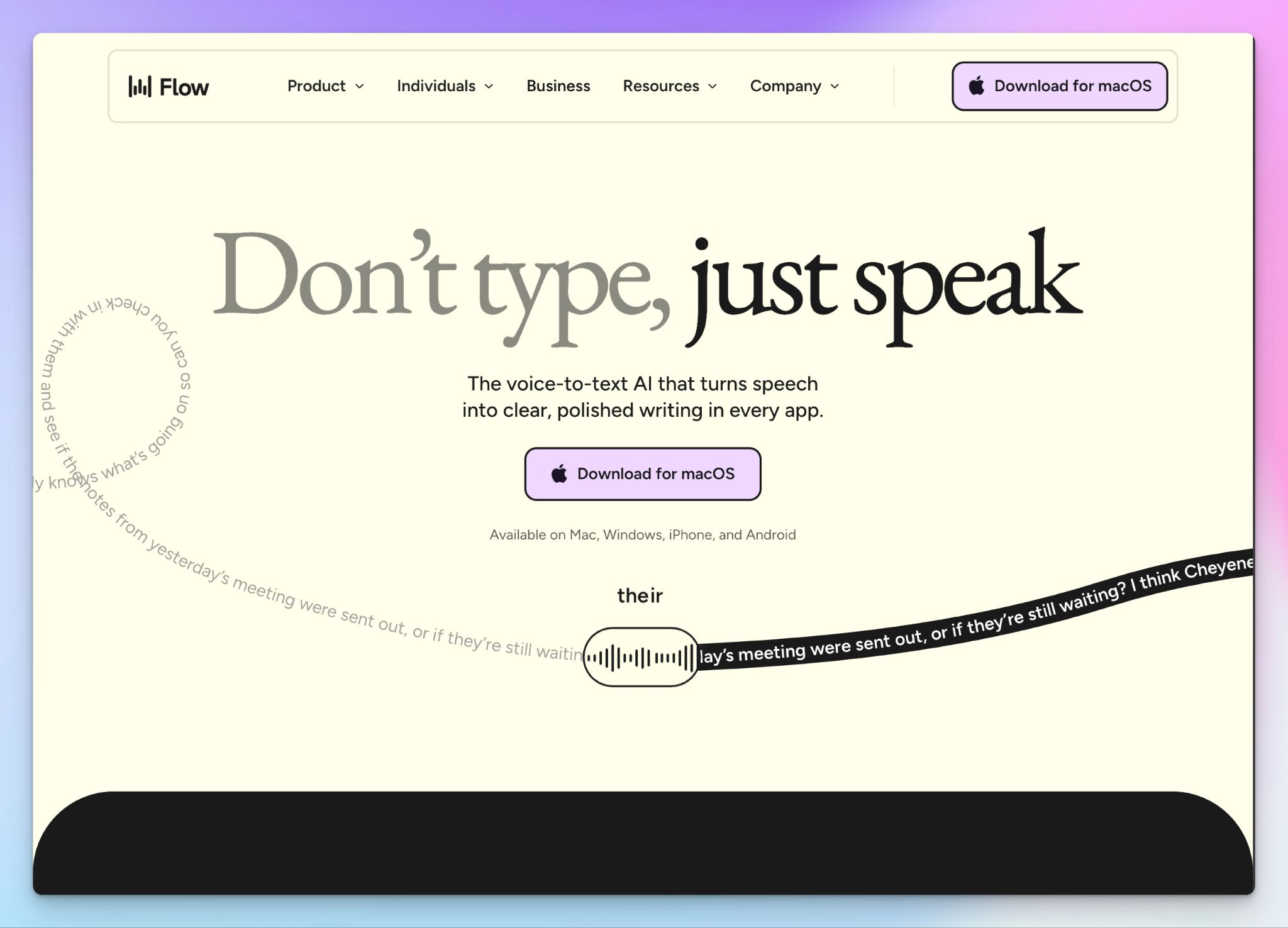
Wispr Flow isn't built to transcribe recordings; instead, it's a dictation tool. You talk, and clean text appears wherever your cursor is.
What sets Wispr Flow apart is the cleanup. Its AI edits as you speak, so "um, let's meet Wednesday, or actually Tuesday" changes into a finished sentence.
Based on my testing, I can see people who write all day getting the most out of it. Whether it fits you comes down to price and how you feel about a cloud-only setup.
Wispr Flow's key features
- Dictate into any app on Mac, Windows, Android, or iPhone, with text inserted wherever your cursor sits
- Wispr Flow’s AI can strip filler words, backtrack, adjust numbered lists, fix punctuation, and reframe sentences as you talk
- Use Command Mode to edit and reformat selected text by voice on paid plans
- Build a custom dictionary so names and jargon come out right, and use the Snippets feature to create voice shortcuts for things you say often
Wispr Flow's pricing
- Free: 2000 words per week on Mac and Windows
- Pro: $15/month
- Enterprise: Custom pricing
Wispr Flow's pros
- Wispr Flow is fast in 100+ languages and mostly reliable for daily use across apps and devices
- The AI cleanup is the real win. You get ready-to-send texts without re-reading to fix filler and punctuation
- For developers, it can identify file names and syntax, so code stays formatted correctly
Wispr Flow's cons
- Wispr Flow has some usability quirks, such as the dictation bar hiding system content, the app sometimes not identifying speech at all, and less popular languages having accuracy issues
- $15 a month is one of the steepest prices among the serious dictation tools, and the free plan's 2,000-word weekly cap runs out in a couple of days of real use
- Wispr Flow is built for dictation, not transcription, and its customer support leaves a lot to be desired
5. Google Docs Voice Typing
Best for: Anyone who writes in Google Docs and wants free, built-in dictation with nothing extra to install
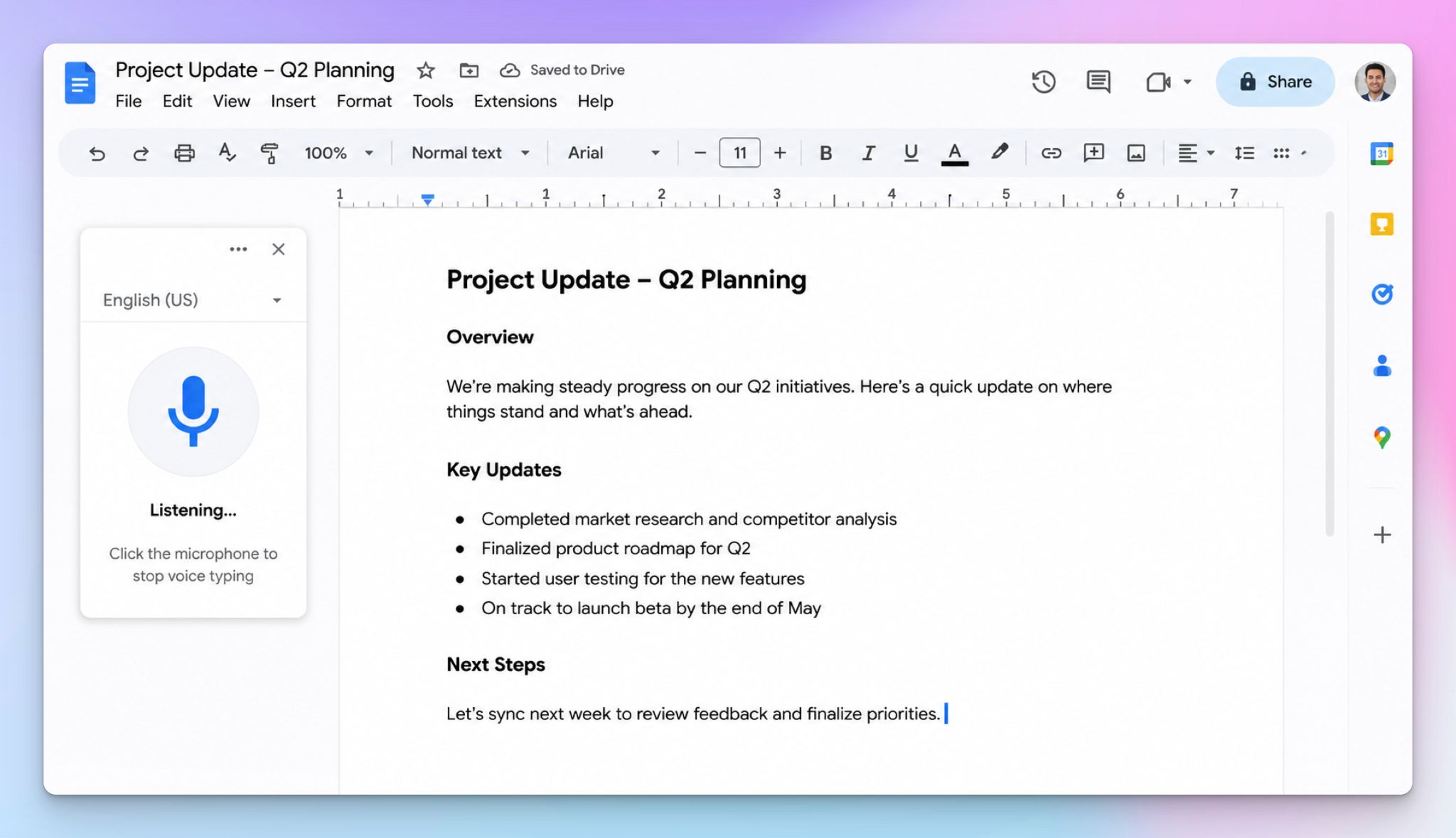
You’re not missing out on dictation if you’re not ready to pay for Wispr Flow. Google Docs Voice Typing is the free option available inside Google Docs. You open a document, switch on the microphone, and talk.
It’s dead simple, and for first drafts of clear English in a quiet room, it's good enough. The catch is everything it can't do once you step outside of Docs.
Google Docs Voice Typing's key features
- Turn on dictation from Tools, then Voice typing, or with Ctrl+Shift+S on Windows and Cmd+Shift+S on Mac
- Dictate in more than 100 languages, chosen from the microphone dropdown
- You can format and edit by voice with spoken commands, available in English
Google Docs Voice Typing's pricing
- Free with any Google account
Google Docs Voice Typing's pros
- It's free with no word or time limits, so you can dictate as much as you want at zero cost
- There's nothing to install or configure other than microphone permission, since it's already in Google Docs
- For clear English in a quiet room, accuracy reaches around 85-90%, which is fine for a first draft
Google Docs Voice Typing's cons
- Google Docs Voice Typing only works inside Google Docs, so you can't dictate into other apps or transcribe an audio file you've already recorded
- It doesn’t work offline and has no custom vocabulary to help it identify strong accents and technical jargon
📚 Also read:
6. Krisp
Best for: People in noisy spaces who want clean meeting transcripts without a bot joining the call
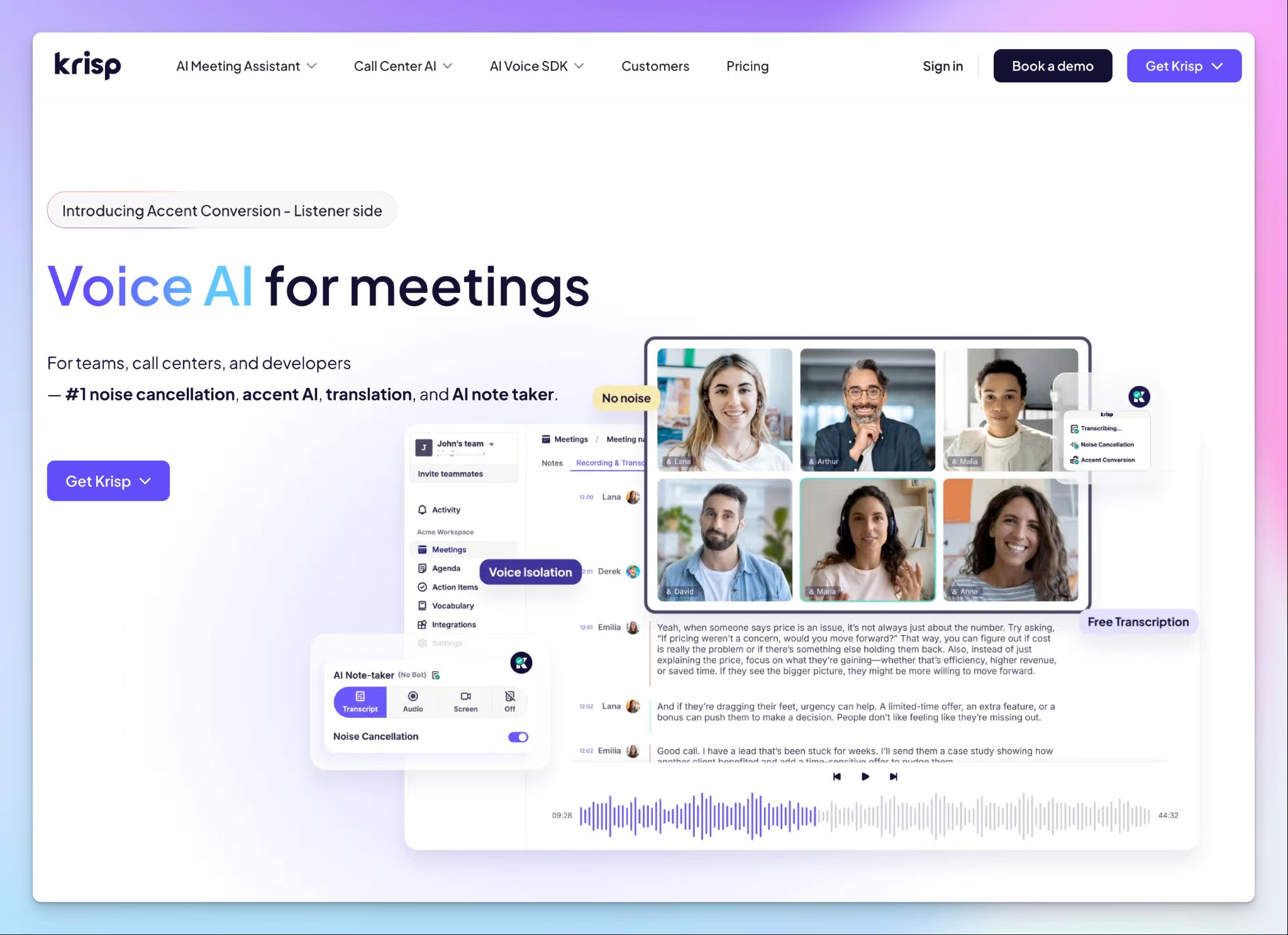
Even though Krisp today resembles an AI meeting assistant, it started as a noise-cancelling tool. And that’s why it's here. Krisp strips keyboard clatter and background noise out of spoken words in real time, then transcribes and summarizes the speech.
It stands out because no visible note taker joins your call, and it leans heavily on privacy through on-device processing. Whether Krisp is right for you comes down to how much that noise removal is worth to you, since the transcription and notes are less developed than the noise tech.
Krisp's key features
- Clean both sides of the call in real time, with separate toggles to cut your own background noise or the other participants'
- You can transcribe in real time at 90%+ accuracy across 16+ languages, with English processed on-device for privacy and speed
- Turn every call into assigned action items with owners and deadlines, then search any past transcript by keyword to find a decision in seconds
- Translate speech and modify accents live with Krisp's real-time voice agent, built for call centers and global teams that work across languages
Krisp's pricing
- Free trial: 7 days
- Core: $16/month
- Advanced: $30/month
- Enterprise: Custom pricing
Krisp's pros
- Noise cancellation is one of the best in the segment. Krisp scrubs keyboards and background chatter even in a packed conference hall
- Setup took a couple of minutes, and it auto-detects whichever app I'm calling from
- It's SOC 2 Type II and HIPAA compliant, so it’s useful for sensitive client or patient calls
Krisp's cons
- Krisp no longer has a permanent free plan, so after a 7-day trial, you're on a paid tier starting at $16 a month
- Krisp's noise removal can sometimes flatten a voice or leave artifacts, forcing many users to look for reliable Krisp alternatives
Which speech-to-text software is best for you?
The right speech-to-text tool depends on what you're doing with your voice.
👉 Otter AI makes sense when your meetings are in English, and you want AI notes to show up after meetings.
👉 Whisper is the choice when you don’t want your recordings to be stored in third-party servers, and running an open-source model yourself isn't a problem.
👉 Wispr Flow is worth it when you'd rather dictate than type and want formatted text in any app.
👉 Google Docs Voice Typing is the free fallback when you write inside Google Docs and want zero setup.
👉 Krisp is the pick when background noise is your real problem, and you want decent meeting transcripts.
👉 HappyScribe stands out as the top speech-to-text software that fits multiple use cases. From recorded files to virtual live meetings to in-person conversations, HappyScribe turns any type of audio into text. You get a bot-free audio recorder in your phone and can choose between AI speed and 99% human accuracy.
You get wide language support across 150+ languages and dialects, your data doesn’t leave EU, and you can permanently delete your files anytime.
Start on the free plan and run it against your own meeting or interview audio before spending anything.
FAQs about the best speech-to-text software
What is the best voice-to-text software?
For turning audio and video recordings into highly accurate transcripts, HappyScribe is the top pick, combining AI speed with human review. If you mainly want hands-free voice notes, Wispr Flow is one of the best dictation software out there, and a free speech-to-text app like Google Docs voice typing covers quick jobs.
Is there a software that converts voice to text?
Yes. Speech-to-text recognition software like HappyScribe and Otter turn your voice into written text. As you begin speaking, it records and writes the words down, so you can speak naturally instead of typing. Built-in tools like Apple Dictation in iOS devices and Microsoft Word Dictate do this for free.
Is there a free speech-to-text?
Yes, several are completely free. Google Docs voice typing turns speech into a Google Docs file document at no cost, and Windows voice typing and Apple Dictation are built in as a speech-to-text feature on your devices. Many paid tools like HappyScribe and Fathom also offer a free version.
What is the best free speech-to-text software for Windows?
On Windows, the best free options are built in. Windows voice typing handles quick dictation, while Windows Voice Access adds voice control and lets you create custom voice commands to run your PC. The older Windows Speech Recognition is still available.
What is the most accurate speech-to-text software?
For accuracy, HappyScribe leads, producing highly accurate transcripts with AI (over 95% accuracy) and human review reaching 99%. That precision suits legal professionals and researchers who can't afford mistakes.
Can speech-to-text software work offline?
Mostly no. Most speech-to-text tools send your voice to the cloud and require an internet connection. Self-hosted Whisper is the exception, running fully offline on your own machine. HappyScribe takes a middle path. Its iOS and Android apps capture a voice recording offline, then transcribe it once an internet connection returns.
What is the difference between transcription and dictation software?
Transcription software turns existing recordings or phone calls into text after the conversation, usually through a web app with advanced features like speaker labels. Dictation software converts your spoken language into text live as you talk, and the best dictation software adds enhanced dictation and custom commands. In short, transcription is for recordings and serious tasks, and dictation is for quickly writing by voice.

Biplab Mazumder
Biplab is a content marketer and writer who helps high-growth brands scale content visibility across AI search channels. His works have been published in HubSpot, Freshworks, Atlassian, SurferSEO, etc. When he's not planning content strategy, he's testing AI content workflows and use cases.