


TL;DR ⏩
- Record lectures with HappyScribe from your phone or laptop, use the AI notetaker for online classes, or upload an existing recording.
- Transcribe a lecture into notes and search within them instead of replaying the whole recording.
- Review the parts where accuracy is critical, especially technical terms, names, formulas, and definitions. Custom glossaries help with recurring course terminology.
- Use HappyScribe’s AI Chat to turn transcripts into study notes, pull out explanations, and create revision material without digging through thousands of words.
- Organize lectures into folders and search across multiple classes later. HappyScribe’s free plan gives you a way to try the workflow before deciding whether you need more recording or transcription capacity.
Taking notes during a lecture is a weird little endurance sport, isn’t it?
You’re trying to listen, understand, and write everything down while your lecturer is already three slides ahead and saying: “This part is important.”
So you record the class. Great. Except now your backup plan is a 67-minute audio file called something like Recording_2026-08-24_final that you absolutely do not want to replay from the beginning just to find one definition.
Transcribing the lecture makes that recording far more useful. You can turn the audio into text, extract the important bits, and search for a concept later.
HappyScribe can handle the workflow whether you’re sitting in a lecture hall, joining classes online, or working with a recording you already have.
📌 Important:
Having a lecture recorder app to fall back on is a smart move. But explaining to your university why you recorded one without permission? Isn’t fun. Before you hit record, check your institution’s rules and get consent from your lecturer, classmates, or anyone else who needs to agree.
How to transcribe a lecture into notes with HappyScribe
The best way to capture a lecture depends on how you are attending it.
| Type of lecture | Best HappyScribe method |
|---|---|
| In-person lecture | Record with the HappyScribe mobile app |
| In-person lecture with your laptop open | Use the browser recorder |
| Google Meet, Zoom, or Microsoft Teams class | Use the AI notetaker |
| Previously recorded lecture | Upload the audio or video file |
Whichever method you choose, the basic workflow is the same:
Record or upload the lecture > generate a transcript > review important details > turn it into study notes > search it later.
📌 Quick reminder:
Use AI as a study assistant, but don’t outsource thinking to AI. HappyScribe can transcribe lectures, help you find something your lecturer said, organize your notes, and make revision less painful. Your assignments, arguments, analysis, and actual learning should still come from you.
Step 1: Record or upload your lecture
Record an in-person lecture with the mobile app
For a classroom lecture, your phone is the easiest option.
The HappyScribe mobile app is free to download on iOS and Android and works with the free plan as well as paid plans. Open the app, start recording, and place your phone somewhere it can clearly pick up the lecturer.
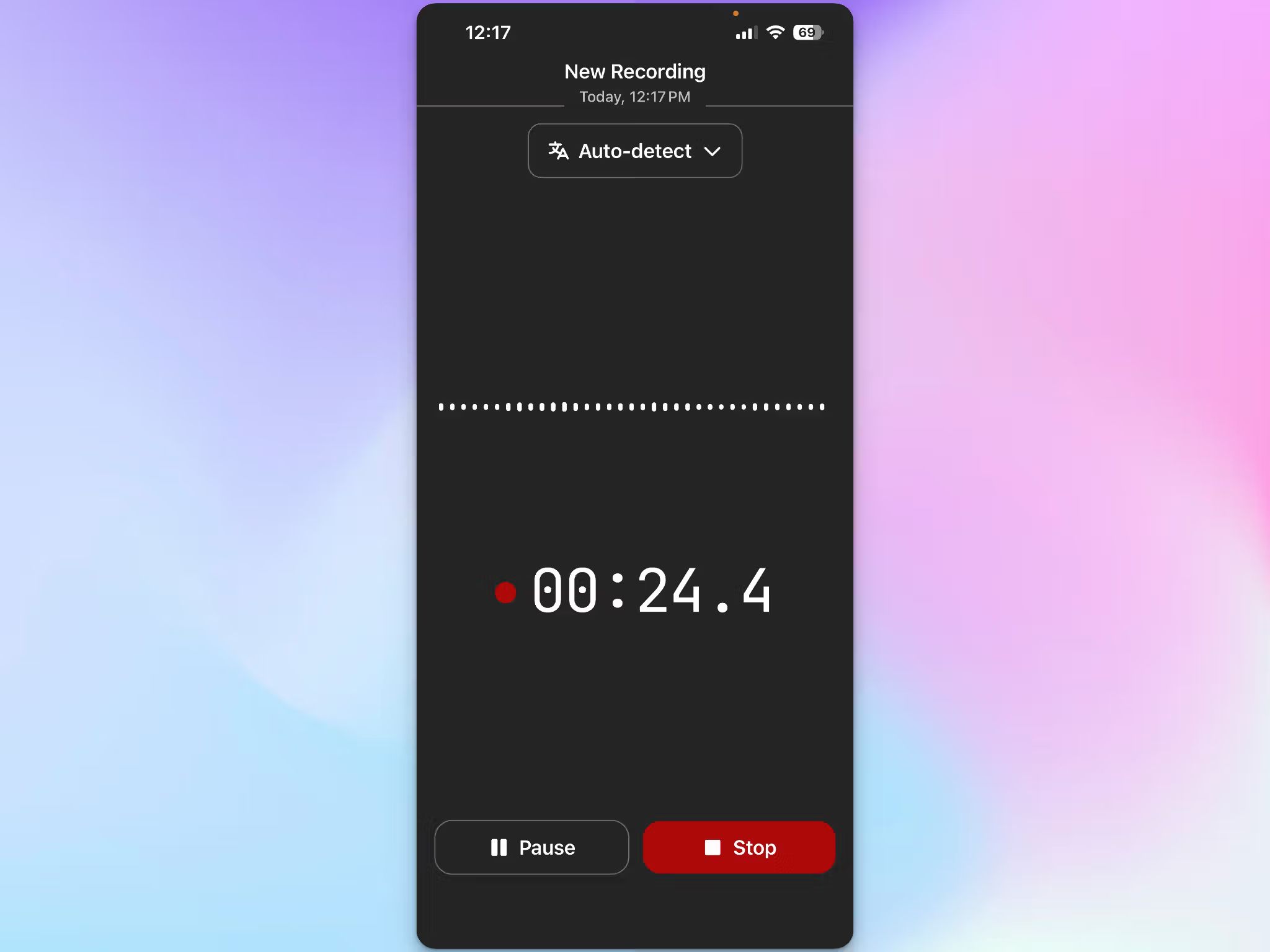
You can pause and resume the recording when needed. HappyScribe also continues recording if you lock your screen or switch to another app.
Once you stop the recording, it uploads to your HappyScribe workspace for transcription. If you are offline, the app will retry the upload once you reconnect.
Your recording also syncs with your HappyScribe workspace, so you can capture the lecture on your phone and work with the transcript later from your computer.
Record from your laptop with the browser recorder
If you’re attending an in-person lecture with your laptop already open, you can record directly through HappyScribe's browser recorder.
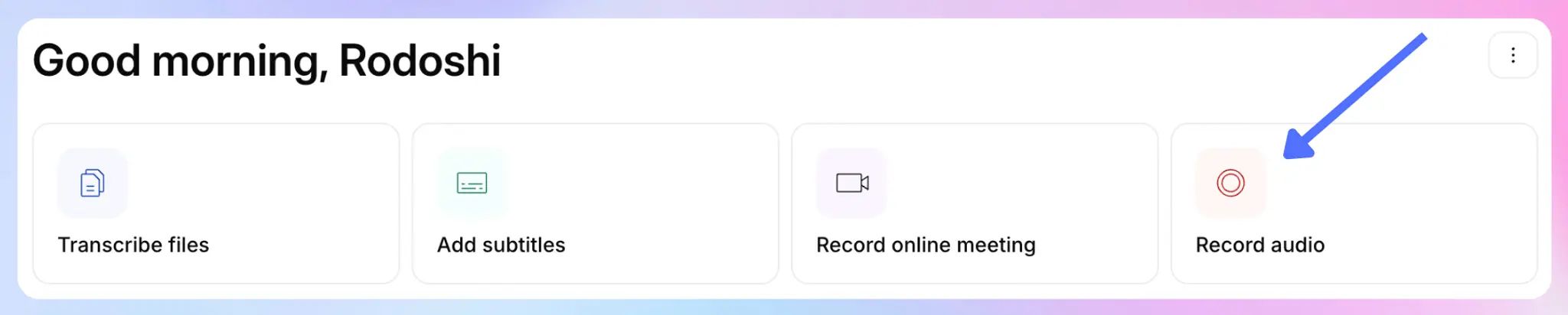
Choose Record audio, allow microphone access, select your input device and language, and start recording.
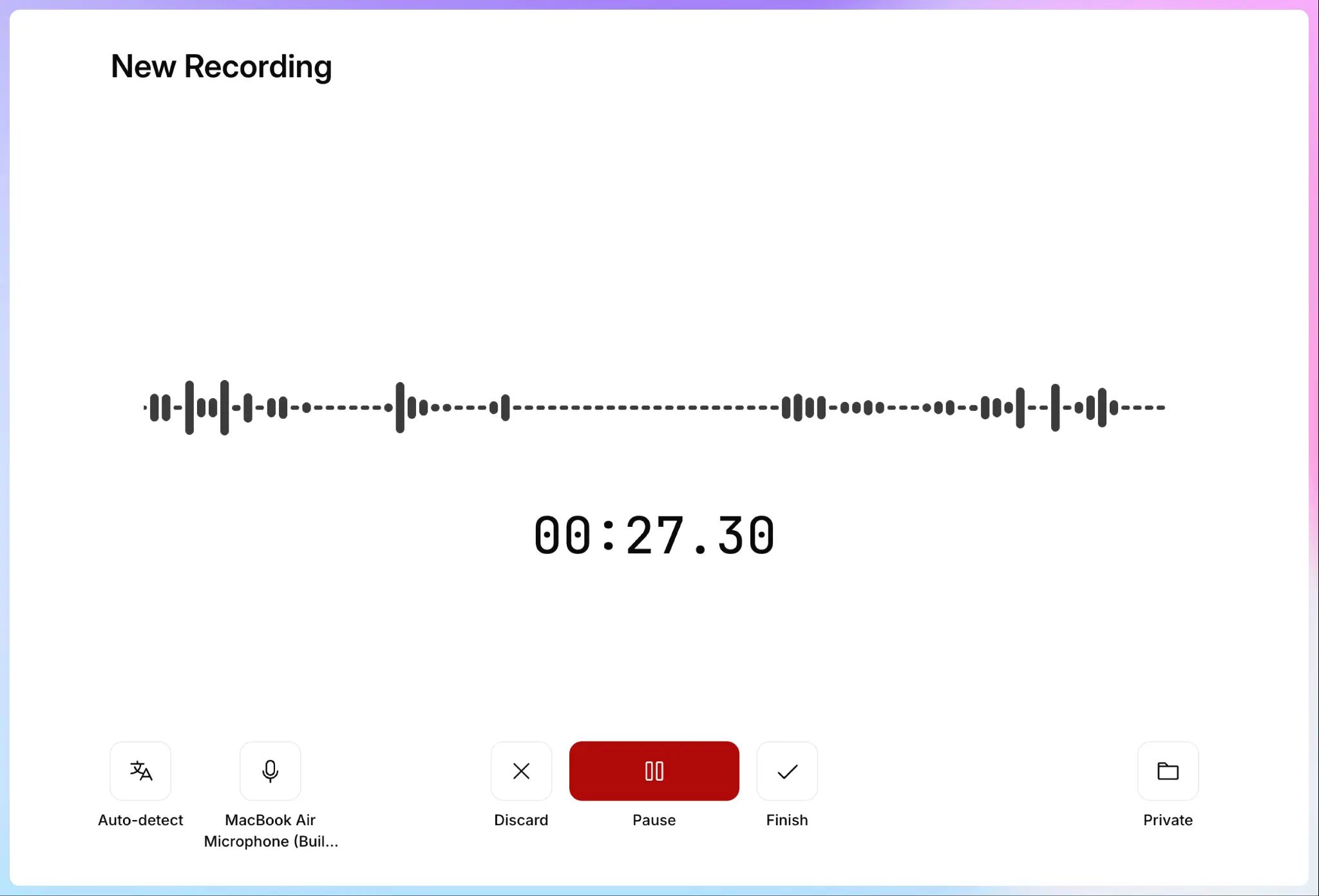
When the lecture ends, stop and save the recording. HappyScribe uploads it and starts transcription automatically.
You can also start a recording from inside an existing HappyScribe folder, which makes it easier to keep lectures organized by course, semester, or subject.
Capture an online lecture with the AI notetaker
For live classes on Google Meet, Zoom, or Microsoft Teams, you can use HappyScribe's AI notetaker. It covers both audio transcription and video transcription.
Connect your Google or Outlook Calendar and configure when you want the note taker to join scheduled calls. You can also invite it manually by pasting a meeting link.
If you enable automatic joining, the note taker can join scheduled online classes without you having to start a separate recording each time.
The best part, HappyScribe offers a generous free plan. You get unlimited recordings, with up to 45 minutes per recording. The free plan also includes AI summaries and lets you analyze up to three files per month with AI Chat.
The notetaker appears as a participant in the call and requires the necessary host permissions before recording can begin.
The free plan is a great place to start, but if you’re planning to use HappyScribe for most of your classes, you may find the 45-minute recording limit a little tight.
A standard 60-minute lecture already runs past it, which means you could miss the final part of the class unless you restart the recording. The Basic plan starts at $8.50 a month and gives you more flexibility for longer lectures, along with a monthly pool of transcription minutes.
Take a quick look at our pricing page and choose the plan that gives you enough room for your typical week of classes.
Upload a previously recorded lecture
Already have the lecture recording? You don’t need to record it again.
HappyScribe lets you upload existing audio or video files from your computer. You can also import supported files from services such as Google Drive, Dropbox, Box, YouTube, and Vimeo, or provide a public link.
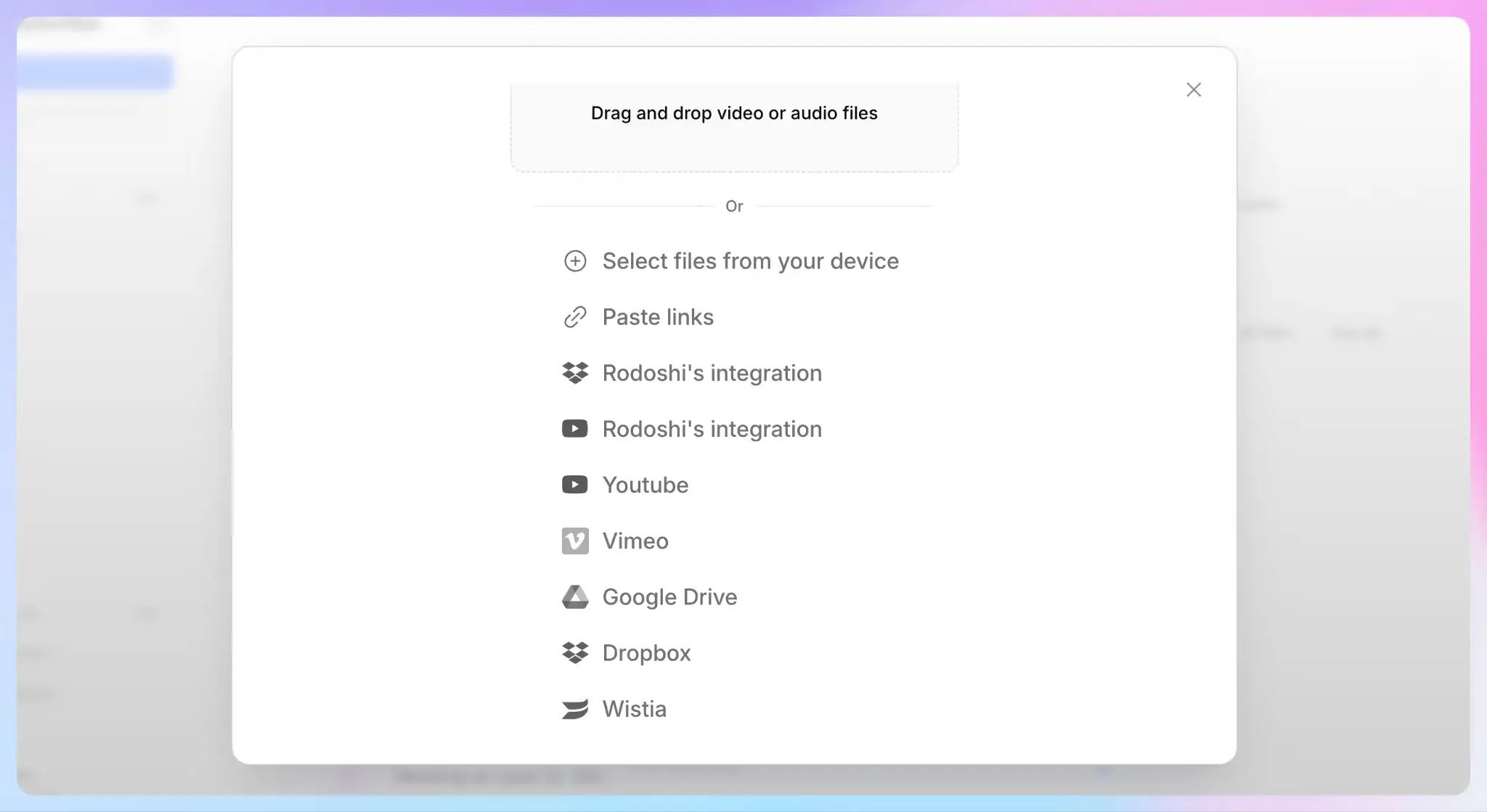
The free plan includes a 10-minute trial of AI transcription for uploaded files. Again, if you regularly need to transcribe longer prerecorded lectures, you will need additional transcription minutes through a paid plan.
Step 2: Transcribe the lecture
Once the recording is finished, HappyScribe turns the audio into a written transcript. Currently, HappyScribe supports AI transcription across 150+ languages.
For an existing recording, create a new transcript from your HappyScribe dashboard and upload the file. HappyScribe supports common audio formats including MP3, WAV, M4A, AAC, FLAC, and OGG.
Choose the spoken language and submit the recording for transcription. HappyScribe supports 150+ languages for AI transcription.
For in-person recordings, HappyScribe generates the standard transcript after the recording has been completed and saved rather than transcribing it live as you record.
For most lectures, that works well. You can stay focused on the class while it’s happening and review the transcript afterward.
Step 3: Review the details
An AI-generated transcript gives you a detailed record of the lecture, but you do not need to proofread every sentence before you start studying.
Focus on information where accuracy matters most:
- Technical terms and subject-specific vocabulary
- Names of researchers, theories, books, or case studies
- Numbers, dates, formulas, and definitions
- Passages where the recording was unclear
There’s a good reason to check the key details. A 2025 study of first-year medical students found that 94% used lecture transcripts, while 59% said transcript errors had negatively affected their learning.
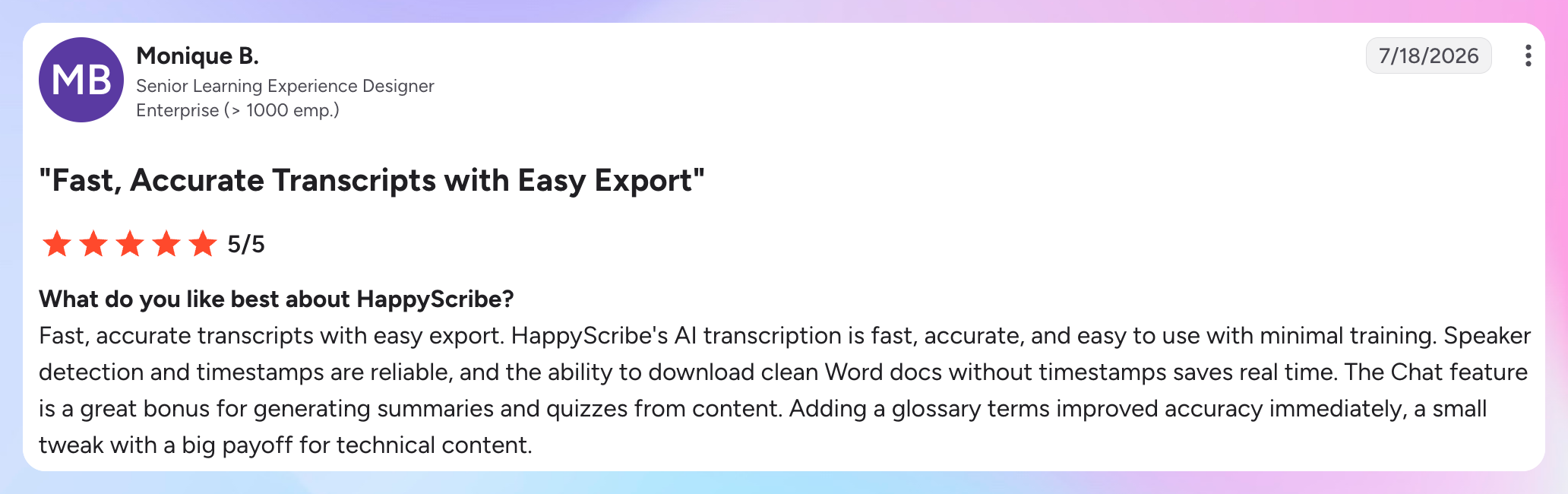
The good news is HappyScribe offers 95%+ AI accuracy, and you can make corrections directly in HappyScribe's transcript editor.
Students and researchers love HappyScribe for its accuracy. Here's what they're saying (via G2):
When you spot terminology that is likely to come up again, add it to a custom glossary instead of correcting the same word lecture after lecture.
In HappyScribe’s web editor, open the Glossaries tab to build your terminology database, or highlight a word in the transcript and select Add to glossary.
It’s worth creating a glossary for each course early in the semester, especially for subjects packed with specialist vocabulary, names, or abbreviations. If your syllabus already includes a terminology list, you can also import it as a CSV from Settings > Glossaries.
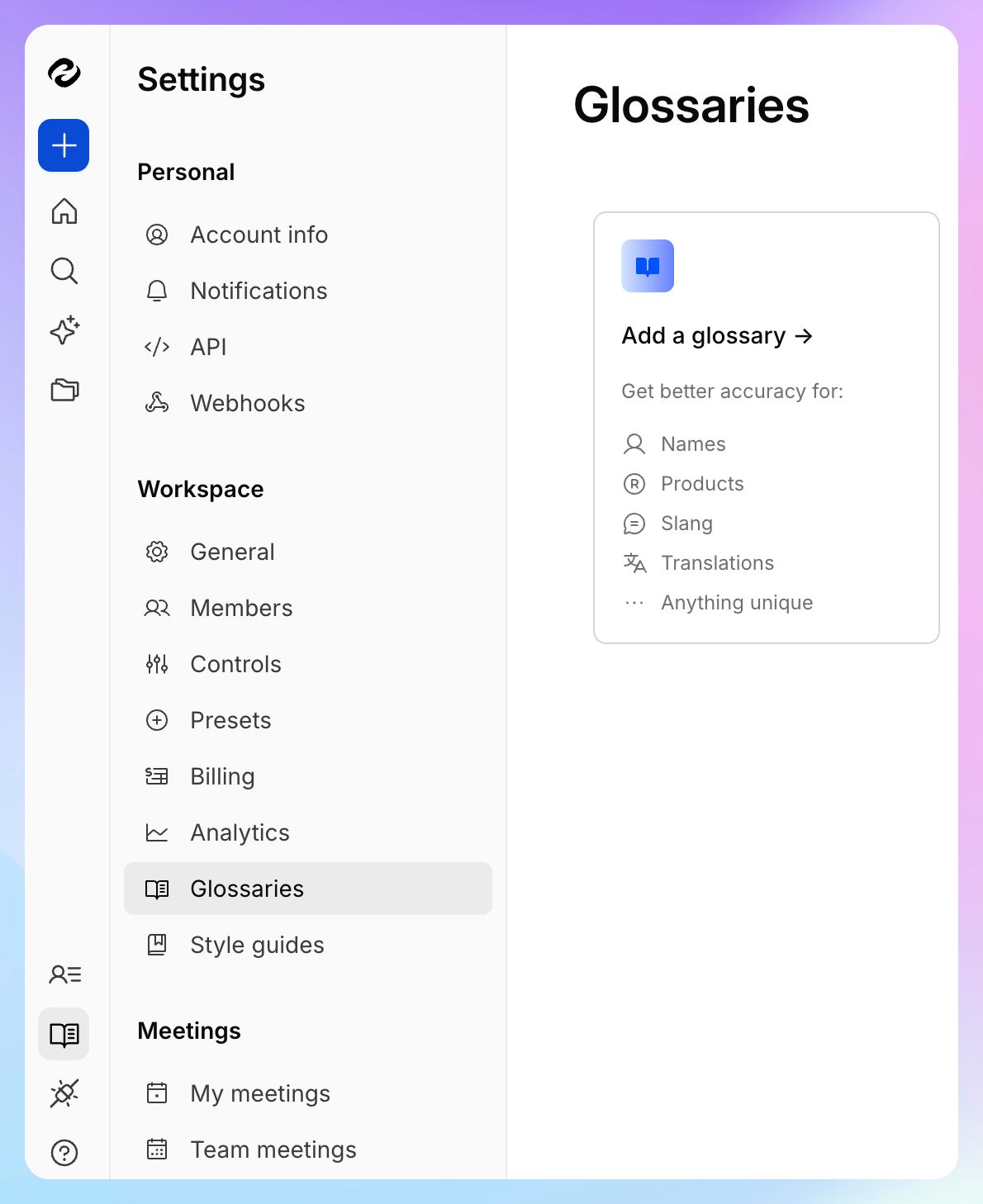
That small bit of setup makes future transcripts easier to work with and more reliable to search. Since your phone recordings live in the same workspace, the glossary is applied to those recordings automatically.
Step 4: Turn the transcript into study notes
A full lecture transcript may contain thousands of words. Revising directly from it can quickly become overwhelming.
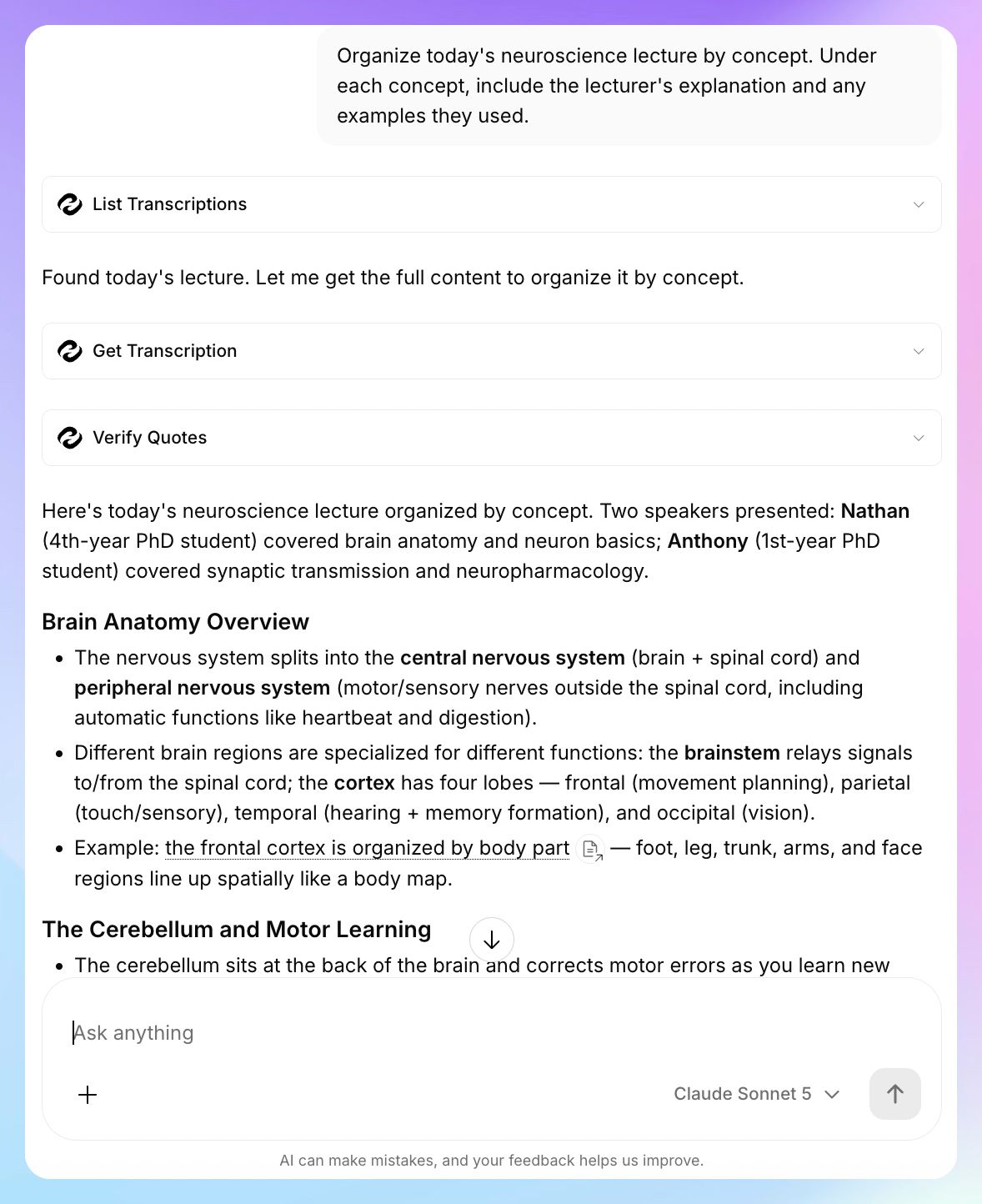
HappyScribe's AI Chat lets you ask questions about completed transcripts in plain language. You can chat with one lecture or work with several transcripts stored in the same folder.
AI Chat is available on the free plan too, with up to three file analyses per month. Paid plans increase those limits.
For example, you could ask:
- Summarize today’s lecture into revision notes organized by topic
- List the important concepts introduced in this lecture
- What examples did the lecturer use to explain [topic]?
- Create revision questions based on this transcript
- Find the section where the lecturer explained [concept]
For a dense lecture, avoid asking only for a generic summary. Give AI Chat some structure.
For example:
Organize the lecture by concept. Under each concept, include the lecturer's explanation and any examples they used.
Or:
Turn this transcript into study notes. Keep important definitions and examples.
You can then return to the original transcript whenever a note needs more context.
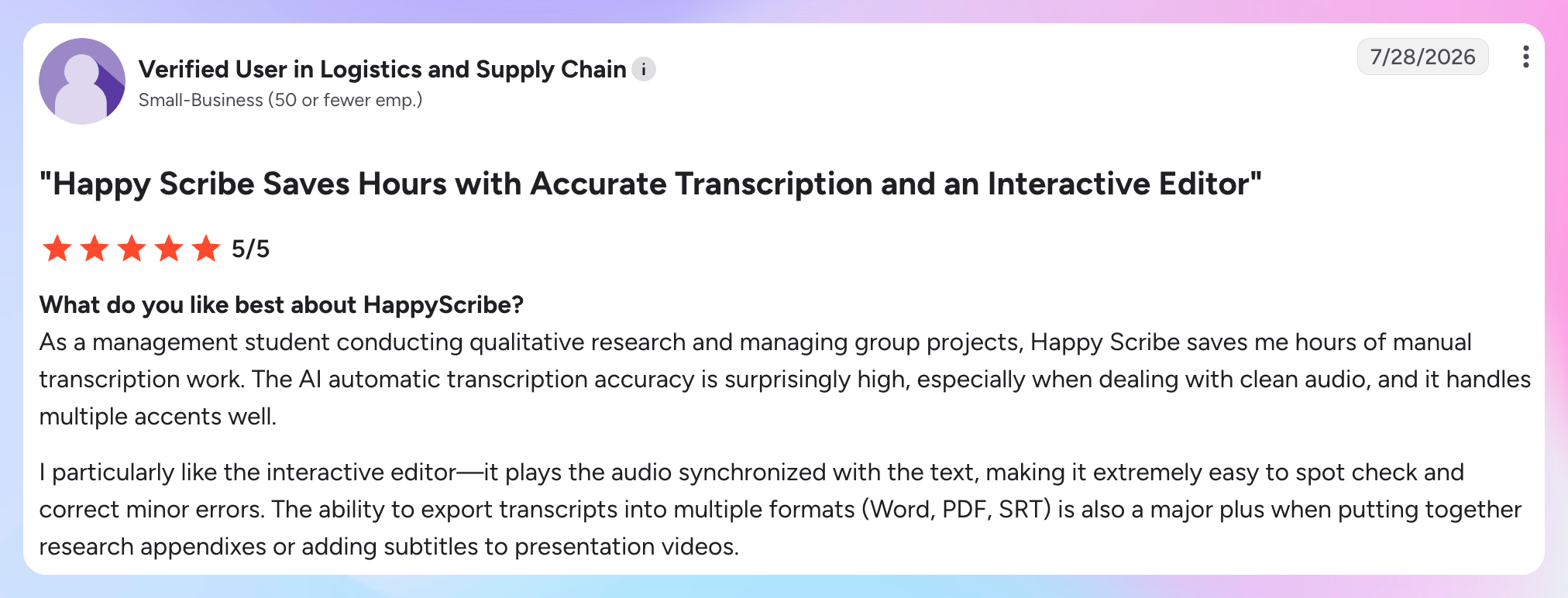
Hear it from a HappyScribe user (via G2):
Step 5: Search across your recorded classes
The workflow becomes even more useful once you have several lectures saved.
HappyScribe lets you organize transcripts into folders, and AI Chat can work across all the files in a folder.
Suppose you create a folder for one course:
ECON 201
- Week 1: Introduction
- Week 2: Supply and demand
- Week 3: Elasticity
- Week 4: Market structures
- Week 5: Competition
When revision starts, you can ask:
- Which lectures discussed price elasticity?
- Find the examples the lecturer gave about market failure.
- What did the lecturer say about monopolies across these classes?
- Which lecture covered opportunity cost?
Instead of remembering roughly when a topic came up or replaying several recordings, you can search across the lecture transcripts you have already saved.
Should you stop taking notes during lectures?
As an aggressive note-taker who enjoyed turning every lecture into a speed-writing competition…I’d say no.
Before you roll your eyes at me, hear me out.
A transcript is good at preserving what was said. Your own notes can capture what you thought was important.
There’s evidence to support the benefits of writing your own notes. In a 2025 field experiment with 196 university students, students who took notes while watching a video lecture showed greater learning engagement and performed better on the post-test than those who did not take notes.
During class, you can keep your notes lighter (unlike me, who unfortunately didn’t have access to an AI notetaker back then!). Write down questions you want to ask, connections to previous topics, ideas the lecturer emphasizes, or sections you want to revisit.
After the lecture, use the transcript to fill in details you missed.
This means you do not have to choose between listening properly and keeping a detailed record of the class.
Turn recorded classes into searchable study notes
A lecture recording becomes much more useful once you can search for topics within it instead of replaying it from the beginning.
With HappyScribe, you get full flexibility to transcribe your college lectures. You can capture an in-person lecture from your phone or laptop, use the AI notetaker for online classes, or upload a recording you already have, be it from your class or a lecture you found on YouTube.
You can use the tool for free before deciding whether you need a paid plan.
Once the lecture is transcribed, you can turn it into structured notes, ask questions about what was discussed, and search across previous classes when you need to find something again.
Over a semester, those individual recordings become a searchable study library.
Happy learning!
FAQs on how to transcribe a lecture into notes
Is HappyScribe free for students?
HappyScribe has a free plan that anyone can use. It includes unlimited AI notetaker recordings of up to 45 minutes each, a 10-minute trial of AI transcription for uploaded files, and three AI Chat file analyses per month. You can upgrade if you need longer recordings, more uploaded transcription minutes, or higher AI Chat limits.
Is HappyScribe safe to use?
Yes. HappyScribe is SOC 2 Type II certified and GDPR compliant. Data is encrypted in transit and at rest, stored in an EU-based, ISO 27001 certified center. You own everything you upload, and deleted files are gone for good after a 10-day recovery window. Machine learning training is opt-in only, using de-identified content.
What is an AI lecture note taker?
An AI lecture note taker records or processes lecture audio, creates a full transcription, and helps convert the raw transcript into organized study notes. With HappyScribe, you can upload audio or video files such as MP3, MP4, WAV, or M4A, or capture the lecture directly. HappyScribe offers over 95% AI transcription accuracy and automatically detects different speakers. You can then use AI Chat to pull out key points, key terms, definitions, examples, and the most important concepts from the entire lecture.
Can an AI note-taking app generate flashcards and quizzes from lecture notes?
Yes. Once your lecture content has been transcribed, you can ask the AI note taker to convert it into study-ready notes, bullet points, revision questions, flashcard-style Q&As, or quizzes. With HappyScribe AI Chat, you can also ask questions about the lecture and return to the full transcript whenever you need more context. That makes it useful as an AI study tool without losing access to what your professor actually said.
Do AI lecture note takers need an internet connection?
It depends on how you capture the lecture. HappyScribe's mobile app can record an in-person or live lecture without an internet connection and upload the recording once you reconnect. You can also upload existing audio recordings or voice memos later. HappyScribe does not provide live transcription while recording an in-person lecture; it generates the transcript after the recording is saved. For online classes, its AI notetaker can join Google Meet, Zoom, or Microsoft Teams and create the transcript after the lecture ends.
How can I turn a full lecture transcript into organized study notes?
Once you have the full transcription, ask AI Chat to convert the lecture content into organized notes with headings, bullet points, key terms, definitions, examples, and the most important concepts. You can also request a format such as the Cornell Method, which separates main ideas, cues, and a summary. For technical academic content, ask it to preserve formulas mentioned by your professor, but verify important formulas and details against the raw transcript or course materials. You can then use AI Chat like an AI tutor to answer questions using the lecture’s full context.

Rodoshi Das
Rodoshi is the Content Lead at HappyScribe, the privacy-first transcription and AI notetaker platform based in Barcelona. Shaping content strategies and building AI workflows excites her as much as exploring new SaaS tools. She specializes in product-led content that informs rather than sells, grounded in honest product benchmarking and low tolerance for empty marketing speak.