You can send an AI notetaker into a Zoom or Teams call, but you can't send one into a room.
So in-person meetings fall back on the old method: scribbling notes while you talk.
Writing pulls your attention off the conversation, and whatever you miss disappears the moment the meeting ends. It's no surprise that 54% of workers say they regularly walk out of meetings unsure of the next steps or who owns what.
There’s a better way. Record the room on your phone or laptop, and let AI turn the audio into a clean transcript, a summary, and a list of action items. You stay present in the meeting, and nothing slips past you.
Or even better, use a dedicated meeting recording and transcription tool like HappyScribe to securely capture in-person conversations.
Option 1: Record the call and then upload to an AI note taker
Capture the audio where the meeting happens, then upload that file to an AI note taker like HappyScribe, which transcribes and summarizes it for you.
Any recorder does the job for the first part: your phone, your laptop, or a handheld voice recorder all produce a file the AI can read.
Once it lands in your workspace, HappyScribe returns a full transcript with speaker labels, a summary of the key decisions, and a list of action items, within minutes.
The result is the same output the AI notetaker bot delivers on a Zoom or Google Meet call, applied to a conversation no bot could join.
You record, then read the write-up after everyone leaves the room.
Option 2: Record your meeting With HappyScribe
HappyScribe is a European, privacy-first transcription and AI meeting note taking tool, with EU data residency, GDPR compliance, and SOC 2 Type II certification.
For online calls, its AI notetaker joins Zoom, Google Meet, and Microsoft Teams automatically.
And for the conversations that happen in a room, you can capture audio directly using HappyScribe, and transcribe it in 150+ languages.
Two ways to capture an in-person meeting
The HappyScribe mobile app for iOS and Android turns your phone into a recorder that syncs straight to your workspace. The browser recorder captures from a laptop without installing anything. Both feed into the same library, ready for AI summaries and search.
Set up a custom glossary first
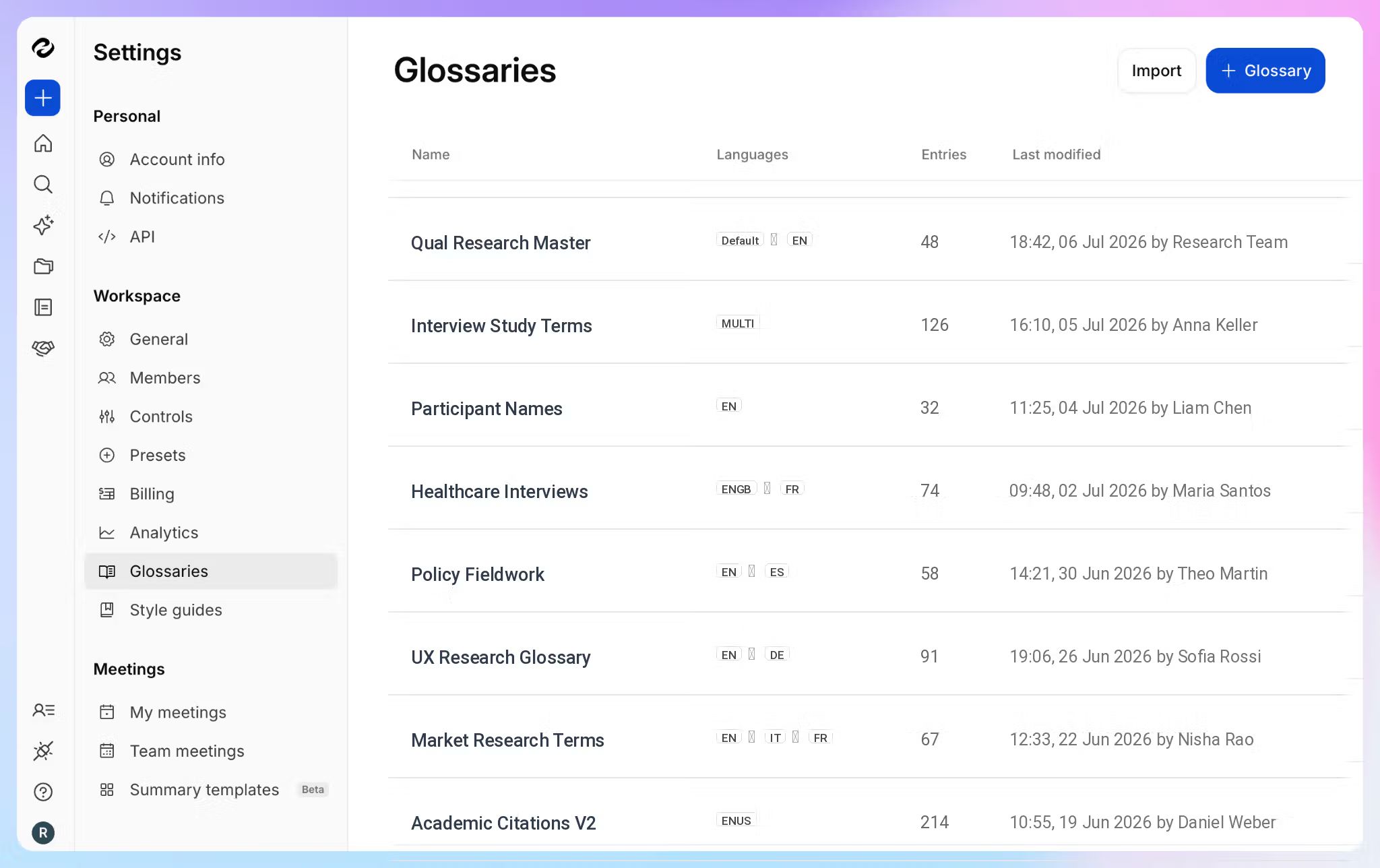
Add your company names, product names, and industry terms before the meeting, and you teach the AI your vocabulary. Proper nouns and acronyms then come through spelled correctly, which saves you cleanup work afterward.
Always get consent before recording
Tell everyone in the room that you are recording, and confirm they agree. Recording laws vary by location, since some regions require consent from one party and others from every participant, so a clear heads-up at the start keeps you on safe ground.
📚 Also read:
How to record an in-person meeting with the HappyScribe mobile app?
HappyScribe’s mobile app is the simplest way to capture a conversation away from your desk.
You can download it free on iOS and Android, it works on every plan including free accounts, and it runs on the same AI engine as the web version.
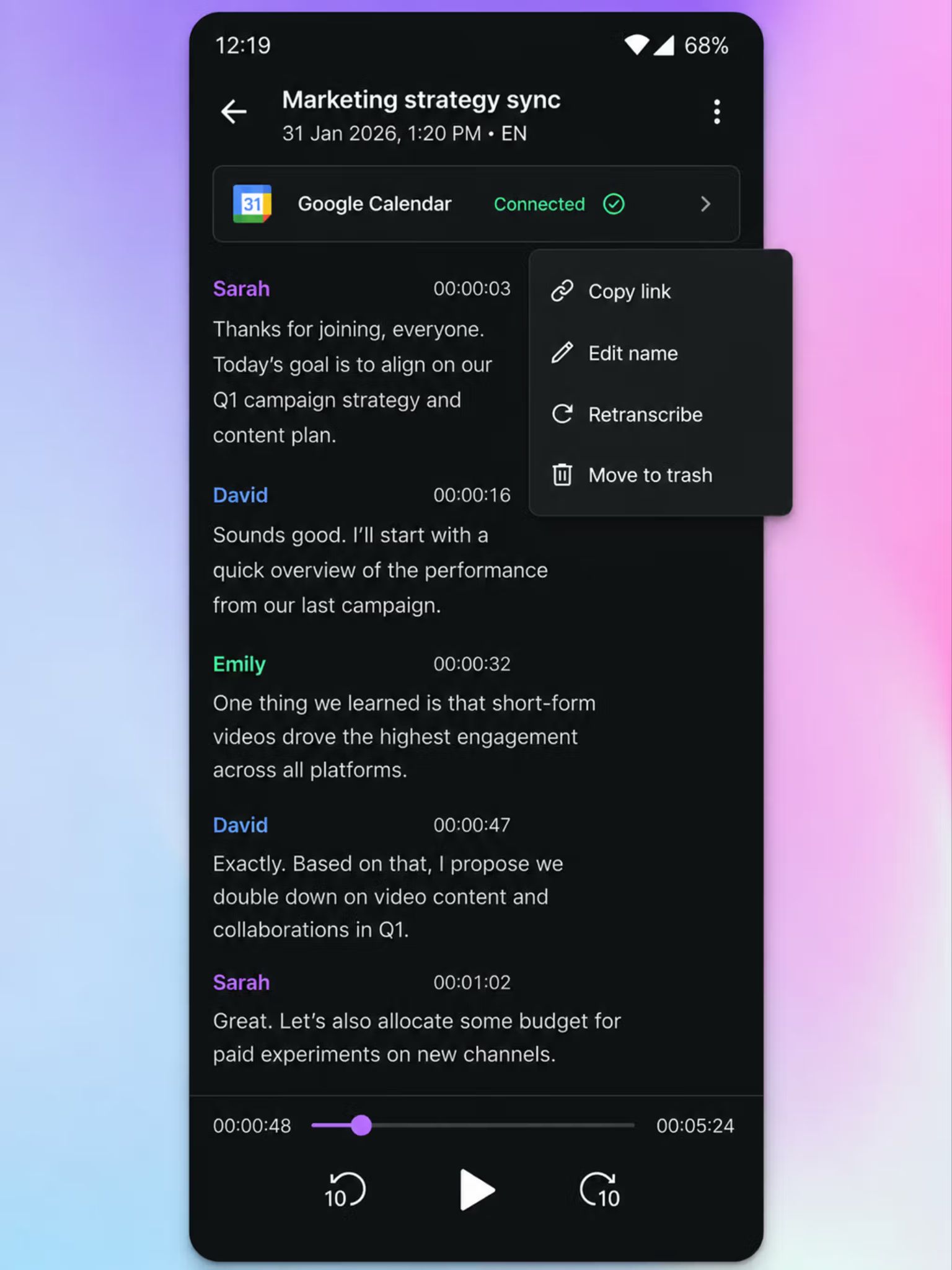
Follow these steps:
- Download the HappyScribe app from the App Store or Play Store and sign up/sign in with your existing account.
- Connect your Google Calendar or Outlook Calendar to HappyScribe.
- Place your phone flat on the table, roughly in the center so it picks up everyone evenly, then tap Record. A live waveform and timer confirm that it is capturing audio.
- Let it run. The recording continues while your screen locks or you switch apps, and you can pause and resume if needed.
- Tap Stop when you finish, name the recording, confirm the language, and tap Save. The file uploads in the background, and it survives a weak signal or the app closing.
- Open HappyScribe on the web. Your transcript lands a minute or two later, with speaker labels and timestamps you can tap to jump to any moment in the audio.
A quick habit lifts accuracy more than any setting: in a large or noisy room, clip an external mic to your phone or move it closer to the main speakers.
This method suits meetings around a table, on-site interviews, conferences, and hallway debriefs, anywhere the audio sits in the room with you.
Don’t just take my word for it. Here’s what our users are saying on G2:
I like that HappyScribe is easy to use across multiple devices. I can use it on my laptop and my mobile phone, which is really handy for recording. The integration with OneDrive is also great, as it allows me to pick up where I left off back in the office. It's convenient to have recordings uploaded and then easily take the output, assign names to different speakers, and create a meeting summary. I also appreciate how well it picks up vocals even with some background noise. Additionally, the interaction between mobile and laptop is seamless, which I find very useful.
I can record meetings from anywhere: Notetaker, Mobile app, or the web recorder. It works just as well for online calls as it does for in-person interviews. The team keeps adding new notetaker options and settings, and they update the mobile app regularly. It's great to watch the product keep getting better.
📚 Also read:
How to record an in-person meeting in your browser?
No phone handy? HappyScribe's browser recorder captures audio straight from your laptop, with nothing to install. This method works for any impromptu conversation that never had a calendar invite.
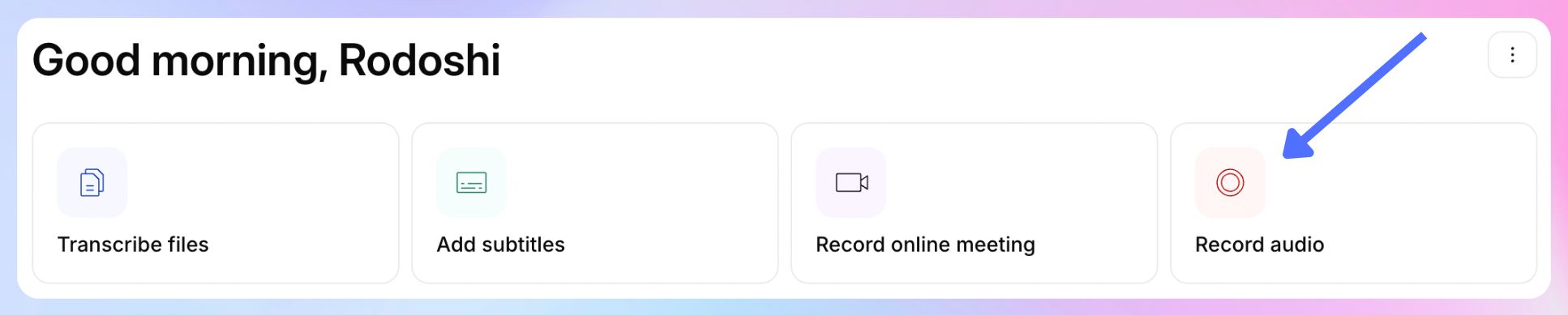
You can find the Record audio option on your HappyScribe workspace dashboard. Grant microphone access, start recording, and the recording appears in your library, ready to transcribe.
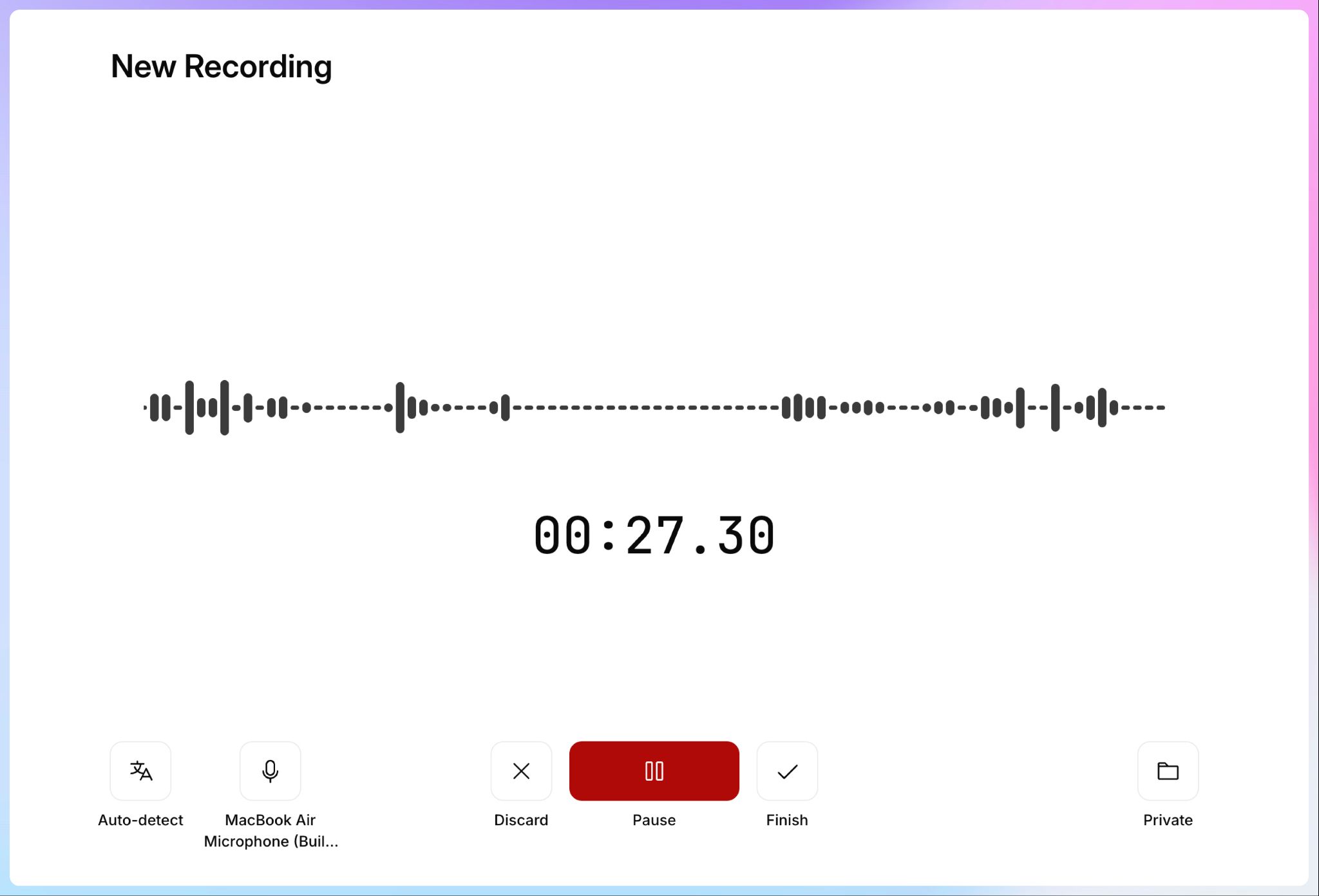
If you would rather not sign in, HappyScribe also offers a free online voice recorder that runs entirely in your browser and keeps the audio on your device for privacy. It records in HD and downloads as an MP3, which you then upload to HappyScribe to transcribe.
Reach for the in-workspace recorder when you want the recording to sync automatically, and the free tool when you want a quick capture with no account.
Mobile app or browser recorder: Which one should you use?
Both methods land your recording in the same workspace for transcription, so the right one comes down to the device you have at hand and how the meeting comes together.
| Point of differentiation | Mobile app | Browser recorder |
|---|---|---|
| Best for | Meetings around a table, on-site interviews, conferences | Desk-side meetings, a laptop already open |
| Setup | Free app on iOS and Android | Nothing to install, runs in your browser |
| Syncs to workspace | Yes | Yes |
| Offline recording | Yes, uploads when you reconnect | Needs a connection |
Turn your meetings into a searchable knowledge base
Once HappyScribe transcribes a meeting, it turns the recording into notes you can use and revisit. This works at two levels: a single meeting, and your entire meeting history.
Get summaries, action items, and answers from one meeting
Every recording arrives with a summary that captures the key decisions and next steps, alongside automatic action items and speaker identification. You can edit any summary and regenerate it after you make corrections.
You can use AI Chat on the transcript and ask questions in plain language. Pull every action item, find each time a topic came up, or grab the exact quote you need, and every answer traces back to what people said in the room.
Search across every meeting you have recorded
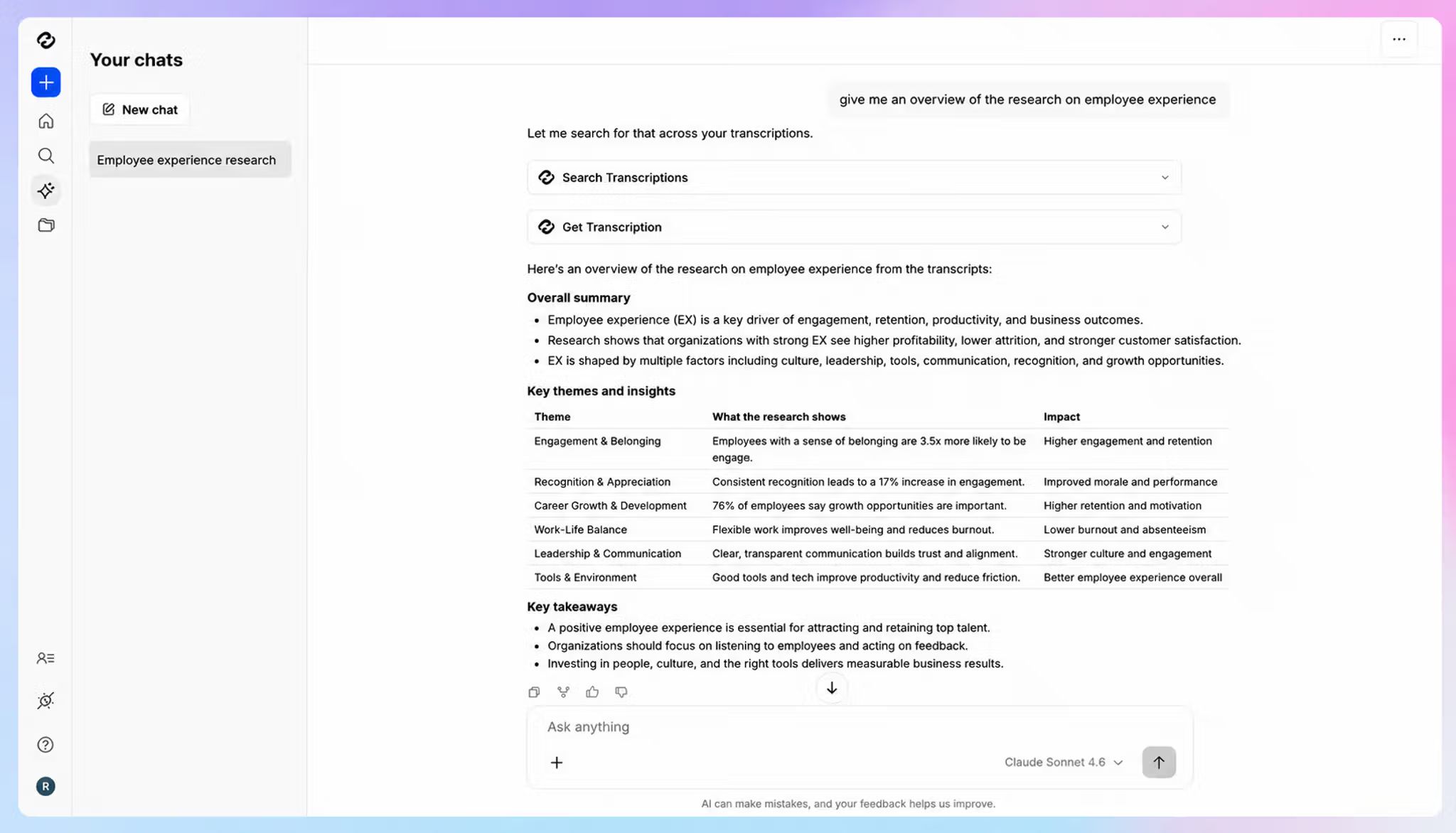
Your recordings, transcripts, and summaries live in one library instead of scattering across notebooks and apps. AI Chat runs across a whole folder or your entire organization, so you can ask what the team decided last quarter or trace how a topic developed over several calls.
This is where HappyScribe becomes your team's organizational memory.
Keep sensitive meetings secure
In-person meetings are often the confidential ones, so where the audio ends up is a real concern once you record it.
HappyScribe keeps your recordings and transcripts encrypted in transit (TLS) and at rest (AES-256), inside an EU-based Tier IV data center that is PCI DSS and ISO 27001-certified.
The platform is GDPR-compliant and SOC 2 Type II-certified, and never uses your meeting data to train AI models unless you opt in. Role-based access and per-file privacy controls let you decide exactly who sees each transcript.
Start capturing your in-person meetings securely
The discussion that happens in a room no longer has to fade the minute it ends.
Hit record on your phone or laptop, stay present in the conversation, and let HappyScribe turn the audio into notes you can search and share whenever you need them.
FAQs on how to take notes during in-person meetings
Is it legal to record an in-person meeting?
Yes, as long as everyone in the room knows about it. Consent rules differ by location, from single-party to all-party, so make the recording clear at the start and get consent before you begin.
Does HappyScribe work offline?
You can record offline with the mobile app. The upload resumes on its own once you reconnect, and transcription runs after the audio reaches HappyScribe.
How accurate is the transcription?
HappyScribe's AI reaches up to 95%+ accuracy, and you can add human review when you need broadcast or research-grade precision with 99% accuracy. A custom glossary sharpens accuracy further on names and industry terms.
What languages does HappyScribe support?
HappyScribe transcribes in 150+ languages and dialects, and it can translate transcripts into 80+ languages.
What makes meeting notes effective?
Good meeting notes capture the key points, decisions, and key takeaways rather than a word-for-word transcript. Effective notes improve team alignment and accountability, since the whole team leaves with the same understanding of what was agreed and who owns what.
The habit that helps most is listening actively instead of trying to write everything down. Focus on the main points and core concepts, let AI deliver summaries with short bullet points, and let a recording catch the exact wording if you ever need it.
What is the best note-taking method for meetings?
There is no single best note-taking method, so pick one that fits how you think. The Cornell Method divides each page into three sections for cues, notes, and a summary, while the outline method, mind mapping, and the quadrant method each organize detailed notes in their own way.
You can write notes on pen and paper if you prefer it, since handwritten notes improve long-term retention and blunt the forgetting curve. Develop a personal shorthand with symbols that flag decisions and action items. A reusable template streamlines the process so you are not rebuilding structure every time.
And if you're not a fan of manual note-taking, use an AI meeting note taker like HappyScribe to capture notes automatically.
What is the difference between meeting notes and meeting minutes?
The big difference is formality. Meeting notes are your working record of a team meeting or business meeting, while meeting minutes are a formal written record often kept for legal purposes, most commonly for a board meeting.
Minutes follow the meeting agenda and record the date, time, and meeting participants, along with every motion accepted or rejected. Because they carry more weight, it helps to assign a designated note taker, the best person to keep an accurate account while everyone else stays in the discussion. You can also use a AI note taker like HappyScribe to capture minutes and notes automatically.
How do I organize meeting notes so I can find them later?
Organize notes into clear headings for the topics discussed, action items, and a separate section for unresolved issues so follow-ups do not slip. This structure improves recall and makes it easy to refer back when you prepare for the next meeting.
HappyScribe does most of this for you. Every recording arrives with a summary and automated meeting notes that surface the key details, to-dos, and due dates, all stored electronically in one searchable library. As an AI-powered tool, it saves teams hours of write-up time each week.

Rodoshi Das
Rodoshi is the Content Lead at HappyScribe, the privacy-first transcription and AI notetaker platform based in Barcelona. Shaping content strategies and building AI workflows excites her as much as exploring new SaaS tools. She specializes in product-led content that informs rather than sells, grounded in honest product benchmarking and low tolerance for empty marketing speak.