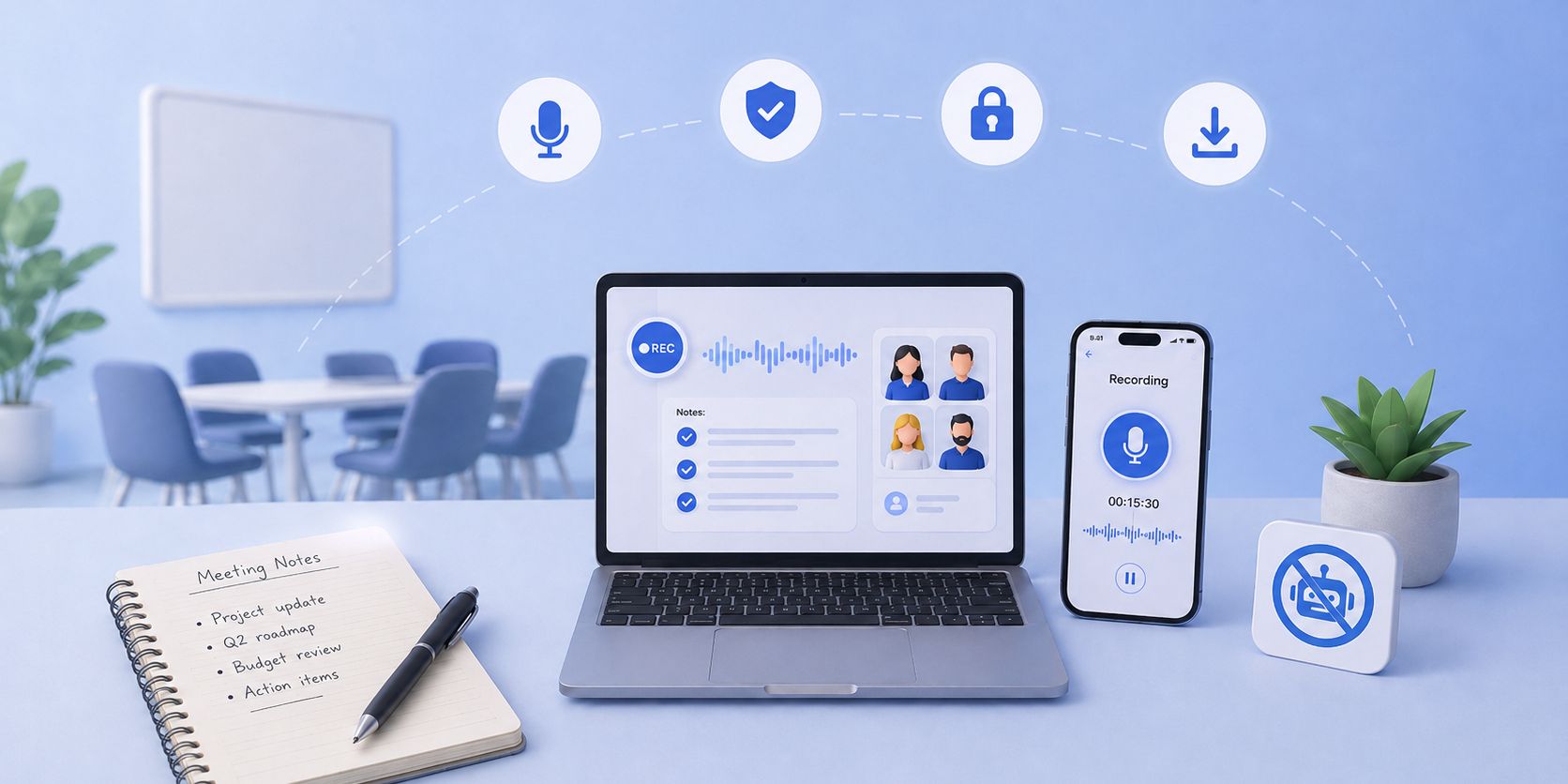
AI note takers save you the work of writing everything down, but sometimes you don't want a second attendee showing up in the participant list.
A visible bot can feel out of place on a client call or get blocked by a company's IT policy. And if the conversation is happening in-person, bot-based recorders can’t work.
Not every meeting neatly starts with a calendar invite, either. Microsoft found that 57% of meetings are ad hoc calls, while 1 in 10 scheduled meetings are booked at the last minute. For those conversations, recording directly from your device can be a much simpler workflow.
You can still get an AI transcript, meeting notes, and a searchable record without sending a bot into the call. The recording just comes from your own device, or from a file you already have.
There are three ways to do it:
- Record an online meeting directly from your browser
- Record an in-person meeting with your phone
- Record the call separately and transcribe the file afterward
HappyScribe supports all three, so you can pick the method that fits your meeting. No need to force every conversation through the same workflow.
📚 Also read:
What does it mean to record a meeting without a bot?
Bot-based recording works by adding an AI note taker to the call as a participant. It joins Zoom, Google Meet, or Microsoft Teams under its own name, and everyone can see it sitting in the meeting.
Bot-free recording captures the meeting from your own device. Nothing extra appears in the participant list, because you are the one recording.
📌 Important:
Bot-free is not the same as secret. We recommend that you always inform participants and seek their consent before recording, whichever method you use. That is on top of following your organization's recording policy and any consent laws that apply where you and the other participants are located.
How to record a meeting without a bot?
Here’s how the three methods compare before we get into the steps.
| Method | Best for | How the meeting is captured |
|---|---|---|
| HappyScribe browser recorder | Online meetings | Directly from your device |
| HappyScribe mobile app | In-person meetings | Through your phone microphone |
| Record first, upload later | Existing Zoom, Teams, Meet, or other recordings | Upload the audio or video file |
Method 1: Record an online meeting with HappyScribe's browser recorder
Best for:Zoom, Google Meet, Microsoft Teams calls where you don't want a bot appearing as a participant
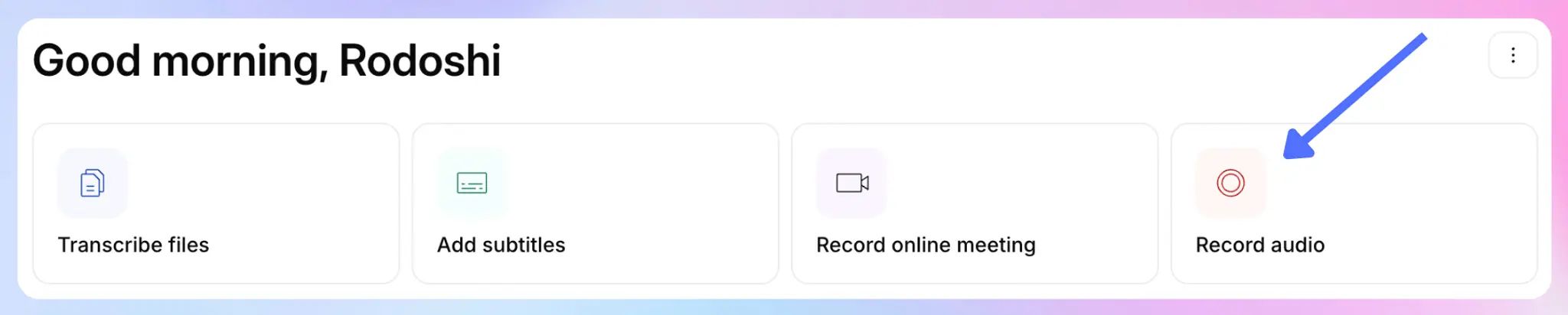
HappyScribe's browser recorder captures audio straight from your device while you are on the call. No extra participant joins the meeting.
Here’s the process:
- Open your HappyScribe dashboard and choose Record audio.
- Allow the audio permissions your browser asks for.
- Start recording before or right as the meeting begins.
- Stop the recording when the call ends,
- Let HappyScribe turn the recording into a transcript and meeting notes.
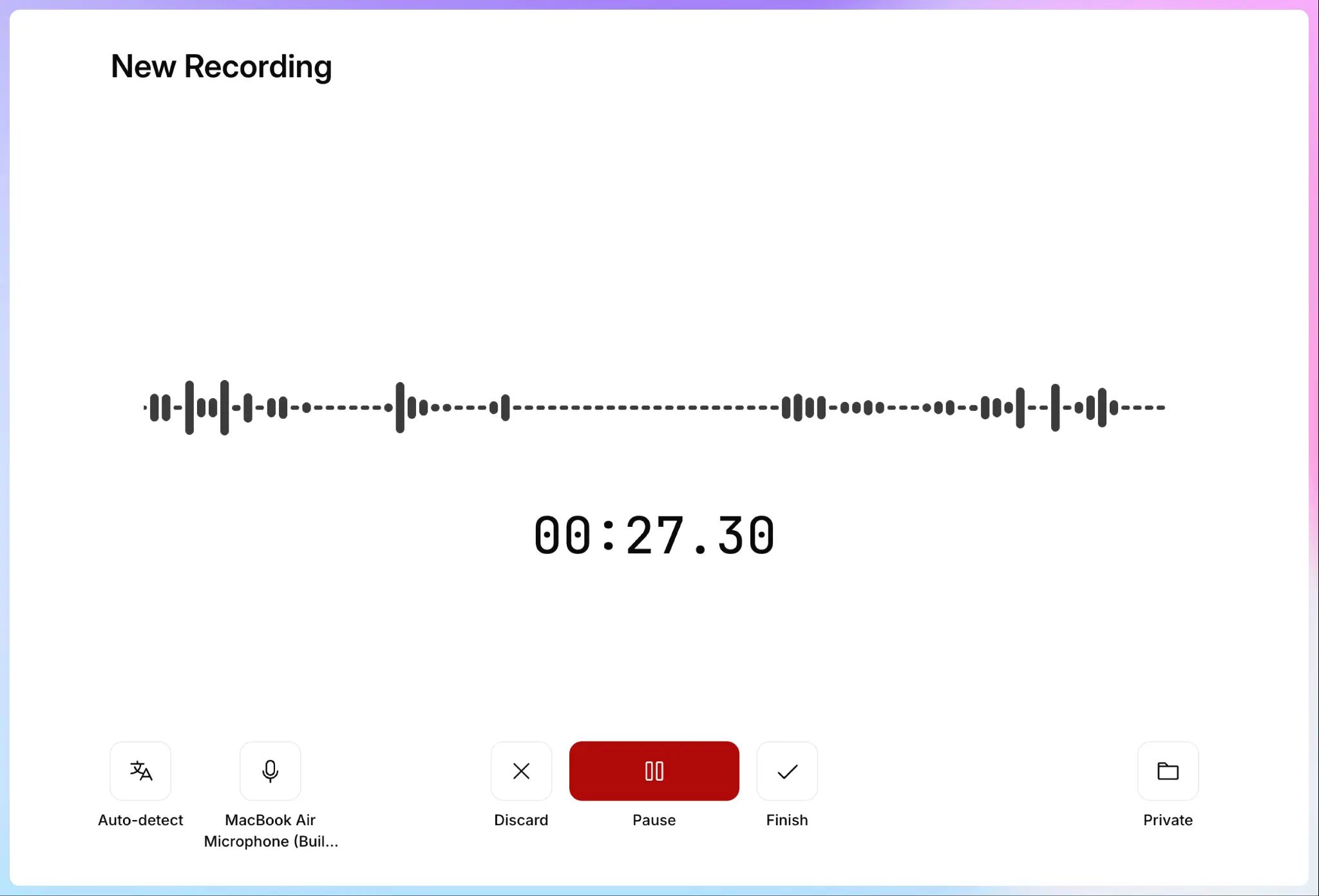
This is the closest bot-free equivalent to a full AI note taker. You get the transcript and the summary, without anything visible joining the call.
Use it when you want the AI-note-taker experience on an online call but would rather not have a bot show up. Client calls, executive reviews, and meetings hosted on accounts that block external bots are all good fits.
📚 Also read:
Method 2: Record in-person meetings with the HappyScribe mobile app
Best for: Client meetings, interviews, workshops, and conversations that happen away from your computer
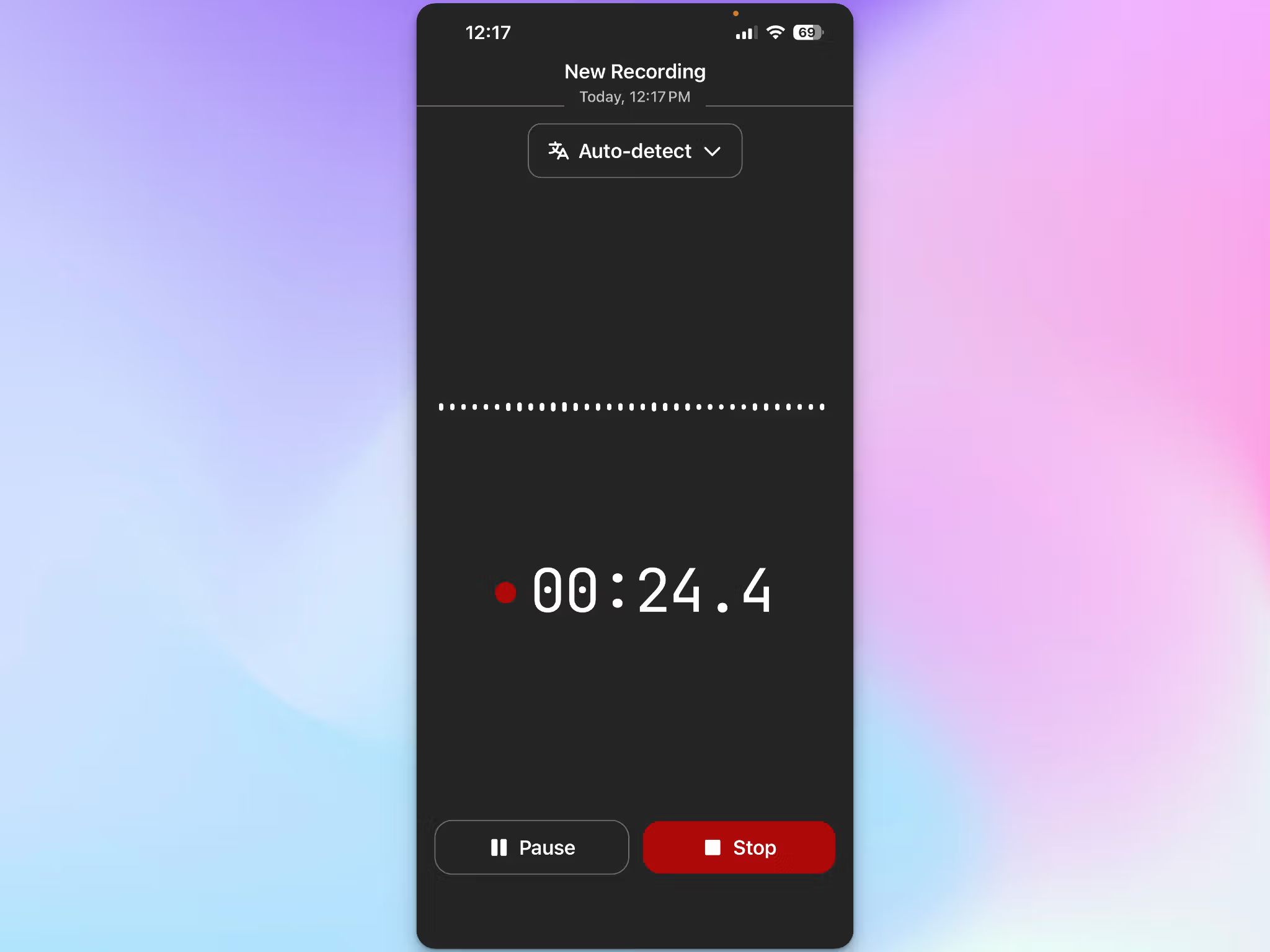
HappyScribe's iOS and Android app includes a voice recorder. You tap record, your phone microphone captures the room, and HappyScribe generates the transcript once you stop. Recordings and transcripts then sync with your web workspace.
The steps:
- Open the HappyScribe mobile app.
- Tap Record.
- Place the phone where it can pick up everyone clearly.
- Stop when the conversation ends.
- Review the transcript and meeting record.
This method covers the one situation a meeting bot cannot reach. A bot can join a video call, but it has no way into a conversation happening in real life around a table.
📚 Also read:
Method 3: Record the call first and transcribe it with HappyScribe later
Best for: Meetings you already record through another tool, or times when you don't need live AI note taking
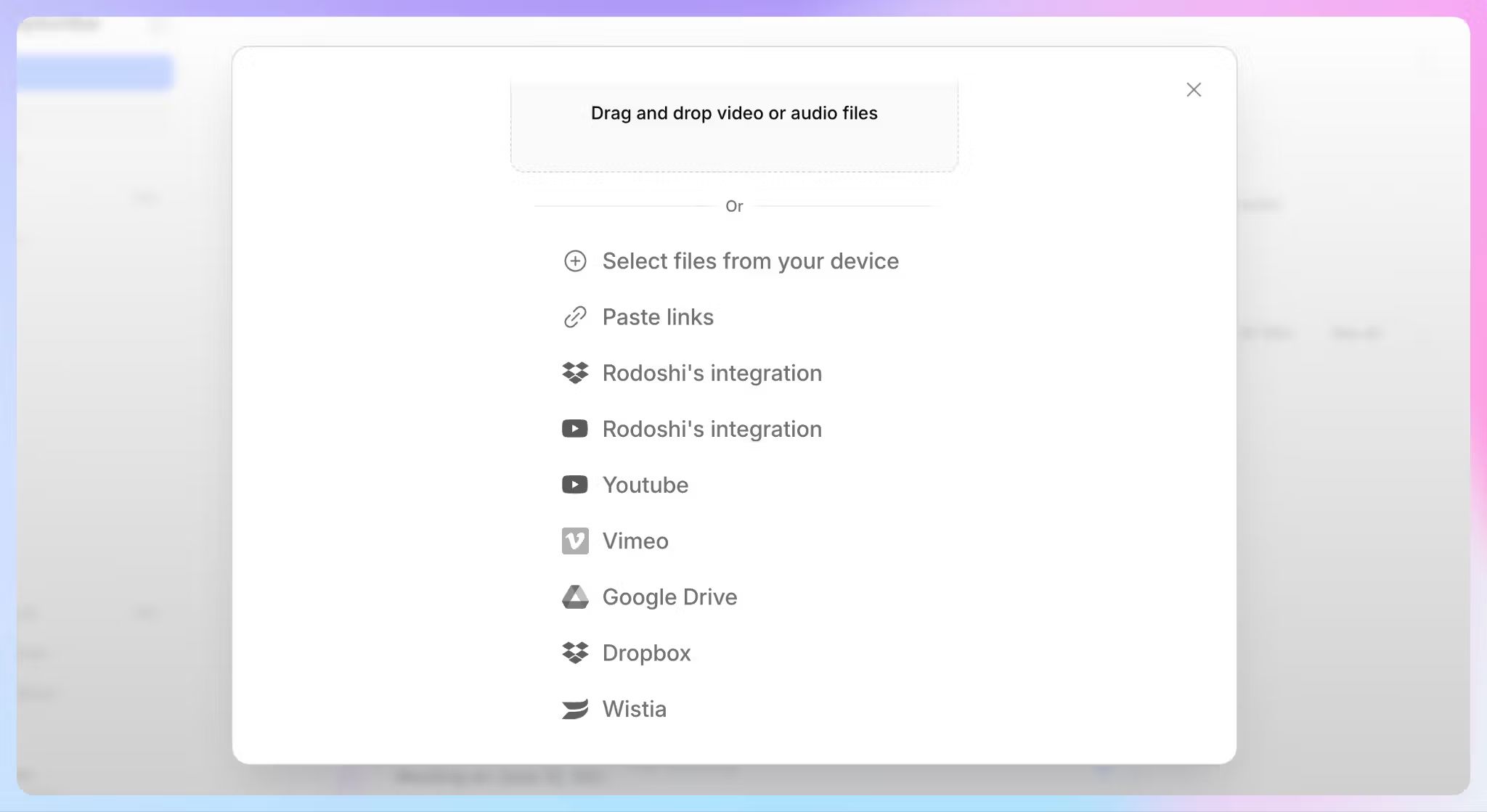
This one works differently from the first two. You record the meeting with whatever tool you already have, save the file, and upload it to HappyScribe afterward.
That file could be:
- A Zoom or Teams cloud recording
- A screen recording
- An audio recording from another device
- A video recording
- A meeting file a colleague sent you
The steps:
- Record the meeting.
- Save or download the recording.
- Upload the audio or video file to HappyScribe for transcription.
- Review, edit, and export the transcript.
HappyScribe accepts multiple audio formats including MP3, WAV, M4A, AAC, and FLAC, so most existing recordings upload without any conversion.
Which bot-free meeting recording method should you use?
A quick way to decide:
- Use the browser recorder if you're on an online call and want AI notes without another participant in the meeting
- Use the mobile app if the conversation is happening on the go, or you're away from your computer
- Record and upload later if you already have a recording workflow, or you only need the transcript after the meeting
If more than one applies, default to the browser recorder for online calls and the mobile app for in-person ones. Uploading later is the fallback for anything you have already captured.
What happens after you record the meeting?
Recording is only the first step. Once HappyScribe has the audio, you get a meeting record you can work with.
Every recording becomes a searchable transcript with timestamps and automatic speaker labels, so you can find who said what without scrubbing the audio.
From there you can:
- Read an AI-generated summary and meeting notes
- Ask questions across several past meetings using AI Chat
- Edit the transcript and share it from your HappyScribe workspace
- Export to formats including DOCX, PDF, TXT, SRT, and VTT
Custom glossaries help HappyScribe get names, acronyms, and specialist terms right, which keeps transcripts clean from the get-go.
Bot-free recording vs. using an AI meeting bot
Neither approach is the right one for every situation. HappyScribe supports both, and the useful question is how you want each meeting captured.
| Point of differentiation | Bot-free recording | Meeting bot |
|---|---|---|
| Extra participant joins | No | Yes |
| Online meetings | Yes | Yes |
| In-person meetings | Yes, with mobile recording | No |
| Requires calendar integration | No | Usually yes (HappyScribe can also work without calendar integration) |
| Automatic capture | You start the recording | Can auto-join scheduled calls |
| Best for | Control over how each meeting is captured | Hands-off recurring meetings |
A bot is convenient when you have back-to-back calls and want them captured automatically. Bot-free recording gives you more control over which meetings get recorded and how. Having both in one workspace means you don't have to commit to a single method.
Tips for better bot-free meeting recordings
A few things make bot-free recordings easier to work with later:
- Always tell participants the meeting is being recorded and get their consent before you start
- Record in a quiet space when you're capturing through a microphone
- Keep your recording device close enough to reach every speaker
- Test your browser or microphone permissions before an important call
- For older or lower-quality recordings, review names and specialist terms in the transcript afterward
Record meetings your way with HappyScribe
You don't have to capture every meeting the same way. Use the browser recorder for online calls, open the mobile app when the conversation happens in person, and bring in an existing file when you already have a recording.
And when a bot is the convenient option, HappyScribe's AI notetaker can still auto-join your Zoom, Google Meet, and Microsoft Teams calls.
One workspace, with the choice of how each conversation gets captured.
FAQs on how to record meetings bot-free
Can I use an AI note taker without a bot?
Yes. HappyScribe's browser recorder and mobile app both capture meetings from your own device, so you get an AI transcript and notes without a bot joining the call.
Can I record a Zoom meeting without adding a bot?
Yes. Use the HappyScribe browser recorder or mobile app to capture the call from your device while you attend it, or upload a Zoom recording afterward and let HappyScribe transcribe it.
Can I upload a recorded meeting and get AI notes?
Yes. Upload the audio or video file to HappyScribe and it produces a transcript, speaker labels, and a summary.
Is HappyScribe secure?
Yes. HappyScribe keeps recordings and transcripts encrypted in transit (TLS) and at rest (AES-256), inside an EU-based Tier IV data center that is PCI DSS and ISO 27001-certified.
It is GDPR-compliant and SOC 2 Type II-certified, offers EU data residency, and never uses your meeting data to train AI models unless you opt in. Role-based access and per-file privacy controls let you decide who sees each transcript.
Will the other participants know I'm recording?
A meeting bot joins through your calendar or a meeting link on supported platforms like Zoom, Google Meet, and Microsoft Teams, so it shows up as a visible participant and announces the recording for you. Bot-free recording adds nothing to the participant list, which suits sensitive conversations, but it is not secret.
Whichever method you use with HappyScribe, tell meeting participants at the start, share a short consent message, and follow the local law based on where each person is located. Because HappyScribe records from your own device, that recording notification stays your responsibility, not the conferencing platform's.
What is the difference between native recording and HappyScribe?
Native recording is the record button built into your conferencing app, like Zoom's native recording on a Zoom call or the equivalent in Teams meetings. It saves a raw file to cloud or local storage.
Use HappyScribe when you need to turn your meeting recordings into shareable and usable assets. Record the meeting audio from your browser, or upload the file the meeting platform already saved, and you get the transcript, AI summaries, and speaker labels back, so you are not left rebuilding manual notes.
What is the best meeting recording app for online and in-person meetings?
HappyScribe works as a single meeting recording app for both. The browser recorder captures online calls from your device, and the mobile app records in-person rooms and conversations through your phone microphone, so you do not need separate recording software for each setting.
Both feed the same workspace, where HappyScribe transcribes meetings in multiple languages and returns a summary with the key takeaways. The browser recorder runs in Google Chrome and other browsers, with no desktop app to install.

Rodoshi Das
Rodoshi is the Content Lead at HappyScribe, the privacy-first transcription and AI notetaker platform based in Barcelona. Shaping content strategies and building AI workflows excites her as much as exploring new SaaS tools. She specializes in product-led content that informs rather than sells, grounded in honest product benchmarking and low tolerance for empty marketing speak.