You can take meeting notes on Android using the following methods:
- Built-in tools like Google Recorder (Pixel phones, with Gemini-powered transcription and automatic summaries) or Samsung Voice Recorder (Galaxy devices, with Transcript Assist and speaker recognition)
- AI meeting note apps like HappyScribe to record in-person conversations and capture Zoom, Google Meet, and Microsoft Teams calls from any Android phone
The best method depends on your device and meeting type.
How to capture meeting notes with built-in Android tools
Unlike audio transcription on iPhone, where every user has the same set of apps, Android's note taking tools vary by manufacturer. What's available on a Pixel is different from what ships on a Samsung or a OnePlus.
1. Google Recorder (Pixel phones)
Google Recorder is exclusive to Pixel devices and is one of the strongest built-in recording tools out there.
Open the app, tap the record button, and position your phone face-up on the table. The recorder captures audio and generates real-time transcription as the conversation unfolds.
What makes Recorder stand out is its on-device AI. The app uses Gemini Nano to generate three bullet-point summaries of your recordings, including speaker names, key moments, and themes.
All processing happens locally on the phone, so it works without an internet connection and none of your customer data leaves the device.
Recorder can also distinguish between different speakers and label them in the transcript.
The downsides of Google Recorder
Google Recorder is Pixel-exclusive. There's no auto-join for virtual meetings, no Google Calendar integration, and language support is limited.
When should you use Google Recorder?
For quick in-person conversations or internal meetings where you need a reliable transcript, it's a handy choice.
2. Samsung Voice Recorder with Transcript Assist (Galaxy devices)
Samsung Galaxy phones running One UI 6.1 or higher ship with Galaxy AI features built into the Voice Recorder app.
Open Voice Recorder, then select Standard mode (for balanced sound in meetings) or Interview mode (which uses both the top and bottom microphones on your phone to capture two-directional audio). Tap record, then stop when the meeting ends.
After recording, tap the Transcribe button and choose the language. The app generates a text transcript and, on the Summary tab, provides an AI-generated objective summary.
You can then move the transcript to Samsung Notes for further editing, or share it directly via email or messaging apps.
Samsung Notes also has its own voice recording feature that syncs live audio with typed or handwritten notes, so you can write observations while the recording runs beneath them.
The downsides of Samsung Voice Recorder
The limitations are similar to those of Google Recorder. Transcript Assist is only available on supported Galaxy devices, and AI transcription sends audio to Samsung servers for processing. Language support is more limited than dedicated AI meeting notes tools.
When should you use Samsung Voice Recorder?
For Samsung users who want a no-setup solution for meeting notes, it's the most capable built-in option, but it won't handle virtual meetings or calendar event integration.
3. Google Keep and voice typing (all Android devices)
If you're on an Android phone that isn't a Pixel or Samsung (OnePlus, Motorola, Nothing, etc.), the built-in options are more basic.
Google Keep lets you create notes with voice typing: open a new note, tap the microphone icon, and dictate.
Gboard's voice typing works system-wide across any text field, so you can dictate into Google Docs, a Slack message, or an email.
Neither option produces a true transcript of the meeting, but they're useful for capturing a quick action item or decision when manual note-taking would break your focus.
How third-party AI meeting notes apps work on Android
Built-in tools handle recording and basic features, but they're device-locked and limited to in-person meetings.
If you want your meeting workflow to include automatic summaries, speaker detection across multiple speakers, follow-up task extraction, and auto-join for video calls, you need an AI meeting assistant.
AI note takers on Android work in two modes:
- For in-person meetings, you open the app and tap record. The app captures audio, runs it through speech-to-text with speaker recognition, and produces a structured transcript. After the meeting, advanced AI generates a summary, highlights key moments, and lists action items.
- For virtual meetings, the workflow changes. You connect your calendar, and the AI note taker auto-joins your upcoming meetings. It records audio, transcribes, and delivers structured AI notes after the meeting ends.
📌 The advantage of third-party tools over built-in tools: Third-party apps work on any Android device regardless of manufacturer, and they handle both online meetings and in-person conversations from a single interface.
📚 Read more:
Take meeting notes on Android with HappyScribe
The HappyScribe mobile app brings AI transcription, meeting recording, and structured note-taking to any Android phone, without a complicated setup or manufacturer lock-in.
Record in-person conversations with one tap
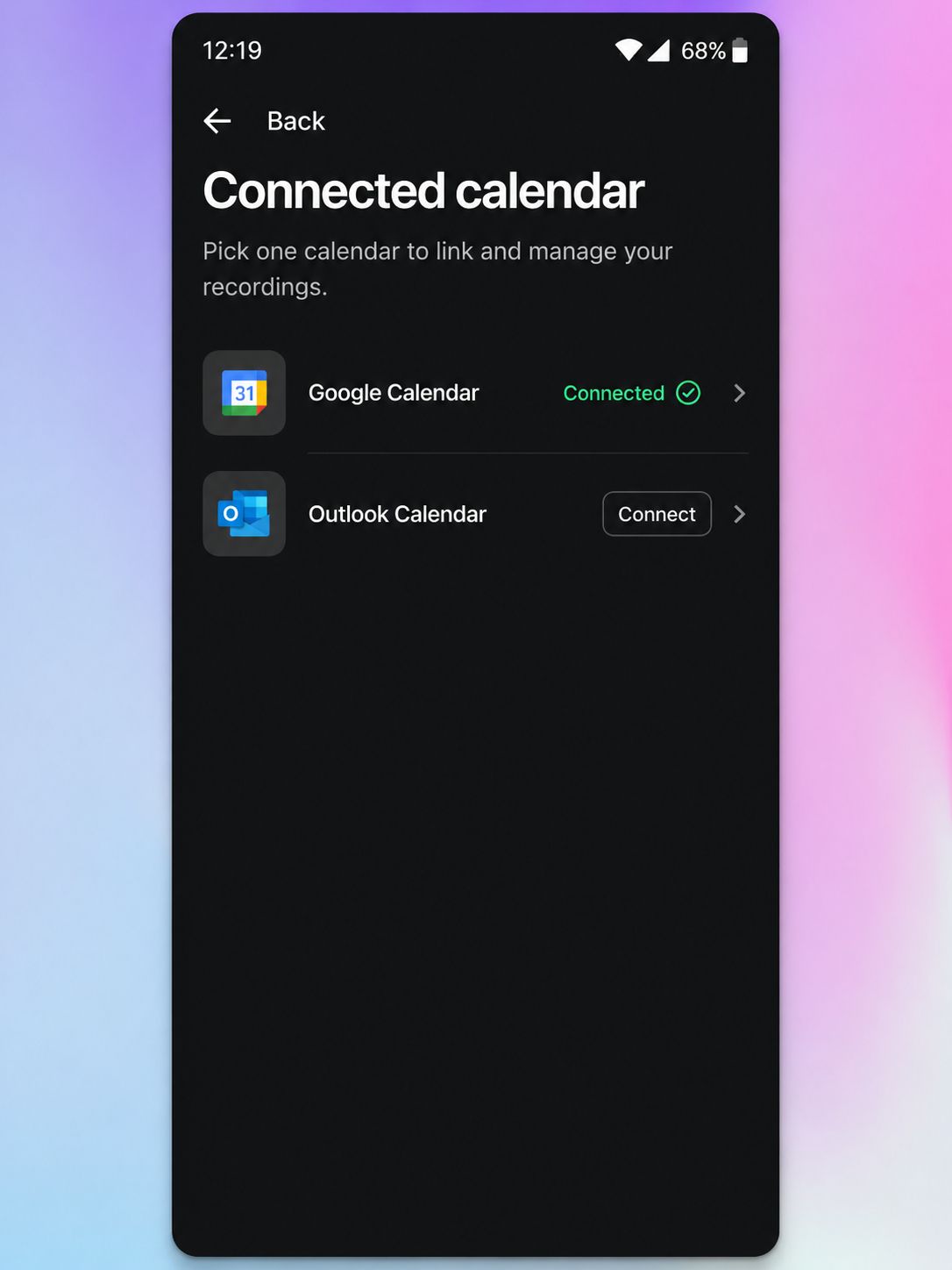
Tap the record button, and HappyScribe captures audio through your phone's microphone. Once you stop, AI transcription runs automatically with speaker detection and timestamps.
The app supports 150+ languages, which is a significant advantage over Google Recorder and Samsung Voice Recorder.
Whether your client calls are in English, Spanish, Japanese, Russian, or any other language, HappyScribe handles them with the same speech-to-text engine that powers the web platform.
Auto-join virtual meetings from your phone
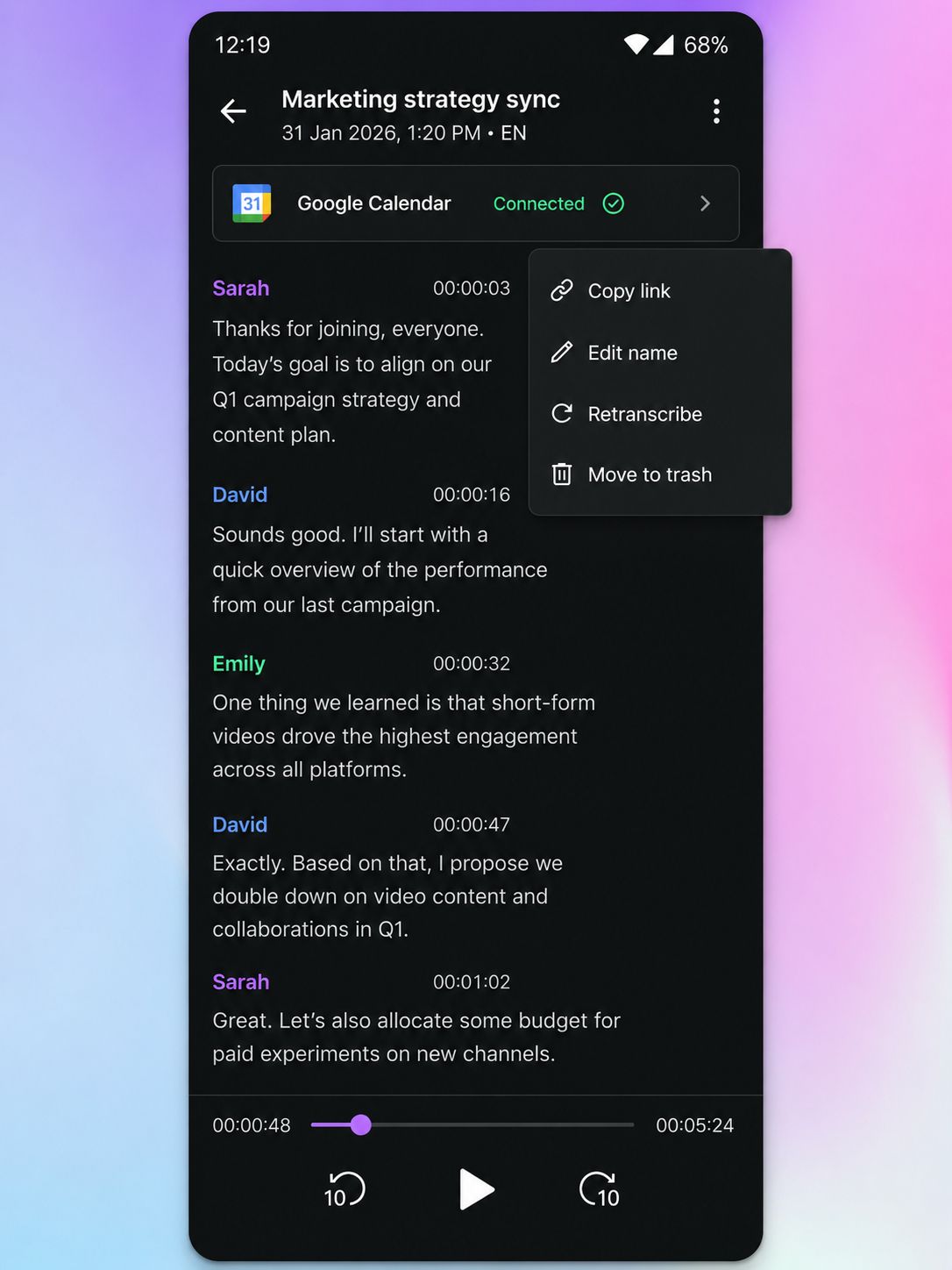
Connect your Google Calendar or Microsoft Outlook, and HappyScribe's AI meeting note taker auto-joins your Zoom, Google Meet, and Microsoft Teams calls.
It records audio, transcribes, and produces structured meeting summaries with action items. Thanks to AI Chat (available in the browser), recordings are searchable across your account, so you can revisit any past meeting without replaying the entire audio file.
Cloud sync between phone and desktop
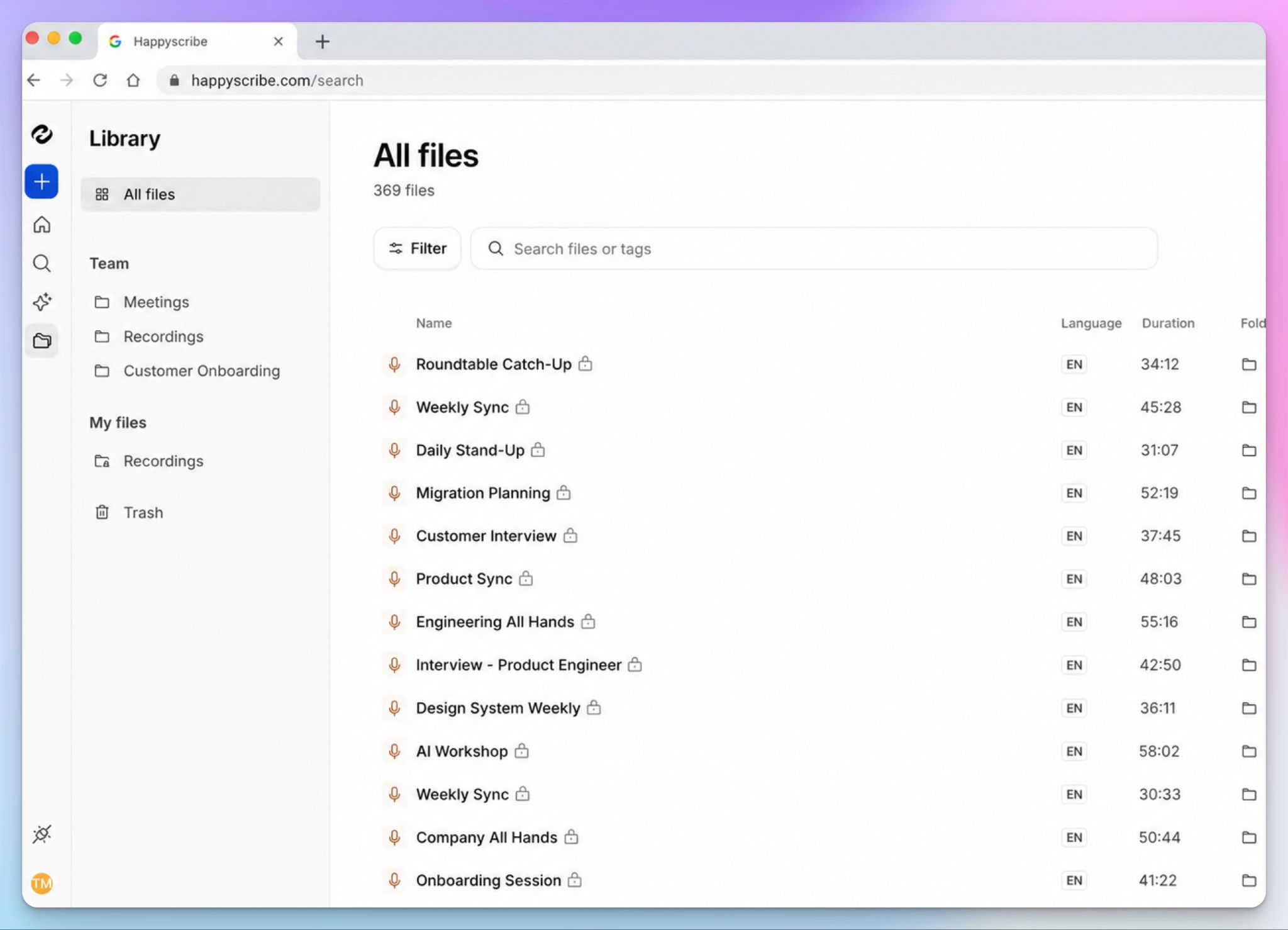
Audio recordings stored in the HappyScribe mobile app automatically sync with the web editor the moment you connect it to the internet.
Start capturing notes on your phone, then switch to your desktop to polish the transcript, share notes with the team, or export to Google Docs.
The app is free to download and available on all plans, including the free plan, which offers unlimited recordings up to 45 minutes each. The Pro plan at $19/month (billed annually) removes the per-recording limit and adds unlimited AI Chat. Business and enterprise plans add workspace roles and permissions for larger teams.
HappyScribe's infrastructure is GDPR-compliant and SOC 2 Type II certified. All data is stored in Europe, and the moment you delete your data from your HappyScribe account, it gets deleted from the servers.
When should you use the HappyScribe mobile app?
Use the HappyScribe mobile app if you:
✅ Need to record meetings, interviews, or conversations on the go
✅ Want to keep meetings bot-free
✅ Record in-person conversations where an offline recorder is more practical
✅ Prioritize enterprise-grade security and data protection
✅ Prefer a transcription provider based in Europe
✅ Need high transcription accuracy
✅ Work with multilingual teams and need broad language support for recording and transcription
Tips for taking better meeting notes on your Android phone
Prepare before the meeting starts
Open your recording app and test it with a few seconds of audio.
For virtual meetings, confirm your calendar sync a few hours before.
Check your battery level, because a 60-minute recording needs sustained power. Close unnecessary apps to free up resources.
Inform meeting participants that you're recording
Always tell people before you hit record.
Recording laws vary by jurisdiction: some require only one party to consent, while others require everyone to agree.
Notify everyone with a message like:
"Before we begin, I'd like to let everyone know that this meeting is being recorded for note-taking and documentation purposes. If you have any concerns, please let me know before we continue."
Follow the same practice for both virtual and in-person conversations.
Position your phone the right way
Place it face-up on the table, centered between speakers.
Modern Android flagships have two to three microphones, and keeping the phone about 30 cm away from the primary speaker gives the best balance.
Avoid placing it near laptop fans or vibrating surfaces.
Review the transcript quickly
Within 30 minutes, skim and fix obvious errors: misheard names, jargon the AI didn't catch, or wrong speaker labels.
If you’re using HappyScribe, switch to the web editor. If on Samsung, move the transcript to Samsung Notes. A quick pass turns hit-or-miss raw output into a reliable record.
Get searchable meeting notes on any Android device with HappyScribe
Whether you use Google Recorder, Samsung Voice Recorder, or a dedicated AI note taker, the goal is the same: leave the meeting with a record you can trust.
Built-in Android tools are a great starting point. If you regularly attend client calls, interviews, team meetings, or multilingual conversations, you'll eventually want more than a basic recording and transcript.
HappyScribe's AI meeting note taker brings recording, transcription, and meeting notes into a single workflow. Start on your Android phone, review the transcript when the meeting ends, and pick up where you left off from your desktop whenever you need it.
FAQs on how to take meeting notes on Android
Can I transcribe a meeting on Android for free?
Yes. For AI-powered transcription with speaker detection and meeting summaries on any Android phone, HappyScribe's free plan includes unlimited recordings up to 45 minutes each. Google Recorder transcribes with on-device AI for free, but it’s available only on Pixel phones. Samsung Voice Recorder includes Transcript Assist on supported Galaxy devices at no cost.
What is the best note-taking app for meetings on Android?
HappyScribe is the best note taking app for meetings on Android. It offers AI-generated meeting summaries, speaker labels, and multi-language support. The best part is, HappyScribe's mobile app covers both in-person and online meetings.
How do I record a Zoom meeting on my Android phone?
Connect your Google Calendar to an AI meeting note taker like HappyScribe. HappyScribe auto-joins virtual Zoom calls, records, transcribes, and delivers structured notes afterward. The same feature is also available for Google Meet and Microsoft Teams calls.
Does Google Recorder work on non-Pixel Android phones?
No. Google Recorder with transcription and AI summarization is exclusive to Pixel devices. On Samsung phones, Voice Recorder with Transcript Assist offers similar capabilities. On other Android devices, third-party apps like HappyScribe provide AI meeting notes regardless of manufacturer.
Can I take meeting notes on Android without an internet connection?
Yes, using HappyScribe's Android app. It records audio locally even without an internet connection, with AI transcription running once your phone reconnects to the internet.

Rodoshi Das
Rodoshi is the Content Lead at HappyScribe, the privacy-first transcription and AI notetaker platform based in Barcelona. Shaping content strategies and building AI workflows excites her as much as exploring new SaaS tools. She specializes in product-led content that informs rather than sells, grounded in honest product benchmarking and low tolerance for empty marketing speak.