



TL;DR ⏩
AI can now handle the note-taking while you focus on the conversation. Google Meet has its own Take notes for me feature powered by Gemini.
If you need more languages, a complete transcript, or more control over how the call is captured, you can use a dedicated meeting note taker like HappyScribe instead.
Method 1: Use Gemini’s Take notes for me in Google Meet
Take notes for me is Google Meet’s built-in AI note-taking feature.
Turn it on during a meeting and Gemini follows the conversation, then organizes the discussion into a Google Doc.
The notes can include a summary, decisions, next steps, and more detailed discussion points. Some of the section customization options are still limited to beta users.
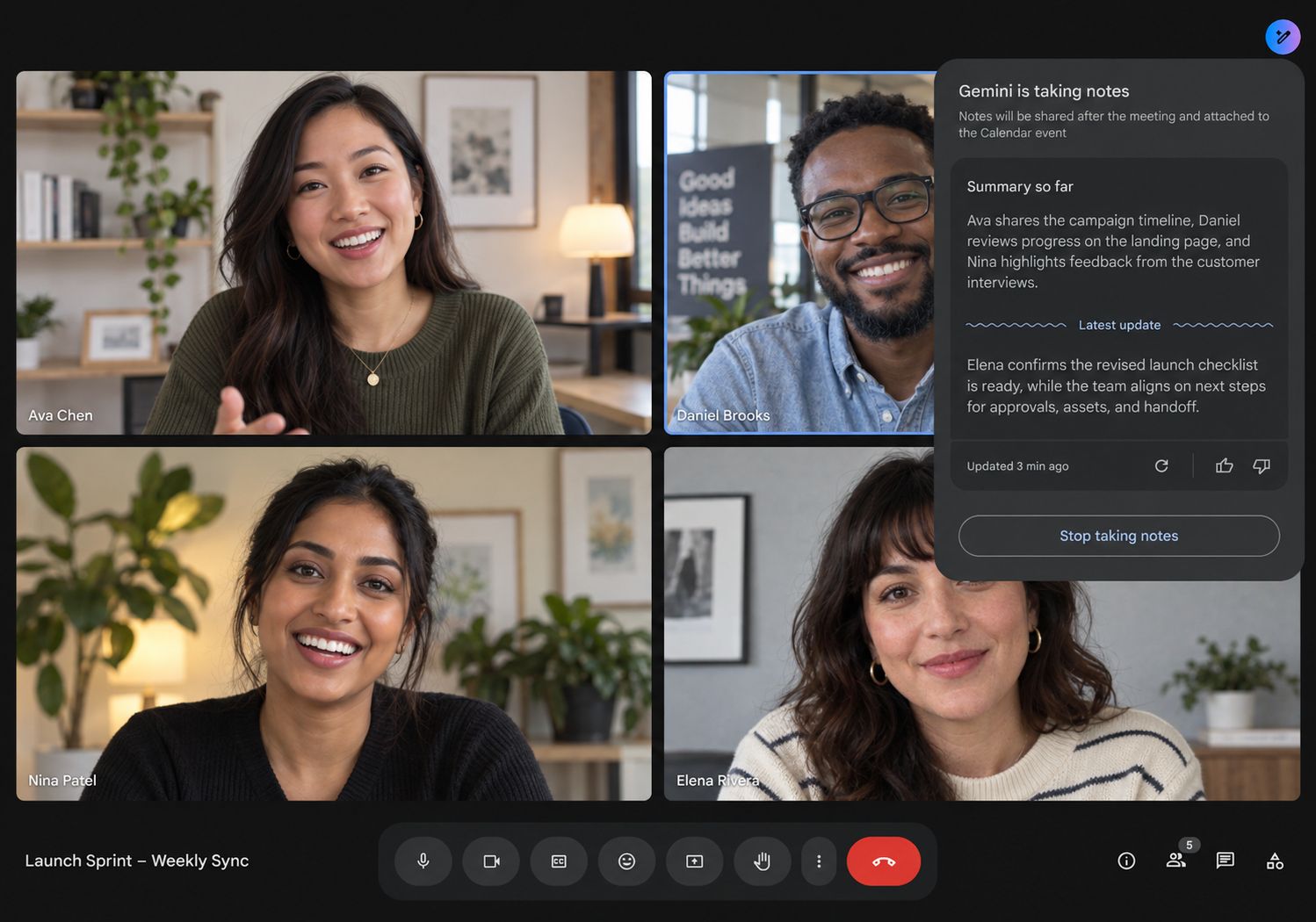
If you join late on desktop, Summary so far catches you up on what happened before you arrived.
After the meeting, the organizer receives a link to the recap by email, and the notes document is also attached to the Calendar event. Live Summary so far is not currently supported on Android.
📌 Important:
Take notes for me does not automatically create an audio or video recording of your Google Meet. Google treats Take notes for me, Record, and Transcripts as separate Meet features. If you want a recording as well as the AI-generated notes, you need to use those features separately (assuming your Google plan supports them).
Step 1: Check whether you can use Take notes for me
Take notes for me requires an eligible Google Workspace edition or Google AI plan.
For work accounts, Google currently includes it with:
- Business Standard
- Business Plus
- Enterprise Standard
- Enterprise Plus
- Frontline Plus
For personal Google Accounts, Google currently lists Take notes for me with Google AI Pro and Google AI Ultra. Workspace administrators can control whether employees have access to the feature.
Language support is another limitation to check.
Take notes for me currently supports eight spoken languages:
- English
- French
- German
- Italian
- Japanese
- Korean
- Portuguese
- Spanish
Gemini can take notes in one language at a time. Multiple languages spoken in the same meeting are not currently supported simultaneously.
If the conversation changes to another supported language for at least 30 seconds, Meet may prompt you to switch the note-taking language.
Step 2: Start taking notes in Google Meet
You can turn on Gemini once your meeting starts:
- Join the Google Meet.
- Click Take notes for me in the upper-right corner.
- Review your note-taking settings.
- Click Start taking notes.
Google Meet informs participants that notes are being taken and displays a pencil icon on their screens.
If Host Management is enabled, only the host and co-hosts can start or stop Take notes for me.
You can also turn the feature on before your meeting.
Open the event in Google Calendar, select Video call options > Meeting records, then check Take notes with Gemini.
For recurring calls, the host can keep Take notes for me enabled for future instances of the meeting.
Step 3: Customize your Google Meet notes
Gemini gives you some control over what happens to the notes after the call.
Hosts and co-hosts can choose whether the notes are shared with:
- All invited guests
- Invited guests within the organization
- Hosts and co-hosts only
You can also choose between:
- Standard notes for a shorter summary
- Longer notes when you want more detail
Google is also rolling out more granular section controls.
Depending on your account, you may be able to include or exclude sections for the summary, decisions, next steps, and detailed discussion.
Google can use screenshots of presented material to improve the notes when eligible content stays on screen for at least 10 seconds.
Step 4: Find your notes after the meeting
After the meeting ends, Google generates the notes document and saves it in the organizer’s Google Drive.
New notes now go into a Google Meet folder, with a separate subfolder for each meeting.
Starting in July 2026, Google also began renaming the older Meet Recordings folder to Legacy Meet Recordings and moving it inside the new Google Meet folder.
The notes document is attached to the Calendar event. Who can actually open it depends on the sharing permissions configured by the host or co-host.
Google recommends Take notes for me for meetings lasting from 15 minutes to a maximum of eight hours.
Where Google Meet’s Take notes for me falls short
For calls that already live entirely inside Google Meet, Gemini is convenient. There’s no separate meeting bot to add, and the notes go straight into Google Docs.
The limitations become noticeable when your meeting workflow is more complex.
Language support is the biggest issue. Take notes for me supports eight languages and handles one at a time. International teams may struggle with its limited coverage.
Access also depends on your Google plan and, for Workspace accounts, your administrator’s settings.
Then there is the difference between a meeting summary and a full transcript.
Take notes for me is primarily designed to create organized AI notes. Google Meet offers a separate Transcripts feature on eligible Workspace editions, but it is a separate part of the meeting-records workflow.
Google also offers Ask Gemini in Google Meet for eligible Workspace users. During an active meeting, you can privately ask Gemini to summarize the discussion, catch you up, identify decisions, or retrieve something someone said. However, this live meeting context does not become a persistent, searchable conversation history after the call.
If you want the transcript, summary, action items, recording options, and post-meeting search across saved conversations to sit inside one workflow, a dedicated AI meeting assistant like HappyScribe is a stronger alternative.
Method 2: Take Google Meet notes with HappyScribe
HappyScribe is an AI meeting note taker and transcription platform that works with Google Meet (as well as Zoom and Microsoft Teams, in case your meetings take place across different platforms).
You don’t need a paid Google account to use HappyScribe with Google Meet.
HappyScribe supports 150+ languages and dialects, and automatically detects the language being spoken.
You also get more choice over how the meeting is captured.
Step 1: Choose how to capture your Google Meet
HappyScribe gives you three options.
Let the AI notetaker join the call
Connect your Google Calendar to HappyScribe, and it automatically joins scheduled Google Meet calls as a participant.
The notetaker records the call, transcribes it, and creates meeting notes after the conversation ends.
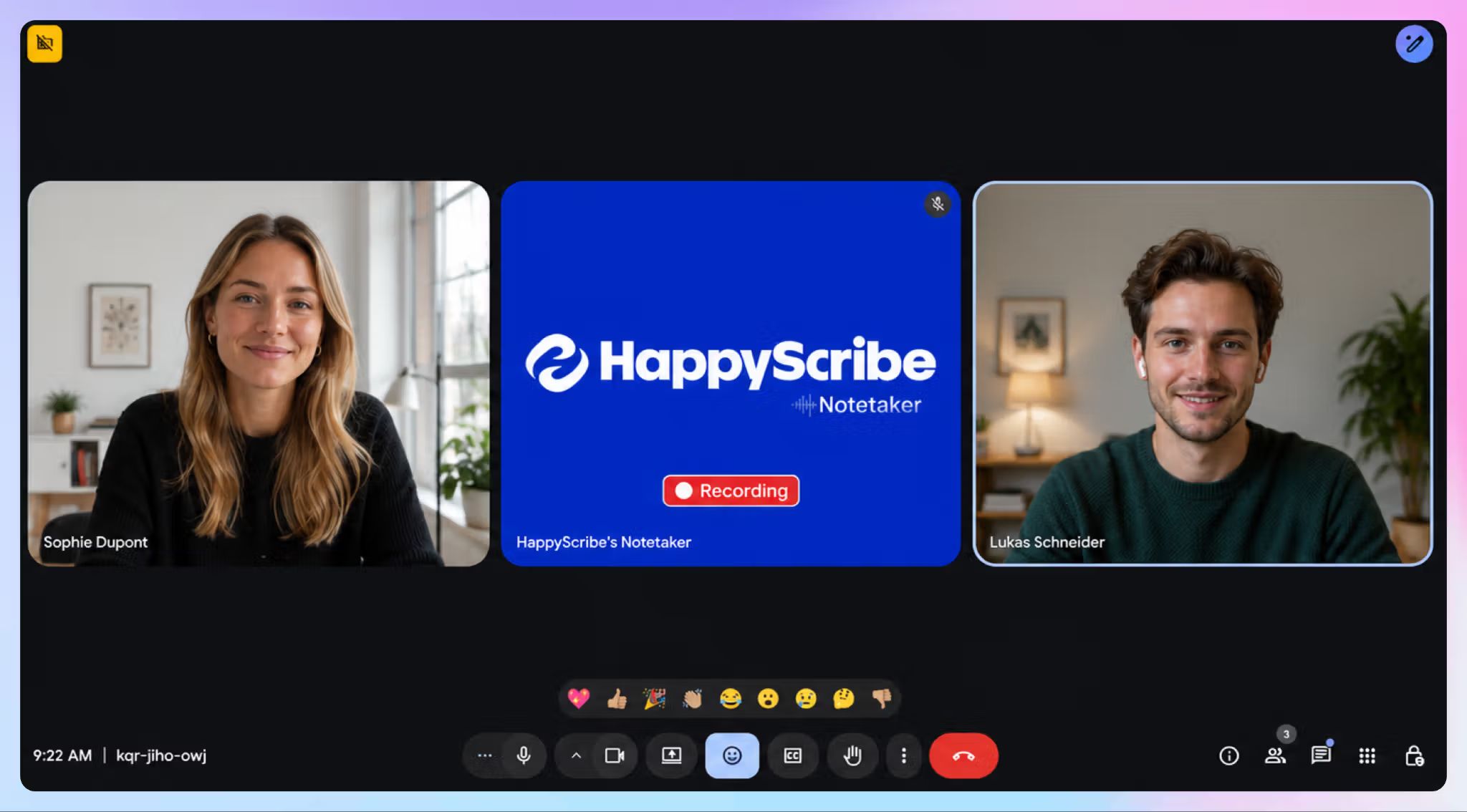
For one-off meetings, you can also paste the Google Meet link rather than relying on automatic calendar capture.
Record the Google Meet without a bot
Don’t want another participant appearing in the meeting?
Use HappyScribe’s browser recorder instead for bot-free capture. It captures audio from your device without adding a visible bot to the Google Meet.
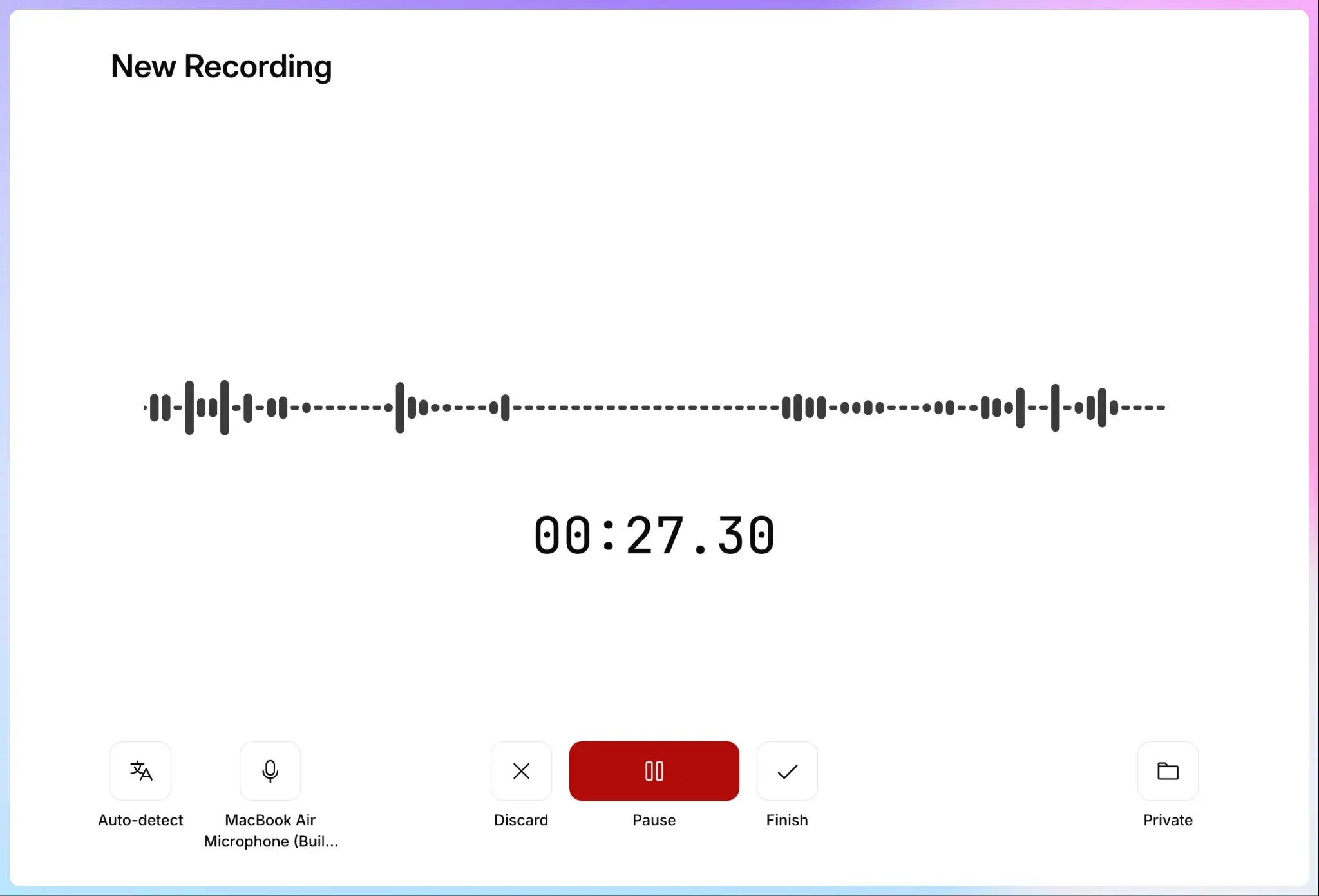
You start the recording from your browser, then HappyScribe uploads and processes it when you finish.
📌 Before you record:
Check that everyone is comfortable being recorded and that it’s allowed under your company, school, or organization’s policies. Recording laws and consent requirements can vary depending on where you are, so a quick permission check beforehand can save you trouble later.
Upload an existing Google Meet recording
If you already have a call recording sitting in your phone or computer, upload the recording to HappyScribe.
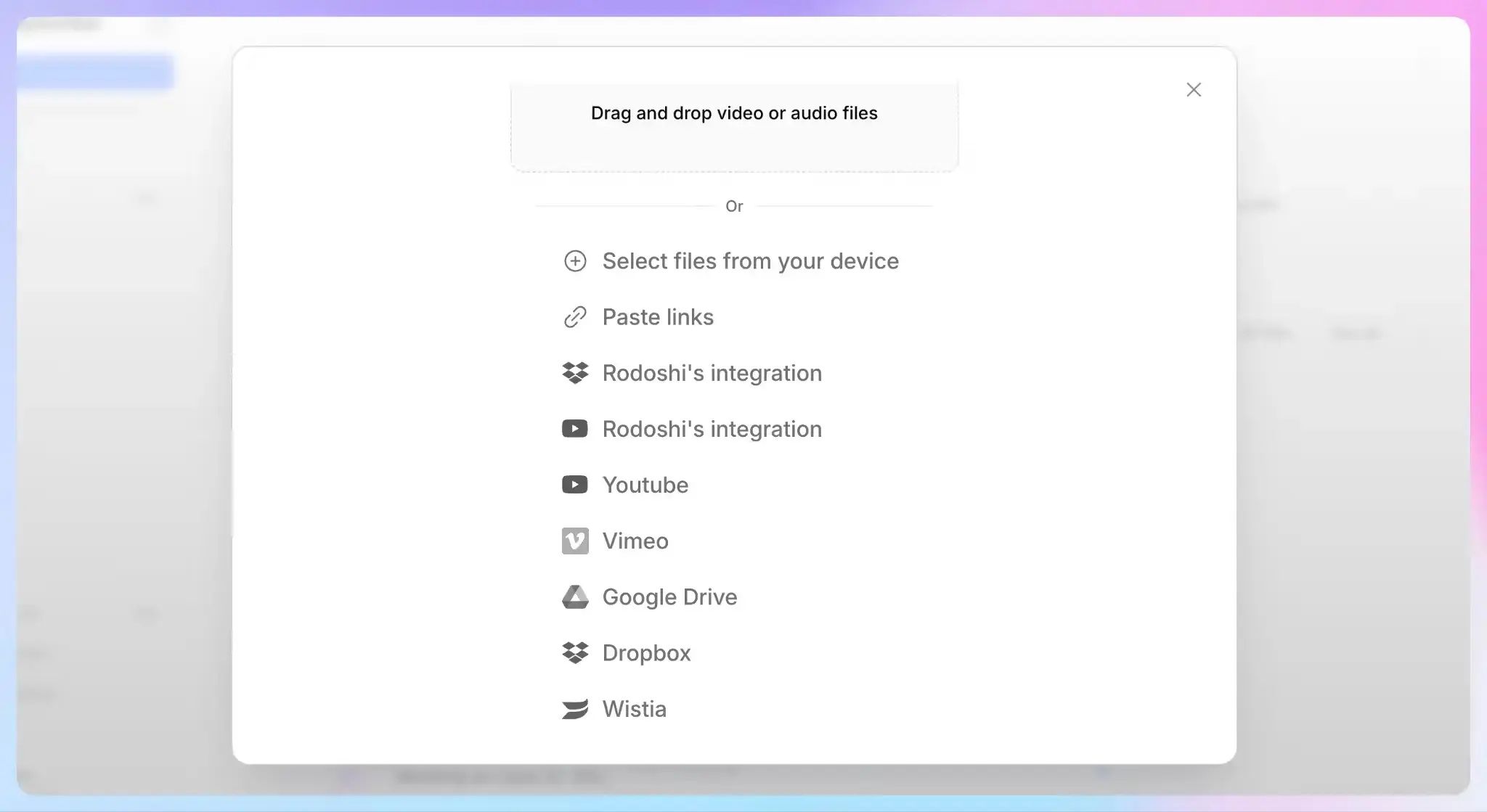
HappyScribe can process an existing audio or video recording and turn it into a searchable transcript and summary.
So you aren’t locked into one recording setup for every Google Meet.
Use the HappyScribe mobile app
If you prefer working from your phone or taking calls on the go, HappyScribe also has a mobile app for iOS and Android. You can use it to send the AI notetaker to a scheduled Google Meet or record audio directly through your phone when you need a separate voice recorder.
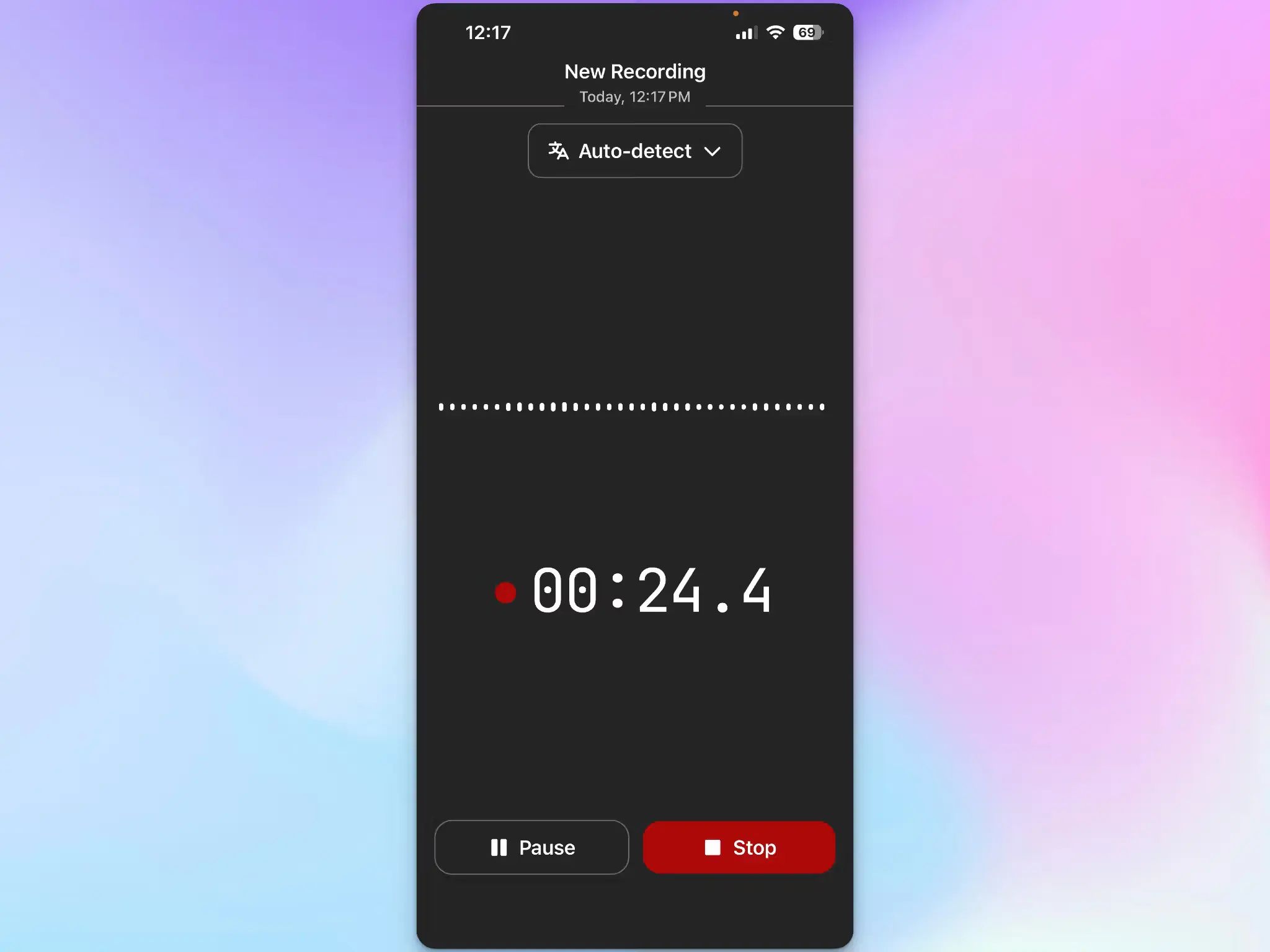
Once a recording is complete, it uploads to your HappyScribe account and is transcribed automatically. Your recordings and transcripts sync between the mobile app and web workspace, so you can capture something on your phone and continue reviewing or editing it on your computer later.
The app can also record offline and upload the audio once you’re connected again.
Step 2: Get a full transcript of the conversation
HappyScribe creates a full transcript with speaker labels and timestamps, rather than leaving you with only an AI-generated recap.
It offers 95%+ transcription accuracy and supports Custom Glossaries for company names, acronyms, industry terms, and names of teammates.
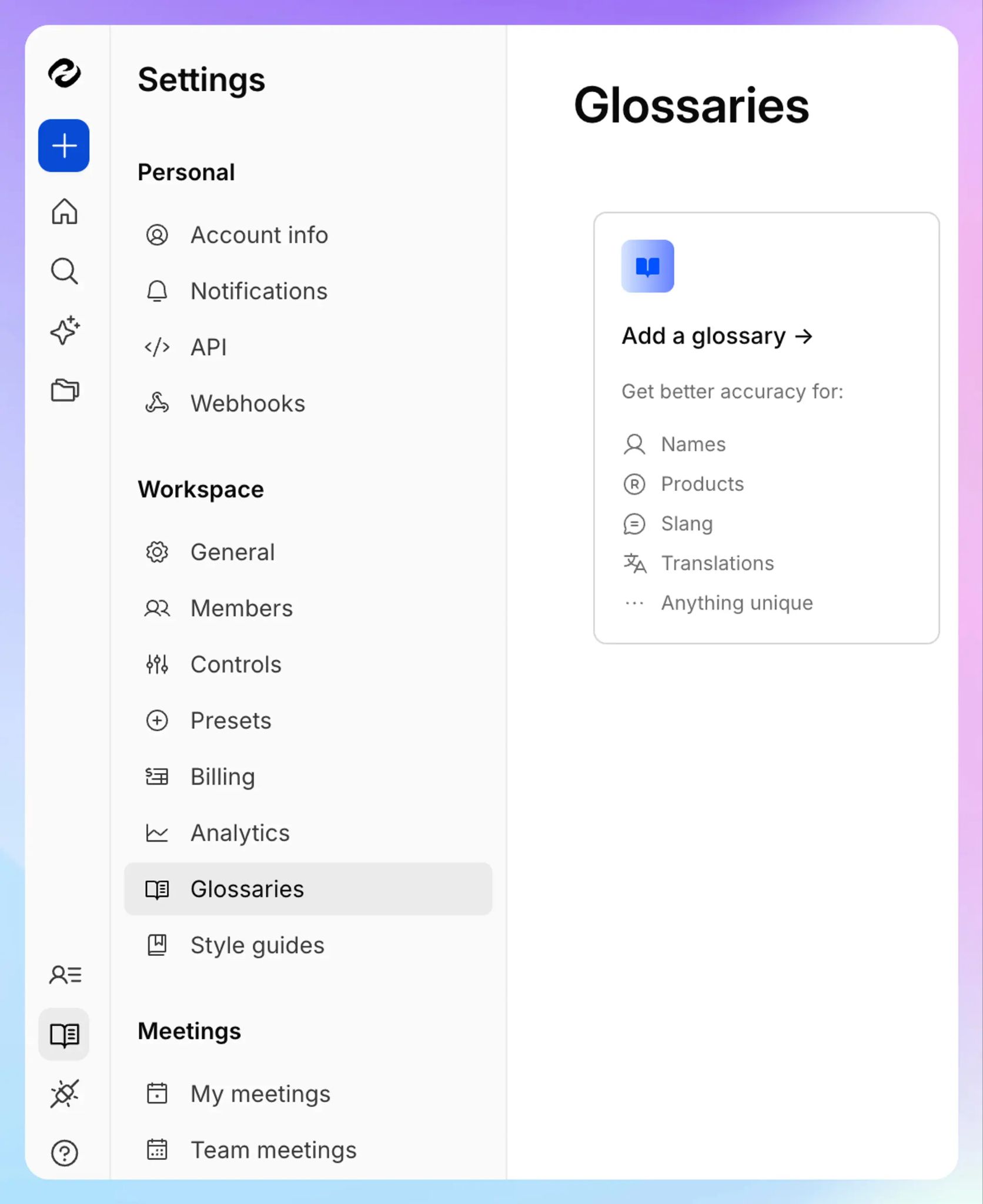
HappyScribe’s AI note taker supports more than 150 languages and dialects. It automatically detects the language being spoken.
It’s particularly useful for international meetings where people speak multiple languages.
Step 3: Turn the transcript into meeting notes
HappyScribe automatically generates meeting notes from the transcript, including key decisions and action items.
The summary arrives in your inbox after the meeting, and the full transcript also remains accessible.
That gives you two levels of detail:
- If you only need to remember the outcome of the meeting, read the summary
- If a note mentions something specific, like the client approved a new deadline, and you want to confirm exactly how they phrased it, you can go back to the timestamped transcript
Step 4: Search your meetings with HappyScribe AI Chat
The value of meeting notes tends to show up later, when you need to find something that happened ten calls ago.
HappyScribe’s AI Chat lets you ask questions directly about your transcripts and meeting notes. You can summarize a call, extract action items, find quotes, or ask what someone said about a particular topic.
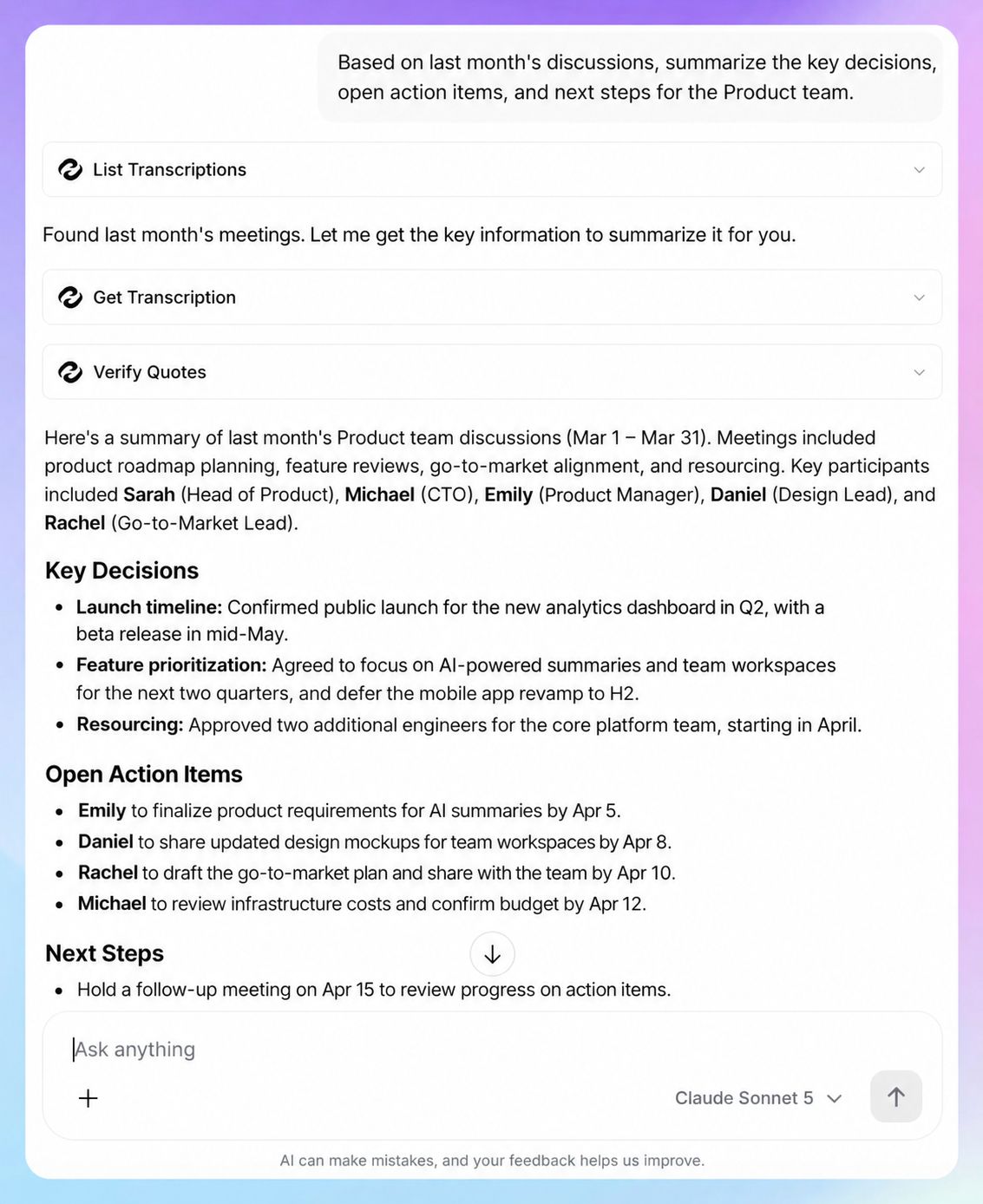
For example:
What did the client decide about the new pricing?
Or:
What feature requests has this customer made across our calls?
AI Chat can work with a single file or an entire folder, so you can ask questions across several meetings rather than opening each transcript individually.
HappyScribe can also return key quotes with timestamps, helping you trace an answer back to the source conversation.
AI Chat is available on every HappyScribe plan, although usage varies. The Free plan currently lets you analyze up to three files per month, Basic allows 10, and Pro and Business include unlimited AI Chat.
Step 5: Export or reuse your Google Meet notes
Your meeting content doesn’t have to stay just inside HappyScribe. You can export transcripts and bring them into the tools you already use.
HappyScribe supports multiple export formats, including DOCX, TXT, SRT, MP4, and more.
You can also integrate HappyScribe with other tools through API or Zapier. With MCP, connect HappyScribe to AI tools like ChatGPT and Claude.
Real-life users love HappyScribe. See what one user says on G2:
I’ve been using HappyScribe for three years, and I still prefer it over any other A.I. transcription service or notetaker I’ve tried. I set up a custom glossary for oddly spelled names and words, so my transcripts automatically come out with the correct spelling. I rely on the integration with Zoom, as I use it for transcriptions and notes from my coaching sessions, book club discussions, and podcast episodes. My HappyScribe notetaker is always on time, and captures everything.
Another user shares their experience:
In my day-to-day as an executive producer, I manage multiple projects simultaneously (from campaigns for multinationals, so missing a detail in a meeting is a risk I cannot afford. HappyScribe has radically changed the way I work. What sets it apart from other tools is not just the transcription, but the ability of its 'AI Notetaker' to understand the context and structure the key information.
Google Meet Take notes for me vs. HappyScribe
Both can take the pressure off note-taking during a Google Meet. The bigger difference is what you can do with the conversation afterward.
| Feature | Google Meet Take notes for me | HappyScribe |
|---|---|---|
| Automatic AI meeting notes | ✅ Yes | ✅ Yes |
| Google Meet integration | ✅ Built into Meet | ✅ Yes |
| Note-taking/transcription languages | ☑️ 8 languages | ✅ 150+ languages and dialects |
| Full meeting transcript | ❌ Separate Google Meet Transcripts feature | ✅ Included with the meeting workflow |
| Speaker labels and timestamps | ❌ No, requires a separate transcription workflow | ✅ Yes |
| Works on free Google account | ❌ No; requires eligible Workspace or Google AI plan | ✅ Works with free and paid Google accounts |
| Bot-free capture | ✅ Native feature runs inside Meet | ✅ Yes, browser recorder |
| Upload an existing recording | ❌ Not part of Take notes for me | ✅ Yes |
| AI chat with meeting content | ☑️ Separate Ask Gemini in Meet feature for eligible users | ✅ Yes |
| Search across saved transcripts | ❌ Not part of the core Take notes for me workflow | ✅ Yes, with AI Chat |
| Zoom and Microsoft Teams support | ❌ No | ✅ Yes |
| Free meeting note-taking option | ❌ No; requires paid plans | ✅ Yes; unlimited recordings up to 45 minutes each |
Which tool is the best for taking Google Meet notes?
If you already run everything through Google Workspace and its eight supported languages cover your meetings, Take notes for me is hard to beat for convenience. You turn it on inside Meet and get a Google Doc after the call.
HappyScribe is the better alternative when your meeting notes need to do more after the meeting ends.
You get the full transcript alongside the summary, much broader language coverage, and the option to capture Google Meet with a bot or without one. You can upload old calls too.
AI Chat adds another useful layer for post-meeting research and retrieval. Instead of treating every meeting as an isolated document, you can ask questions across saved conversations, find previous decisions or quotes, and trace useful answers back to the relevant source.
And because the same workspace works across Google Meet, Zoom, and Microsoft Teams, you can keep your meeting knowledge in one place even when all of your calls don’t all happen on Google Meet.
FAQs on how to take notes in Google Meet
Can Gemini take notes for in-person meetings?
Yes. Google Meet now supports Take notes for me for in-person meetings, including scheduled meetings as well as impromptu conversations.
You can start the feature from Google Meet on a supported device, place the device nearby, and Gemini will use the conversation to generate meeting notes. The in-person feature is available across supported platforms and supports the same eight languages as Take notes for me. It can process one language at a time.
Can everyone in a Google Meet see the Gemini notes?
No. The meeting host or co-host can control who receives the notes. The sharing options are all invited guests, invited guests within the organization, or hosts and co-hosts only.
Google makes an important distinction here: attendees may be able to see that a notes document is attached to the Calendar event without necessarily having permission to open it. Google Meet also informs meeting participants when Take notes for me is active.
Can Google Meet take notes automatically by default?
Yes, depending on your settings.
A host can configure Take notes for me to turn on automatically for future scheduled meetings. Google currently provides options to leave automatic note-taking off, enable it for all scheduled meetings you host, or enable it for meetings with three or more guests.
For work or school accounts, an admin can also control access to AI note-taking through the Google Admin console, and Take notes for me may be automatically enabled for certain meetings based on your organization’s admin settings.
Can Gemini create notes from past meetings?
Not retroactively. Take notes for me has to be running while the conversation is taking place to generate Gemini notes from that meeting.
You can still access notes from past meetings where the feature was already used. Google saves the generated document in the meeting organizer’s Google Drive and attaches it to the Calendar event.
If you have an old meeting recording that was never processed, HappyScribe gives you another option: upload the existing audio or video file and turn it into a searchable transcript and summary.
Does Google Meet provide an AI summary in real time?
Yes, but there are two related Gemini features.
With Take notes for me, Summary so far can catch you up on the meeting if you join late. This live feature is not supported on Android at the moment.
Eligible Workspace users can use Ask Gemini in Meet to privately ask questions about the ongoing conversation in real time, such as what decisions have been made or what someone said. Ask Gemini can also surface suggested questions. After the meeting, Take notes for me generates the notes document, which can include a summary and next steps.
AI output can make mistakes, so it is worth checking important decisions, dates, or customer feedback against the original conversation or transcript. Google itself recommends reviewing Gemini-generated output for accuracy.
Is HappyScribe safe?
Yes, HappyScribe is safe to use. It is SOC 2 Type II certified and is GDPR-compliant. Its data center is located in the European Union, data in transit is protected using TLS, and data at rest uses AES-256 block-level storage encryption. HappyScribe also provides role-based access controls.
HappyScribe doesn't train AI on user data unless someone explicitly opts in. You can use the service without opting in, and users who do opt in can later withdraw their consent.

Rodoshi Das
Rodoshi is the Content Lead at HappyScribe, the privacy-first transcription and AI notetaker platform based in Barcelona. Shaping content strategies and building AI workflows excites her as much as exploring new SaaS tools. She specializes in product-led content that informs rather than sells, grounded in honest product benchmarking and low tolerance for empty marketing speak.