TL;DR ⏩
- ChatGPT can help you prepare for meetings and work with the conversation later
- ChatGPT Record captures meetings on supported Macs, then generates a transcript with notes. It’s currently available to Plus, Pro, Business, Enterprise, and Edu workspaces
- With Reference record history enabled, ChatGPT can use notes and transcripts from earlier Record sessions in future conversations
- Connect HappyScribe to ChatGPT to search your existing transcript library, retrieve timestamped quotes, or ask one question across up to 50 transcriptions
- HappyScribe captures meetings across Zoom, Google Meet, and Microsoft Teams. Its mobile app lets you capture for in-person conversations
Meetings produce a lot of information. For some people, a lot is an understatement.
A recent survey found that 18% of professionals spend more than 10 hours a week in meetings, while almost one in 10 spend more than 15. That’s a massive amount of conversation to remember and retrieve afterward.
Maybe you know a decision was made last week, but not when. Or a question comes up again, and you’re digging through notes to find exactly what was said.
ChatGPT can help. On supported Macs, ChatGPT Record can capture a meeting and turn it into a transcript with notes you can keep working with. You can also upload an existing transcript and ask ChatGPT to find decisions or prepare follow-ups.
But what if you want to look across more than one meeting?
That’s where connecting ChatGPT to a dedicated meeting tool like HappyScribe becomes useful. The AI note taker and transcription platform keeps your meetings in a searchable library, so ChatGPT can find discussions or trace topics across past calls without you uploading transcripts one by one.
Let’s see how to use ChatGPT throughout your meeting workflow, and where HappyScribe fits in.
Can you use ChatGPT for meetings?
Yes. ChatGPT can help with meeting preparation and post-meeting work. On supported Macs, it can also record the conversation itself.
ChatGPT Record live-transcribes audio while your meeting is happening. Once you finish the session, ChatGPT uploads the transcript and generates notes that you can continue working with in the same conversation.
Record mode can distinguish between different speakers. If ChatGPT does not know someone's name, it may use a generic label such as Speaker 1. You can rename the speaker after the recording has been created.
There are some restrictions:
- ChatGPT Record currently works only in the macOS desktop app
- It is available for Plus and Pro users, along with Business, Enterprise, and Edu workspaces. Free/Go users can’t access this feature
- A recording session can run for up to four hours
Record currently performs best in English. Accuracy in other languages can vary, so you should check important details against the conversation.
ChatGPT is not limited to the meeting you just recorded. Turn on Reference record history, and it can use generated notes or transcripts from previous Record sessions when answering questions in a new conversation.
You can also bring in transcripts created somewhere else. ChatGPT supports file uploads, so you can provide an existing transcript and ask questions about its contents.
If your meeting archive already sits in HappyScribe, connecting your account removes the need to upload those transcripts individually. You can search the library by keyword or speaker, with date-based search available too. The integration returns exact quotes with timestamps.
📚 Also read:
How to use ChatGPT before a meeting
Meeting prep gets more useful when ChatGPT knows what happened previously.
For a new conversation, you might give it an account brief or your own notes. Before a recurring meeting, give it context from the last call and tell it what you need to accomplish this time.
For example:
I have another call with this customer tomorrow. Read the notes below and identify the concerns they raised last time. Then suggest questions that would help me find out whether anything has changed.
It gives ChatGPT a clear job instead of asking it to produce a generic list of meeting questions.
You can also turn rough preparation notes into an agenda:
Build a 30-minute agenda from these notes. Give the topics that need a decision the most time. Keep informational updates brief so they don't take over the call.
Prepare from meetings stored in HappyScribe
When your meeting history lives in HappyScribe, you do not need to remember which transcript contains the relevant context.
The ChatGPT integration can search your HappyScribe library directly. You can search by topic or speaker, then narrow the results by date when needed.
For example:
@HappyScribe Find my recent conversations with Northstar. Based on what they asked us to investigate, what should I be ready to answer in tomorrow's call?
It works well when there has been a long gap between meetings. ChatGPT can work from the original conversation history rather than whatever you happen to remember.
How to use ChatGPT during a meeting
You can let ChatGPT capture the conversation itself or use a dedicated AI note taking tool.
Record a meeting with ChatGPT Record
On a supported Mac:
- Open the ChatGPT desktop app.
- Click Record at the bottom of the chat.
- Grant microphone or system-audio access if prompted.
- Start your meeting.
- Select Stop when you finish.
- Click Send to upload the transcript and generate notes.
ChatGPT transcribes the conversation while the recording runs. You can pause the session and resume it before sending the recording.
After you select Send, ChatGPT opens the generated notes. You can edit them or turn the content into another format, such as an email or project plan.
ChatGPT Record can also sync upcoming meetings when Google Calendar is connected. Calendar auto-join currently works for events that contain Google Meet links. For Zoom or Microsoft Teams meetings, you need to start Record manually in the macOS app.
Before recording other people, make sure you have the required consent and follow the recording laws that apply to everyone involved.
Capture meetings with HappyScribe
ChatGPT Record may not fit every setup, especially if you do not use a Mac or want your meeting archive to live in a dedicated transcription platform.
HappyScribe's AI notetaker can automatically join scheduled Zoom, Google Meet, and Microsoft Teams calls after you connect your calendar. It records the conversation and generates a transcript with meeting notes afterward.
HappyScribe also supports bot-free capture through its browser recorder. For in-person meetings, you can record from its mobile app instead.
Once those conversations are stored in HappyScribe, you can access them from ChatGPT through the integration.
How to use ChatGPT after a meeting
The transcript gives ChatGPT the context it needs. From there, you can create something more useful than a generic recap.
1. Create notes for a specific reader
The same meeting may need different notes depending on who will read them.
Someone who missed the call may need context. Your manager may only care about the decisions that affect the project.
Tell ChatGPT who the notes are for:
Turn this transcript into a recap for a teammate who missed the meeting. Explain enough context for them to understand the decisions. Flag anything they need to respond to.
ChatGPT Record already creates notes when the session ends, but you can reshape them afterward.
2. Separate real commitments from general discussion
Meetings often contain vague suggestions that sound more definite when they appear in a summary.
Ask ChatGPT to distinguish the two:
Review this transcript and list only the tasks that someone clearly agreed to take on. Include the owner where one was stated. Mark anything without a confirmed owner as unresolved.
That reduces the chance of an AI-generated summary turning a suggestion into an assignment.
3. Check what the group decided
A conversation may spend ten minutes discussing an option without anyone formally agreeing to it.
You can ask:
Did we actually approve the new rollout date in this meeting? Explain what was decided and point out any part of the conversation that suggests the decision was still open.
For an important commitment, check the source rather than relying only on the generated answer.
With HappyScribe connected, ChatGPT can retrieve exact transcript quotes with timestamps. Each quote points back to the moment where it was spoken.
For example:
@HappyScribe Find the moment where Maya responded to the proposed delivery date. Give me the exact wording with the timestamp.
That gives you evidence you can verify against the recording.
4. Turn the meeting into a useful follow-up
Once ChatGPT already has the meeting context, you do not need to explain the call again before asking for a follow-up.
Try:
Draft a follow-up for the client based on this transcript. Focus on what changed during the call. End with the next step we agreed to.
ChatGPT Record can transform its generated notes into outputs such as emails. You could use the same conversation to produce an internal update afterward.
5. Look for patterns across meetings
One meeting can tell you what happened with one customer. A larger set tells you whether the same problem keeps showing up.
For example:
Review these customer calls and identify the problems that appeared more than once. For each pattern, tell me which conversations support it.
If you use ChatGPT Record, Reference record history lets ChatGPT draw on previous Record sessions when that setting is enabled.
HappyScribe provides a more explicit cross-transcript workflow. Its MCP server can answer one question using content from up to 50 transcriptions at once.
That’s useful when the answer is spread across weeks or months of conversations.
How to connect ChatGPT to your meetings with HappyScribe
You can export a HappyScribe transcript and upload it to ChatGPT manually.
That works when you only need one file. But it becomes cumbersome once you regularly need context from older meetings.
The HappyScribe app for ChatGPT connects your transcription library directly to ChatGPT through MCP. Once connected, you can mention @HappyScribe in a conversation and work with your recordings directly.
How to connect HappyScribe to ChatGPT
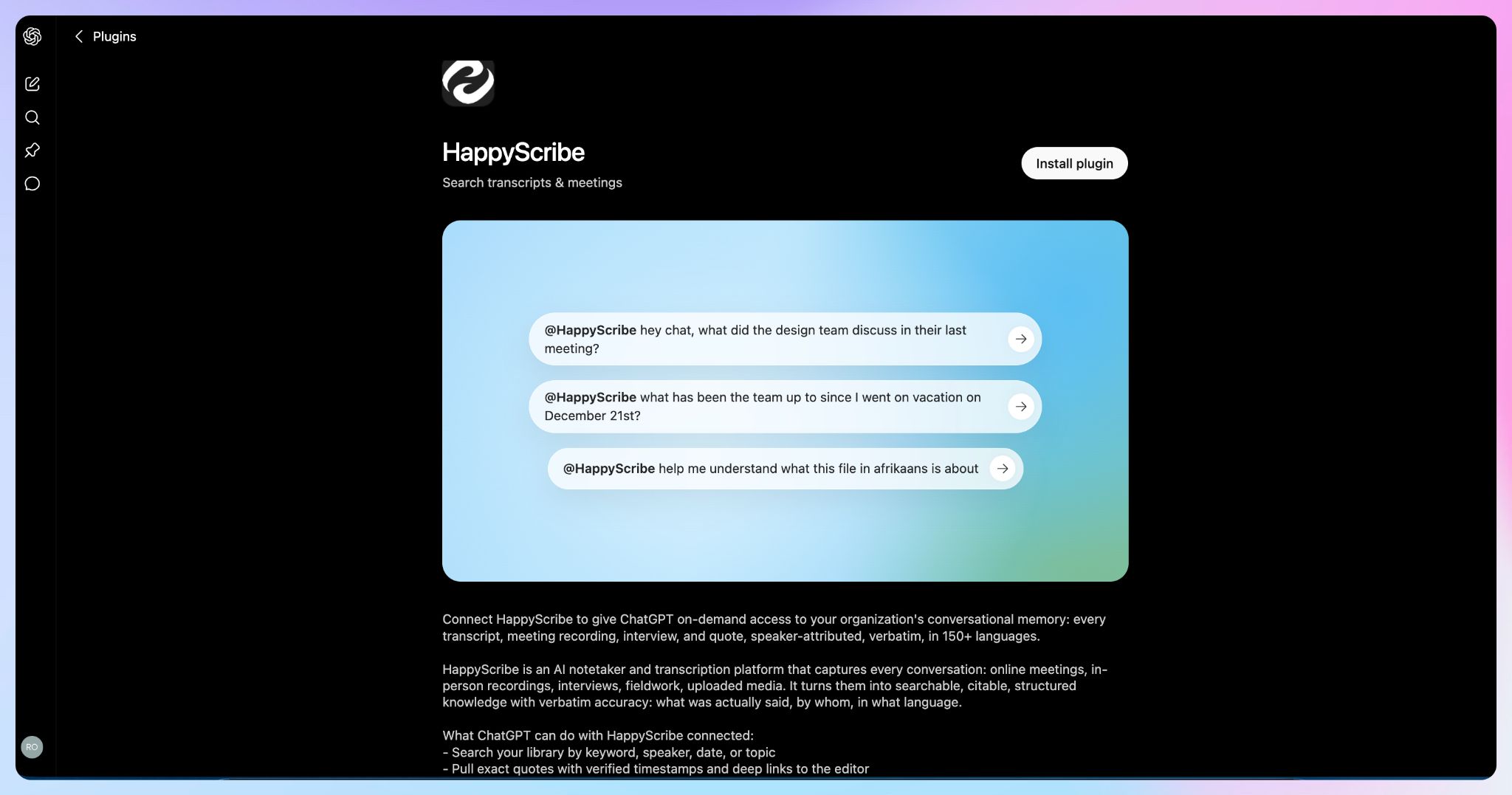
Step 1: Install the HappyScribe plugin in ChatGPT.
Follow this link and click Install plugin.
Step 2: Authorize your HappyScribe account
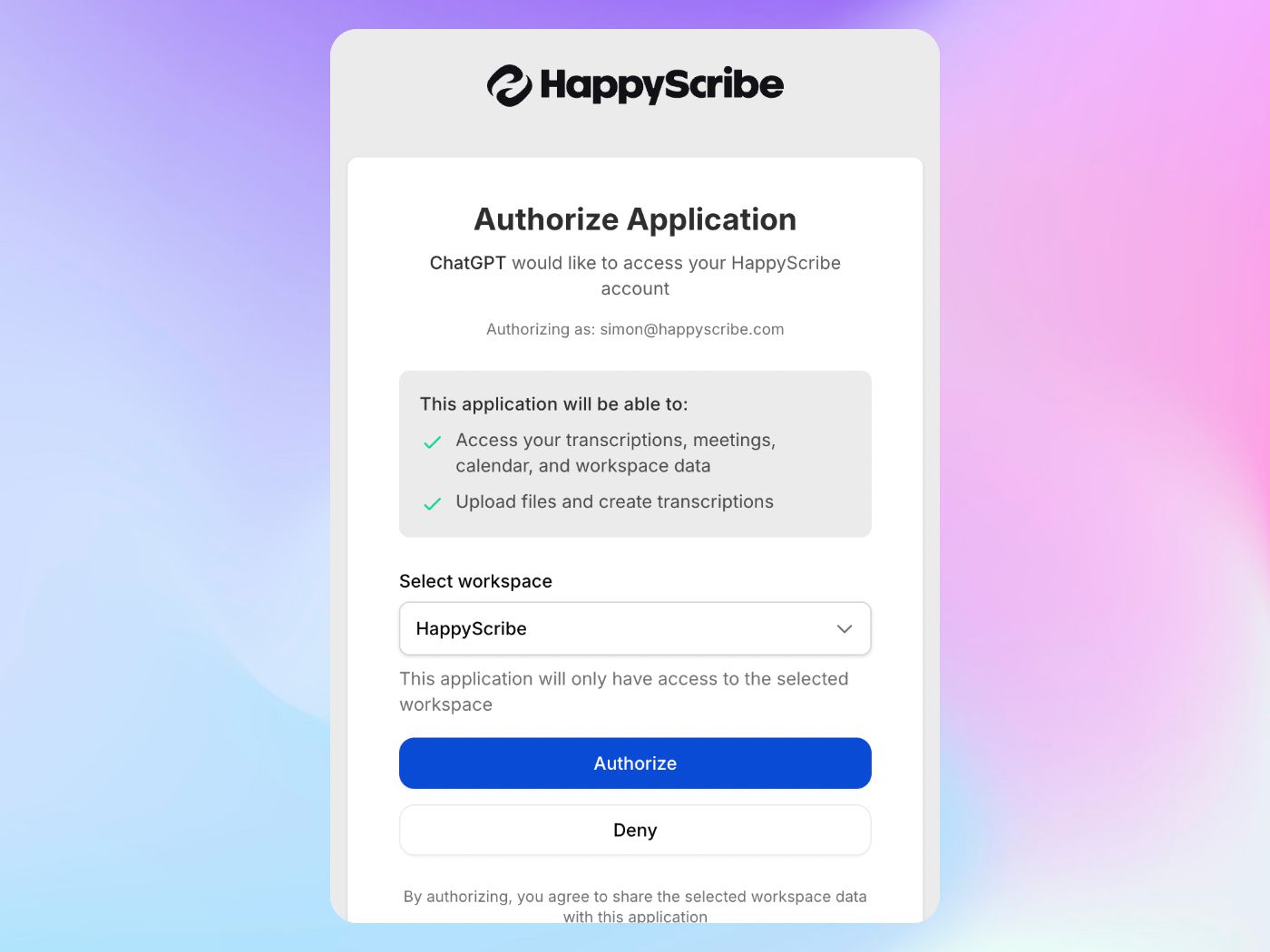
Click Sign in with HappyScribe, then sign in to your existing HappyScribe account and approve access. ChatGPT can access your HappyScribe transcription data only when you ask it to in a prompt.
Step 3: Start asking questions about your transcripts
Once the plugin is connected, you can ask ChatGPT questions such as:
- “Show me my recent transcriptions”
- “Summarize my last 3 meetings”
- “Search all my transcriptions for mentions of quarterly revenue”
ChatGPT can only reach HappyScribe workspaces and folders that your account already has access to. You can remove the connection again from ChatGPT settings.
Prefer a manual MCP connection?
HappyScribe also provides a standard MCP server, which is useful when apps are restricted in your ChatGPT workspace.
Connecting a custom MCP server requires developer mode, which is in beta on ChatGPT’S Plus, Pro, Business, Enterprise, and Edu accounts on the web. Free accounts can't add custom connectors. In Business, Enterprise, and Edu workspaces, an administrator may need to enable access first.
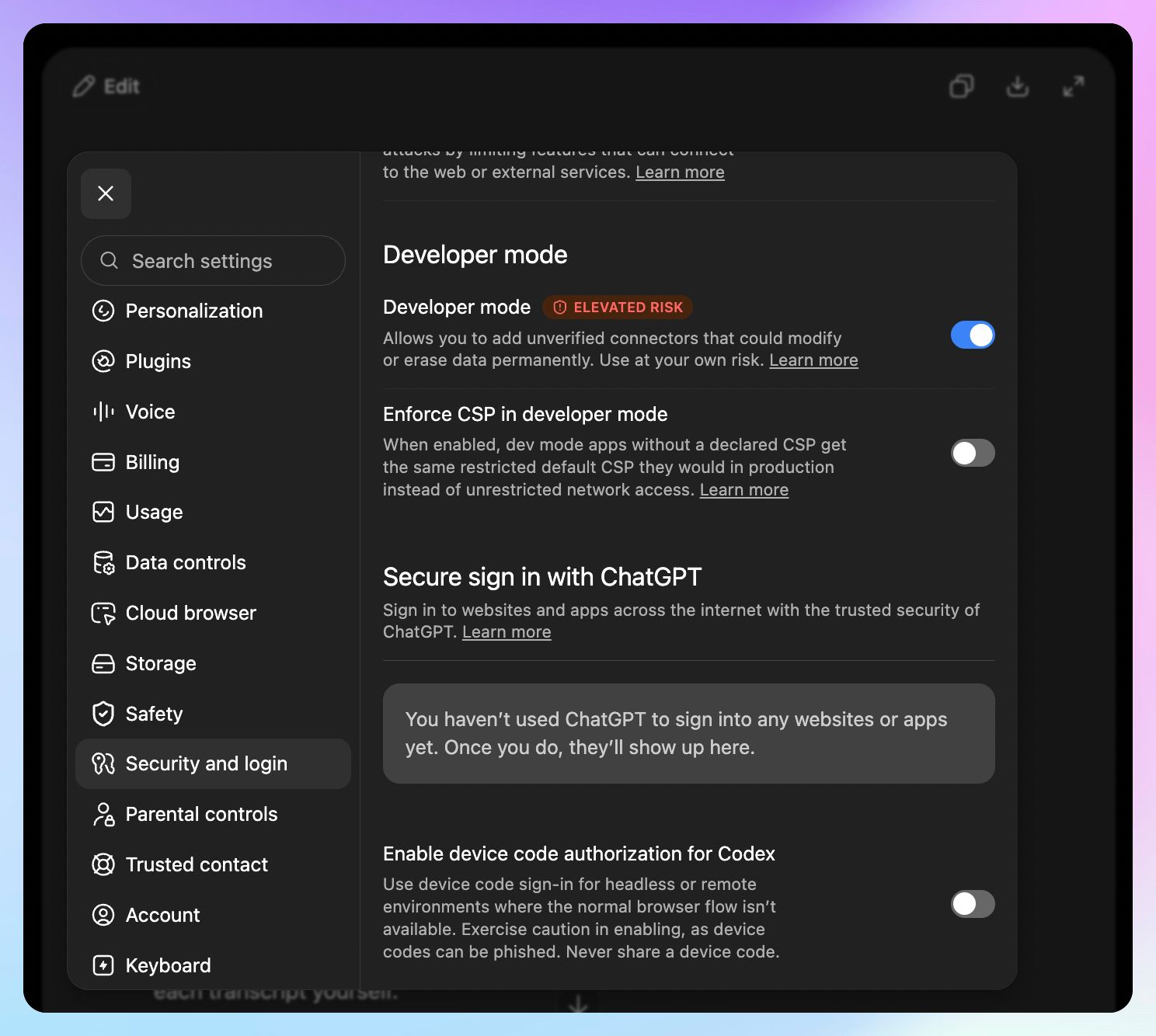
First, go to Settings >Security and login, enable Developer Mode. Then click Create and add HappyScribe with the server URL.
What can ChatGPT do once HappyScribe is connected?
1. Find a meeting without knowing its filename
You can search the HappyScribe library by keyword or speaker. Date-based search is supported too.
For example:
@HappyScribe Find the meeting where we first discussed extending the trial period.
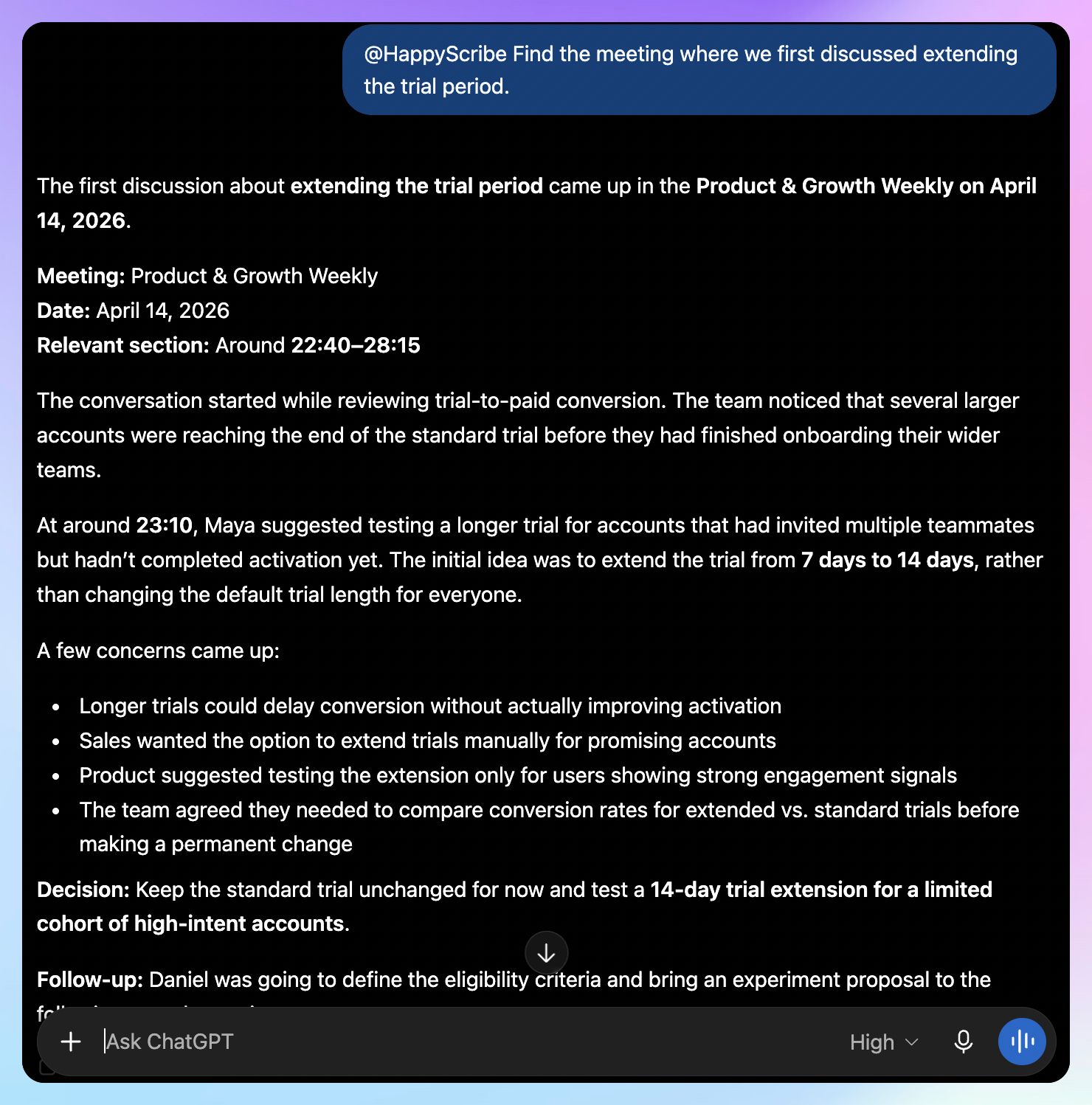
You can start with what you remember about the conversation instead of digging through folders yourself.
2. Retrieve the source behind an answer
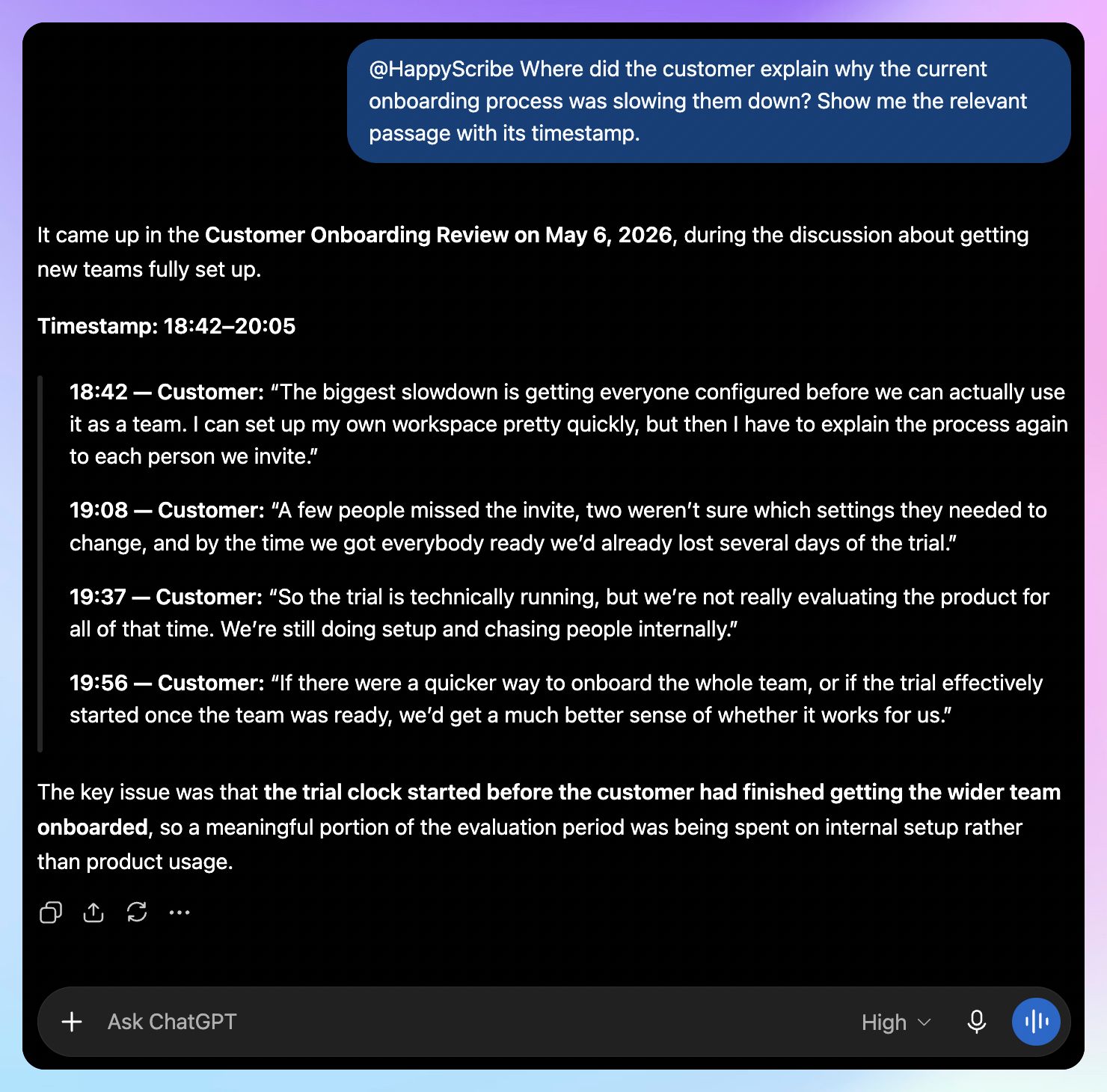
HappyScribe can return exact transcript quotes with timestamps.
Try:
@HappyScribe Where did the customer explain why the current onboarding process was slowing them down? Show me the relevant passage with its timestamp.
3. Ask one question across many transcripts
HappyScribe's MCP server can process a question across up to 50 transcriptions at the same time.
For example:
@HappyScribe Review our recent discovery calls. Which problems came up repeatedly before prospects mentioned pricing? Show me the meetings behind each pattern.
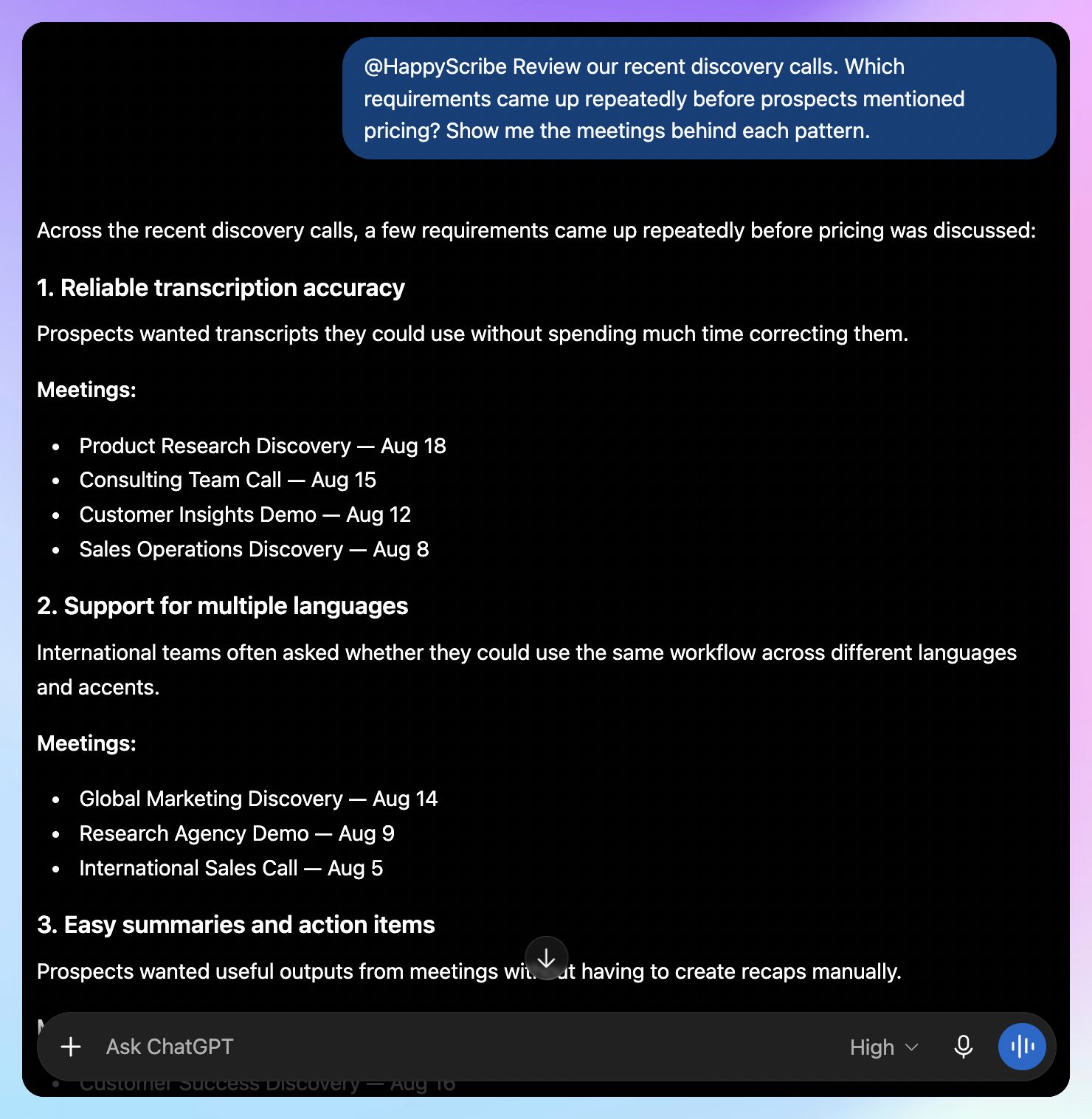
You can move from retrieving one meeting to analyzing the whole meeting archive.
4. Explore people and companies across your recordings
HappyScribe's MCP server includes a knowledge graph that tracks people and companies mentioned in your recordings.
That makes questions like this possible:
@HappyScribe What topics have come up most often in our conversations involving Northstar this year?
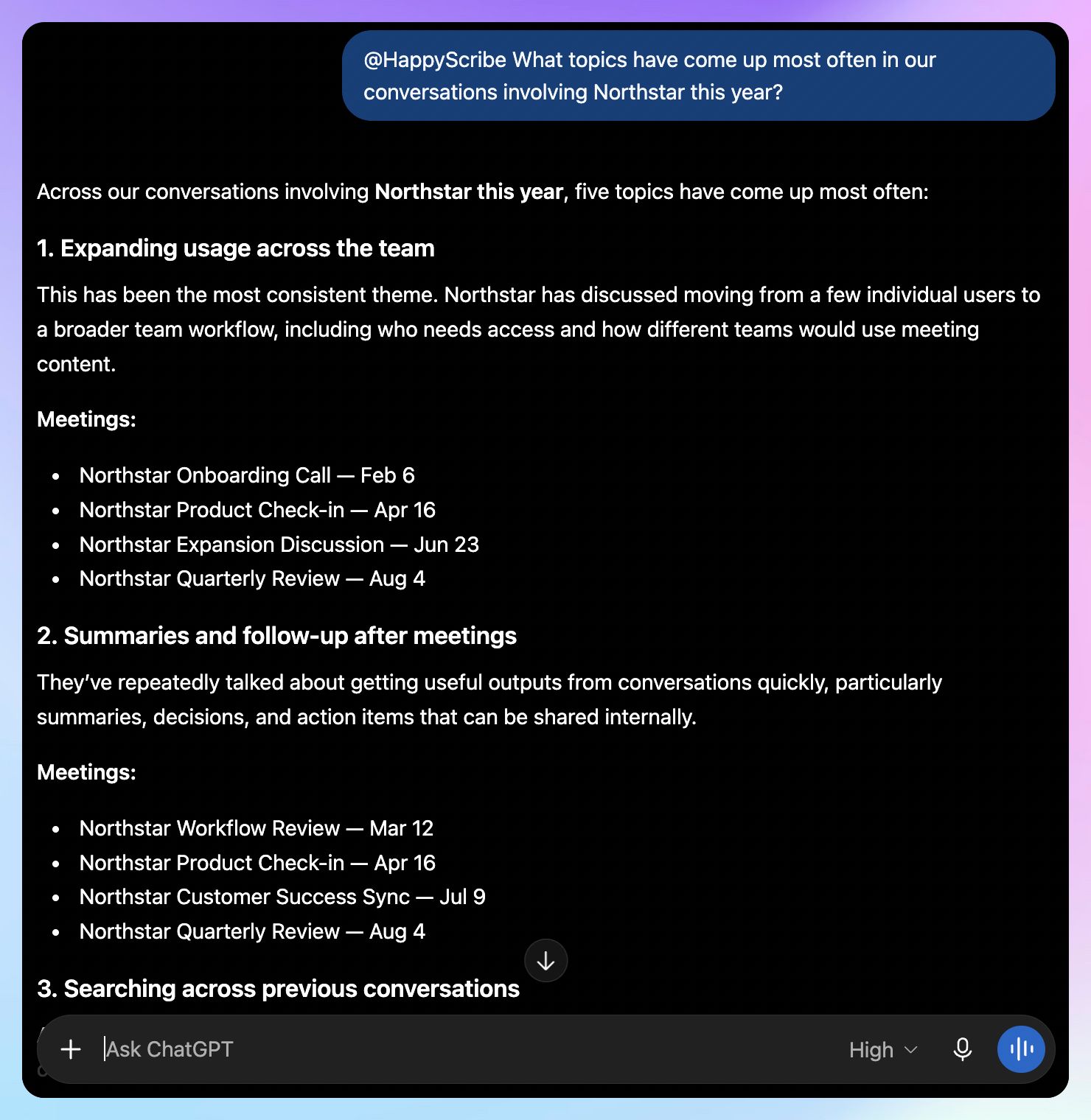
You do not need to identify the individual transcript first.
5. Start a new transcription from ChatGPT
The integration can also create a new transcription from a URL.
For example:
@HappyScribe Transcribe this recording. Once it's ready, find the section where the speaker explains why the project was delayed.
ChatGPT Record vs. ChatGPT with HappyScribe
Both approaches let you work with meeting conversations in ChatGPT, but the workflows differ.
| Feature | ChatGPT Record | ChatGPT + HappyScribe |
|---|---|---|
| Capture meetings | Yes, from the ChatGPT macOS app | Yes, through HappyScribe's meeting workflow |
| Automatic calendar join | Google Meet | Google Meet, Zoom, and Microsoft Teams |
| In-person mobile recording | No native Record mode on mobile | Yes, through the HappyScribe mobile app |
| Generate transcripts | Yes | Yes |
| Work with previous meetings | Yes, through Reference record history | Yes, through the HappyScribe library |
| Search a dedicated transcript library | No; you have to rely on ChatGPT's general search | Yes |
| Retrieve timestamped source quotes | Within a single recording; summary points link to timestamps in that transcript | Yes; across your whole library, with a timestamp on every quote |
| Analyze multiple transcripts together | ChatGPT can reference earlier Record history | Up to 50 HappyScribe transcriptions per question |
| People and company knowledge graph | No | Yes |
ChatGPT Record makes sense if you already work from the macOS app and want the recording to begin inside ChatGPT.
HappyScribe becomes more useful when you already have a larger meeting archive or need capture beyond the ChatGPT Mac app. Its integration also gives ChatGPT a structured way to search that archive and return timestamped evidence.
ChatGPT meeting workflow examples
Sales and customer calls
A sales call or customer conversation usually contains more context than whatever eventually makes it into a CRM note.
With your HappyScribe library connected, you could ask:
@HappyScribe Review our renewal conversations from this quarter. Which accounts became hesitant after discussing implementation effort? Show me what each customer said.
You can then open the source transcript when a particular response needs more context.
It makes your meeting archive useful for understanding why deals move the way they do rather than treating every transcript as a standalone recap.
User research and interviews
Research becomes harder when several people describe the same underlying problem in completely different language.
You could ask:
@HappyScribe Look across these interviews for places where participants struggled with setup. Group comments that describe the same underlying issue. Include the transcript evidence for each theme.
Because HappyScribe can query up to 50 transcriptions at once, you can investigate patterns in your qualitative research without manually combining every transcript first.
The timestamps also give you a way to check the source before a conclusion goes into a research report.
Limitations of using ChatGPT for meetings
ChatGPT can remove a lot of meeting admin, but there are a few limitations you must keep in mind.
1. ChatGPT Record is currently Mac-only
Record mode currently works through the ChatGPT macOS desktop app. The web and Windows desktop apps do not currently offer the same Record mode.
If you need to capture a conversation from another device, you will need a different recording workflow.
2. Important transcript details still need checking
ChatGPT Record can make transcription mistakes, and performance is currently strongest in English.
An incorrect name or number can change the meaning of a meeting note.
For anything that affects a customer commitment or an important internal decision, check the source before acting on the AI-generated answer.
📚 Also read:
3. Review how your meeting data is handled
Audio captured through Record is used for transcription and deleted afterward. The resulting transcript and generated notes follow the retention settings for the conversation.
For Plus and Pro users, transcripts or generated notes may be used to improve OpenAI's models when Improve the model for everyone is enabled. Content from Business, Enterprise, and Edu workspaces is excluded from model training by default.
Check those settings before using Record for sensitive conversations.
📚 Also read:
Make your meeting history useful inside ChatGPT
ChatGPT can now handle much more of the meeting workflow itself. Record mode gives Mac users a direct way to capture a conversation, while uploaded transcripts let you work with recordings created elsewhere.
The bigger challenge appears when the answer you need is buried somewhere in your meeting history.
That is where HappyScribe can extend the workflow. As an AI note taker and transcription platform, it gives you a dedicated place to capture meetings and keep the resulting transcripts searchable. Connect that library to ChatGPT, and you can find the relevant conversation without exporting files one by one.
You can also verify what was said using timestamped quotes. When a question spans several calls, ChatGPT can use HappyScribe to analyze up to 50 transcriptions together.
For teams handling sensitive meeting data, HappyScribe stores data in the EU and is GDPR compliant. It is also SOC 2 Type II certified, with encryption in transit and at rest.
Connect HappyScribe to ChatGPT to spend less time hunting through meeting transcripts and more time using what those conversations contain.
FAQs on how to use ChatGPT for meetings
Can ChatGPT join Google Meet calls?
ChatGPT Record can sync upcoming meetings through Google Calendar and automatically join scheduled events that contain Google Meet links.
Can ChatGPT join Zoom meetings?
ChatGPT Record does not currently auto-join Zoom meetings through calendar sync. You need to start recording manually from the macOS app. If you want an AI note taker that automatically joins scheduled Zoom calls, HappyScribe supports that workflow.
Can ChatGPT join Microsoft Teams meetings?
ChatGPT's current calendar auto-join supports Google Meet rather than Microsoft Teams. You can still start recording manually on a supported Mac. HappyScribe's AI notetaker can automatically join Microsoft Teams meetings through its calendar-connected workflow.
How do I connect HappyScribe to ChatGPT?
Open the HappyScribe app in ChatGPT and sign in with your HappyScribe account. After approving access, mention @HappyScribe whenever you want ChatGPT to work with your recordings.
HappyScribe also offers a manual MCP connection for paid ChatGPT accounts on the web. Availability depends on your plan and administrator settings.
Can ChatGPT search across multiple meeting transcripts?
It depends on where your meeting history is stored. With Reference record history enabled, ChatGPT can draw on transcripts from previous Record sessions.
With HappyScribe connected, ChatGPT can query the HappyScribe transcript library directly. One question can use content from up to 50 transcriptions.
Can ChatGPT generate meeting notes, meeting minutes, and summaries from a transcript?
Yes. You can paste transcripts, upload audio files or full meeting transcripts, then prompt ChatGPT with a specific request for the output you need. For example, ask it to create a structured summary with key points, key decisions, action items, assigned tasks, and follow-up actions. You can also request detailed notes, a brief summary, bullet points, a numbered list, meeting minutes, meeting agendas, or draft follow-up emails for the next meeting.
You can also use ChatGPT to generate other formats from the same conversation, such as a Google Docs-ready recap, CRM notes, or even a blog post. A more specific prompt usually produces more useful, grounded answers than simply asking it to summarize meetings.
How does ChatGPT Record mode work for meetings?
To use ChatGPT Record mode on the macOS app, open ChatGPT and select the Record button when the meeting begins. ChatGPT provides real-time transcription while the conversation is happening. When you stop recording and send the session, it can generate meeting notes and AI summaries from the transcript.
Record mode is currently available on Plus, Pro, Business, Enterprise, and Edu workspaces, but not in the free plan. It can also automatically join supported Google Meet events through Google Calendar. Previous recordings can remain available according to your workspace retention rules and settings.
How can I use ChatGPT to create actionable meeting notes?
Paste a transcript and give ChatGPT a structured prompt asking for key decisions, action items, owners, deadlines, and unresolved questions. You can also ask it to format tasks as bullet points or a numbered list, then turn the notes into a brief summary or follow-up email. You should always check important details against the transcript.
How can AI fit into a meeting workflow?
Before a meeting, AI can help you create agendas and discussion questions. During meetings, ChatGPT Record can capture and transcribe the conversation. Afterward, it can generate summaries, action items, and follow-up emails. For sensitive meetings, review privacy and workspace retention settings before recording.

Rodoshi Das
Rodoshi is the Content Lead at HappyScribe, the privacy-first transcription and AI notetaker platform based in Barcelona. Shaping content strategies and building AI workflows excites her as much as exploring new SaaS tools. She specializes in product-led content that informs rather than sells, grounded in honest product benchmarking and low tolerance for empty marketing speak.