TL;DR ⏩
- Your phone's recorder works offline, but field interviews call for more languages, reliable speaker labels, and better export formats
- The HappyScribe app records without a signal on iOS and Android, and it's free on every plan
- Before you travel, sign in and make a test recording with data and Wi-Fi off
- Recordings upload on their own when you reconnect. You can also save the file to your device
- HappyScribe gives you a labeled transcript in 150+ languages that you can edit and analyze with AI
Some of your best interviews will happen where your phone barely gets a signal. It might be a farmer's porch two hours from town, or a clinic where your one bar disappears as you sit down.
You get one shot at that conversation. If the recording fails, you can't ask someone to tell their story again.
The good news is that recording without internet is the easy part, because your phone can already do it. The harder part comes later, when you need a transcript you can quote and share.
I'll walk you through how to record and transcribe field interviews reliably anywhere, from the setup before you leave to the notes you get once you're back online.
Can't you just use your phone's voice recorder?
Chances are, your phone can already record an interview with no signal. For instance, Voice Memos transcribes audio on iPhone. Google Recorder does the same on Pixel phones, and recent Galaxy phones have Samsung Voice Recorder.
But field interviews ask for more than a quick chat in English.
Your interviewee may speak a language the app doesn't support, and you'll need to export the data to other platforms. For serious work, pick a meeting note taker that’s reliable outdoors.
| Feature | iPhone (Voice Memos) | Android (Google Recorder, Samsung) | HappyScribe app |
|---|---|---|---|
| Offline recording | ✅ | ✅ | ✅ |
| Works on any phone | ❌ iPhone 12 or later | ❌ Pixel or Galaxy S24 and later | ✅ iOS 16 and Android 13 |
| Languages | ☑️ 10 | ☑️ 15 to 20+ | ✅ 150+ with auto-detection |
| Speaker labels | ❌ | ☑️ Varies by device | ✅ With timestamps |
| Export formats | ❌ Copy and paste | ☑️ TXT or Google Docs | ✅ DOCX, PDF, TXT, HTML, XLSX, MD, SRT, VTT, etc. |
| Human proofreading | ❌ | ❌ | ✅ |
| Search across interviews | ❌ | ❌ | ✅ AI Chat |
That's why I suggest you record with the HappyScribe mobile app. It works offline on any recent phone and turns the audio into a labeled transcript once you're back online. Our guides to transcribing audio on iPhone and Android cover the stock apps in more detail.
Step 1: Set up your phone and a backup before you lose signal
Most of this step needs a connection, so do it before you travel.
- Download the note-taking app from the App Store or Google Play and sign in. If you’re working with multiple orgs, pick the right account in the Account tab.
- Tap Record and allow the microphone. On Android, allow Notifications too, because that permission keeps the recording running when you switch apps.
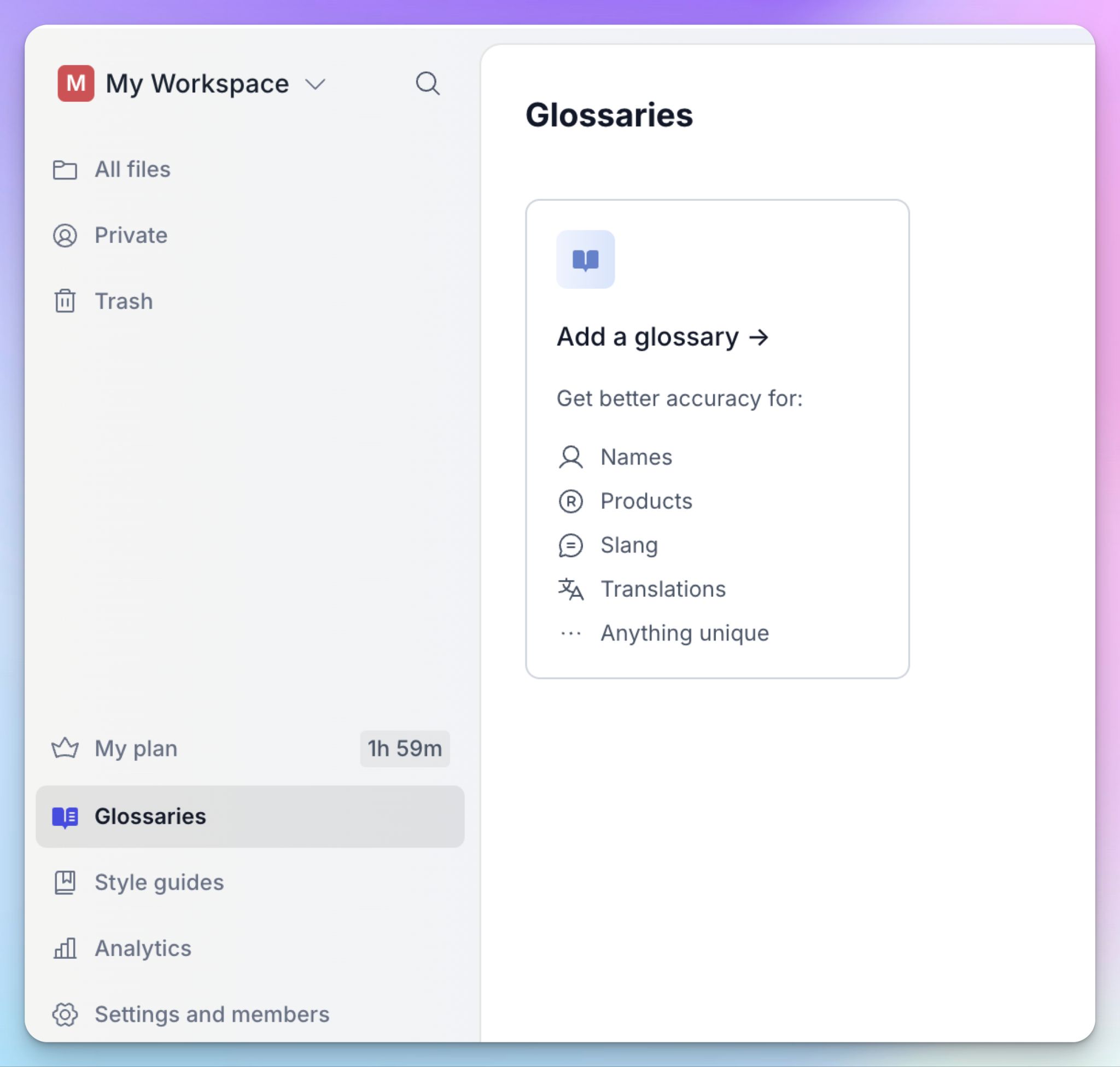
- For best accuracy, add participant names and local terms to a custom glossary on the web.
- Turn off data and Wi-Fi, and make a short test recording.
Your phone is your primary recorder, but a portable recorder keeps a backup ready in case things don't go as planned. Set it to record WAV files at 48kHz to 96kHz because WAV is uncompressed and lossless, and that range is the standard for oral histories.
Step 2: Get consent and set up your audio
A clear recording starts long before you press “start”.
Explain what the recording is for and who will read the transcript, then ask for informed consent. It helps to ask again once the recording starts, because the answer then lives on the audio itself.
Research interviews often come with stricter consent rules, so check yours before you travel.
Next, look for a quiet space and place your devices away from noise sources like fans or generators, because background noise diminishes transcript quality.
Microphone selection also shapes sound quality more than any app does:
- A lavalier mic clips to the collar, which makes it ideal for a portable setup
- A shotgun mic isolates the speaker's voice from background noise in noisy environments
- Wind protection keeps gusts from drowning out either mic outdoors
Keep the microphone 6 to 8 inches from the speaker's mouth. Rest the phone on a table or a small mic stand so your hands don't add handling noise.
Finish with a sound check. Record a few seconds and listen back through closed-back headphones, because they block outside sound and let you hear problems before the interview starts.
Step 3: Record the interview offline
You don't have to switch on an offline mode, because the HappyScribe app records the same way with or without signal.
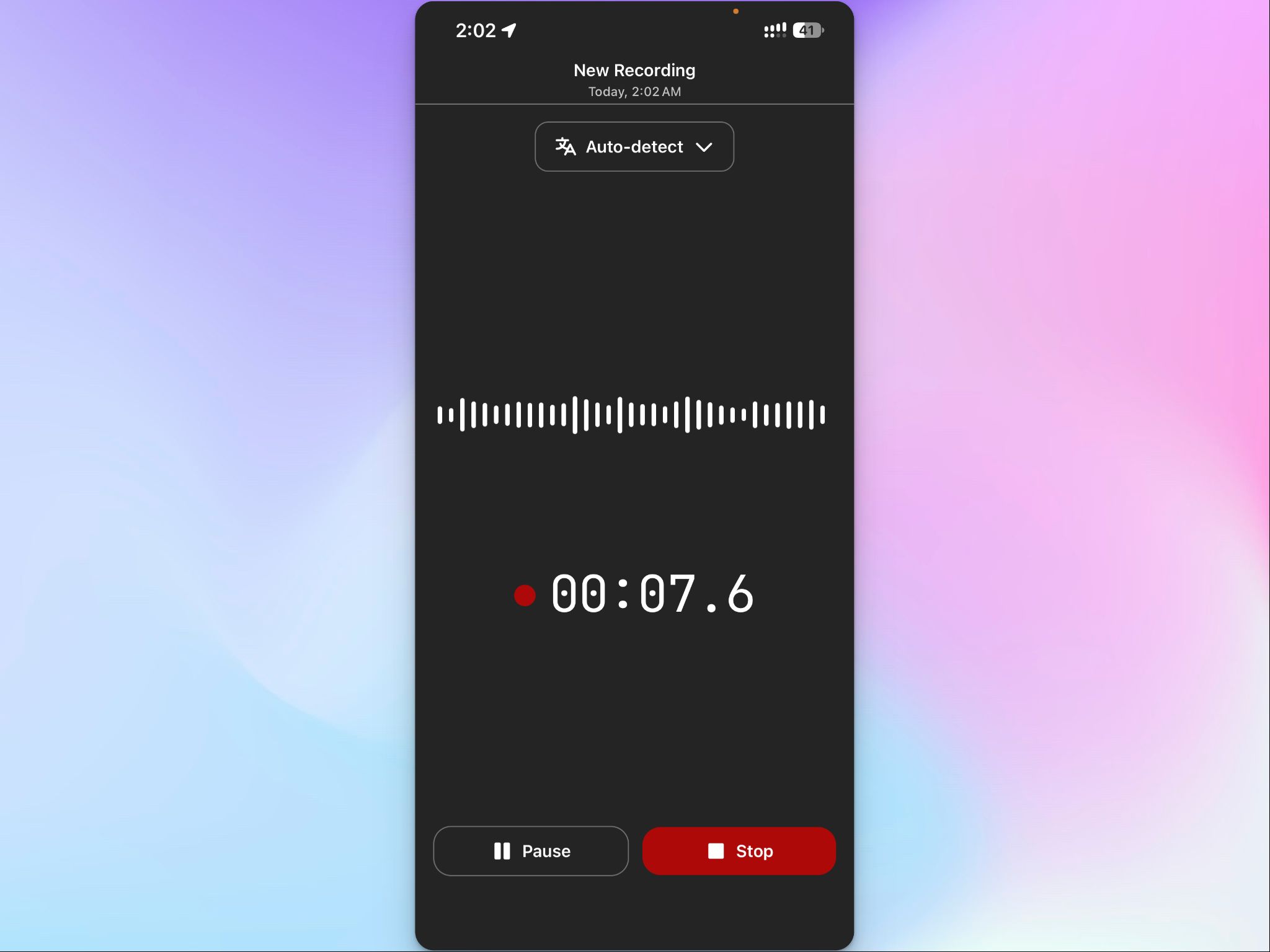
- Open the app and tap Record. A live waveform and a running timer show that your audio is coming through.
- Select the language being spoken for improved accuracy. You can change it at any point during the recording.
- Start your backup recorder at the same time.
- The app keeps recording when you lock the phone or switch apps. On Android, a notification shows the recording is still active.
- Tap pause if someone interrupts, then resume when you're ready. The timer counts only your recorded time.
Two things during the interview make the transcript easier to work with later: ask the participant to say and spell their name at the start, and let each person finish before the next one speaks.
When you're done, tap Stop and give it a clear name, such as the interviewee's name and the date.
Step 4: Keep the recording safe with no signal
Once you tap Stop, the recording lives on your phone until you're back online. That could be an hour or a week, so make sure you check it.
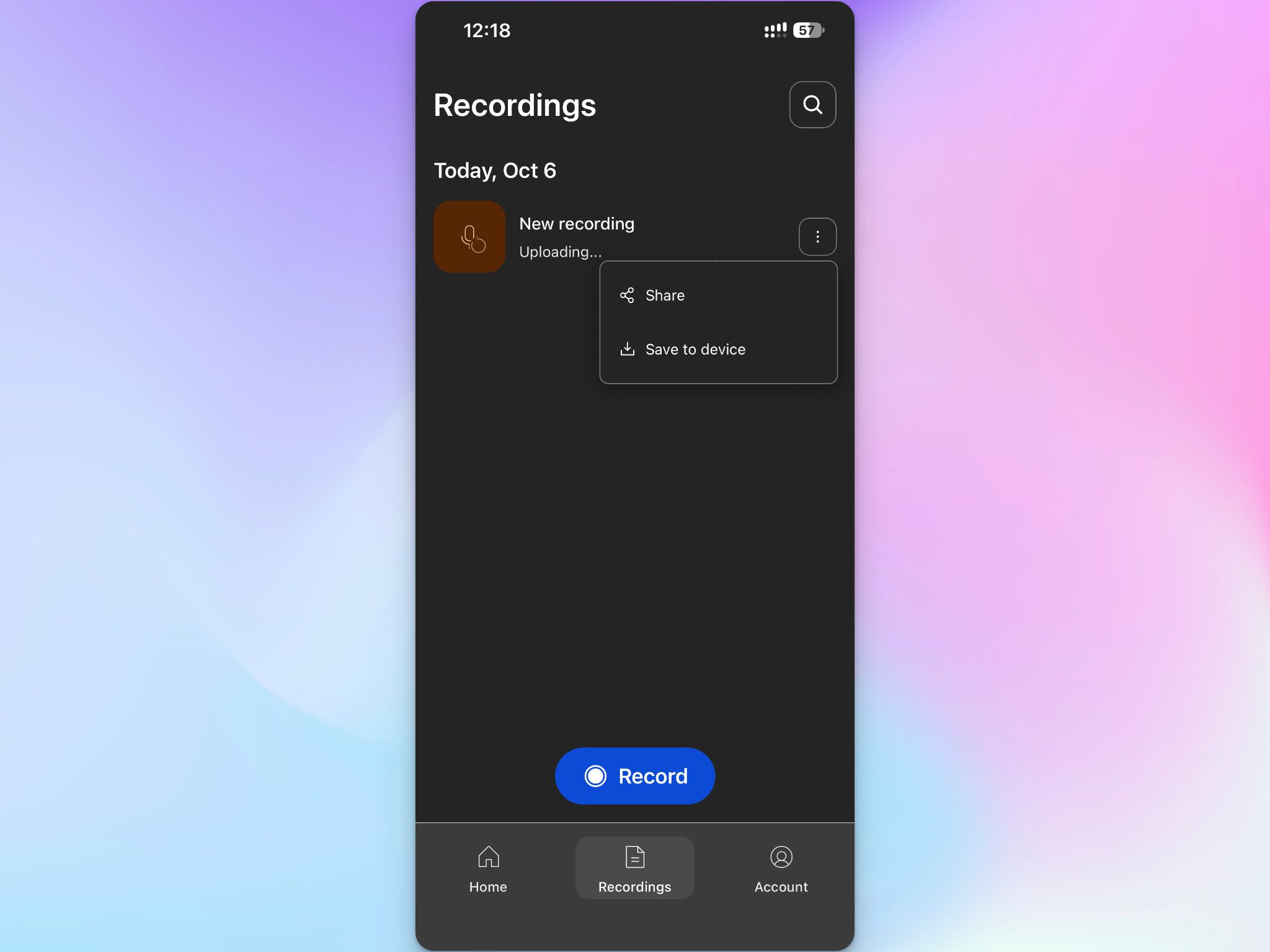
Open the Recordings tab and check that the interview is listed. You'll see it marked as "uploading" or "failed." Either is normal offline, because the HappyScribe app retries on its own once you reconnect.
While uploads are pending, I'd avoid two things:
- Signing out of the app, because pending recordings are only accessible from the same account
- Switching to another org in the Account tab, because each recording is tied to the org that was active when you recorded it
If you'd like a second copy on the phone itself, tap the three-dot menu on the recording and select Save to device. This puts the audio file in your phone's Files app.
Even if you lose the recording, you can upload the saved file to the HappyScribe website and get the meeting transcription.
Step 5: Reconnect and let the upload finish
When the HappyScribe app reconnects to the internet, it’ll automatically upload the recording.
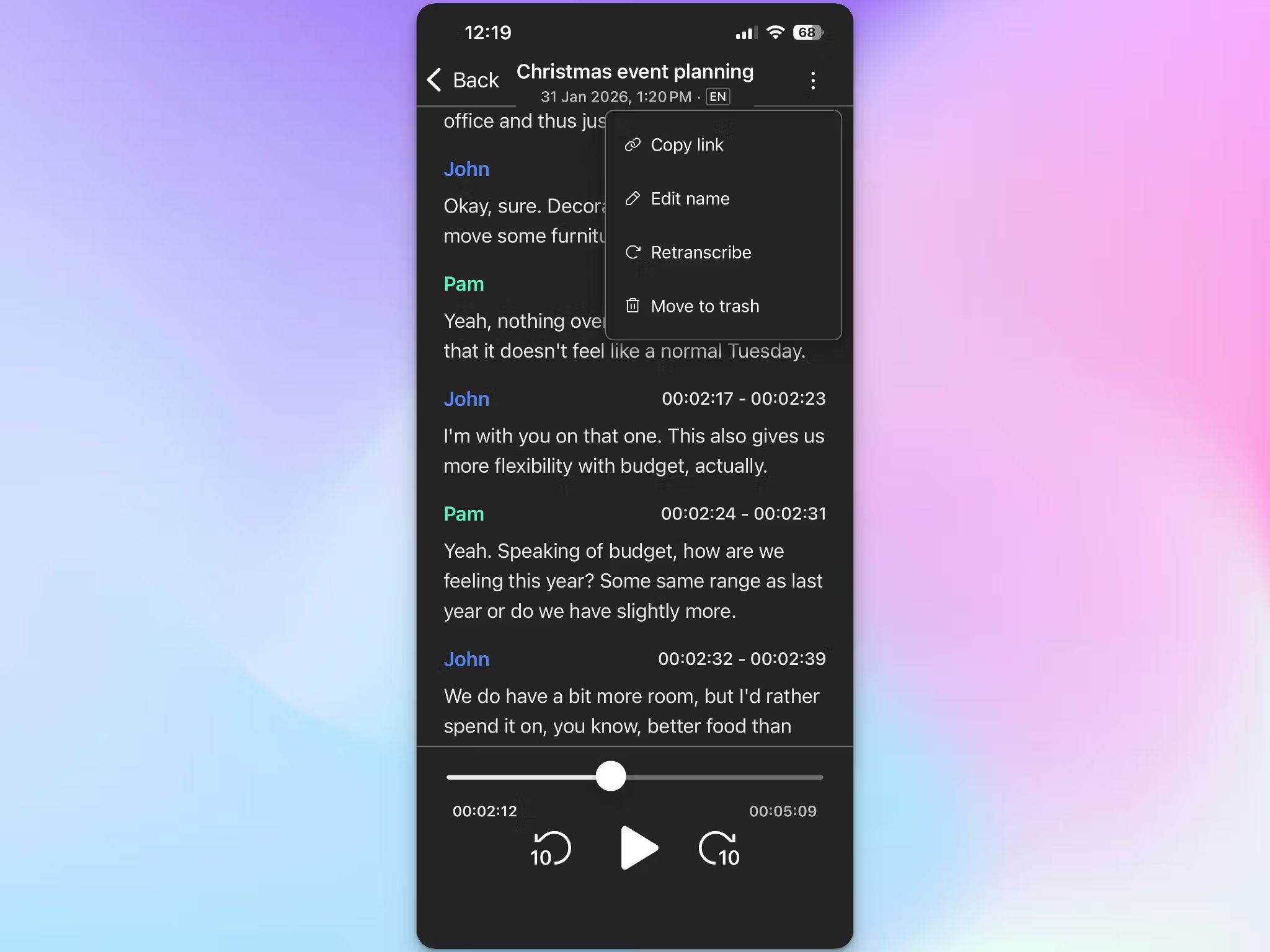
- Connect to mobile data or Wi-Fi.
- Open the Recordings tab and pull down to refresh the list.
- Tap the recording to open it. Wait a minute for the transcript to generate, and you’ll see it with speaker labels and timestamps.
If you’re online but the recording still shows as "uploading" or "failed," here's what I'd try:
- First, tap the three-dot menu and choose to retry
- Next, close the app fully and reopen it, because a restart retries any pending uploads
- Last, select Save to device and upload the audio file from your phone to HappyScribe on the web
If the transcript comes back in the wrong language, tap the three-dot menu and select Retranscribe to run it again in the right one.
Step 6: Turn the transcript into notes you can use
This last step happens on the web, because you get to analyze texts, extract key points, and connect notes to other apps.
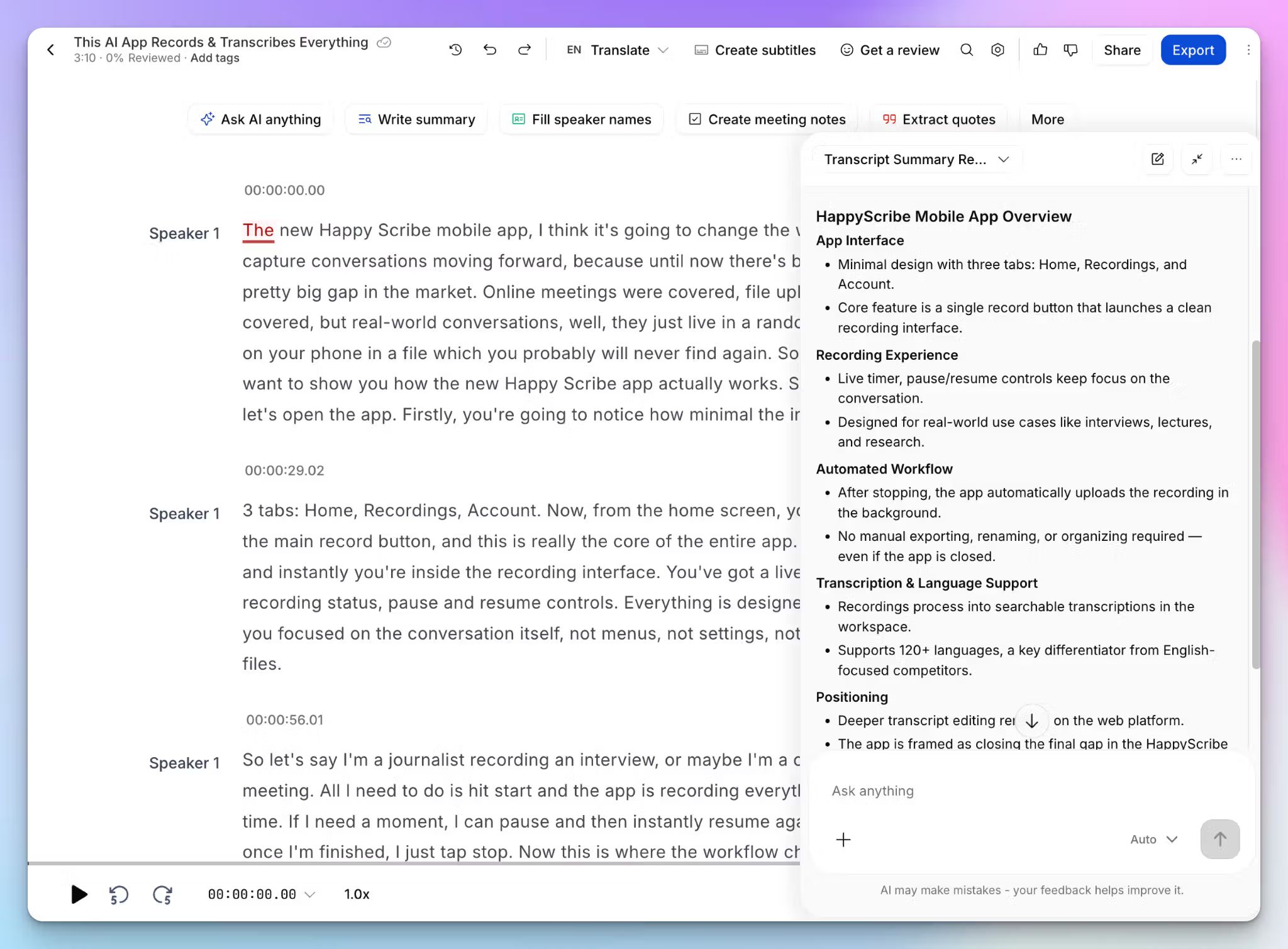
- Open the transcript and edit speaker labels or texts, if needed. You can listen to the audio as you edit.
- Select the Summary tab and pick a template to shape the output. You can also click on Extract quotes to pull the key quotes with timestamps.
- Put the trip's interviews in one folder and point AI Chat at it. You can then ask questions across every interview, such as "What did people say about water access?" or “Find the part where the store manager talks about pricing.”
- Translate the transcript if you work in another language. HappyScribe translates into 80+ languages.
- Export in the format your next tool expects. DOCX and PDF suit reports, and TXT works well with analysis software. You can also feed HappyScribe transcripts to Claude and ChatGPT directly.
For the interviews your study rests on, I'd add human-made transcription. A professional checks the transcript to 99% accuracy, which helps healthcare and legal transcription the most.
Record your next field interview with confidence
A field interview only pays off when it comes home as an accurate transcript. Your phone's recorder gets you the audio, but the work after that is where most setups fall short.
The HappyScribe app covers both audio capture and reliable transcription. You can record without a signal, and the upload starts on its own when you reconnect. From there, you get a labeled transcript in 150+ languages that you can analyze and export.
Your participants' words stay protected too. HappyScribe is GDPR-compliant and SOC 2 Type II-certified, and your data is encrypted with AES-256 in an ISO 27001-compliant EU data center.
The app is free on every plan, with unlimited recordings.
FAQs on how to record field interviews without internet
What is the best way to record a field interview?
The best way to record a field interview is to pair a recording app on your phone with an external microphone and keep a backup recorder running. The right tools are affordable, and a clip-on mic gives you the best sound for the price. Choose a quiet location if possible, because background noise lowers audio quality. Take notes on nonverbal cues and contextual observations, which an audio recording can't capture. Then record one minute of room tone at the end, and capture ambient noise if it's relevant to your research.
How to start field recording offline?
To start field recording offline, set up your recording app while you still have a connection. With HappyScribe, you sign in and allow the microphone, then make a test with data and Wi-Fi off. At your location, tap Record to start recording. The built-in mics on cell phones are fine up close, and you can adjust the phone's position until you capture clear audio. Use a consistent naming schema for your audio files, so each one is easy to track later.
Can I legally record an interview?
Yes, you can legally record an interview in most places if the other person agrees to it. Consent rules vary by location. Some US states only require one person in the conversation to consent, and others require everyone's permission. The same rules apply to remote interviews on a computer and to any video equipment you bring. The safest approach is to ask for consent on the recording itself and check local law before you travel.
How to record without internet?
You can record without internet on most cell phones, because audio recording happens on the device itself. Open a recording app such as HappyScribe and tap Record, and the file saves to your phone. The moment you reconnect, HappyScribe uploads it and sends back a transcript. A portable recorder with an SD card is a practical second copy. Once you're online, back up your recordings on a cloud-based platform or your laptop to prevent loss.

Biplab Mazumder
Biplab is a content marketer and writer who helps high-growth brands scale content visibility across AI search channels. His works have been published in HubSpot, Freshworks, Atlassian, SurferSEO, etc. When he's not planning content strategy, he's testing AI content workflows and use cases.