TL;DR ⏩
- Check your college's recording policy before anything else, since many schools require your professor's written permission, and some treat an unauthorized recording as a conduct violation
- iPhone Voice Memos and Notes apps record and transcribe for free on iOS 18 and above, which is enough when you want an audio backup of one class in one language
- Neither app labels speakers, exports transcripts, or search across more than one recording at a time
- The HappyScribe iPhone app records lectures offline on iOS 16 or later and returns timestamped transcripts with speaker labels in 150+ languages
- You can search a semester's worth of lectures and ask questions with AI Chat for studies
- The free plan offers unlimited lecture recordings capped at 45 minutes each
15 minutes into a lecture, and you know you’re not gonna remember any of this a week before midterm. This isn’t just you; it happens to the best of us :)
Recording college lectures is a convenient way to replay the valuable bits later. But we’ve moved past simple audio recordings. If you’re on an iPhone, you have some cool ways to not only record back-to-back classes but also transcribe them into notes.
I’ll share the best ways you can capture lectures on iPhone and study from them. But first, make sure your college and professor allow students to record lectures in the first place.
Before you record a college lecture on your iPhone
Two minutes of prep makes sure you get to use the recording instead of wasting an hour.
- Check your college's policy first.Boston College requires permission from instructor and classmates before you record or generate an AI transcript, and recording without it goes to the conduct system. The University of Iowa asks for written permission plus notice to the rest of the class. Your syllabus usually has this mentioned, but if you don’t see it, send a short email and ask
- Go through disability services if you need an accommodation.Section 504 names lecture recording as an accommodation, and an instructor can't refuse an approved one
- Keep recordings to yourself. Your professor owns what they say in class, so personal study is fine, but posting or sharing isn't
- Check your battery and storage. Start above 50% for a 90-minute class, and don't run a recording on a phone with almost no space left
- Turn on Do Not Disturb or a Focus mode. Notification sounds might disrupt the recording and pull your attention away from the lecture
- Sit in the first few rows and set the phone face up on a stable surface.Distance causes missing words, and a notebook laid over the microphone will muffle the whole lecture
📌 Also read:
Method 1: Record a lecture with Voice Memos
Best for: Students who only want an audio backup, have iPhones with lots of storage, and don’t want to pay for accurate lecture recordings
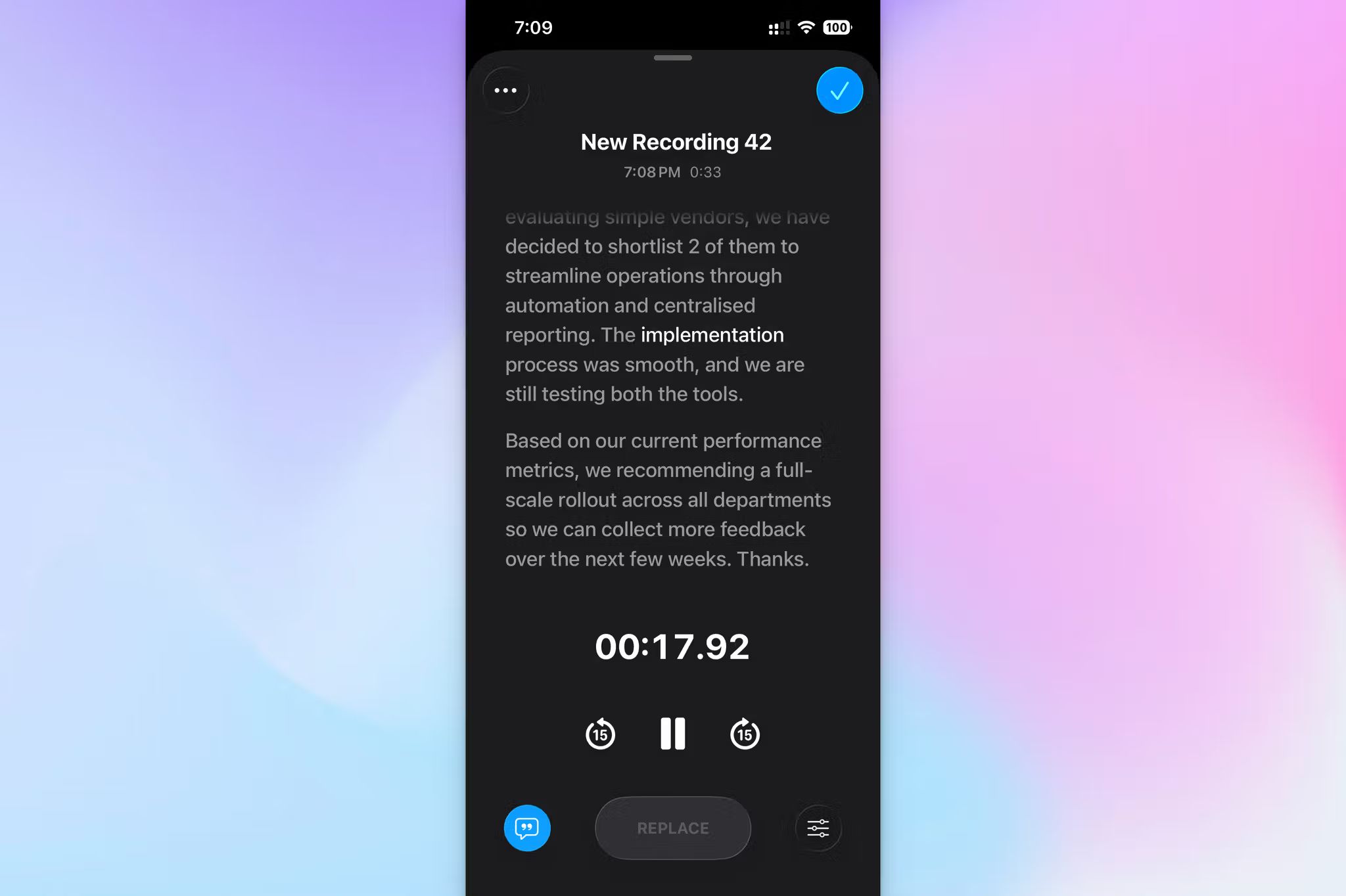
Voice Memos is already on your iPhone, and it takes only seconds to start a recording.
1. Open Voice Memos. It usually sits in the Utilities folder, or you can pull down on your home screen and search for it.
2. Set your phone face up on the desk, angled toward the front of the room.
3. Tap the red Record button. If your iPhone runs iOS 18 or later, swipe up on the waveform and tap the 💬 Transcription icon at the bottom left to watch the transcript in real time.
4. Tap the red button again when class ends. Tap the recording's name and rename it right away.
5. To read the transcript later, tap the recording, tap the three-dot menu, then select View Transcript. You can select the text and copy it out.
Tips for better Voice Memos recordings
- Rename every file the moment you stop. You can easily find "BIOL 210 - Cell Signaling - Oct 14" weeks later, but "New Recording 27" isn't as helpful
- Turn on iCloud sync in Settings so recordings appear on your Mac and iPad without AirDrop
- Record a 30-second test from your usual seat before the semester starts, then listen back on headphones
Where Voice Memos falls short
- Transcription covers only 10 languages, so lectures in other languages give you audio only
- No speaker labels or reliable punctuation, so you’ll have a hard time going through discussion-heavy seminars
- No support for DOCX, PDF, or SRT export, since copy and paste is the only way text leaves the app
- Each transcript is locked inside its own recording, so you can't search across a semester of classes at once
Also worth knowing: The Notes app records too
Notes runs the same transcription engine as Voice Memos, but it keeps the audio inside a note instead of in a separate app.
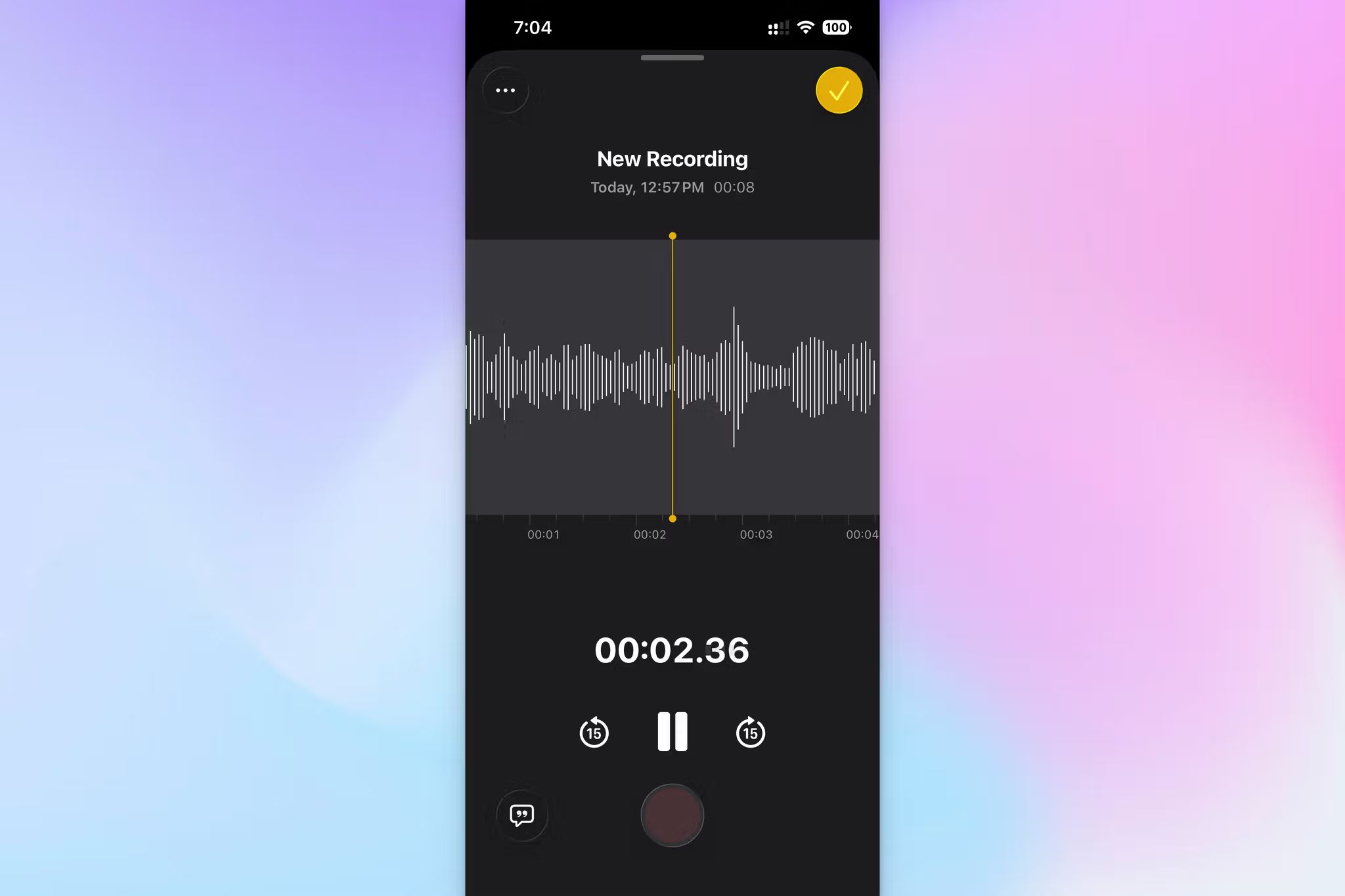
- Open Notes and create a note, or open the one you're already keeping for that course.
- Tap the 📎 attachment button and select Record Audio.
- Tap the red button to start. Tap the 💬 Transcription icon at the bottom left to watch the transcript build.
- Tap Stop when class ends. The recording is embedded in the note with a few lines of transcript showing, and tapping that preview opens the full text.
For lectures, this beats Voice Memos on one thing: your recording, your typed notes, and any photos of the board all live in the same place, formatted however you want. If you have Apple Intelligence enabled, you can summarize the transcript as well.
Language support and hardware requirements are identical, so everything in the limitations list above applies here too.
Method 2: Record and transcribe lectures with the HappyScribe app
Best for: Students in dense technical courses, lectures in a second language, or anyone who needs powerful insights across classes
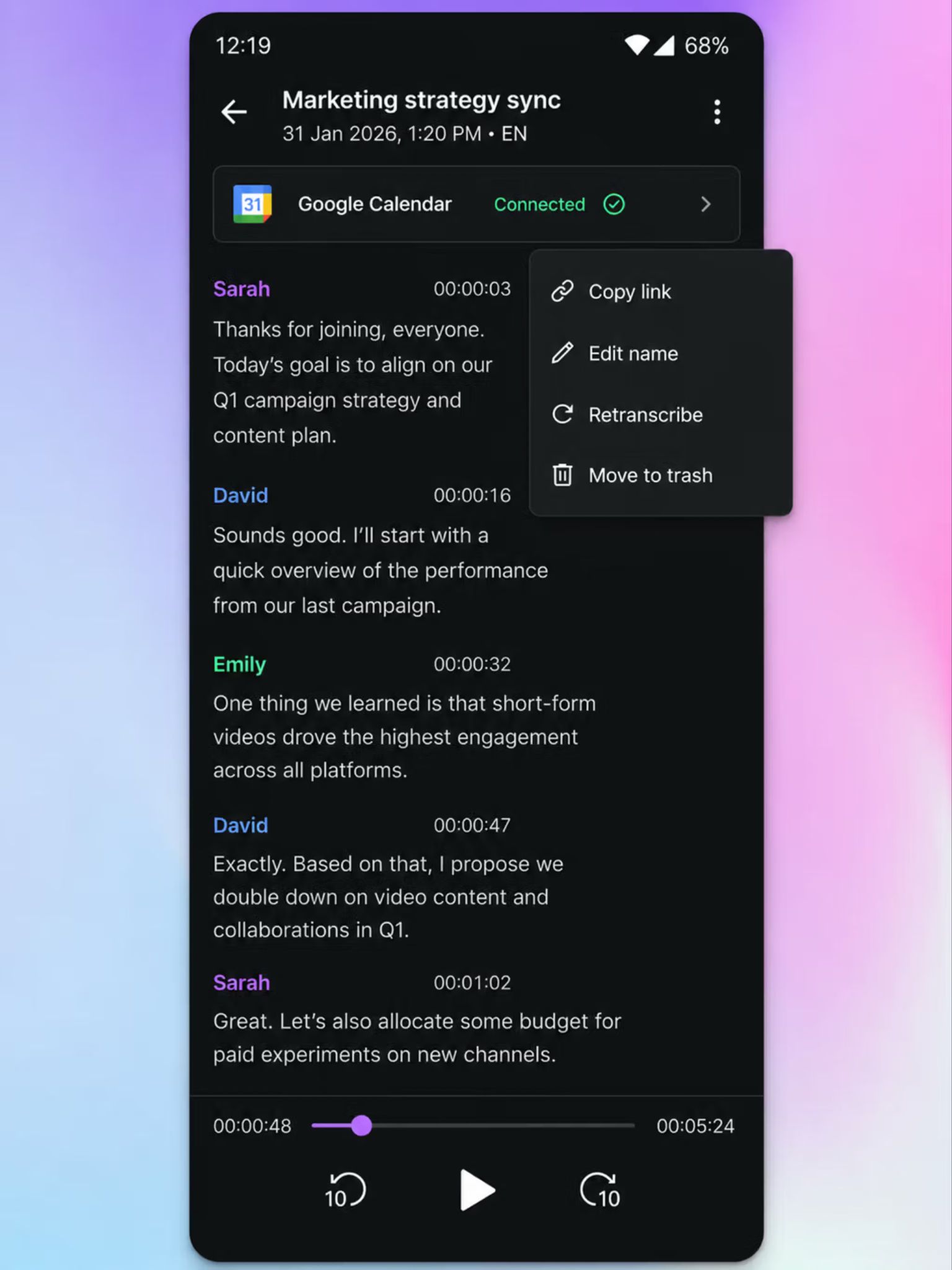
The HappyScribe app runs the same speech-to-text engine as the web platform, so a lecture you record in class is as good as the files you upload to HappyScribe. It works on iOS 16 or later, which covers older iPhones that can't run Apple's AI transcription at all.
- Download the HappyScribe iPhone app from the App Store.
- Sign in with your HappyScribe account, or create a free one in the app.
- Tap ⏺️ Record and grant microphone permission the first time. The timer and waveform confirm audio is coming through.
- You can pause/resume the recording midway, and when you're done, tap Stop. Give it a name, select the folder you want to save it in, and tap Save.
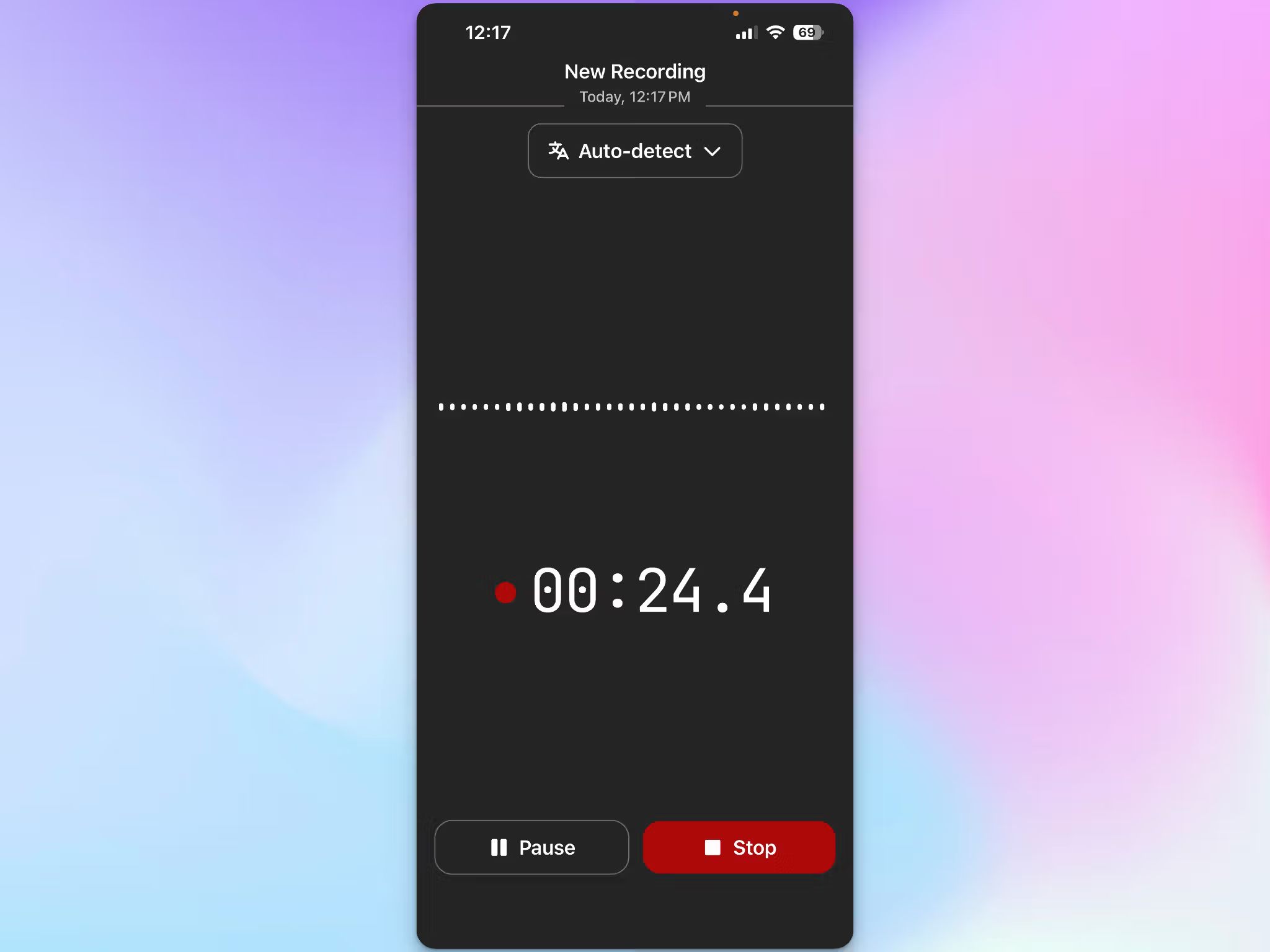
Walk to your next class. The file uploads in the background, and your transcript arrives in a few minutes with timestamps and speaker labels.
Why the HappyScribe iPhone app works for back-to-back classes
Unlike Apple’s default apps, HappyScribe is built for heavy workloads. That means long lectures, research interviews, and webinars.
- HappyScribe lets you record without a signal. The app waits and uploads when you're back online
- The lecture recording app supports 150+ languages and 95% accurate transcripts, so an exchange semester doesn't leave you with audio you can't read
- Everything syncs to your HappyScribe workspace, which you can open on a laptop, rather than in a folder on your phone
What you can do with a recorded lecture
This is where HappyScribe recordings pull ahead of iPhone’s capabilities. HappyScribe generates accurate transcripts from your lectures, with punctuation and searchable texts.
1. Search a lecture instead of replaying it
Type a term into the transcript and land on the moment it was said. Definitions, formulas, dates, and the specific example your professor spent ten minutes on all become findable in seconds. You can also play the audio at the same time for more clarity.
2. Teach it your course vocabulary
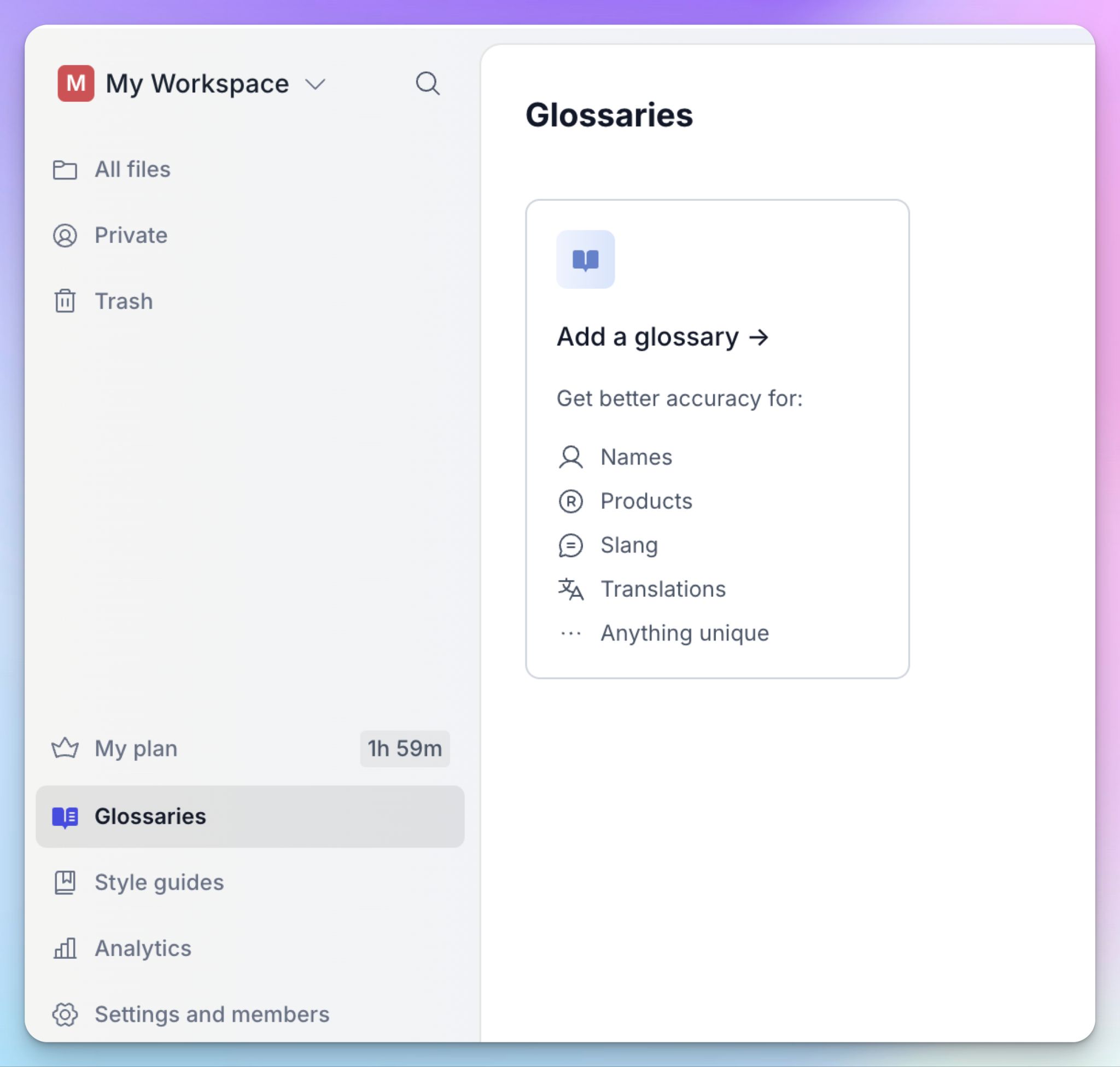
iPhone struggles to pick jargon and niche words. Be it organic chemistry nomenclature, a Persian studies seminar, or your professor’s unique surname, things will come back mangled without a dictionary.
HappyScribe’s custom glossaries fix that. In the web editor, click on the Glossaries tab and build your database. You can also highlight a word in the transcript and click Add to glossary.
Build one per course at the start, and every lecture after that comes back cleaner. If your syllabus already lists key terminology, you can import it as a CSV from Settings > Glossaries and skip the manual step.
Since your phone recordings are stored in the same workspace, your glossaries apply to them automatically.
3. With AI Chat, study a whole semester
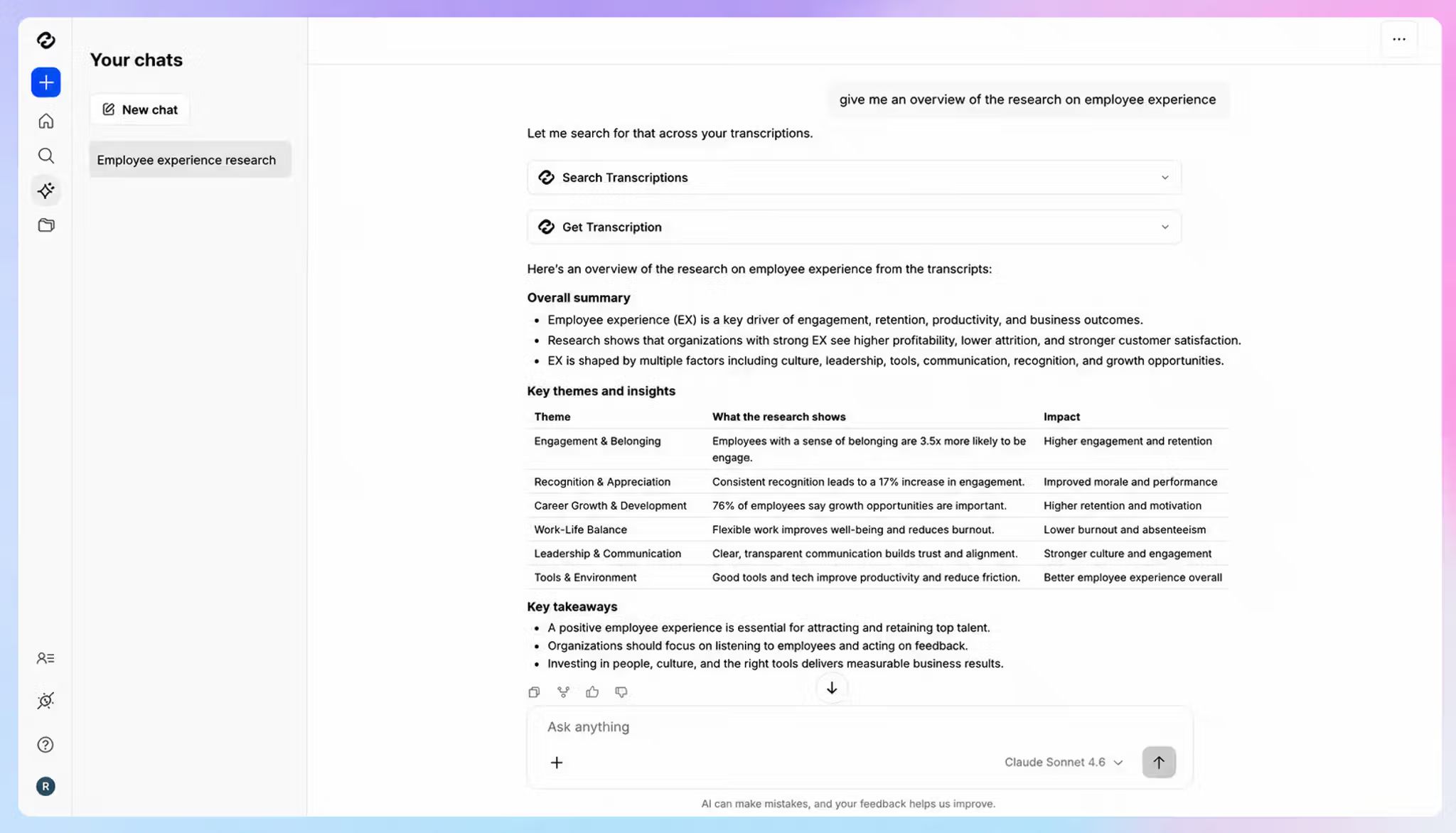
This is the part where you supercharge your exam prep. By week ten, you have thirty recordings across four courses in one workspace, and you’re not about to open 30 tabs to read the transcripts.
HappyScribe’s AI Chat lets you ask questions across all of your lectures at once. In a way, AI Chat becomes your study helper.
You can ask things like:
- "Summarize how the professor explained oxidative phosphorylation"
- "Which topics came up in more than three lectures this semester?"
- "Create twenty practice questions from the lectures on constitutional interpretation"
- "What did the professor say would be on the final?"
Use this to study, not to produce work you'll submit. Your academic integrity policy covers lecture recordings the same way it covers any other source, so use it to practice questions and explanations.
📚 Also read:
Can you record lectures with HappyScribe for free?
Yes, and the app is free to download on any plan. Read the recording cap against your timetable before you commit to the free tier, though.
- Free: Unlimited lecture recordings at up to 45 minutes each, speaker detection, exports in DOCX, TXT, and SRT, plus a 10-minute trial of file transcription and three AI Chat uses a month
- Basic: $8.50/month billed annually or $17/month billed monthly, with recordings up to 90 minutes and 120 minutes of file uploads and subtitling
- Pro: $19/month billed annually or $29/month billed monthly, with no cap on recording length and unlimited AI Chat
- Business: $59/month billed annually or $89/month billed monthly, adding unlimited glossaries and style guides
A 60-minute class already runs past the free tier's 45-minute cap, and a three-hour evening seminar isn't close. If most of your classes are an hour or longer, Basic or Pro is the realistic starting point.
Paid plans also include a monthly pool of transcription minutes, so check the pricing page against how many lecture hours you record each week.
Apple’s Voice Memos vs. HappyScribe for college lectures
| Feature | Apple’s Voice Memos and Notes | HappyScribe iPhone app |
|---|---|---|
| Supported languages | 10 languages | 150+ languages and dialects |
| Language auto-detection | ❌ | ✅ |
| Speaker labels | ❌ | ✅ Timestamped, editable on web |
| Search across lectures | ❌ One recording at a time | ✅ Your whole workspace |
| Course terminology | ❌ | ✅ Custom glossaries |
| AI Chat across classes | ❌ | ✅ |
| Transcript editor | ❌ Copy and paste only | ✅ Full editor on web |
| Export formats | ❌ | ✅ DOCX, PDF, TXT, SRT, HTML, etc. |
| Lecture translation | ❌ | ✅ Translate lecture transcripts in 80+ languages |
| Human proofreading | ❌ | ✅99+ accuracy available via web |
| iPhone required | iPhone 12 or later on iOS 18 | iOS 16 or later |
| Storage location | Phone storage | Cloud upload without using phone storage |
| Price | Free | Free plan, paid plans for longer lectures |
Which method should you use?
Use iPhone Voice Memos or Notes if recording is a safety net. You attend every class, your notes are already decent, and you record so you can check a definition you half-wrote down. It's free, and for one class in one language, it does the job.
Use the HappyScribe iPhone app if the recordings are something you need to work with. That covers technical courses, lectures in a language you're still learning, discussion-heavy seminars, and any semester where you'd need to study from months of lectures.
Whichever you pick, ask your professor before the first class you record.
FAQs on how to record college lectures on iPhone
Can I record a lecture on my iPhone?
Yes. Every iPhone has the Voice Memos app built in, so students can record classroom lectures without installing anything. Press record, and it captures lecture audio straight away. Since iOS 18, Voice Memos and Notes also add real-time transcription in 10 languages on iPhone 12 or later.
Check your college's policy first, because most schools require your professor's permission before students record lectures. Once you have it, place the recording device close to the lecturer and keep the microphone clear of notebooks or bags, since obstructive objects are the fastest way to ruin audio quality
What is the best app to record college lectures?
The best lecture recording app depends on what you do after class. For basic recording and re-listening, the Voice Memos app works as a free voice recorder, stores uncompressed audio, and needs one tap recording to get going.
For lecture notes you can actually study from, the HappyScribe app on the Apple App Store records in-person classes and returns searchable transcripts with speaker labels across 150+ languages. Transcription accuracy runs around 95%, and you can send a transcript for human proofreading to reach 99% when a guest lecture matters more than usual. International students get automatic language detection that Apple's apps don't offer.
Can I record a conversation on my iPhone and get a transcript?
Yes. Voice Memos gives you a transcript through the three-dot menu, though it won't tell you who said what, which makes class discussion hard to follow.
A transcription app handles this better. HappyScribe applies automatic transcription with timestamped speaker labels, so a seminar or a study group reads as a conversation rather than one block of text. Tap any line to jump to that exact moment in the audio, and export in multiple formats when you want the text in your own notes
Is there a free way to record lectures and turn them into notes?
Voice Memos is free and unlimited, so it covers long recordings for a whole semester with only your phone's storage as the limit. Turn on iCloud backup so lecture audio survives a lost or replaced phone.
For study-ready notes rather than raw text, HappyScribe's free plan records classes up to 45 minutes each and produces searchable notes you can open on a laptop. Most lectures run longer than that, so regular use across multiple lectures points to a paid plan.

Biplab Mazumder
Biplab is a content marketer and writer who helps high-growth brands scale content visibility across AI search channels. His works have been published in HubSpot, Freshworks, Atlassian, SurferSEO, etc. When he's not planning content strategy, he's testing AI content workflows and use cases.