Key Takeaways ⏩
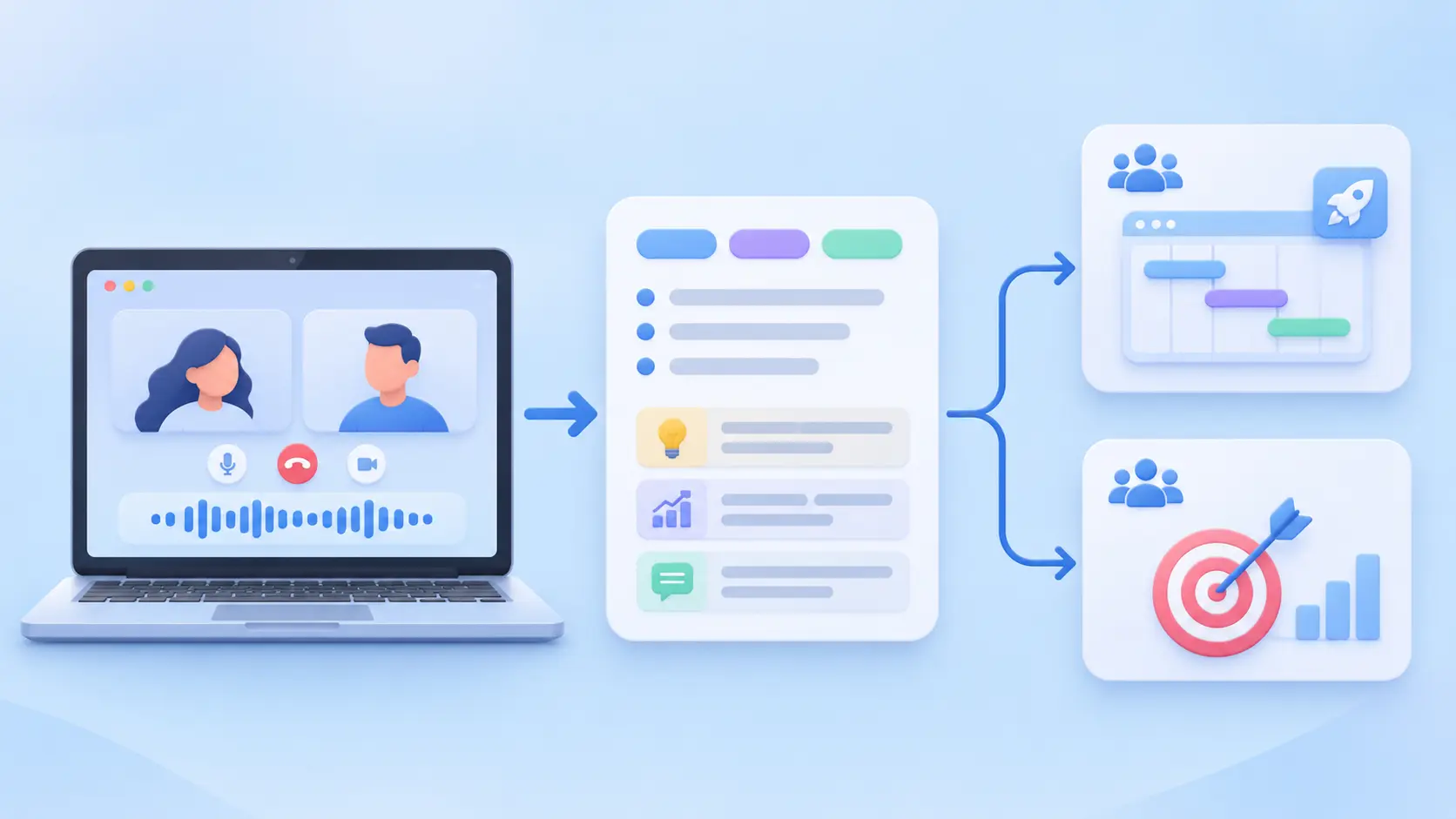
- Most of the post-meeting time is wasted on connecting tasks, recaps, and summaries to people and tools
- Capture every meeting, including unscheduled calls, with HappyScribe’s calendar bot or its web recorder and mobile app
- Set a summary template for each meeting type so internal recaps go to the right people on their own
- Before any task goes out, verify it against its timestamp in AI Chat
- AI Chat drafts client follow-ups from the meeting itself, in your client’s language if needed
- Claude connectors, ChatGPT plugins, and Zapier can connect your meeting tasks to Asana, Slack, Jira, or Linear
You don't need a research paper to tell you that post-meeting admin is a time sink. You probably experience it every week.
On some days, you’re in and out of meetings from 9 to 5. You still have to write (or check) the recap and chase every action item into the tracker. Most of that work waits until the end of the day, and by then half the details are gone.
AI meeting notes can take most of the post-meeting tasks off your plate. But they only do it if you set them up the right way. A summary can’t file a task or answer last month’s “what did Michael say about the Stamford acquisition?”
This guide walks you through six steps with HappyScribe’s AI meeting notetaker so you spend less time on tedious admin work. Read on to simplify meetings and get your afternoons back.
What counts as post-meeting admin
Post-meeting admin isn’t one task. It’s a handful of small (and annoying) jobs that pile up after every call:
- Sending recaps to the attendees, the compliance team, and anyone who missed the call
- Fact-checking action items, so each one has the right owner and a date
- Writing follow-up emails to clients or messages to the team
- Updating trackers like Asana, Jira, Linear, or your CRM
- Finding answers months later, when someone asks what you decided
By the end of the article, you’ll see how the right AI setup can take on each job. If your team needs formal AI meeting minutes rather than a quick recap, the same steps apply with a stricter format.
Step 1: Capture every meeting, including the unscheduled ones
If a meeting wasn’t captured, someone has to rebuild it from memory. That’s the slowest admin there is.
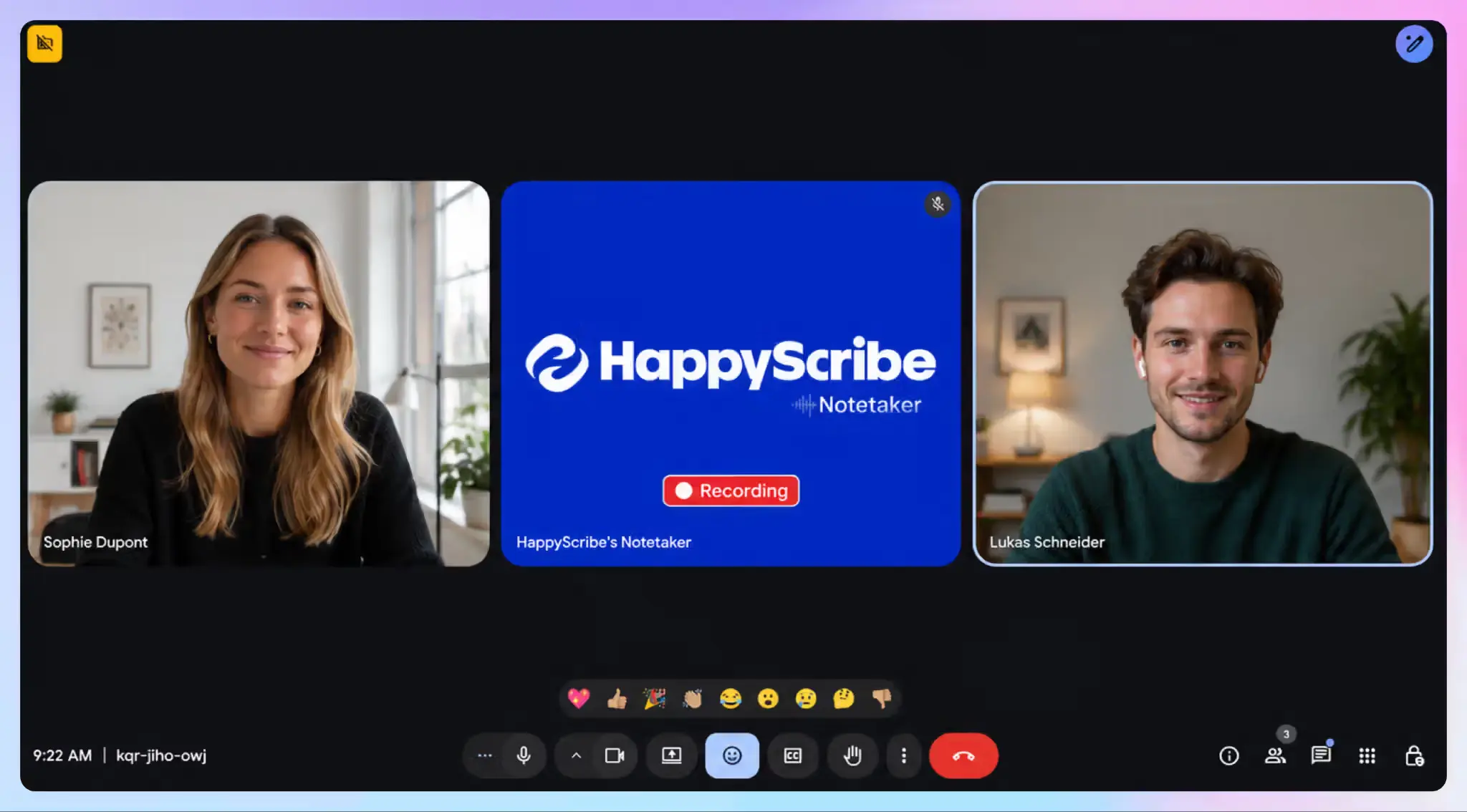
Start with your calendar. Go to HappyScribe and connect Google or Outlook calendar. The HappyScribe notetaker then joins your Zoom, Google Meet, and Microsoft Teams calls automatically, up to 3 minutes before they start. You can also paste a meeting link if you’d rather not share your calendar.
Scheduled calls are only part of your week, though. Microsoft’s infinite workday research found that 57% of meetings are ad hoc calls with no calendar invite. A scheduled note-taking bot can’t detect those.
For quick calls without an invite, open HappyScribe in your browser and click Record audio to record without a bot. For hallway chats and client lunches, the HappyScribe mobile app for iOS and Android is useful and it syncs to the same library.
Step 2: Set a summary template for each meeting type
A generic summary creates its own admin. You end up rewriting the standup recap into a blocker list and the client recap into an email.
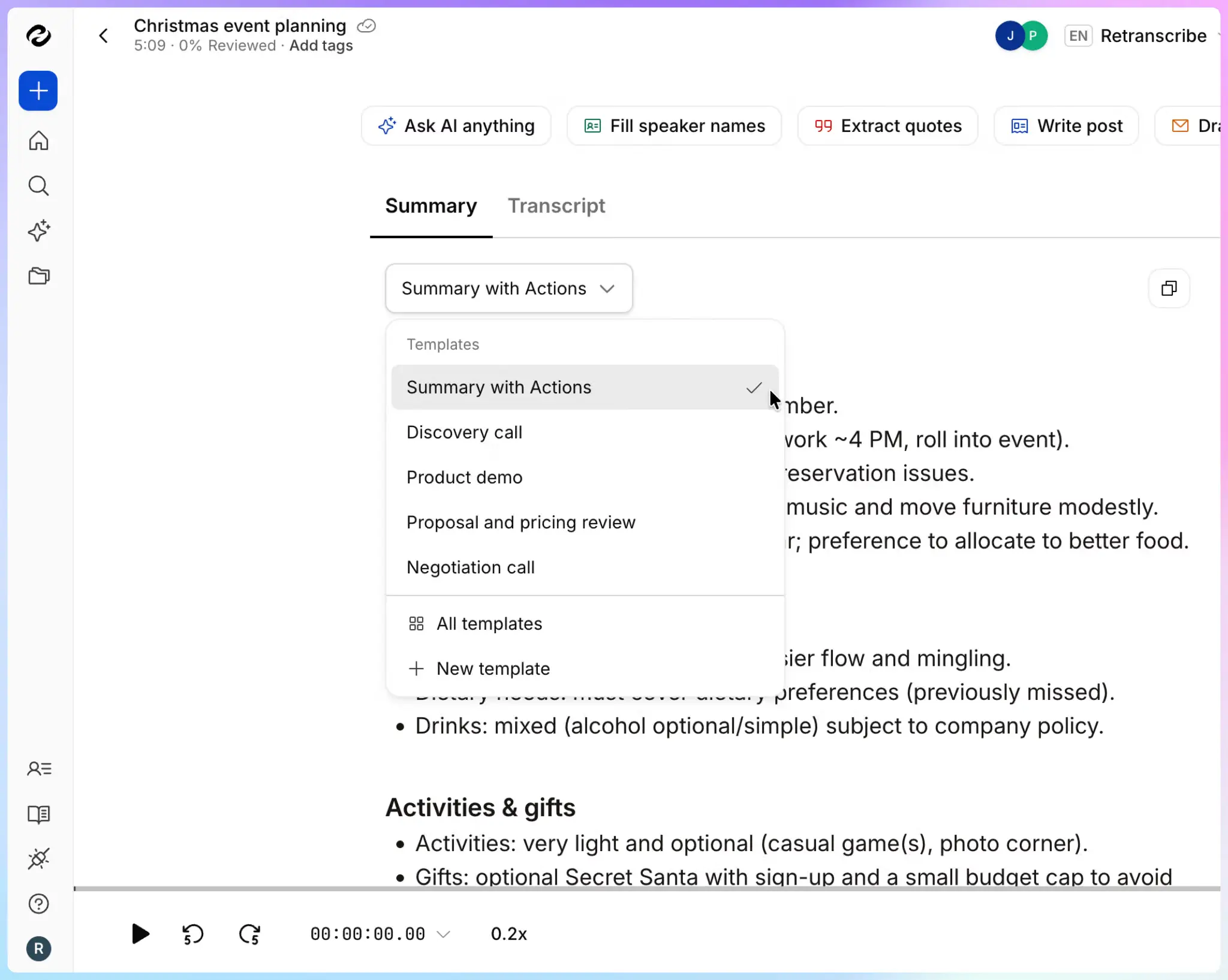
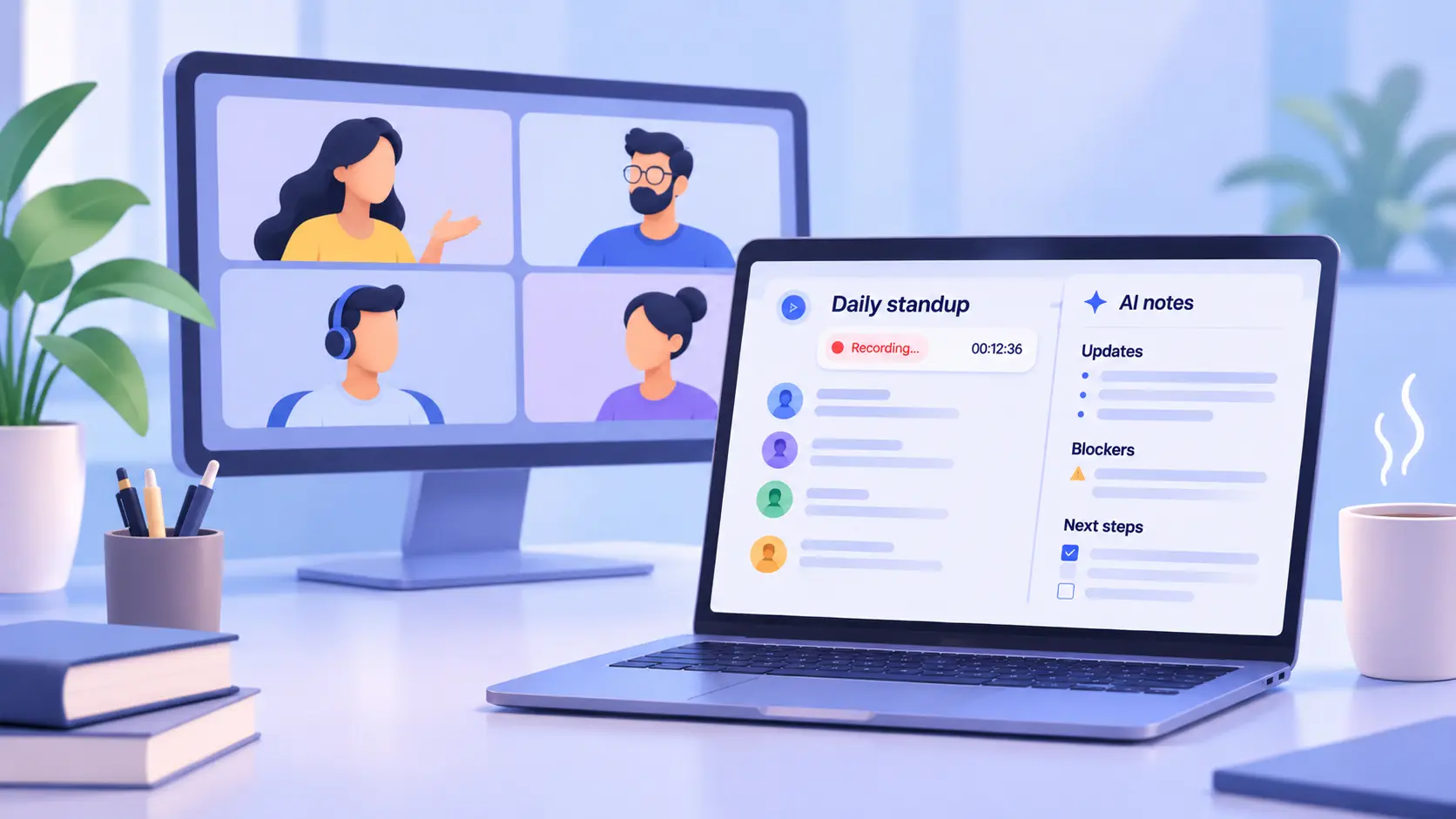
Templates fix this. You can use pre-made templates in the Summary tab or create your own in Settings > Summary templates. Set the one you use most as your team default.
Here are two I use:
- Blockers, with the person who raised each one
- Decisions made during the call
- Who’s doing what before the next standup
- What we agreed
- What we owe the client, with dates
- What the client owes us
- The next check-in date
One more setting saves you time later. Add your product names, client names, and acronyms to a glossary. When the transcript spells them right, the summary does too.
Step 3: Check action items against the recording before they go out
This is the step most teams skip. But it’s also the one that saves the most cleanup.
HappyScribe pulls meeting items from the transcript and ties each one to the speaker who committed to it. Phrases like “by Friday” become actual dates. Tasks without a deadline get flagged as well.
Having said that, AI still gets ownership wrong sometimes. Someone says, “I can look into it” as a maybe, and the summary turns it into a firm task. Or two people talk over each other, and the owner flips.
So before any task leaves the meeting transcript, open the file and ask AI anything. For example:
List every commitment made in this call. Include who made it, the due date, and the timestamp.
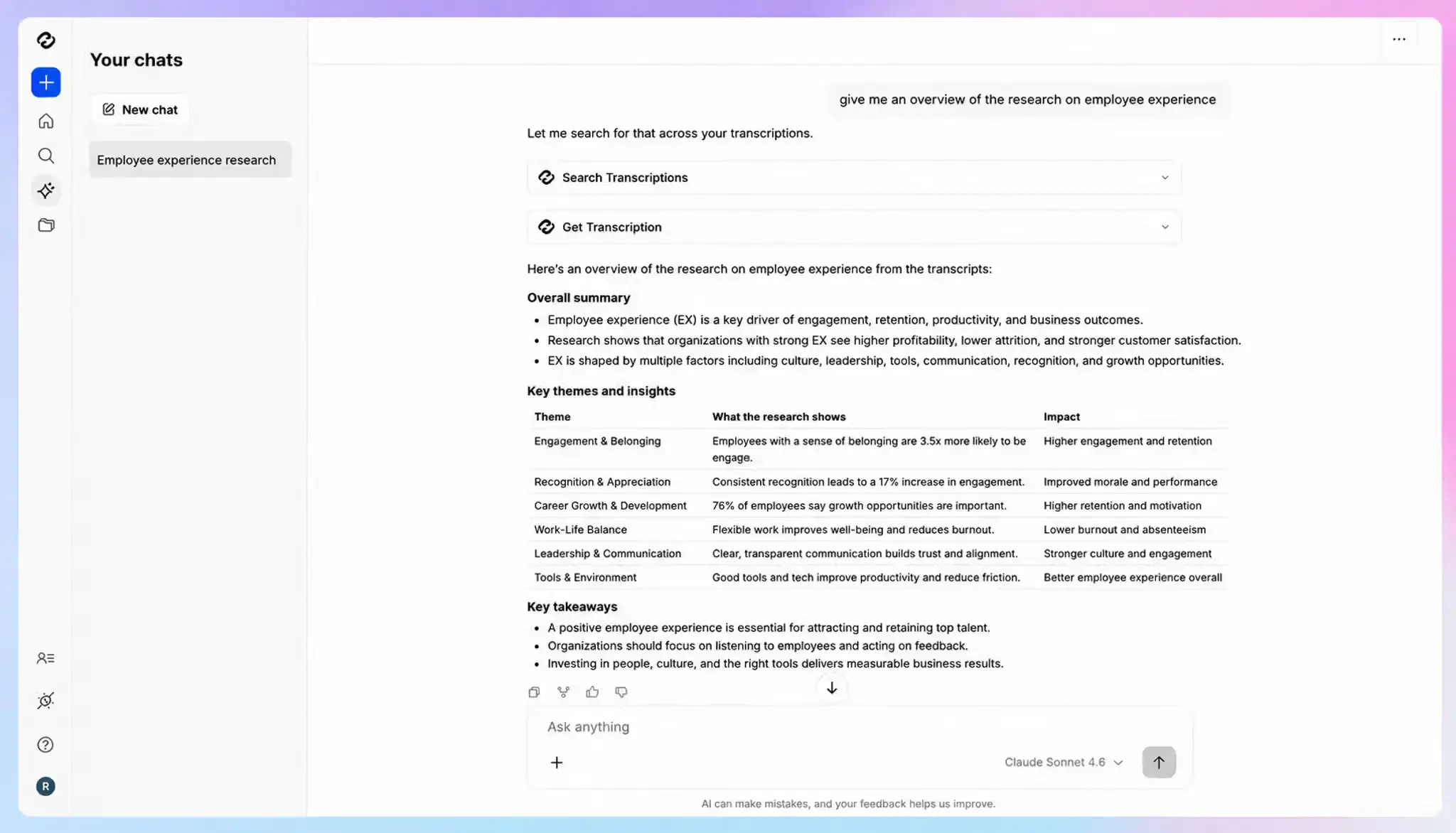
HappyScribe’s AI Chat cites every answer back to the transcript. If a timestamp looks off, click it and listen to that moment yourself. It takes a few seconds per item.
Use one rule for anything that fails the check. If a task has no clear owner or no date, send it back to the group as a question. Don’t put it in the tracker as a guess.
Step 4: Send the recap without writing it
Not every recap goes to the same people or needs the same care. Here’s how to handle the most popular types of meeting recaps:
Internal meetings
You don’t need to write anything for these. In HappyScribe’s settings, choose who gets the notes automatically: everyone on the invite or only your team. They get the meeting summary by email a few minutes after the call ends.
Client calls
Client recaps deserve more care. Open AI Chat in the transcript editor and ask for a draft:
Draft a follow-up email to the client. Cover what we agreed, what we owe them, and the next step. Keep it under 150 words. Don’t add anything that wasn’t discussed.
The last line does the most work. Read the draft once and fix the tone before you send it.
Sales calls raise the stakes further. Our guide on how to turn discovery calls into sales follow-ups with Claude covers that workflow in depth.
Multilingual calls
These used to mean a second round of admin. Now you can run a call in Spanish and ask for the recap in English. If your client prefers their own language, translate the summary before you send it. HappyScribe transcribes in 150+ languages and translates into 80+.
Step 5: Move tasks into the tools your team works in
A task in a summary is just a line of text, but once it’s in Asana or Linear, someone owns it and acts on it. Copying it across by hand is tedious, and it’s the admin you’re trying to cut.
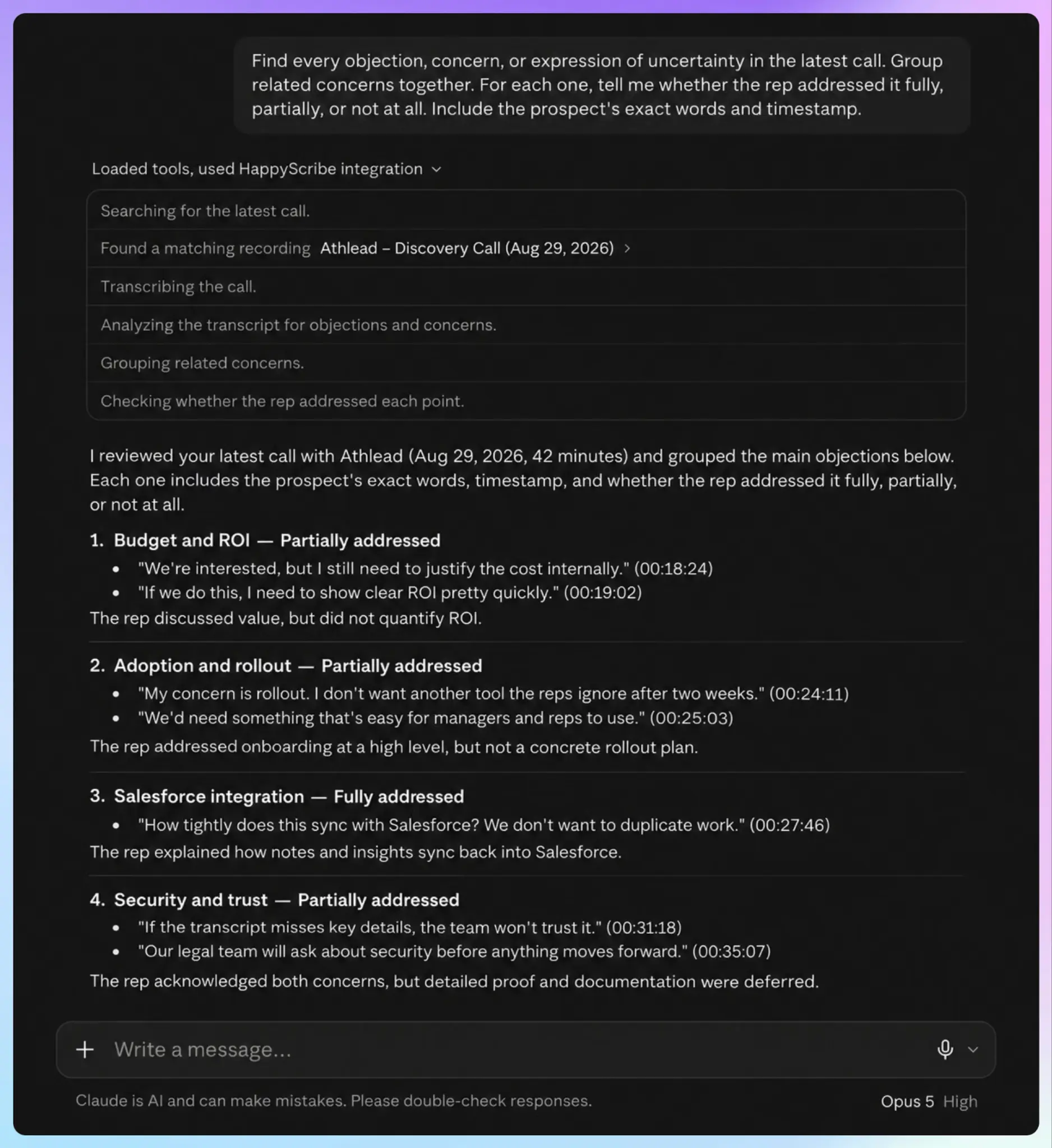
The fastest route runs through an AI assistant. Connect HappyScribe to Claude or ChatGPT. Then connect Claude or ChatGPT to your task tool through its own connector. Now one prompt does the filing:
Pull the action items from today’s product sync in HappyScribe. Create one Linear issue per item, assigned to its owner, with the due date.
The assistant reads the meeting and writes the tasks, and you review them before they go live.
If you’d rather not switch to an assistant at all, the HappyScribe Zapier integration does a similar job after a transcription is complete. Use it to send new transcripts to Slack or save them to Notion or Google Drive.
HappyScribe doesn’t sync to CRMs natively yet. For CRM notes, go through Claude connectors, ChatGPT plugins, or Zapier.
Step 6: Answer “what did we decide?” without another meeting
The last piece of admin shows up weeks later. Someone asks what Michael said about the Stamford acquisition, and nobody has a concrete answer.
Atlassian’s State of Teams 2025 report found that teams spend 25% of their time searching for answers. You can save hours by asking questions directly to a meeting archive.
Keep each recurring meeting in its own folder. Open the folder, click Chat, and ask across every call inside it:
Which action items from the last four syncs are still open?
For questions that span teams, open Chat from the sidebar to search your whole workspace. This is what makes async communication work. People who skipped the call can find the decision without booking a catch-up.
The same method works beyond team meetings. You can use it to build a customer research repository from months of interviews.
What you shouldn’t automate
AI should draft your admin. It shouldn’t make the final call on it.
Keep a human in the loop for:
- Anything a client will read, including recaps and follow-up emails
- Tasks where the room didn’t agree on an owner
- Calls with confidential, legal, or HR content
For sensitive calls, check consent rules first. Our guide on whether it’s legal to record a client meeting covers what to ask before you press record. It’s also worth knowing how secure your AI meeting note taker is before meeting data flows into other tools.
Get your afternoons back
Post-meeting admin won’t disappear completely. But most of it is copying and chasing, which AI handles well when your notes are accurate. Here’s how you reduce meeting work with HappyScribe:
| Admin job | What HappyScribe does |
|---|---|
| Sending recaps | Captures every call and auto-sends a summary built on your template to the people you choose |
| Fact-checking action items | Pulls tasks with owners and dates, flags missing deadlines, and lets you check each one against its timestamp |
| Writing follow-ups | Drafts each email in AI Chat from the meeting itself, in your client’s language if needed |
| Updating trackers | Files tasks in Asana, Jira, or Linear through Claude or ChatGPT, and sends transcripts to Notion or Slack through Zapier |
| Finding answers months later | Answers questions across past meetings and files with timestamps in AI Chat |
HappyScribe captures every call in 150+ languages and with over 95% accuracy. Every AI Chat answer points to the exact moment in the recording, so you can check a task before it reaches anyone’s to-do list.
Your meeting data stays secured in the EU, backed by GDPR, SOC 2 Type II, and a policy of not training AI on your content without your consent.
FAQs on how to reduce post-meeting admin
How to reduce post-meeting admin to save time?
Use an AI note taker that captures every call, then automate one admin job at a time. Set summary templates based on meeting and attendee types. Check action items against the recording before AI drafts follow-ups or files tasks. HappyScribe handles each step from one transcript, with timestamps you can verify.
What’s the best AI note taker for large teams?
HappyScribe is one of the best AI note takers for large teams because it pairs accurate transcripts with admin controls and strong security. The Enterprise plan offers SSO, role-based permissions, SOC 2 Type II certification, and clear data residency, plus 150+ languages for global teams.
How to reduce workload after meetings?
Agree on owners and deadlines before the call ends, so fewer tasks need chasing later. Let AI write the summary and draft the follow-up instead of typing them yourself. Keep your meetings in a searchable archive, so old questions don’t need a catch-up call. If a meeting is only a status update, share async notes instead.
Do AI meeting notes work for meetings that aren’t on my calendar?
Yes, if your note taker can record without a calendar invite. Calendar bots only join scheduled calls. HappyScribe’s browser recorder captures impromptu online calls, and its iOS and Android apps record in-person meetings. Both sync to the same library, so every recording gets a summary and AI Chat.

Biplab Mazumder
Biplab is a content marketer and writer who helps high-growth brands scale content visibility across AI search channels. His works have been published in HubSpot, Freshworks, Atlassian, SurferSEO, etc. When he's not planning content strategy, he's testing AI content workflows and use cases.